
In the rapidly evolving landscape of Over-The-Top (OTT) media services, YouTube TV has emerged as a titan of live television streaming. By leveraging Google’s robust cloud infrastructure, it provides users with an expansive array of cable channels without the traditional hardware requirements of satellite or cable boxes. However, the fluidity of the modern digital economy means that users frequently rotate through services based on content availability, pricing adjustments, or shifting technical needs. Whether you are transitioning to a different streaming stack or simply streamlining your digital overhead, understanding the technical nuances of canceling a YouTube TV subscription is essential.
This guide provides an exhaustive walkthrough of the cancellation process across various platforms, addresses the technical hurdles of third-party billing, and explores the data implications of terminating your service within the Google ecosystem.
1. The Technical Workflow: Step-by-Step Cancellation Procedures
The process of canceling a YouTube TV subscription varies significantly depending on the device and the gateway used for the initial sign-up. Because YouTube TV integrates deeply with Google’s account management systems, the “how” depends on your hardware and operating system.
Canceling via Web Browser (The Universal Method)
The most reliable method for managing any Google-based subscription is through a desktop web browser. This interface provides the most granular control over account settings and avoids the limitations often found in mobile applications.
- Authentication: Navigate to
tv.youtube.comand ensure you are signed into the Primary Account Holder’s Google profile. - Accessing Settings: Click on your profile avatar in the upper right-hand corner and select “Settings.”
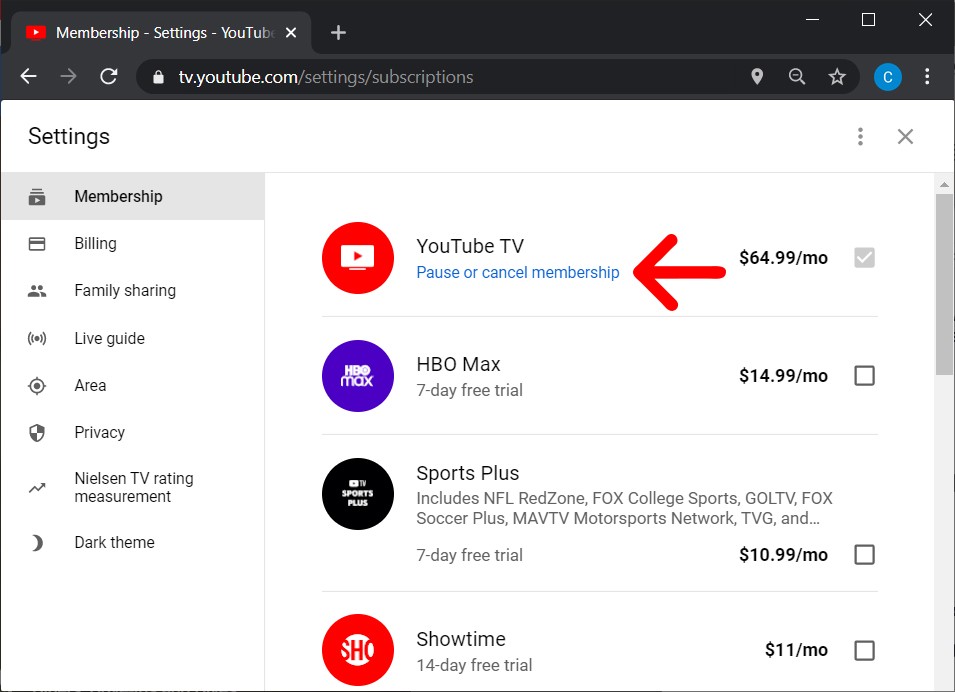
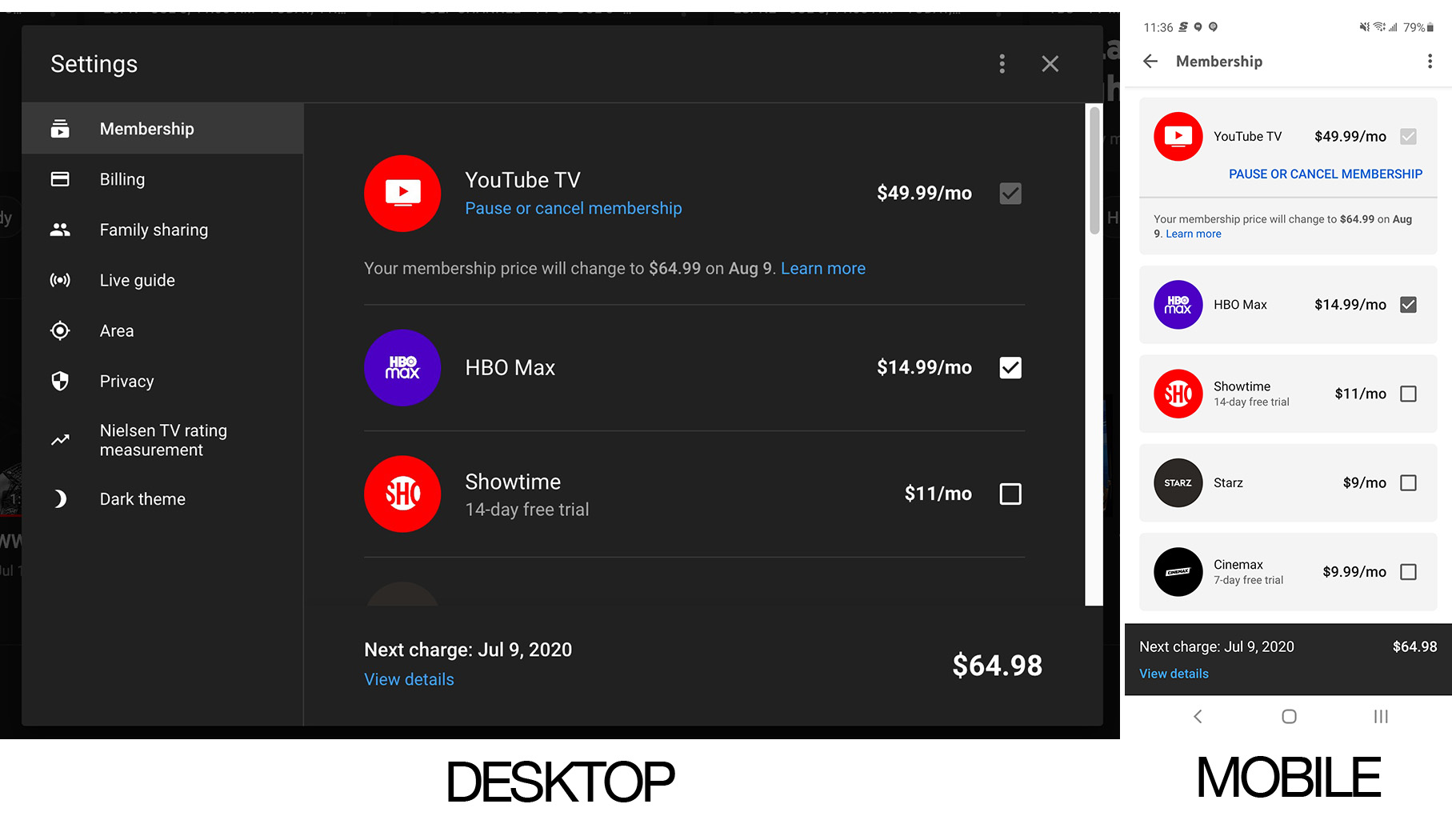
- Membership Management: Under the “Membership” tab, you will see your current base plan and any active add-ons (such as 4K Plus or Sports Plus).
- The Deactivation Trigger: Click “Manage” next to your base plan. Here, Google will offer two options: “Pause Membership” or “Cancel Membership.”
- Confirmation Logic: If you select “Cancel,” you will be prompted to provide a reason. This data is used by Google’s UX research teams to analyze churn patterns. Complete the prompts until you receive a confirmation email.
Managing Subscriptions on Android and iOS
Mobile ecosystems introduce specific technical layers, particularly regarding how payments are processed.
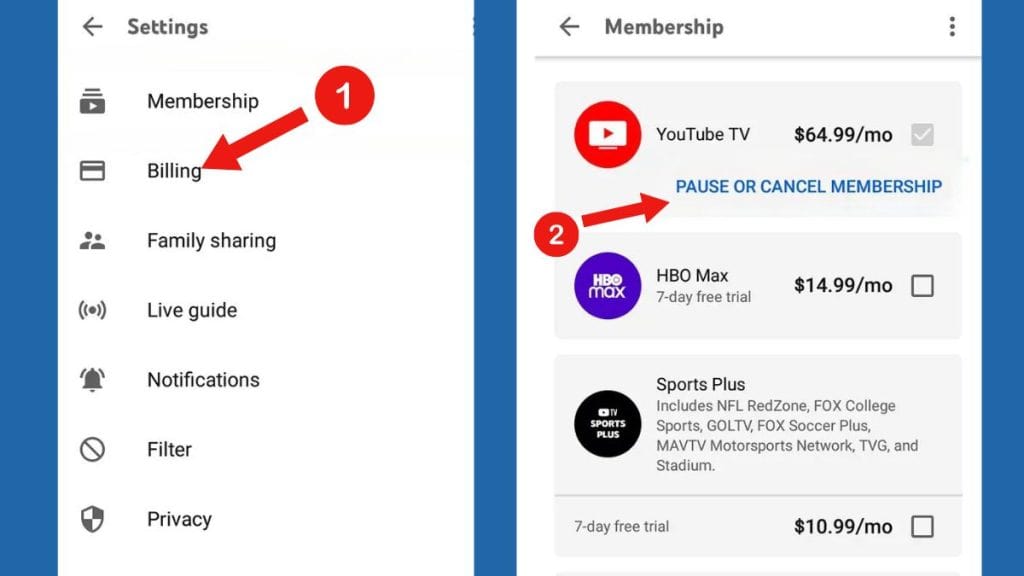
- Android: Since Android is a Google-owned operating system, the YouTube TV app typically redirects you to the Google Play Store’s subscription management interface. You can navigate to the Play Store, tap your profile, select “Payments & subscriptions,” and manage your YouTube TV membership directly from there.
- iOS (The Apple Ecosystem): If you signed up for YouTube TV through the iOS app using Apple’s In-App Purchase system, your billing is handled by Apple, not Google. To cancel, you must go to your iPhone’s “Settings,” tap your Name/Apple ID, and select “Subscriptions.” Failing to do this—and attempting to cancel through the YouTube TV website—may result in technical errors or continued billing.
The “Pause” Functionality: A Technical Alternative
One of YouTube TV’s unique technical features is the ability to “Pause” a membership for a duration of 4 weeks up to 6 months. When you pause, you retain your library of recordings (Cloud DVR), and your settings are preserved. The service automatically resumes at the end of the selected period. This is an excellent technical solution for users who only subscribe for specific sports seasons.
2. Navigating the Complexities of Third-Party Billing and Multi-User Access
The modern tech stack is rarely isolated. Many users access YouTube TV through bundled packages provided by Internet Service Providers (ISPs) or mobile carriers. This creates a technical “middleman” scenario that complicates the cancellation process.
Integrated Billing with ISPs
Companies like Frontier, Verizon, and T-Mobile frequently offer YouTube TV as a value-added service. In these instances, the “Cancel” button within the YouTube TV interface may be greyed out or missing entirely.
Technically, the “entitlement” for the service is controlled by the ISP’s API. To terminate the service, you must log in to your ISP’s customer portal (e.g., My Verizon) and remove the YouTube TV “Add-on.” Once the ISP sends the termination signal to Google, your access will be revoked at the end of the current billing cycle.
Family Group Permissions and Technical Ownership
YouTube TV allows for “Family Sharing,” where up to six accounts can share a single subscription. However, from a technical administrative standpoint, only the “Family Manager” (the person who pays the bill) has the authority to cancel the service.
If you are a family member and wish to leave the group, you can do so in the “Family Sharing” settings, but this will not stop the monthly billing for the manager. If the manager cancels the service, all sub-accounts lose access simultaneously. It is critical to communicate this across the group, as recordings and personalized recommendations for all members will be impacted.
The Pro-Rated Billing Myth
In the world of SaaS (Software as a Service) and streaming, it is a common technical misconception that canceling mid-month results in a pro-rated refund. YouTube TV does not offer pro-rated refunds for the remaining days of a billing cycle. Instead, the technical “de-provisioning” of your account happens on the final day of your current cycle. You will maintain full access to all channels and the Cloud DVR until that date.
3. Data Retention and the Impact on Cloud DVR Infrastructure
When you cancel a service, what happens to your data? In the context of YouTube TV, “data” refers to your library of recorded shows, your watch history, and your personalized algorithm.
The 21-Day Grace Period for Recordings
YouTube TV’s primary technical advantage is its unlimited Cloud DVR. When you cancel your subscription, Google does not immediately purge your library. There is a technical grace period of 21 days after your access expires. If you decide to restart your subscription within this window, your recordings and watch history will be intact.
However, once the 21-day threshold is crossed, the metadata associated with your recordings is flagged for deletion from Google’s servers. While your Google Account remains active, the specific “instance” of your YouTube TV library is permanently wiped to free up server capacity.
Metadata and Recommendation Engines
Your viewing habits on YouTube TV inform the broader Google recommendation engine. Even after cancellation, the technical logs of what you watched remain part of your Google Account’s “Web & App Activity” unless you manually delete them. This is why, if you return to the service months later, you might still see recommendations based on your previous usage, even if your DVR library has been emptied.
Revoking Permissions and API Access
For the security-conscious user, canceling the subscription is only the first step. It is a best practice to visit your Google Account security settings and check “Third-party apps with account access.” If you have linked your YouTube TV account to third-party tracking apps (like Reelgood or JustWatch), you should manually revoke those permissions to ensure no residual data syncing occurs post-cancellation.
4. Evaluating the Post-YouTube TV Tech Landscape
Once the cancellation is complete, many users find themselves looking for a replacement that fits a different technical or budgetary requirement. The streaming market is currently bifurcated into Live TV (vMVPDs) and On-Demand (SVOD) services.
Technical Alternatives: Comparing the Stacks
- Hulu + Live TV: The primary competitor. Its technical advantage is the deep integration with the Disney+ and ESPN+ libraries. However, its UI is often criticized for being less intuitive than YouTube TV’s.
- FuboTV: A tech-heavy platform focused on sports. It offers unique features like “Multiview” on Apple TV, allowing users to watch four streams at once—a feature YouTube TV only recently began to replicate with its “Must-Watch” views.
- Sling TV: A “lite” version of live TV. Technically, it uses a much smaller bandwidth footprint, making it ideal for users with data caps or slower internet connections.
The Rise of FAST Channels
For those canceling YouTube TV to save money, the technical rise of FAST (Free Ad-supported Streaming Television) platforms like Pluto TV, Tubi, and Samsung TV Plus is worth noting. These services utilize similar streaming protocols but remove the paywall in exchange for unskippable ad breaks. Transitioning to a FAST-only setup requires no subscription management, as there is no “account” tied to a credit card.
Conclusion: Mastering Your Digital Footprint
Canceling YouTube TV is more than just clicking a button; it is a management task within your broader digital ecosystem. By understanding the platform-specific workflows, the implications of third-party billing, and the technical lifecycle of your Cloud DVR data, you can navigate the transition with professional precision.
In an era where “subscription fatigue” is a genuine technical and financial hurdle, the ability to fluidly move between services—without leaving behind orphaned accounts or unnecessary charges—is a vital digital skill. Whether you are pausing for a season or leaving the Google TV ecosystem for good, following these technical steps ensures that your transition is clean, secure, and fully under your control.
aViewFromTheCave is a participant in the Amazon Services LLC Associates Program, an affiliate advertising program designed to provide a means for sites to earn advertising fees by advertising and linking to Amazon.com. Amazon, the Amazon logo, AmazonSupply, and the AmazonSupply logo are trademarks of Amazon.com, Inc. or its affiliates. As an Amazon Associate we earn affiliate commissions from qualifying purchases.