
The digital landscape has undergone a seismic shift in how media is consumed, moving away from traditional coaxial cables and satellite dishes toward robust, cloud-based architectures. At the forefront of this evolution is YouTube TV, Google’s premium over-the-top (OTT) streaming service. Unlike the standard YouTube platform, which hosts user-generated content, YouTube TV is a sophisticated live television ecosystem designed to replace legacy cable providers. Accessing this service requires a synergy of compatible hardware, stable network infrastructure, and a nuanced understanding of digital account management.
To access YouTube TV effectively, one must navigate a multi-layered process involving device authentication, geographic verification, and software optimization. This guide explores the technical prerequisites and the step-by-step methodologies required to integrate this streaming giant into your digital life.
Understanding the YouTube TV Infrastructure
Before diving into the hardware requirements, it is essential to understand the underlying framework of YouTube TV. Unlike traditional cable, which relies on a dedicated physical line, YouTube TV operates as a high-bandwidth data stream delivered over the public internet. This architecture necessitates a specific set of digital credentials and environmental conditions.
Account Requirements and Geographic Constraints
The primary key to accessing YouTube TV is a Google Account. Because the service is integrated into the broader Google ecosystem, your subscription is tied directly to your digital identity. However, access is not universal. YouTube TV is currently restricted to the United States, and its channel availability is determined by your “Home Area.”
When you first access the service, the system uses IP-based geolocation and GPS data from your mobile device to establish your local market. This is critical for accessing local affiliates (ABC, NBC, CBS, FOX). To maintain access, the system requires a “check-in” from your home network periodically, ensuring that the service complies with regional broadcasting rights and licensing agreements.
The App-Based Architecture
Accessing YouTube TV does not require a proprietary set-top box. Instead, it utilizes an “app-centric” model. This means the service exists as a software application that can be installed across various operating systems, including Android TV, tvOS, Fire OS, and Roku OS. This flexibility allows users to transition seamlessly from a living room television to a smartphone without losing their place in a live broadcast or their recorded library.
Hardware Compatibility: Where to Watch YouTube TV
The versatility of YouTube TV is one of its greatest technical strengths. The service is engineered to run on a wide array of silicon, from low-power streaming sticks to high-performance gaming consoles.
Smart TVs and Dedicated Streaming Media Players
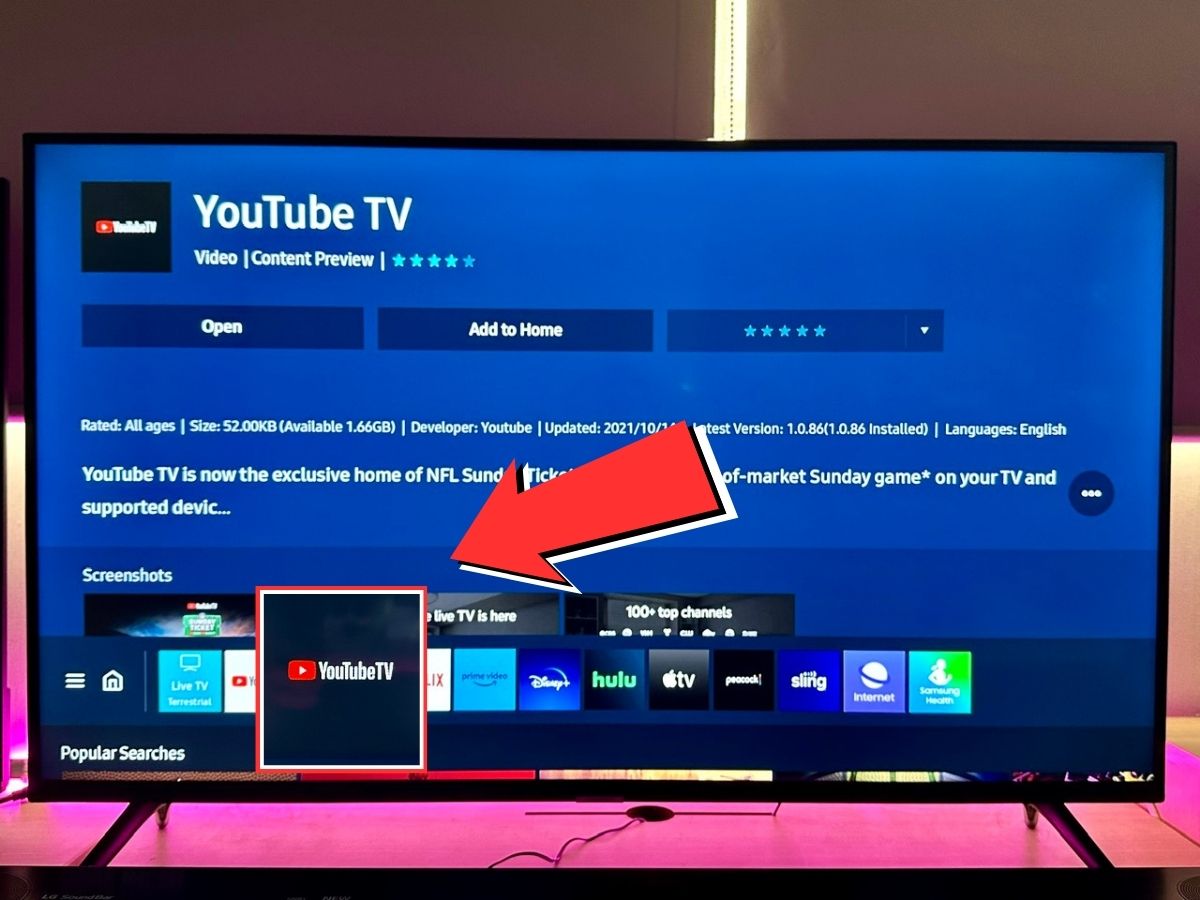
For most users, the primary point of access is the television. Most modern Smart TVs manufactured after 2016 come with native support for the YouTube TV app. This includes displays running Samsung’s Tizen OS, LG’s webOS, and Vizio’s SmartCast.
If your television’s internal processor is sluggish or no longer receives software updates, dedicated streaming media players (SMPs) offer a superior experience. Devices such as the Chromecast with Google TV, Roku Ultra, Amazon Fire TV Stick 4K, and the Apple TV 4K provide the necessary computational power to handle high-bitrate 60fps (frames per second) video streams. These devices connect via HDMI and provide a dedicated interface optimized for remote control navigation.
Mobile Devices and Tablets
Accessing YouTube TV on the go requires the dedicated app available on the iOS App Store and Google Play Store. The mobile experience is unique because it serves as the “location anchor” for the entire account. Because smartphones possess GPS hardware, Google uses the mobile app to verify your physical location, which then unlocks access on “lean-back” devices like Smart TVs that may lack precise positioning sensors.
Gaming Consoles and Web Browsers
For those who prefer a desktop or gaming-centric setup, YouTube TV is accessible via the PlayStation 5, PlayStation 4, Xbox Series X/S, and Xbox One. Furthermore, the service can be accessed directly through a web browser at tv.youtube.com. For the best performance on a PC or Mac, Google Chrome or Microsoft Edge are recommended, as they offer the best support for the Widevine DRM (Digital Rights Management) protocols required to stream copyrighted content in high definition.
The Step-by-Step Setup Process

Accessing the service for the first time involves a sequence of synchronization steps to ensure your hardware and account are properly aligned.
Initial Configuration and Verification
-
Subscription Activation: Visit the YouTube TV website on a computer or mobile device. Sign in with your Google Account and initiate the subscription. Note that billing is handled via Google Pay.
-
App Installation: On your chosen hardware (e.g., a Roku or Fire Stick), search for “YouTube TV” in the app store. Download and launch the application.
-
Device Linking: Upon launching the app on a TV, you will typically be presented with an activation code. You must then go to a URL (usually tv.youtube.com/start) on your phone or computer, enter the code, and confirm the link. This bypasses the need to type complex passwords using a TV remote.
-
Area Verification: The TV will prompt you to verify your area. This is done by opening the YouTube TV app on your smartphone while connected to the same Wi-Fi network. The phone’s GPS confirms your location, and the TV app refreshes to show your local channel lineup.
Customizing Your Channel Lineup
Once access is granted, the “Live” guide is the nerve center of the experience. Unlike cable, where the channel order is fixed, YouTube TV allows you to reorganize the grid via the mobile app or web browser. By navigating to “Settings” and then “Live Guide,” you can hide channels you never watch and move your favorites to the top, creating a personalized UI that persists across all devices.
Advanced Features and Optimization
Simply logging in is only the beginning. To truly access the potential of the platform, users should leverage the advanced features built into the cloud-based software.
Mastering the Cloud DVR
The most significant technological advantage of YouTube TV is its unlimited Cloud DVR. Traditional DVRs rely on physical hard drives with limited capacity. YouTube TV records content to Google’s servers, allowing for infinite simultaneous recordings. To access this, you simply “Add to Library” any show, movie, or sports team. The service will then automatically record every airing of that content, storing it for up to nine months.
Family Sharing and Multi-Stream Management
A single YouTube TV subscription allows for up to six individual profiles. Each profile gets its own personalized recommendations and private DVR library. Accessing this feature requires the account holder to set up a “Google Family Group.” Each member uses their own Google login, ensuring that one person’s viewing habits do not interfere with another’s.
Standard accounts allow for three concurrent streams. If you require more, the “4K Plus” add-on enables unlimited concurrent streams on your home Wi-Fi network, a vital feature for large households with multiple active screens.
Troubleshooting Common Connectivity and Access Issues
Even with a high-end setup, technical friction can occur. Accessing YouTube TV smoothly requires maintaining a healthy network environment and up-to-date software.
Bandwidth Requirements for 4K and HD
YouTube TV uses adaptive bitrate streaming, meaning the quality fluctuates based on your internet speed. For a stable 1080p high-definition experience, a consistent download speed of at least 13 Mbps is recommended. For those accessing 4K content through the add-on, speeds should exceed 25 Mbps.
To optimize access, it is often better to connect stationary devices, like Smart TVs or consoles, via an Ethernet cable rather than Wi-Fi. This reduces latency and eliminates the interference common in the 2.4GHz and 5GHz wireless bands.
Resolving Location Authentication Errors
One of the most frequent barriers to access is the “Outside of Home Area” error. This usually happens if you travel or if your ISP assigns you a dynamic IP address that appears to be from a different region. To resolve this, navigate to the “Location” settings within the YouTube TV app on your mobile device and select “Update” next to “Current Playback Area.” This re-syncs the system’s understanding of your physical location and restores access to local programming.
Furthermore, if you are using a Virtual Private Network (VPN), YouTube TV may block access entirely. The service’s licensing agreements require strict adherence to geographic boundaries, and VPNs are often flagged as attempts to bypass these restrictions. Disabling the VPN is usually necessary to regain access to the stream.

App Cache and Firmware Updates
If the app becomes unresponsive or fails to load, the issue is often a corrupted local cache. On Android-based devices, you can go to the system settings to “Clear Cache” for the YouTube TV app. On other devices, deleting and reinstalling the app is the most efficient way to ensure you are running the latest version of the software, which often contains critical security patches and performance optimizations.
Through a combination of strategic hardware selection, precise account configuration, and proactive network management, accessing YouTube TV becomes a seamless gateway to the future of television. By moving the heavy lifting of processing and storage to the cloud, the service offers a level of accessibility and personalization that traditional media delivery systems simply cannot match.
aViewFromTheCave is a participant in the Amazon Services LLC Associates Program, an affiliate advertising program designed to provide a means for sites to earn advertising fees by advertising and linking to Amazon.com. Amazon, the Amazon logo, AmazonSupply, and the AmazonSupply logo are trademarks of Amazon.com, Inc. or its affiliates. As an Amazon Associate we earn affiliate commissions from qualifying purchases.