
Watching movies and TV shows through Amazon’s streaming service, often still colloquially referred to as “Amazon Instant Video” by long-time users, is a straightforward process made accessible across a wide array of devices. While the service has evolved and is now predominantly known as Amazon Prime Video, its core function remains to provide a vast library of content for viewing. Understanding the platform’s current nomenclature, compatible devices, and interface navigation is key to unlocking its full potential.
Understanding Amazon Prime Video: Beyond “Instant Video”
The journey of Amazon’s video streaming service began with “Amazon Unbox” in 2006, later transitioning to “Amazon Instant Video,” which offered rentals and purchases. The significant shift occurred with the integration into the Amazon Prime subscription, rebranding the service to “Prime Video.” This evolution not only expanded the content library but fundamentally changed how users accessed and perceived Amazon’s video offerings.
The Evolution of Amazon’s Streaming Service
Initially, Amazon Instant Video operated much like a digital video store, allowing users to buy or rent individual titles. The introduction of Amazon Prime in 2005, primarily known for its expedited shipping, saw the gradual inclusion of streaming video as a bundled benefit. This strategic move transformed the service from a transactional platform to a subscription-based model for a significant portion of its content. Today, “Prime Video” refers to the streaming service accessible through an Amazon Prime membership, which includes thousands of movies and TV shows at no additional cost beyond the Prime subscription fee. However, the platform also continues to offer a comprehensive selection of new release movies and popular TV seasons available for digital rental or purchase, irrespective of a Prime membership, thus catering to both subscribers and casual viewers. This dual model ensures a broad content offering, from exclusive Amazon Originals to mainstream blockbusters.
Core Features and Content Library
Prime Video’s library is extensive, encompassing a diverse range of genres, from Hollywood blockbusters and independent films to critically acclaimed TV series and documentaries. A significant draw is the ever-growing collection of “Amazon Originals,” which are exclusive series and movies produced or co-produced by Amazon Studios. These often include high-budget productions and award-winning titles that cannot be found on other streaming platforms. Beyond the core Prime-included content, users can also subscribe to “Prime Video Channels,” which are add-on subscriptions to third-party streaming services like HBO, Showtime, or Starz, all managed within the Prime Video app. This consolidation simplifies subscription management and centralizes content discovery. Additionally, the platform supports 4K Ultra HD and HDR streaming for compatible devices and content, offering a superior visual experience, alongside offline downloads for mobile viewing.
Essential Devices for Accessing Prime Video
Amazon has made Prime Video exceptionally versatile, ensuring compatibility across a broad spectrum of internet-connected devices. The choice of device often comes down to personal preference, convenience, and the desired viewing experience, whether it’s on a large screen in the living room or a portable device on the go.
Smart TVs and Streaming Sticks
For a traditional home theater experience, Smart TVs with built-in Prime Video apps are a popular choice. Most major TV brands, including Samsung, LG, Sony, and Vizio, ship with the Prime Video app pre-installed or available for download from their respective app stores. The setup typically involves signing in with your Amazon account. For non-smart TVs or those with older interfaces, streaming sticks and boxes offer an excellent upgrade path. Amazon’s own Fire TV Stick and Fire TV Cube are optimized for Prime Video, providing seamless integration and voice control via Alexa. Other popular streaming devices like Roku, Apple TV, and Google Chromecast also fully support the Prime Video app, allowing users to easily stream content to their televisions. These devices connect via HDMI and use your home Wi-Fi network to access the internet.
Computers and Mobile Devices
Watching Prime Video on a computer offers flexibility, whether through a web browser or a dedicated desktop app. Users can simply visit the Amazon Prime Video website (primevideo.com) and log in with their Amazon credentials. The web interface provides full functionality, including content browsing, playback, and account management. For mobile viewing, the Prime Video app is available for both iOS (iPhone, iPad) and Android smartphones and tablets. These apps are highly optimized for mobile screens, offering features such as offline downloads, allowing users to save movies and shows to their device for viewing without an internet connection – perfect for travel. The mobile apps also support casting functionality, enabling users to send content from their phone to a larger screen device like a Smart TV or a Chromecast.
Gaming Consoles and Other Platforms
Prime Video extends its reach to popular gaming consoles, turning them into comprehensive entertainment hubs. PlayStation consoles (PS4, PS5) and Xbox consoles (Xbox One, Xbox Series X/S) all feature a Prime Video app available for download from their respective digital storefronts. This integration allows gamers to seamlessly switch from playing their favorite titles to enjoying movies and TV shows using the same hardware. Additionally, certain set-top boxes from cable providers and some Blu-ray players also support the Prime Video app, providing even more avenues for access. The widespread availability across these varied platforms underscores Amazon’s commitment to making its video content accessible to virtually anyone with an internet connection and a compatible device.
Navigating the Prime Video Interface and Content
Once you’ve launched the Prime Video app or website, the interface is designed for intuitive navigation, helping you discover and manage your viewing preferences. Understanding the layout and various content categories is crucial for an efficient and enjoyable experience.
Finding Movies: Search, Categories, and Recommendations
The Prime Video interface is typically organized with a prominent search bar or icon, allowing you to directly look for specific titles, actors, or directors. Below this, you’ll find various categories and carousels displaying curated content. These often include “Included with Prime,” “Amazon Originals,” “New Releases,” and genre-specific collections like “Action & Adventure,” “Comedy,” “Drama,” and “Documentaries.” Scrolling through these sections helps you discover new content or browse familiar genres. Prime Video also leverages sophisticated algorithms to provide personalized recommendations based on your viewing history and ratings, making it easier to find movies you might enjoy. Look for sections like “Recommended for You” or “Because You Watched…” to explore tailored suggestions.
Understanding Free vs. Paid Content
A key distinction on Prime Video is differentiating between content included with your Prime membership and titles that require an additional purchase or rental. Titles “Included with Prime” will typically be clearly marked with a “Prime” banner or badge. These are available to stream at no extra cost as part of your subscription. Content available for rental or purchase will show a price next-up to the title. When you select such a title, you’ll be presented with options to “Buy” or “Rent,” often with different quality options (e.g., SD, HD, UHD) at varying price points. Prime Video Channels, as mentioned earlier, also represent an additional cost, requiring a separate subscription through Amazon to access their content. The interface clearly distinguishes these options, preventing accidental purchases.
Managing Your Watchlist and Downloads
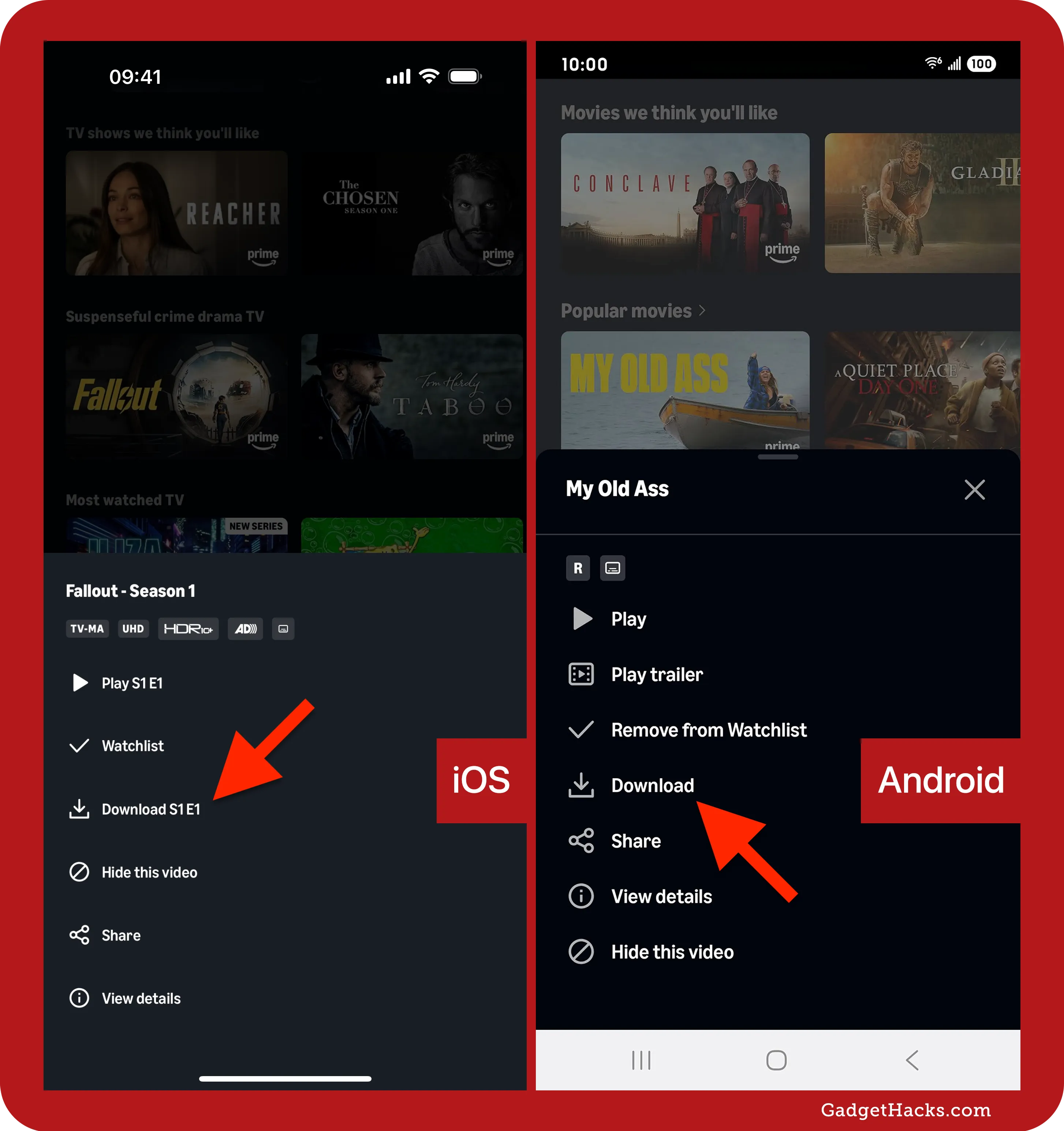
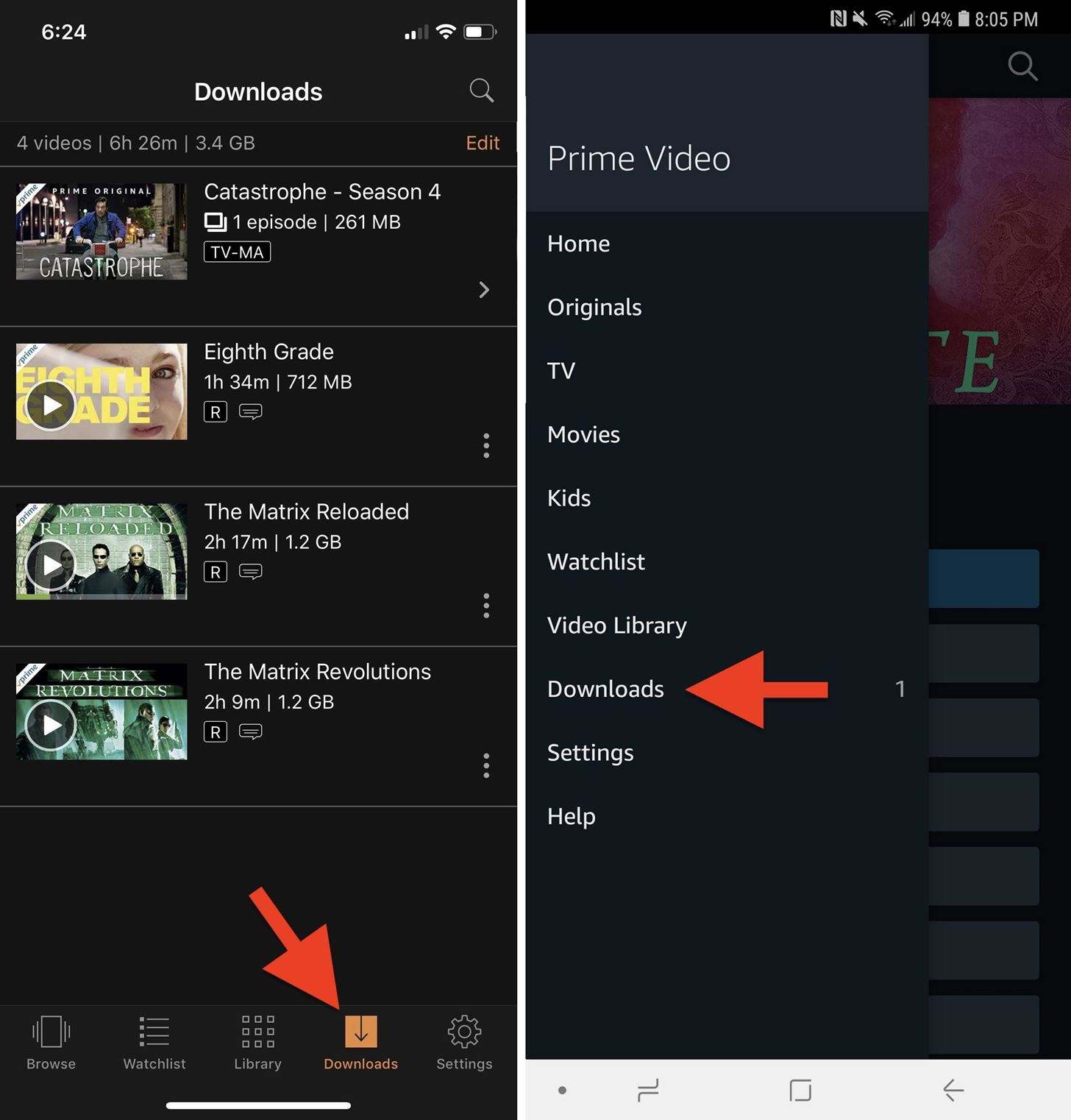
To keep track of movies and shows you intend to watch later, Prime Video offers a “Watchlist” feature. Simply select a title and look for an option to “Add to Watchlist” (or “My List” on some interfaces). This creates a personalized queue of content that you can access from any device, making it easy to pick up where you left off or remember titles you want to explore. For mobile users, the “Downloads” feature is invaluable. Many titles included with Prime can be downloaded to your device for offline viewing. To do this, locate the title, and look for a “Download” button or icon. Once downloaded, these titles can be accessed from the “Downloads” section of your app, allowing you to watch without an internet connection, which is ideal for flights, commutes, or areas with limited Wi-Fi.
Optimizing Your Viewing Experience
Beyond simply accessing content, several settings and considerations can significantly enhance your Prime Video viewing experience, ensuring smooth playback and tailored content delivery.
Internet Connectivity Requirements
A stable and sufficiently fast internet connection is paramount for streaming high-quality video. For standard definition (SD), a minimum of 1-2 Mbps is generally sufficient. For high definition (HD), 3-5 Mbps is recommended. To stream in 4K Ultra HD, Amazon recommends a minimum broadband connection speed of 15 Mbps, with 25 Mbps being ideal for the best experience, especially if other devices are using the network simultaneously. A wired Ethernet connection often provides the most stable connection, but a strong Wi-Fi signal in close proximity to your router can also deliver excellent results. If you experience buffering or quality degradation, check your internet speed and consider reducing the number of active devices on your network.
Adjusting Playback Settings and Quality
Prime Video apps and the web player often provide options to adjust playback quality. While the service typically auto-detects and delivers the best quality your connection can handle, you might manually select a lower resolution (e.g., HD instead of UHD) if you’re on a limited data plan or experiencing consistent buffering. These settings are usually found within the player controls during playback or in the app’s general settings menu. Additionally, you can customize subtitle and audio track options for most titles. Look for a speech bubble or settings icon during playback to change language, subtitle appearance, or toggle descriptive audio. For those with compatible sound systems, Prime Video also supports surround sound formats like Dolby Digital.
Parental Controls and User Profiles
Prime Video offers robust parental control features, allowing parents to restrict content based on age ratings. These controls can be set up via the Amazon website under your account settings, or directly within the Prime Video app on certain devices. You can create a PIN that must be entered to purchase or rent titles, or to watch content above a specified age rating. This ensures children only access appropriate material. For families with multiple viewers, creating individual “user profiles” within Prime Video (available on some devices) can personalize the experience for each member. Each profile maintains its own watchlist, viewing history, and recommendations, preventing one person’s viewing habits from skewing another’s suggestions. This separation also helps manage parental controls more effectively for different age groups within a household.
Troubleshooting Common Playback Issues
While Prime Video is generally reliable, occasional technical glitches can disrupt your viewing. Knowing how to address common issues can save time and frustration, getting you back to your movie quickly.
Connection Problems
If you encounter buffering, error messages related to network connectivity, or content that won’t load, the first step is to verify your internet connection. Ensure your Wi-Fi router is working correctly and that other internet-dependent apps or websites are functioning. Try restarting your modem and router by unplugging them for 30 seconds and then plugging them back in. If you’re using a Wi-Fi connection, try moving closer to your router or reducing interference from other devices. For devices connected via Ethernet, ensure the cable is securely plugged in. Sometimes, simply closing and reopening the Prime Video app or refreshing the browser page can resolve minor connection hiccups.
App or Device Glitches
Problems such as the app freezing, crashing, or refusing to play content despite a stable internet connection often point to a device or app-specific issue. Begin by restarting the Prime Video app or the browser. If that doesn’t work, try restarting the device itself (e.g., power cycling your Smart TV, restarting your computer, or rebooting your phone). Ensure your Prime Video app is up to date, as older versions can sometimes cause compatibility issues; check your device’s app store for available updates. For persistent problems, clearing the app’s cache (found in your device’s application settings) can resolve corrupted data. As a last resort, uninstalling and reinstalling the Prime Video app might fix deeply rooted software conflicts.

Content Availability and Licensing
Occasionally, a movie you expect to watch might not be available, or a title you previously purchased might disappear from your library. Content availability on Prime Video, especially for titles “Included with Prime,” is subject to licensing agreements, which can expire or change. This means titles can be added or removed from the Prime-included library periodically. If a title you own (purchased, not rented) is missing, first verify you are signed into the correct Amazon account. If the issue persists, contact Amazon Customer Service, as there might be a billing or technical issue with your purchase. Also, note that some content may have regional restrictions, meaning it’s available in one country but not another due to licensing. If you are using a VPN, it might interfere with region detection and prevent access to content.
aViewFromTheCave is a participant in the Amazon Services LLC Associates Program, an affiliate advertising program designed to provide a means for sites to earn advertising fees by advertising and linking to Amazon.com. Amazon, the Amazon logo, AmazonSupply, and the AmazonSupply logo are trademarks of Amazon.com, Inc. or its affiliates. As an Amazon Associate we earn affiliate commissions from qualifying purchases.