
iCloud has become an indispensable service for millions of Apple users worldwide, seamlessly integrating across iPhones, iPads, Macs, and even Windows PCs. It’s more than just a storage locker; it’s the connective tissue that keeps your digital life synchronized, secure, and accessible from virtually anywhere. From cherished family photos and critical work documents to app data and device backups, iCloud houses a significant portion of your digital footprint. However, with this convenience comes the crucial need to understand exactly what’s stored there. Knowing how to view and manage your iCloud content is not just about freeing up space; it’s about maintaining data privacy, ensuring productivity, and safeguarding your digital security. This comprehensive guide will walk you through every method to see what’s stored in your iCloud, empowering you to take full control of your cloud-based data.

Understanding iCloud and Its Core Services
Before diving into the “how-to,” it’s essential to grasp what iCloud truly is and why actively monitoring its contents is paramount in today’s digital landscape.
What is iCloud?
At its heart, iCloud is Apple’s suite of cloud services that provides a vast array of functionalities beyond simple file storage. It acts as a central hub for your Apple devices, enabling data synchronization, backup, and sharing. When you enable iCloud for various apps and services, your data is uploaded to Apple’s secure servers, making it accessible across all your logged-in devices. This includes iCloud Drive for documents and files, iCloud Photos for your entire photo and video library, iCloud Mail, Contacts, Calendars, Notes, Reminders, and even vital device backups. The beauty of iCloud lies in its ability to keep everything up-to-date across your ecosystem, so a change made on your iPhone instantly reflects on your Mac, and vice-versa.
Why Monitor Your iCloud Storage?
Monitoring your iCloud storage is far more than a casual check-up; it’s a critical aspect of digital hygiene that touches upon productivity, security, and financial considerations.
Firstly, storage limits are a primary concern. Apple provides 5GB of free iCloud storage, which, for many users, is quickly exhausted. Once full, your devices stop backing up, new photos might not sync, and app data might not save, disrupting your workflow and potentially leading to data loss if a device fails. Proactive management ensures you stay within your limits or upgrade only when truly necessary.
Secondly, performance and productivity are directly impacted. A cluttered iCloud can mean slower syncing, longer backup times, and a general feeling of disorganization. By regularly reviewing and decluttering your stored data, you enhance the efficiency of your devices and streamline your digital life, leading to better productivity.
Thirdly, and perhaps most importantly, digital security and privacy demand regular oversight. Knowing what data is stored in iCloud allows you to understand your digital footprint. This awareness is crucial for identifying sensitive information that might be stored inadvertently, reviewing access permissions, and ensuring that no unwanted or outdated data remains in the cloud. In an era where data breaches are common, understanding your cloud storage is a fundamental step in safeguarding your personal and professional information.
Finally, managing your storage can have financial implications. While 5GB is free, exceeding it means paying for a subscription plan. By optimizing your usage, you might avoid unnecessary monthly fees or ensure you’re only paying for the storage you genuinely need, aligning with smart personal finance practices.
Accessing Your iCloud Data Across Apple Devices
Apple has designed iCloud to be accessible and manageable from virtually any of your devices, offering tailored experiences for each platform.
On iPhone, iPad, and iPod Touch
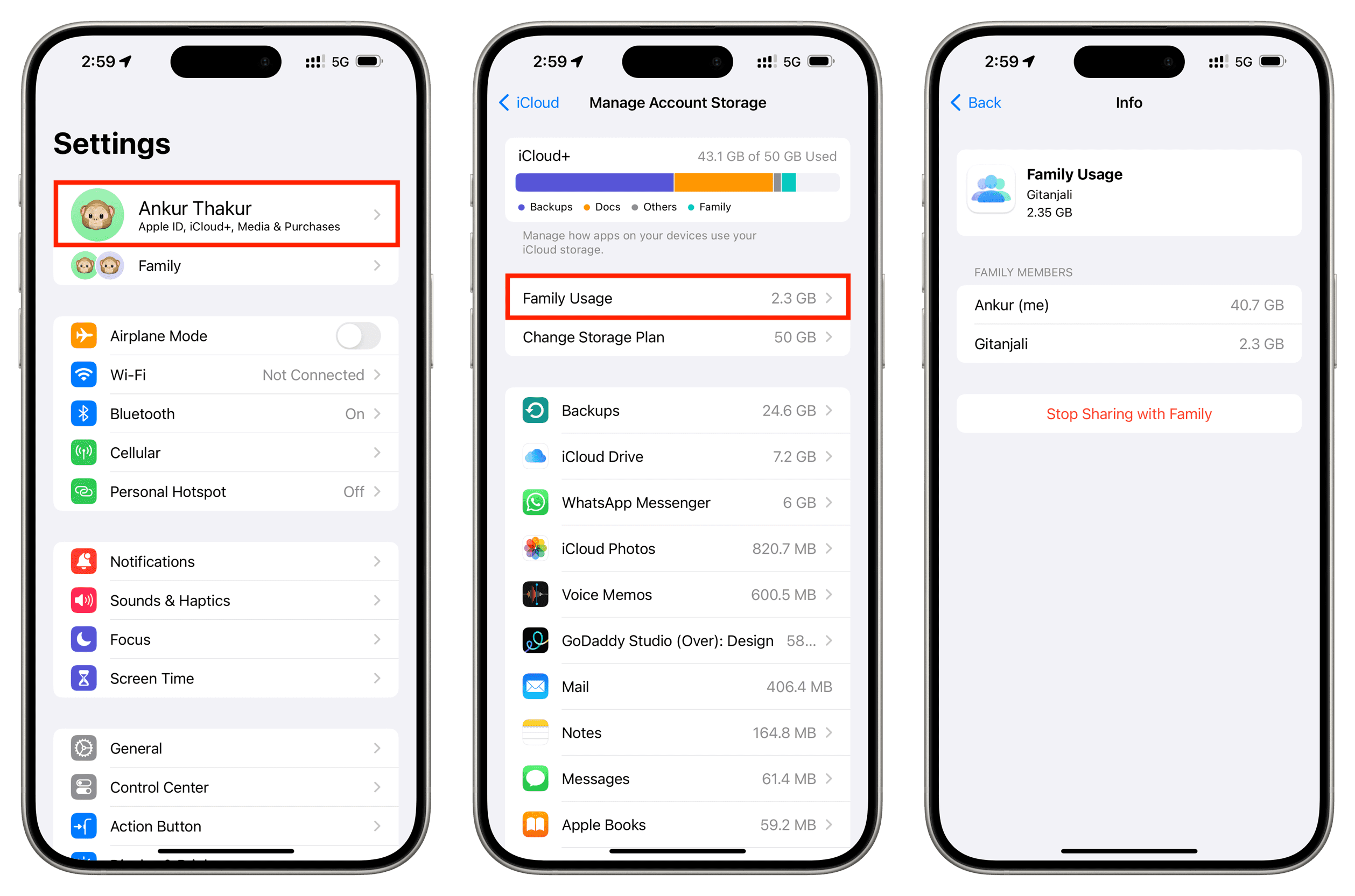
The most common way to check your iCloud storage is directly from your iOS or iPadOS device. This method provides a clear breakdown of how your storage is being used and offers immediate options for management.
- Open Settings: Tap the “Settings” app icon on your Home screen.
- Tap Your Apple ID: At the very top of the Settings menu, tap your name/Apple ID banner.
- Select iCloud: From your Apple ID menu, tap “iCloud.”
- View Storage Usage: At the top of the iCloud screen, you’ll see a bar graph indicating your storage usage and the total available. Below this, tap “Manage Account Storage” (or “Manage Storage” on older iOS versions).
- Explore Categories: Here, you’ll see a detailed list of categories consuming your iCloud space:
- Photos: Your iCloud Photo Library. You can tap this to disable syncing or delete photos from iCloud.
- Backups: A list of all your device backups stored in iCloud. You can tap on individual backups to delete them, especially if you have old backups from devices you no longer own.
- Messages: If Messages in iCloud is enabled, this section shows how much space your message attachments are using.
- Mail: Your iCloud Mail messages and attachments.
- Documents: Data from various apps that store documents in iCloud Drive.
- Other Apps: A list of all other applications storing data in iCloud. Tapping on an app will often give you the option to “Delete Data…” for that specific app.
- Manage and Delete: Within each category, you’ll find options to manage or delete data. For instance, in “Photos,” you might adjust optimization settings. In “Backups,” you can delete entire device backups. For individual apps, you can remove their stored data if it’s no longer needed.
On Mac
Accessing your iCloud data on a Mac is equally straightforward, providing a familiar interface for managing your cloud content.
- Open System Settings (macOS Ventura and later) or System Preferences (older macOS): Click the Apple menu in the top-left corner of your screen and select “System Settings” or “System Preferences.”
- Click Your Apple ID: In System Settings, click your name/Apple ID in the sidebar. In System Preferences, click “Apple ID.”
- Select iCloud: In the Apple ID section, click “iCloud” in the sidebar.
- View Storage Usage: Similar to iOS, you’ll see a visual representation of your iCloud storage. Click the “Manage” button next to the storage bar.
- Explore Categories: A new window will appear, presenting a detailed breakdown of your iCloud storage usage by category: Photos, Mail, iCloud Drive, Backups, Messages, and App Data.
- Manage and Delete: Select any category to view more details and options. For example, selecting “iCloud Drive” allows you to browse specific files and folders or delete documents. Under “Photos,” you can adjust settings or delete items. Under “Backups,” you can delete old device backups. Individual apps will also list their data, allowing you to delete it if desired.
On Windows PC (iCloud for Windows)
Apple extends iCloud functionality to Windows users through the “iCloud for Windows” application, bridging the gap between Apple’s ecosystem and the PC environment.
- Download and Install iCloud for Windows: If you haven’t already, download and install “iCloud for Windows” from the Microsoft Store.
- Sign In: Launch the application and sign in with your Apple ID.
- Select Services: Choose which iCloud services you want to sync with your PC (e.g., iCloud Photos, iCloud Drive, Passwords, Contacts, Calendars).
- Access iCloud Drive and Photos: Once configured, iCloud Drive will appear as a folder in File Explorer, much like OneDrive or Google Drive. You can browse, open, and manage files directly from here. iCloud Photos will also create a folder for syncing your photo library.
- Check Storage: While “iCloud for Windows” doesn’t offer the same granular breakdown of storage usage as Apple devices, you can monitor your overall storage from within the application interface. It will show a summary of your usage, and clicking “Manage” will typically launch iCloud.com in your browser for detailed management.
Via iCloud.com (Web Interface)
iCloud.com offers a universal, browser-based gateway to much of your iCloud data, making it invaluable for quick access, managing content from non-Apple devices, or when you simply prefer a web interface.
- Open Your Browser: Go to www.iCloud.com.
- Sign In: Enter your Apple ID and password. You may need to enter a two-factor authentication code.
- Explore Services: Once logged in, you’ll see a dashboard with icons for various iCloud services:
- Photos: View, download, delete, and organize your iCloud Photo Library.
- iCloud Drive: Browse, upload, download, and delete files and folders stored in iCloud Drive. You can also organize your documents here.
- Mail: Access your iCloud email inbox.
- Contacts, Calendar, Notes, Reminders, Find My: Manage these core productivity apps.
- Pages, Numbers, Keynote: Access and edit your documents, spreadsheets, and presentations directly in the browser.
- Account Settings: Click your name in the top-right corner, then “iCloud Settings” to view your storage usage and manage devices linked to your account.
- Manage Storage: In “iCloud Settings,” you’ll find a detailed storage breakdown, allowing you to manage specific categories (e.g., deleting old backups, managing app data). This provides a very similar experience to managing storage on an iOS device or Mac.
iCloud.com is particularly useful for users who frequently switch between different operating systems or need to access their data on a shared computer without installing any software.
Diving Deeper: Specific iCloud Content Types and Management
Understanding where to view your iCloud data is only half the battle. The real power comes from knowing what each category represents and how to effectively manage it.
iCloud Photos

For many, iCloud Photos consumes the most significant portion of their storage. It stores your entire photo and video library, syncing across all your devices.
- How to View: Access through the Photos app on any Apple device or via iCloud.com/photos.
- Management:
- Optimize Storage: On your devices (Settings > Photos > Optimize iPhone Storage or System Settings/Photos > iCloud Photos > Optimize Mac Storage), you can choose to store smaller, device-sized versions of photos locally, with full-resolution originals residing in iCloud.
- Download Originals: You can choose to download full-resolution originals to your device if you have sufficient local storage.
- Delete Photos: Deleting photos from the Photos app on any synced device or iCloud.com will remove them from iCloud and all your connected devices. They go to a “Recently Deleted” album for 30 days before permanent deletion.
- Shared Albums: While shared albums don’t count towards your personal iCloud storage, they are part of the ecosystem.
iCloud Drive
This is your cloud-based file system for documents, PDFs, and other file types, akin to Dropbox or Google Drive.
- How to View: Access through the Files app on iOS/iPadOS, Finder on Mac (sidebar > iCloud Drive), or iCloud.com/iclouddrive.
- Management:
- Folder Structure: Organize your files into logical folders, just like on a computer.
- Upload/Download: Easily upload new files or download existing ones to your local storage.
- Delete Files: Select files or folders and delete them. They will move to “Recently Deleted” in iCloud Drive for 30 days.
- Desktop & Documents Folders: On Mac, you can choose to sync your Desktop and Documents folders to iCloud Drive, making them accessible everywhere. Be mindful of the storage impact.
Device Backups
iCloud can automatically back up your iPhone, iPad, and iPod Touch, safeguarding critical data in case of device loss or damage.
- What’s Included: Backups typically include app data, device settings, Home screen organization, iMessage/text message data, Photos (if iCloud Photos is not enabled), health data, and more. Purchased apps, music, and movies are not included but are restored from the App Store.
- How to View/Manage: Settings > Apple ID > iCloud > Manage Account Storage > Backups (on iOS/iPadOS) or System Settings/Preferences > Apple ID > iCloud > Manage > Backups (on Mac), or iCloud.com > iCloud Settings > Storage > Backups.
- Management:
- Delete Old Backups: Crucially, delete backups from devices you no longer own or use. These can consume significant space unnecessarily.
- Disable Backups: You can disable iCloud Backup for a specific device if you prefer to back up to your computer or not at all.
- Manage What’s Backed Up: For current devices, you can tap on your device’s backup within the “Backups” section and select which apps you want to include or exclude from future backups.
Mail, Messages, Notes, Reminders, Calendar
These core productivity apps leverage iCloud for synchronization, keeping your information consistent across devices.
- Mail: Your @icloud.com email and its attachments contribute to your iCloud storage. Manage by deleting emails (especially those with large attachments) or emptying the junk/trash folders.
- Messages in iCloud: When enabled, your entire message history, including attachments, is stored in iCloud, saving space on your device but using iCloud storage.
- Management: On iOS/iPadOS, go to Settings > [Your Name] > iCloud > Messages and ensure “Messages in iCloud” is enabled or disabled. Within the Messages app, you can delete conversations or attachments directly.
- Notes, Reminders, Calendars: These typically consume less space but sync via iCloud. Deleting items from these apps removes them from iCloud.
App Data
Many third-party apps and even some Apple apps store their data in iCloud, enabling features like cross-device synchronization or data restoration after reinstallation.
- How to View/Manage: Settings > Apple ID > iCloud > Manage Account Storage > [App Name] (on iOS/iPadOS) or System Settings/Preferences > Apple ID > iCloud > Manage > [App Name] (on Mac).
- Management: For apps that store data, you’ll often see an option to “Delete Data…” This is useful for apps you no longer use or for clearing out large caches or files associated with an app. Be cautious, as deleting app data often means losing progress or specific settings for that application.
iCloud Keychain
While not direct storage in the same sense as photos or documents, iCloud Keychain securely stores your passwords, credit card information, and Wi-Fi network information, keeping them updated across your approved devices. It’s part of your iCloud account’s secure services and highlights Apple’s commitment to digital security. It doesn’t contribute significantly to your visible storage usage but is a vital part of your synced data.
Optimizing Your iCloud Storage and Ensuring Digital Security
Effective management of your iCloud storage isn’t just about deleting files; it’s about strategic optimization and understanding the security implications of your cloud data.
Strategies for Managing Your Storage
Proactive management can save you from hitting your storage limit and needing to upgrade prematurely.
- Delete Unnecessary Photos and Videos: Regularly review your photo library. Delete duplicates, blurry shots, screenshots you no longer need, and lengthy videos you’ve already backed up elsewhere. Utilize the “Optimize Storage” feature for photos.
- Review and Delete Old Device Backups: As discussed, this is often the quickest way to free up significant space. Delete backups from old iPhones or iPads you no longer own.
- Clean Out iCloud Drive: Treat iCloud Drive like a digital filing cabinet. Delete old documents, unused project files, or downloads you no longer need. Ensure your Desktop and Documents folders on your Mac aren’t cluttered if they’re syncing to iCloud.
- Manage Messages Attachments: Large video clips or numerous photos sent via Messages can accumulate. Review your message threads and delete media-rich messages or attachments if they’re no longer needed.
- Audit App Data: Periodically check the “Other Apps” section in iCloud storage management. If an app you rarely use has significant data stored, consider deleting it.
- Empty Trash/Recently Deleted: Remember that items deleted from iCloud Photos, iCloud Drive, or Mail often go into a “Recently Deleted” folder or trash for 30 days before permanent removal. To free up space immediately, manually empty these folders.
Upgrading Your iCloud Plan
If you consistently find yourself running out of space despite optimization efforts, upgrading your iCloud plan is a straightforward solution. Apple offers several tiers beyond the free 5GB, including 50GB, 200GB, and 2TB options, often bundled with Apple One subscriptions.
- When to Consider:
- You use iCloud Photos extensively and want to keep all originals in the cloud.
- You have multiple Apple devices that rely on iCloud Backups.
- You use iCloud Drive for significant work documents or large media files.
- You want to share iCloud storage with family members (200GB and 2TB plans support Family Sharing).
- How to Upgrade: You can upgrade directly from your iPhone/iPad (Settings > Apple ID > iCloud > Manage Account Storage > Change Storage Plan) or Mac (System Settings/Preferences > Apple ID > iCloud > Manage > Change Storage Plan).
Digital Security and Privacy Implications
Understanding what’s stored in iCloud is not just for storage management; it’s paramount for your digital security and privacy.
- Data at Rest: Your data in iCloud is encrypted when stored on Apple’s servers. However, Apple holds the encryption keys for most data types (excluding specific data like Health data and passwords in iCloud Keychain, which are end-to-end encrypted). This means that under certain legal circumstances, Apple could be compelled to access some of your data.
- Two-Factor Authentication (2FA): Always ensure 2FA is enabled for your Apple ID. This is the single most important security measure, preventing unauthorized access to your iCloud data even if someone obtains your password.
- Strong Passwords: Use a unique, strong password for your Apple ID, ideally generated and stored by iCloud Keychain or a third-party password manager.
- Review Sharing Settings: Be mindful of what you share via iCloud. Review any shared photo albums, iCloud Drive files, or collaboration documents to ensure they are still necessary and shared only with trusted individuals.
- “Find My” Feature: While not directly storage, “Find My” uses iCloud to locate your devices and is a critical security feature against loss or theft. Ensure it’s always enabled.
- Understanding Data Recovery: Knowing what iCloud backs up means understanding what data can be recovered. This is a safety net, but it also implies that older, potentially sensitive data could persist if not explicitly deleted.
Best Practices for iCloud Usage
To maximize productivity and security, adopt these best practices:
- Regular Review: Make it a habit to review your iCloud storage usage periodically (e.g., once a month or quarter).
- Understand Sync vs. Storage: Differentiate between data that merely syncs through iCloud (like contacts) and data that consumes storage space (like photos, backups).
- External Backups: While iCloud provides excellent cloud backup, consider supplementing it with local backups to an external hard drive (for your Mac) or using other cloud services for critical files, adhering to the “3-2-1 backup rule.”
- Educate Yourself: Stay informed about Apple’s privacy policies and any changes to iCloud services.
By diligently following these steps and understanding the nuances of how your data resides in the cloud, you transform iCloud from a passive storage container into a powerful, secure, and productive hub for your digital life. Taking control of “what’s stored in iCloud” is not just a technical task; it’s an essential element of modern digital literacy, empowering you to protect your privacy, optimize your resources, and maintain a seamless digital experience.
aViewFromTheCave is a participant in the Amazon Services LLC Associates Program, an affiliate advertising program designed to provide a means for sites to earn advertising fees by advertising and linking to Amazon.com. Amazon, the Amazon logo, AmazonSupply, and the AmazonSupply logo are trademarks of Amazon.com, Inc. or its affiliates. As an Amazon Associate we earn affiliate commissions from qualifying purchases.