
In the modern digital landscape, the “subscription economy” has become the standard for accessing premium services, software, and logistics. Amazon Prime stands as perhaps the most prominent example of this model, evolving from a simple expedited shipping service into a multifaceted ecosystem encompassing streaming media, cloud storage, and exclusive retail access. However, because Amazon integrates Prime so seamlessly into its user interface, users often find themselves questioning their current status—whether they are on a free trial, a paid annual plan, or a shared household account.
Navigating the technical architecture of Amazon’s platform to verify your membership status requires a clear understanding of both the web-based interface and the mobile application environment. This guide provides a technical breakdown of how to identify your Prime status, manage your subscription settings, and troubleshoot common account discrepancies.
Navigating the Amazon Interface via Desktop and Mobile App
Amazon’s user experience (UX) is designed to keep users within the ecosystem, but finding specific account details can occasionally be buried under several layers of menus. Depending on whether you are accessing the service via a desktop browser or a mobile device, the path to verification differs.
The Desktop Experience: Account & Lists
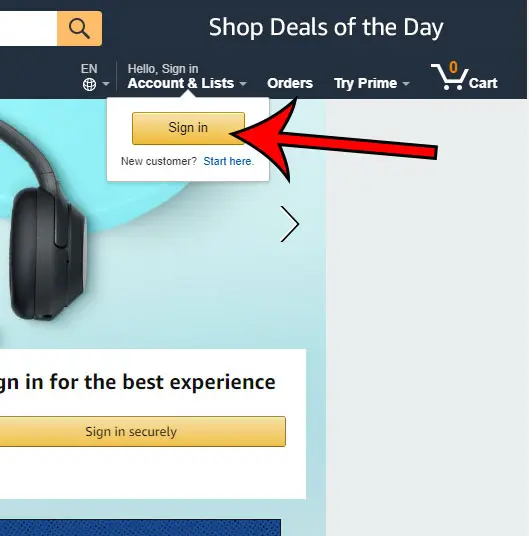
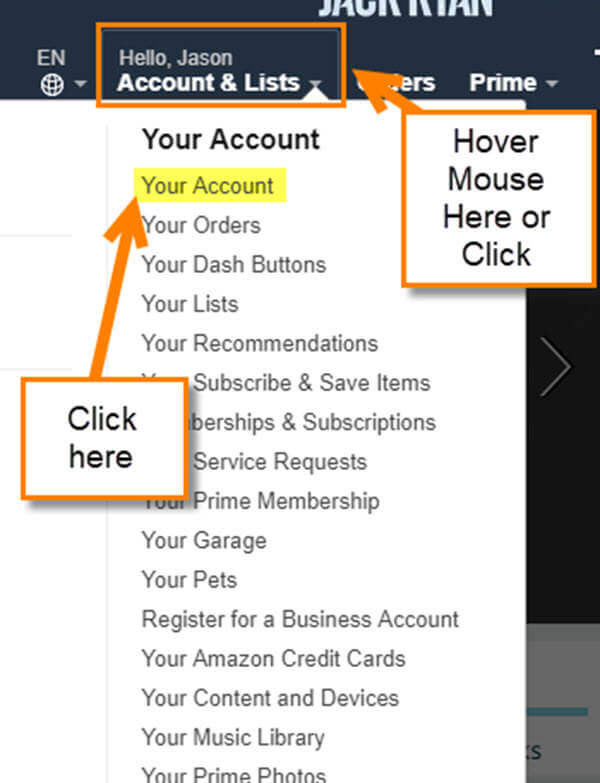
For users on a laptop or desktop, the most reliable way to check Prime status is through the “Account & Lists” navigation header. This section acts as the central command center for your digital identity on Amazon.
-
The Hover State: When you hover over “Account & Lists” in the top right corner of the homepage, a dropdown menu appears.
-
The Prime Link: Within this menu, there is a dedicated “Prime Membership” link. Clicking this will take you directly to the Prime central dashboard.
-
The Visual Indicator: If you are logged in and have an active membership, you will often see the “Prime” logo prominently displayed next to the Amazon logo in the top-left corner of the global header. If this logo is absent and only the standard “Amazon” logo appears, your account is likely a non-Prime account.
The Mobile App Navigation: The Shopping Interface
The Amazon Shopping app utilizes a bottom-navigation architecture that differs significantly from the web view.
-
The User Icon: Tap the “person” icon (the second icon from the left on the bottom bar).
-
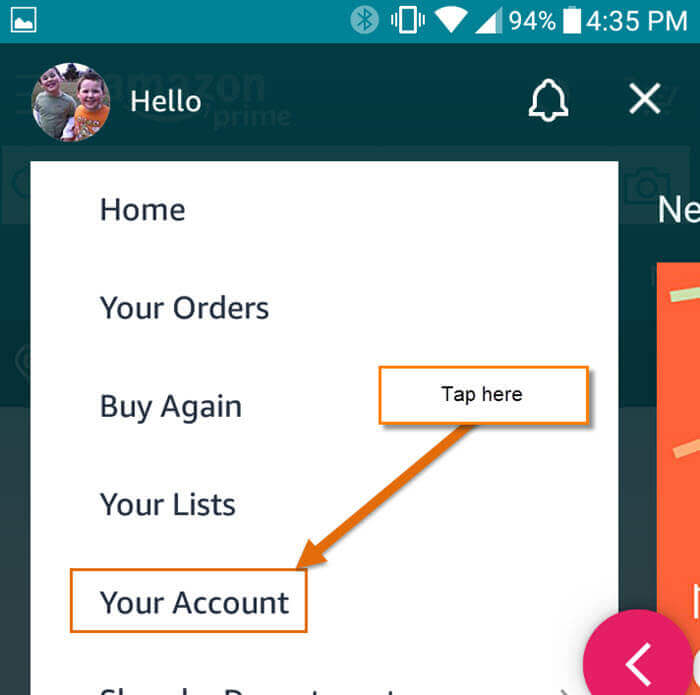
Your Account: Select the “Your Account” button at the top of the screen.
-
Manage Prime Membership: Scroll down to the “Account Settings” subsection. Here, you will find “Manage Prime Membership.”
This section provides a summary of your plan type (Monthly, Annual, or Student), the renewal date, and the payment method currently on file. If the app prompts you to “Join Prime,” it is a definitive technical indicator that your current logged-in session does not have an active subscription.
Identifying the Prime Logo Indicator
Amazon uses specific UI badges to signal membership status across its product pages. When browsing for items, if you see the “Prime” checkmark logo next to the price, but it is accompanied by a message saying “Join Prime to get free shipping,” you do not currently have an active membership. Conversely, if the UI displays “FREE Delivery” with the Prime logo without an invitation to join, your subscription is active.
Analyzing Digital Receipts and Billing History
Beyond the visual cues in the interface, the most accurate technical verification comes from your financial records and billing history within the Amazon database. This is particularly useful if you suspect you are being charged for a subscription that is not reflecting correctly on your primary device.
Reviewing Your Order History for Subscription Fees
Amazon treats Prime membership renewals as individual transactions. By navigating to the “Your Orders” section, you can filter by “Orders” and “Digital Orders.” However, Prime renewals are often categorized under a specific “Payments & Transactions” tab within the “Your Account” page.
If you see a recurring charge of $14.99 (monthly) or $139 (annually)—prices may vary based on regional taxes and specific plan types like Prime Student—this confirms an active billing cycle.
Using the ‘Manage Membership’ Dashboard
The “Manage Membership” dashboard is the most data-rich area for Prime subscribers. It provides:
-
The Membership Anniversary Date: The exact date your next payment will be processed.
-
The Payment Method: The specific credit card or digital wallet linked to the subscription.
-
Membership Management: Options to update your email notifications for renewals, which is a critical step for digital security and financial planning.
Troubleshooting Discrepancies in Billing
Sometimes, a user might see a charge on their bank statement but not see “Prime” status in their account. This usually indicates one of three technical scenarios:
-
Multiple Accounts: You may have signed up using a different email address (e.g., a work email vs. a personal email).
-
Amazon Household: You might be part of an Amazon Household where the primary member is paying, but your individual login hasn’t been properly linked.
-
Third-Party Subscriptions: In some regions, mobile carriers or internet service providers bundle Amazon Prime. If this is the case, your “Manage Membership” page will indicate that the subscription is “Managed by a Partner.”
Technical Indicators of an Active Prime Account
If you are still unsure, you can verify your status by attempting to access Prime-exclusive digital services. Amazon’s ecosystem is partitioned; certain high-bandwidth services are gated behind the Prime authentication wall.
Accessing Prime Video and Exclusive Content
One of the fastest ways to check status is by visiting primevideo.com or opening the Prime Video app on a smart TV.
-
Subscribed: You will be able to stream “Included with Prime” titles without any additional checkout process.
-
Unsubscribed: The interface will display “Watch with Prime” buttons that, when clicked, will lead to a subscription landing page or a prompt to start a 30-day trial.
Amazon Photos and Cloud Storage Verification
Amazon Prime includes unlimited full-resolution photo storage through Amazon Photos. A non-Prime account is limited to 5GB of total storage. By logging into the Amazon Photos web portal, you can check your storage quota. If the “Total Storage” section indicates “Unlimited for Prime Members,” your membership is verified at the database level.
Checking Shipping Benefits on Product Detail Pages
The logistics engine of Amazon is the core of the Prime value proposition. When viewing a Prime-eligible item, an active member will see a “Prime” badge and a specific delivery countdown (e.g., “Order within 3 hrs 10 mins for Tomorrow delivery”). If you are not a member, the system will instead show standard shipping rates and longer estimated arrival times, even if the item is located in a local fulfillment center.
Managing Shared Memberships and Household Profiles
The Amazon Household feature allows for a sophisticated sharing of Prime benefits between two adults, four teens, and four children. Understanding the technical architecture of this sharing is vital for identifying why you might have Prime benefits without seeing a direct charge on your personal credit card.
Understanding Amazon Household Architecture
In an Amazon Household, two adults link their accounts while maintaining separate login credentials and passwords. They share the “Prime” status of the primary payer. If you are the secondary member, your “Manage Membership” page will state that you are receiving benefits through another account holder.
Verifying Invitations and Linked Accounts
To see if you are part of a household:
-
Go to “Your Account.”
-
Look for the “Shopping programs and rentals” section.
-
Click on “Amazon Household.”
-
This page will show you exactly who is in your “Household” and what benefits are being shared (e.g., Prime Shipping, Prime Video, Kindle Owners’ Lending Library).
If you are not the one paying the bill, this is the only section that will clarify why you have access to Prime features. It is a critical check for those who share digital resources with family members or roommates.
Strategic Subscription Maintenance
Once you have verified your status, maintaining the health of your digital subscription is a matter of software management. Amazon’s platform allows for several technical adjustments to ensure you aren’t paying for services you don’t use.
Setting Up Renewal Reminders
Within the Prime membership dashboard, you can toggle an option to receive a “Renewal Reminder” email three days before your membership is set to renew. This is an essential practice for users who use Prime seasonally or who are currently on a trial.
Pausing vs. Canceling
Amazon’s system architecture now offers an option to “Pause” membership in some regions. This keeps your data, watchlists, and photo backups intact while stopping the billing cycle for a set period. If you choose to “End Membership,” the system will provide a prorated calculation of your remaining time, and you will retain access until the end of the current billing period.
In summary, identifying if you have Amazon Prime is a multi-step process involving UI recognition, financial audit, and service testing. By utilizing the “Manage Prime Membership” dashboard and checking for the specific Prime identifiers within the mobile and desktop applications, you can gain a clear understanding of your status within the Amazon ecosystem. Whether for the purposes of digital security, financial tracking, or simply accessing entertainment, knowing how to navigate these settings is a fundamental skill in the digital age.
aViewFromTheCave is a participant in the Amazon Services LLC Associates Program, an affiliate advertising program designed to provide a means for sites to earn advertising fees by advertising and linking to Amazon.com. Amazon, the Amazon logo, AmazonSupply, and the AmazonSupply logo are trademarks of Amazon.com, Inc. or its affiliates. As an Amazon Associate we earn affiliate commissions from qualifying purchases.