
Chromebooks are renowned for their simplicity, speed, and robust security, largely thanks to their lightweight, cloud-centric operating system, Chrome OS. Unlike traditional operating systems like Windows or macOS, where Google Chrome is just one application among many, Chrome OS is fundamentally built around the Chrome browser. This unique architecture means that the concept of “reinstalling Chrome” on a Chromebook isn’t as straightforward as dragging an application to the trash and redownloading it. Instead, if you’re experiencing persistent issues, sluggish performance, or simply want to give your device a fresh start, you’ll need to consider more comprehensive system-level solutions.

This article will demystify the process, guiding you through the effective methods to achieve a “reinstallation” of your Chromebook’s core software, ensuring your device runs smoothly, securely, and efficiently. Whether you’re a student, a professional managing a personal brand, or an individual looking to optimize your digital investments, understanding these steps is crucial for maintaining your Chromebook’s peak performance and longevity.
Understanding Chrome OS: Why “Reinstalling Chrome” Is Different
The first step to addressing any issue with your Chromebook is to understand its foundational operating system. Chrome OS is a Linux-based operating system developed by Google, primarily leveraging the Google Chrome web browser as its principal user interface. This integration is so deep that the browser isn’t merely an application; it’s the environment in which almost everything operates.
The Integrated Experience
Imagine your Chromebook as a car where the engine, steering wheel, and dashboard are all intrinsically linked to the central navigation system. You can’t just “replace the navigation app” without affecting the entire vehicle’s operation. Similarly, on a Chromebook, the Chrome browser isn’t an optional component you can simply uninstall and reinstall. It is the operating system itself. All your web applications, Android apps (if supported), and even some Linux apps run within or alongside this Chrome-centric framework.
This integrated design offers significant advantages: enhanced security through sandboxing, automatic updates that keep your system current without user intervention, and a remarkably fast boot-up time. However, it also means that if you’re facing performance glitches, browser crashes, or other software anomalies, a simple app reinstallation isn’t an option. The solution lies in resetting or recovering the entire Chrome OS.
When a “Reinstall” Becomes Necessary
While Chromebooks are generally stable, there are several common scenarios where you might consider a system refresh, akin to a “reinstall”:
- Performance Degradation: Over time, even with regular updates, your Chromebook might start to feel sluggish. Too many extensions, accumulated cache data, or minor software conflicts can impact speed and responsiveness. A reset can clear the slate.
- Persistent Software Glitches: Are you experiencing frequent browser crashes, unresponsive apps, or unusual behavior that doesn’t resolve with a simple restart? A deeper system refresh can often resolve these underlying software bugs.
- Security Concerns: If you suspect your Chromebook might have been compromised, or if you’re dealing with stubborn adware or malware (though rare on Chrome OS), a factory reset is the most effective way to restore security and peace of mind. For those managing sensitive data, a clean system is non-negotiable for digital security and financial safety.
- Preparing for Sale or Transfer: If you plan to sell, donate, or transfer ownership of your Chromebook, performing a system reset is absolutely essential to wipe all your personal data and settings, protecting your privacy and ensuring the next user starts with a clean device. This is crucial for safeguarding your personal brand and any financial information stored on the device.
- Troubleshooting Unresolved Issues: Sometimes, after trying basic troubleshooting steps, a system reset is recommended by tech support as a last resort to rule out software issues before considering hardware problems.
Understanding these scenarios helps you determine when a full system refresh is the appropriate and most efficient path forward, rather than searching for a non-existent “Chrome browser uninstall” button.
The Core Solutions: Resetting Your Chromebook
Since “reinstalling Chrome” directly isn’t possible, the effective solutions involve resetting your entire Chrome OS. There are two primary methods, each suitable for different levels of severity and desired outcomes: Powerwash (a factory reset) and Chromebook Recovery (a full OS reinstallation).
Option 1: Powerwash (Factory Reset): The Most Common “Reinstall”
A Powerwash is Google’s term for a factory reset on a Chromebook. It’s the most common and often the most effective solution when you want to achieve a “clean slate” without completely reinstalling the entire operating system from scratch.
What it does: A Powerwash wipes all local user data, downloaded files (unless stored in Google Drive), customized settings, and installed Android or Linux apps from your Chromebook. It effectively returns your device to the state it was in when you first took it out of the box, ready for a fresh setup. However, it does not reinstall the Chrome OS itself; it simply cleans out all the user-specific configurations and data on top of the existing OS.
When to use it: This is your go-to solution for performance issues, persistent software glitches that aren’t resolved by simple restarts, freeing up local storage, or preparing your device for a new user while ensuring the underlying OS is still functional.
Step-by-step guide for Powerwash:
-
Backup Your Data (Crucial First Step): Before initiating a Powerwash, ensure all important local files (e.g., in your “Downloads” folder, Linux container, or Android app data) are backed up. Since Chromebooks are cloud-centric, most of your documents, photos, and settings synced with your Google Account will automatically restore once you sign back in. However, anything stored locally will be deleted.
- Google Drive: Drag and drop files from your “My files” and “Downloads” folders to your Google Drive.
- External Storage: Use a USB drive or SD card to transfer files.
- Android App Data: Be aware that data for Android apps (games, specific document editors) might not sync to Google Drive and could be lost unless the app itself offers cloud backup.
-
Sign Out of Your Chromebook: It’s good practice to sign out of your profile first. Click on your profile picture in the bottom-right corner of the screen, then select “Sign out.”
-
Access Powerwash via Settings:
- Once signed out (or from any logged-in session, though signing out ensures no active processes interfere), click on the time/status area in the bottom-right corner to open the Quick Settings panel.
- Click the Settings icon (gear).
- Scroll down the left-hand menu and click on Advanced.
- Expand the Reset settings section.
- Find “Powerwash” and click Reset.
- Alternatively, you can use a keyboard shortcut: Press Ctrl + Alt + Shift + R. If you’re signed in, you’ll be prompted to restart your Chromebook. If you’re on the login screen, press the keys and then select “Restart.”
-
Confirm Powerwash: Your Chromebook will restart. Upon reboot, you’ll see a screen prompting you to “Powerwash your Chromebook.” Click Powerwash to confirm. You may be asked to confirm one more time.
-
Log Back In and Restore:
- After the Powerwash completes (which usually takes only a few minutes), your Chromebook will restart again and present you with the initial setup screen, just like a new device.
- Follow the on-screen prompts to connect to Wi-Fi, accept terms, and then sign in with your Google Account.
- Once you sign in, Chrome OS will begin to automatically sync your settings, bookmarks, extensions, and Chrome Web Store apps from your Google Account. If you previously installed Android apps, you’ll usually be prompted to reinstall them from the Google Play Store.
Benefits: A Powerwash provides a swift and effective way to clean up your system, resolve many software-related issues, and significantly improve performance without requiring external media or extensive technical knowledge. It’s an excellent first step for a “digital detox” or troubleshooting.
Option 2: Chromebook Recovery: When a Powerwash Isn’t Enough
If a Powerwash doesn’t resolve your issues, or if your Chromebook is unable to boot, displays error messages about a corrupted OS, or fails to update correctly, then a full Chromebook Recovery is the next step. This process completely reinstalls the Chrome OS, replacing the entire operating system with a fresh, verified version.
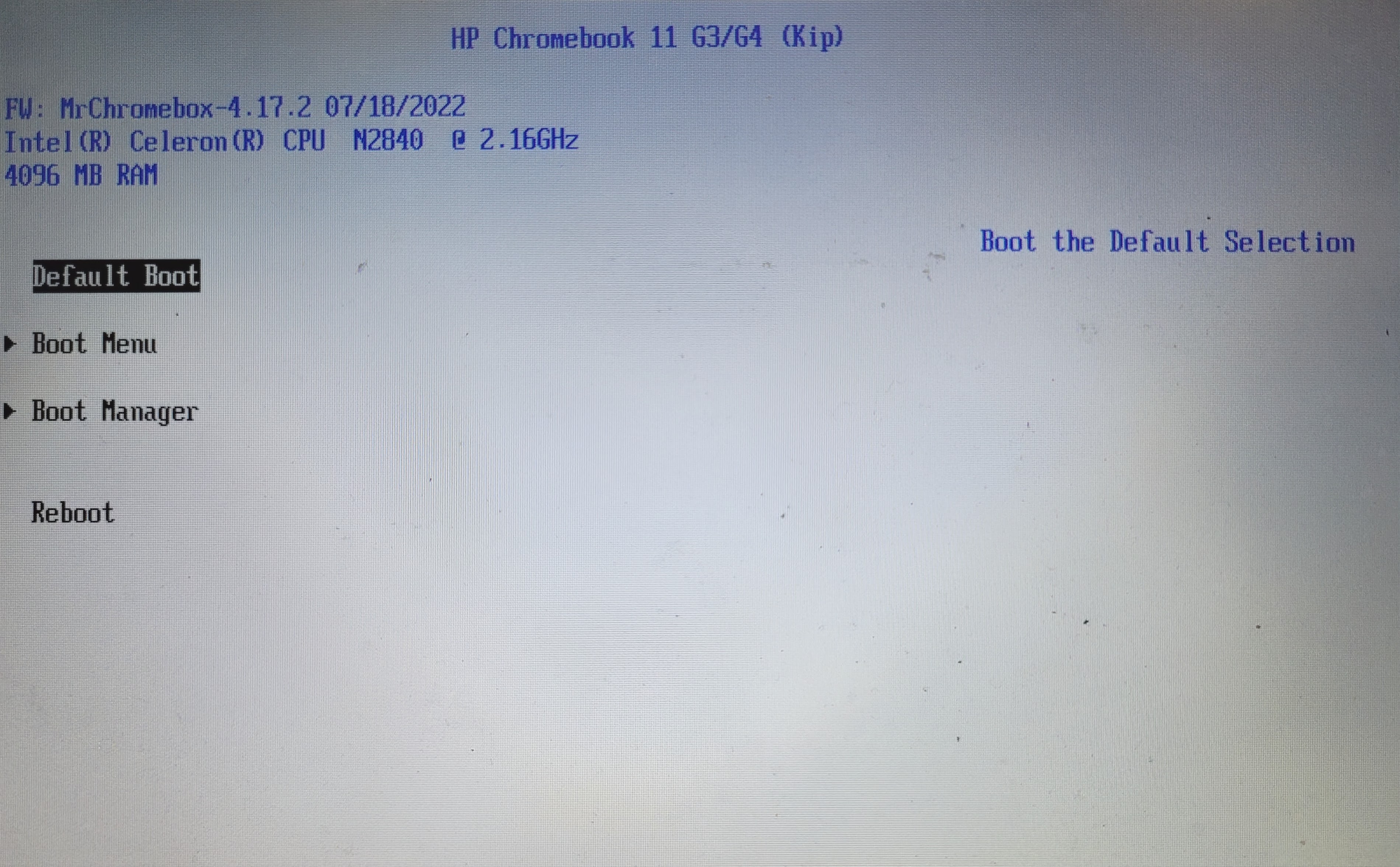
What it does: Chromebook Recovery is a deeper reset than Powerwash. It downloads and reinstalls the entire Chrome OS from scratch, effectively wiping and rebuilding the operating system partition. This is crucial for fixing fundamental OS corruption.
When to use it: Use this method for severe system instability, “Chrome OS is missing or damaged” errors, unbootable devices, or if a Powerwash failed to fix the problem.
Step-by-step guide for Recovery:
-
Prepare Your Recovery Media: You will need a second working computer (Windows, Mac, or another Chromebook) and a USB flash drive (at least 8GB, and preferably empty, as it will be entirely erased).
- On the second computer: Go to the Chrome Web Store and search for “Chromebook Recovery Utility” or visit
chrome.google.com/webstoreand search for it. - Install the utility.
- Launch the utility. It will prompt you to select your Chromebook model. If you can’t find it, or if your Chromebook won’t boot, you can usually let the utility detect it from a list or manually enter the model number (found on a sticker on your Chromebook’s underside).
- Follow the on-screen instructions to select your USB drive and create the recovery media. This process will download the latest Chrome OS image and write it to your USB drive, making it bootable. This can take some time depending on your internet speed.
- On the second computer: Go to the Chrome Web Store and search for “Chromebook Recovery Utility” or visit
-
Enter Recovery Mode on Your Chromebook:
- Ensure your problematic Chromebook is turned off and unplugged from power.
- Hold down the Esc + Refresh keys (Refresh is usually where F3 would be on a standard keyboard) and then press the Power button.
- Release the Power button when the Chromebook turns on, but continue holding Esc + Refresh until you see the “Chrome OS is missing or damaged” or “Please insert a recovery USB stick” screen.
-
Perform the Recovery:
- Insert the USB drive containing the recovery media into your Chromebook.
- The Chromebook should automatically detect the recovery media and begin the reinstallation process. This can take anywhere from 10 to 30 minutes, depending on your Chromebook model and the speed of your USB drive. Do not remove the USB drive or power off the Chromebook during this process.
- Once the recovery is complete, you’ll be prompted to remove the USB drive. Your Chromebook will then restart.
-
Log Back In and Restore: Similar to a Powerwash, after the recovery, your Chromebook will present the initial setup screen. Follow the prompts to connect to Wi-Fi and sign in with your Google Account. Your cloud-synced data, settings, and apps will begin to restore automatically.
Benefits: Chromebook Recovery is the ultimate solution for deep-seated operating system issues. It ensures a completely fresh and verified Chrome OS installation, guaranteeing that any software corruption at the core of the system is resolved, bringing your device back to optimal functionality and security.
Post-Reinstallation Best Practices
After performing either a Powerwash or a full Chromebook Recovery, you’ve essentially given your device a new lease on life. To make the most of this fresh start, follow these best practices for restoring your environment and optimizing your system.
Restoring Your Digital Ecosystem
The beauty of Chrome OS lies in its cloud integration, making the post-reset restoration process remarkably seamless for most users.
- Signing In with Your Google Account: The moment you sign in with your primary Google Account, the magic begins. Chrome OS automatically retrieves your profile settings, Wi-Fi passwords, saved networks, wallpaper, and other personal preferences. Your bookmarks, browsing history (if synced), and saved passwords (if using Chrome’s password manager) will also reappear in your Chrome browser.
- Automatic Sync of Apps and Extensions: Any extensions you had installed from the Chrome Web Store will begin to reinstall automatically. Similarly, apps purchased or installed from the Chrome Web Store will reappear in your launcher.
- Manually Reinstalling Android Apps (if applicable): If your Chromebook supports Android apps via the Google Play Store, you’ll need to open the Play Store app and manually reinstall the apps you want. While your app data might not always automatically restore (depending on the app’s cloud backup capabilities), the apps themselves are easy to retrieve.
- Reconnecting Peripherals: Reconnect any Bluetooth devices, printers, or external monitors. You might need to re-pair Bluetooth devices, but generally, settings for printers and displays are straightforward to reconfigure.
- Restoring Local Files: If you backed up local files to Google Drive or an external drive, now is the time to move them back to your “Downloads” or other preferred folders.
Optimizing Your Fresh Start
A fresh system is an opportunity to re-evaluate your digital habits and ensure optimal performance from the outset.
- Reviewing Extensions: While extensions can be incredibly useful, they are often a significant source of performance drag and, sometimes, privacy concerns. As your extensions reinstall, take a moment to review each one. Do you truly need it? Is it from a reputable developer? Only keep essential extensions to minimize resource usage and potential conflicts. For those focusing on productivity, a lean extension profile is a smart investment.
- Checking Privacy Settings: Use this opportunity to revisit your Chrome browser and Google Account privacy settings. Ensure they align with your preferences for data sharing, ad personalization, and location services. A fresh start is ideal for tightening your digital security.
- Updating Chrome OS to the Latest Version: Although a recovery installs a recent version, always check for system updates immediately after setup. Go to
Settings > About Chrome OS > Check for updatesto ensure you’re running the very latest, most secure, and most performant version available. - Tips for Maintaining Performance: Adopt habits that will keep your Chromebook running smoothly:
- Regularly clear browsing data: Periodically clear your browser cache and cookies (Settings > Privacy and security > Clear browsing data) to prevent them from accumulating and slowing down your browser.
- Manage tabs: Too many open tabs can consume significant RAM. Consider using tab management extensions if you frequently work with many tabs.
- Monitor resource usage: If your Chromebook feels slow, open the Task Manager (Search key + Esc) to identify if a particular app or tab is consuming excessive resources.
Beyond Reinstallation: Preventative Measures and Maintenance
While knowing how to “reinstall” your Chromebook is valuable for troubleshooting, proactive maintenance is key to minimizing the need for such drastic steps and ensuring a consistent, reliable computing experience.
Regular Maintenance for Longevity
Chromebooks are low-maintenance, but a few simple habits can go a long way in extending their life and performance:
- Keeping OS Updated: Chrome OS updates automatically, but occasionally you might miss one or need to restart your device for it to apply. Always ensure your system is running the latest version for security patches, new features, and performance improvements.
- Clearing Browser Cache/Data Periodically: As mentioned earlier, this is a quick way to resolve minor browser glitches and free up temporary storage without performing a full Powerwash.
- Managing Extensions: Regularly review your installed extensions. Remove any that are unused, redundant, or seem to be causing issues. Less is often more when it comes to browser extensions.
- Using Good Digital Hygiene: Be mindful of the websites you visit, the files you download, and the apps you install. While Chrome OS is highly secure, exercising caution can prevent potential issues before they arise.
The Strategic Value of a Clean Slate
Thinking beyond just “fixing a problem,” the process of refreshing your Chromebook holds significant strategic value, particularly when viewed through the lenses of technology, brand, and money.
- Tech: A well-maintained and regularly optimized device ensures you’re always leveraging the latest technological advancements and experiencing peak performance. This translates to faster workflows, more reliable access to cloud services, and a seamless digital experience. From a tech perspective, understanding your OS deeply empowers you to troubleshoot and maintain your own equipment, making you a more self-reliant digital citizen.
- Brand: For professionals, entrepreneurs, or anyone cultivating a personal brand, a smooth-running device is a reflection of professionalism and reliability. Lagging software, slow boot times, or frequent crashes can hinder productivity, disrupt client meetings, or delay content creation. A fresh system ensures your digital tools are always sharp, allowing you to present your best self online and offline, fostering a stronger, more dependable personal or corporate identity.
- Money: The investment in a Chromebook, like any other technological asset, should yield returns in productivity and longevity. By performing regular maintenance and knowing how to effectively “reinstall” when necessary, you extend the lifespan of your device, potentially delaying the need for costly replacements. Furthermore, a fast and reliable Chromebook translates directly into increased productivity, which for online income earners, side hustlers, or business owners, means more efficient work, more time saved, and ultimately, greater earning potential. Digital security, reinforced by a clean OS, protects your financial data and prevents costly breaches.

Conclusion
While the term “reinstall Chrome” on a Chromebook might be a misnomer, the underlying goal of restoring your device to optimal performance and security is entirely achievable. By understanding that Chrome OS is an integrated ecosystem, you can confidently employ the two primary methods: the Powerwash (factory reset) for common performance issues and data clearance, and the Chromebook Recovery for more severe system corruption.
Always remember the golden rule: backup your local data before undertaking any system-level reset. With your data safe in the cloud or on external storage, you can embrace the simplicity and effectiveness of these solutions. A fresh start not only resolves frustrating technical glitches but also offers an invaluable opportunity to optimize your digital environment, enhancing productivity, bolstering security, and ultimately maximizing the return on your technological investment. Embrace these powerful tools, and your Chromebook will continue to serve as a reliable, fast, and secure companion in your digital life.
aViewFromTheCave is a participant in the Amazon Services LLC Associates Program, an affiliate advertising program designed to provide a means for sites to earn advertising fees by advertising and linking to Amazon.com. Amazon, the Amazon logo, AmazonSupply, and the AmazonSupply logo are trademarks of Amazon.com, Inc. or its affiliates. As an Amazon Associate we earn affiliate commissions from qualifying purchases.