
In today’s hyper-connected world, staying in touch with friends, family, and colleagues is more crucial than ever. While a plethora of communication apps exist, WhatsApp remains a dominant force, boasting billions of users worldwide. Its user-friendly interface, end-to-end encryption, and versatile features make it an indispensable tool for instant messaging, voice calls, video calls, and even sharing multimedia content. If you’re new to the smartphone scene or simply haven’t yet embraced this popular application, you’re likely asking yourself, “How do I install WhatsApp on my phone?” This guide will walk you through the entire process, ensuring you can connect with your loved ones in no time.
Getting Started: The Essential Prerequisites
Before we dive into the actual installation, it’s vital to ensure your device is ready for WhatsApp. This involves a few fundamental checks to guarantee a smooth and successful setup. Ignoring these initial steps can lead to frustrating installation errors or a suboptimal user experience.
Device Compatibility and Operating System Requirements
WhatsApp is designed to run on a wide range of smartphones, but there are specific operating system requirements.
Android Devices
For Android users, WhatsApp is compatible with devices running Android 4.1 and newer. To check your Android version:
- Open the Settings app on your phone.
- Scroll down and tap on “About phone” or “About device.”
- Look for “Android version.”
If your device is running an older version, you might need to check for system updates from your phone manufacturer. While some older devices might still function, newer features and security updates are typically tied to more recent operating system versions.
iOS Devices (iPhone)
For iPhone users, WhatsApp requires iOS 10 or later. To check your iOS version:
- Open the Settings app on your iPhone.
- Tap on “General.”
- Tap on “About.”
- Look for “Software Version.”
Similar to Android, if your iPhone is running an older iOS version, navigate to Settings > General > Software Update to see if an update is available.
Internet Connection: Your Gateway to WhatsApp
A stable internet connection is paramount for downloading and running WhatsApp. You’ll need either a Wi-Fi connection or a mobile data plan.
- Wi-Fi: This is generally the preferred method for downloading apps as it’s often faster and doesn’t consume your mobile data allowance. Ensure you are connected to a reliable Wi-Fi network.
- Mobile Data: If Wi-Fi isn’t available, you can use your mobile data. However, be mindful of your data plan’s limits, as the initial download and subsequent usage of WhatsApp can consume data, especially when sending photos, videos, or making calls.
Sufficient Storage Space
WhatsApp, like any application, requires a certain amount of storage space on your phone. While the app itself isn’t excessively large, you’ll also need space for downloaded media, message backups, and future updates. It’s advisable to have at least a few hundred megabytes of free storage available.
To check your storage space:
- On Android: Go to Settings > Storage.
- On iOS: Go to Settings > General > iPhone Storage.
If your storage is low, consider deleting unused apps, photos, videos, or other files.
Installing WhatsApp: The Step-by-Step Process
Once you’ve confirmed your device meets the requirements, the installation process is straightforward. The primary method of acquiring WhatsApp is through your device’s official app store.
For Android Users: Google Play Store
The Google Play Store is the central hub for all Android applications.
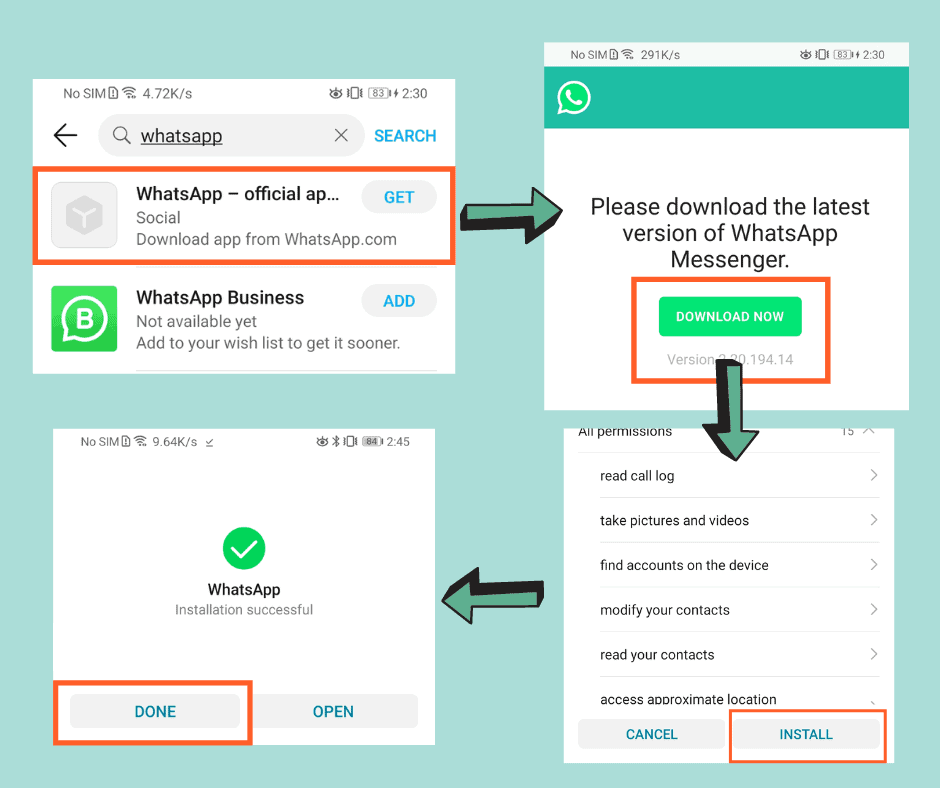
- Locate the Google Play Store icon on your home screen or in your app drawer. It typically looks like a colorful triangle.
- Tap to open the Play Store.
- In the search bar at the top of the screen, type “WhatsApp” and press the search icon.
- You will see “WhatsApp Messenger” appear in the search results. It’s usually the first or second result. Look for the green chat bubble icon.
- Tap on “WhatsApp Messenger.”
- On the app’s page, you will see an “Install” button. Tap on it.
- The app will begin downloading and installing automatically. You may be prompted to accept certain permissions WhatsApp requires to function. It’s important to grant these permissions for the app to work correctly.
- Once the installation is complete, the “Install” button will change to “Open.”
For iOS Users: App Store
The App Store is where you’ll find and download applications for your iPhone.
- Locate the App Store icon on your iPhone’s home screen. It resembles a blue icon with a white “A.”
- Tap to open the App Store.
- At the bottom of the screen, tap on the “Search” tab (magnifying glass icon).
- In the search bar at the top, type “WhatsApp” and tap the search button on your keyboard.
- “WhatsApp Messenger” will appear in the search results. Tap on it.
- On the app’s page, you will see a “Get” button or a cloud icon with a downward arrow if you’ve downloaded it before. Tap on this button.
- You may be asked to authenticate your download using Face ID, Touch ID, or your Apple ID password.
- The app will download and install automatically.
- Once the installation is complete, the button will change to “Open.”
Setting Up Your WhatsApp Account: Personalizing Your Experience
After successfully installing WhatsApp, the next crucial step is to set up your account. This involves verifying your phone number and personalizing your profile. This process ensures that you are who you say you are and allows your contacts to identify you.
Verifying Your Phone Number
WhatsApp uses your phone number as your primary identifier. This is a security measure to prevent unauthorized access and to link your account to your contacts.
- Open the WhatsApp app you just installed.
- You’ll be greeted with a welcome screen. Tap on “Agree and Continue” to accept the Terms of Service and Privacy Policy.
- Enter your phone number. Make sure to include your country code. For example, if you are in the United States, you would start with “+1”.
- Tap “Next” or “Done.”
- WhatsApp will display your entered phone number for confirmation. If it’s correct, tap “OK” or “Yes.”
- WhatsApp will then send a 6-digit verification code via SMS to the phone number you provided.
- The app will attempt to automatically detect the code from your SMS messages. If it can’t, you will need to manually enter the code into the verification screen.
- If you don’t receive the code within a few minutes, you can tap “Resend SMS” or “Call Me” to receive the code via a phone call. Ensure you have a stable signal.
Setting Up Your Profile
Once your phone number is verified, you can set up your profile. This is what other WhatsApp users will see.
- Enter your name. This is the name that will be displayed to your contacts. You can use your real name or a nickname.
- Add a profile picture. Tap on the camera icon to choose a photo from your gallery or take a new one. A clear, recognizable photo is recommended.
- Tap “Next” or “Done.”
WhatsApp might also prompt you to restore a previous chat backup from Google Drive (Android) or iCloud (iOS) if you had WhatsApp installed on another device and created a backup. This is an optional but highly recommended step if you want to recover your past conversations.
Getting the Most Out of WhatsApp: Essential Features and Tips
With your WhatsApp account set up, you’re ready to start communicating! Here are some essential features and tips to help you navigate and utilize WhatsApp effectively.
Adding Contacts and Starting Conversations
WhatsApp automatically synchronizes with your phone’s contact list. If your friends and family are already using WhatsApp with their phone numbers saved in your device, they will appear in your WhatsApp contacts list.
- Open WhatsApp.
- On Android, tap the new chat icon (a speech bubble in a circle) in the bottom right corner. On iOS, tap the new chat icon (a pen and paper) in the top right corner.
- You will see a list of your contacts who are also on WhatsApp.
- Tap on a contact’s name to open a chat window with them.
- Type your message in the text field at the bottom of the screen and tap the send icon (paper airplane).
Understanding Basic Communication Tools
WhatsApp offers a variety of ways to communicate beyond simple text messages.
- Voice Messages: Tap and hold the microphone icon to record a voice message. Release to send.
- Photos and Videos: Tap the paperclip icon (Android) or the “+” icon (iOS) to send photos and videos from your gallery, take a new picture/video, or send other file types.
- Voice and Video Calls: Within a chat window, tap the phone icon for a voice call or the video camera icon for a video call. These calls use your internet connection, not your cellular minutes.
- Emojis, GIFs, and Stickers: Enhance your conversations with a wide range of emojis, animated GIFs, and custom stickers.

Staying Secure and Managing Your Privacy
Digital security and personal branding are increasingly important. WhatsApp prioritizes your privacy with its end-to-end encryption, meaning only you and the person you’re communicating with can read or listen to what is sent. However, you also have control over your personal information.
- Profile Picture and Status Privacy: Go to Settings > Account > Privacy to control who can see your profile photo, status updates, and “last seen” time.
- Read Receipts: In the same Privacy settings, you can disable read receipts, which means others won’t see if you’ve read their messages. However, you also won’t see when others have read yours.
- Two-Step Verification: For added security, enable two-step verification in Settings > Account > Two-Step Verification. This requires a 6-digit PIN when registering your phone number with WhatsApp again.
By following these steps, you’ll not only successfully install WhatsApp on your phone but also be well-equipped to utilize its features for seamless and secure communication. As technology continues to evolve, staying connected through platforms like WhatsApp is an essential part of navigating our modern, digitally-driven lives.
aViewFromTheCave is a participant in the Amazon Services LLC Associates Program, an affiliate advertising program designed to provide a means for sites to earn advertising fees by advertising and linking to Amazon.com. Amazon, the Amazon logo, AmazonSupply, and the AmazonSupply logo are trademarks of Amazon.com, Inc. or its affiliates. As an Amazon Associate we earn affiliate commissions from qualifying purchases.