
In an increasingly digital academic landscape, ensuring the integrity of online examinations is paramount. Respondus Lockdown Browser stands as a cornerstone technology in this effort, transforming standard web browsers into secure testing environments that prevent cheating and maintain fairness. For students and educators alike, understanding how to properly install and utilize this software is not just a technicality, but a critical step towards seamless and credible online assessments. This comprehensive guide will walk you through every aspect of installing Respondus Lockdown Browser, from understanding its purpose to troubleshooting common issues, ensuring you’re fully prepared for your next secure exam.
Understanding Respondus Lockdown Browser: A Pillar of Digital Exam Security
Before diving into the nuts and bolts of installation, it’s crucial to grasp what Respondus Lockdown Browser is and why it’s so widely adopted by educational institutions worldwide. At its core, it’s a specialized browser that locks down the testing environment on a student’s computer. When an exam requires it, this browser prevents access to other applications, websites, copy/paste functions, and even screen capture utilities, effectively creating a controlled digital space for assessment.
From a Tech perspective, it’s an innovative piece of software designed for digital security. It’s not merely another app; it’s a guardian of academic integrity, an essential tool in the modern educator’s arsenal to combat the challenges of remote learning and online proctoring. By restricting access to external resources, it ensures that students rely solely on their knowledge and understanding during an exam, fostering a fair and equitable testing experience for everyone. This commitment to security and fairness also bolsters the Brand reputation of institutions that prioritize rigorous academic standards, reassuring both students and accrediting bodies. For students, mastering its use contributes directly to their productivity during exams by eliminating distractions and potential pitfalls associated with navigating unsecured environments.
The widespread adoption of Respondus Lockdown Browser underscores its effectiveness. It integrates seamlessly with popular Learning Management Systems (LMS) like Canvas, Blackboard, Moodle, and Brightspace, making it a familiar and trusted solution across diverse educational platforms. Some versions may also incorporate Respondus Monitor, an AI-powered proctoring solution that uses a webcam to record the student during the exam, adding another layer of security. Understanding this foundational role clarifies why proper installation isn’t just a recommendation, but a mandatory prerequisite for successful online examinations.
Pre-Installation Checklist: Paving the Way for a Smooth Setup
A successful installation often hinges on proper preparation. Before you even click a download link, taking a few moments to verify your system’s readiness can save considerable time and frustration. This Tech tutorial emphasizes efficiency and problem prevention.
Verifying System Requirements
Respondus Lockdown Browser is designed to be compatible with a wide range of operating systems, but specific requirements can vary slightly. Always check the most current requirements on the Respondus website or through your institution’s IT support page. Generally, you’ll need:
- Operating System: Windows 10, 8, 7; macOS 10.12 or higher. For Chromebooks and iPads, specific apps are available from their respective app stores, and their functionality may depend on your institution’s configuration.
- Memory (RAM): A minimum of 2 GB RAM is typically recommended, though 4 GB or more will ensure smoother performance, especially if using Respondus Monitor.
- Hard Drive Space: Around 200 MB of free disk space is usually sufficient for the application itself, but ensure you have additional space for temporary files.
- Internet Connection: A stable and reliable internet connection is crucial. Wired connections are always preferred over Wi-Fi for critical exams to minimize disconnections.
- Webcam and Microphone: If your exam requires Respondus Monitor, a functional webcam and microphone are essential. Ensure they are connected and tested prior to the exam.
Administrative Rights and Other Preparations
- Administrative Privileges: For Windows and macOS, you will typically need administrator rights to install the software. If you’re using a computer provided by your institution or employer, you may need to contact their IT department for assistance.
- Close Other Applications: Before starting the installation, close all other applications and programs running in the background. This minimizes potential conflicts and ensures a cleaner installation.
- Antivirus and Firewall: While not usually necessary to disable, be aware that overly aggressive antivirus software or firewalls can sometimes interfere with installations. If you encounter issues, temporarily disabling them (with caution and only if you know how to re-enable them) might be a troubleshooting step.
- Obtain the Correct Download Link: Crucially, do not download Respondus Lockdown Browser from generic search results. Your institution will provide a specific download link tailored to their setup. Using a generic link might lead to compatibility issues or prevent you from accessing your exams. Always navigate to your institution’s LMS (e.g., Canvas, Blackboard) and look for their specific instructions or download link. This ensures you get the right version that’s pre-configured for your school’s assessments, which is a key element of digital security.
Step-by-Step Installation Guide: Your Path to Secure Online Exams
With your preparations complete, you’re ready to proceed with the actual installation. This tutorial section provides detailed instructions for the most common operating systems.
For Windows Users
Installing Respondus Lockdown Browser on a Windows PC is a straightforward process:
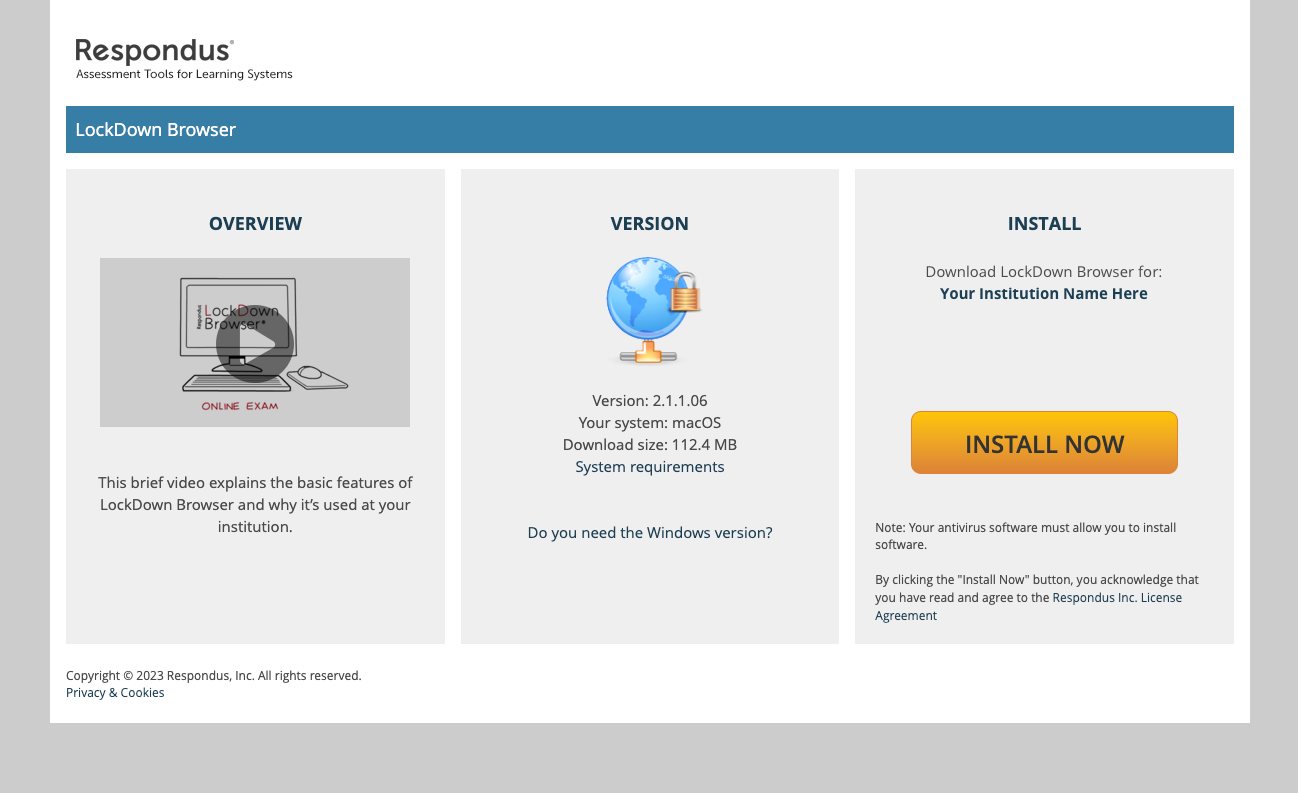
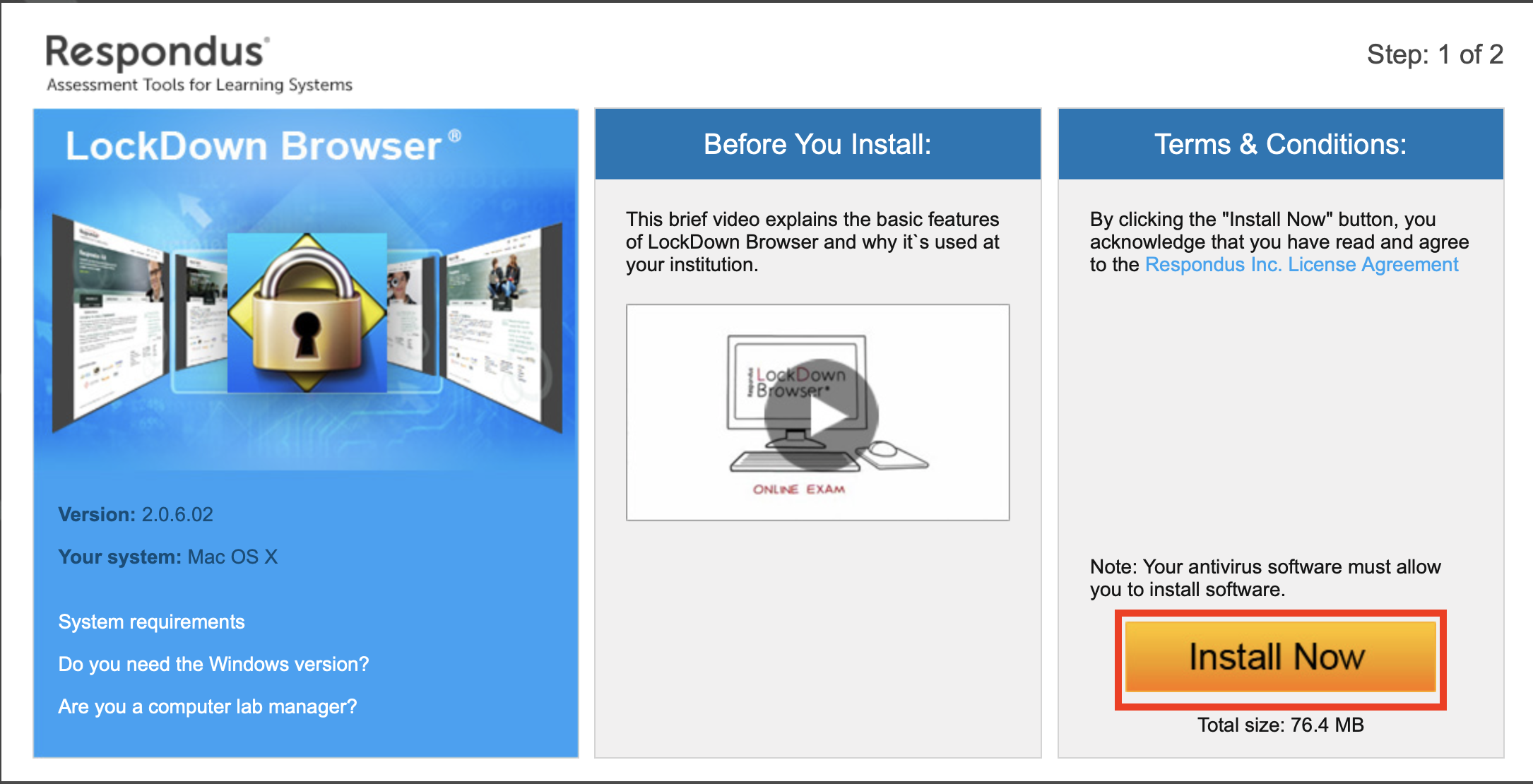
- Download the Installer: Using the specific download link provided by your institution, download the Respondus Lockdown Browser installer file. It will typically be an executable file named
LockDownBrowserOEMSetup.exeor similar. - Locate and Run the Installer: Once downloaded, navigate to your “Downloads” folder or wherever your browser saves files. Double-click the
.exefile to start the installation wizard. - User Account Control (UAC): If prompted by User Account Control, click “Yes” to allow the program to make changes to your device. This confirms you have the necessary administrative privileges.
- Language Selection: Choose your preferred language for the installation process and click “Next.”
- License Agreement: Read the Respondus License Agreement carefully. You must accept the terms to proceed with the installation. Check the “I accept the terms of the license agreement” box and click “Next.”
- Installation Progress: The installer will then copy the necessary files to your system. This process usually takes a few moments.
- Completion: Once the installation is complete, a confirmation message will appear. Click “Finish” to exit the wizard. A shortcut for “LockDown Browser” will typically be created on your desktop.
For macOS Users
Mac users will find the process equally simple, though with a slightly different flow:
- Download the Installer: Obtain the macOS installer file from your institution’s dedicated link. This will usually be a disk image file with a
.dmgextension. - Open the DMG File: Locate the downloaded
.dmgfile (often in your “Downloads” folder) and double-click it. This will mount a virtual disk image on your desktop and open a Finder window displaying its contents. - Drag and Drop: In the open Finder window, you will typically see the “LockDown Browser” application icon and an “Applications” folder alias. Drag the “LockDown Browser” icon and drop it onto the “Applications” folder. This copies the application to your Mac’s Applications directory.
- Eject the Disk Image: After the copy process is complete, you can drag the “Respondus Lockdown Browser” virtual disk image from your desktop (or the Finder sidebar) to the Trash to eject it, or right-click and select “Eject ‘Respondus Lockdown Browser’.”
- Launch and Security: Navigate to your Applications folder and double-click the “LockDown Browser” icon to launch it for the first time. You might encounter a security warning stating that the app is from an “unidentified developer.” If this happens, right-click (or Control-click) the app icon and choose “Open.” You’ll then be given an option to “Open” it regardless of the warning. This step is usually only required for the very first launch.
For Chromebook and iPad Users
For these mobile-first platforms, installation typically involves using their respective app stores:
- Chromebook: Open the Google Play Store on your Chromebook. Search for “LockDown Browser” and locate the official app from Respondus, Inc. Install the app as you would any other. Be aware that some institutions may require specific configurations or managed devices for full functionality.
- iPad: Open the Apple App Store on your iPad. Search for “LockDown Browser” and download the official app. Ensure your iPad’s operating system is up-to-date for best compatibility.
It’s important to note that the functionality and features available on Chromebooks and iPads might be slightly different or more restricted than on Windows or macOS, especially concerning advanced proctoring features like Respondus Monitor. Always consult your institution’s specific guidelines for using these devices for exams.
First Launch and Verification: Ensuring Readiness
Once Respondus Lockdown Browser is installed, it’s wise to perform a quick test run to ensure everything is functioning correctly before your actual exam. This proactive step can prevent last-minute stress and technical glitches, boosting your productivity and confidence.
- Locate and Launch: Find the “LockDown Browser” icon on your desktop (Windows) or in your Applications folder (macOS, Chromebook, iPad) and double-click (or tap) to launch it.
- Automatic Updates: The first time you launch, or periodically, the browser may check for and install updates. Allow this process to complete. Staying up-to-date is crucial for digital security and optimal performance.
- Institution Selection: Depending on your institution’s setup, you might be prompted to select your school from a list. Choose your institution to ensure you connect to the correct environment for your exams.
- Practice Test/Pre-Check: Many institutions provide a practice exam or a “Webcam Check” utility within their LMS specifically for Respondus Lockdown Browser. Always take advantage of these to:
- Familiarize yourself with the Lockdown Browser environment.
- Test your webcam and microphone (if Respondus Monitor is required).
- Verify that you can access the exam correctly and exit the browser without issues.
- Environment Check: Before starting any exam, ensure your physical and digital environments are ready. Close all other open applications. Find a quiet, well-lit place. Clear your desk of any unauthorized materials.
By performing these checks, you’re not just confirming software functionality, but also reinforcing good test-taking practices, which are essential for maintaining academic brand integrity and personal productivity.
Troubleshooting Common Installation and Launch Issues: When Things Don’t Go as Planned
Despite careful preparation, technical issues can sometimes arise. Knowing how to troubleshoot common problems can be a lifesaver. This section focuses on typical hurdles and their solutions, aligning with the website’s Tech focus on tutorials and digital security.
“Download Link Not Working” or “Installer Corrupted”
- Solution: Always use the official link provided by your institution. If it’s broken, contact your instructor or IT help desk immediately. If the installer seems corrupt, try downloading it again, preferably over a stable wired internet connection.
“Installation Failed” or “Error Messages During Setup”
- Administrative Rights: Ensure you are logged in with an account that has administrative privileges on your computer. If not, log out and log back in with an admin account, or contact your IT support.
- Antivirus/Firewall Interference: Temporarily disable your antivirus software or firewall during the installation process only, then re-enable it immediately afterward. This is a rare occurrence but can happen with overly aggressive security settings.
- Insufficient Disk Space: Verify you have enough free space on your hard drive. Clear out unnecessary files if needed.
- Conflicting Programs: Ensure all other programs are closed before installation. Some background processes can conflict with the installer. A system reboot before attempting installation can also clear potential conflicts.
“Browser Not Launching” or “Crashing on Launch”
- System Requirements: Double-check that your computer meets all minimum system requirements. Outdated operating systems or insufficient RAM can cause instability.
- Pending Updates: Ensure your operating system and graphics drivers are up-to-date. Respondus Lockdown Browser may require certain system components that are updated with OS patches.
- Reboot Your Computer: A simple reboot can often resolve many temporary software glitches.
- Reinstall: If issues persist, try uninstalling Respondus Lockdown Browser completely (via “Add or Remove Programs” on Windows, or by dragging to Trash on macOS) and then reinstalling it using the latest institutional link.
- Other Applications: Make sure no other web browsers or demanding applications are running when you try to launch Lockdown Browser.
“Webcam Not Detected” (When Using Respondus Monitor)
- Permissions: Ensure Respondus Lockdown Browser has permission to access your webcam and microphone. On Windows, check “Privacy settings > Camera/Microphone.” On macOS, go to “System Preferences > Security & Privacy > Privacy > Camera/Microphone.” For Chromebooks/iPads, check app permissions.
- Drivers: Ensure your webcam drivers are up-to-date.
- External Webcam: If using an external webcam, ensure it’s securely plugged in and recognized by your system before launching Lockdown Browser.
- Other Apps: Make sure no other application is currently using your webcam (e.g., Zoom, Skype, Google Meet).
General Advice
When facing persistent issues, the first point of contact should always be your institution’s IT help desk or support center. They are familiar with their specific setup and can offer tailored assistance. Additionally, the Respondus website offers extensive knowledge bases and support resources. Proactive communication with your instructor about any technical difficulties before an exam is always recommended.

Maximizing Your Secure Testing Experience: Beyond Installation
Installing Respondus Lockdown Browser is merely the first step. To truly maximize your secure testing experience, it’s essential to integrate its use into a broader strategy for academic success and digital security. This goes beyond just a tutorial; it’s about best practices and understanding the context.
- Prioritize Practice: Always take any available practice quizzes or tests that require Lockdown Browser. This familiarizes you with the interface and ensures your setup works flawlessly before a high-stakes exam. It’s an investment in your productivity and peace of mind.
- Prepare Your Environment: Treat an online proctored exam with the same seriousness as an in-person one. Find a quiet, private space. Ensure good lighting if Respondus Monitor is used. Clear your desk of any unauthorized materials. Minimize distractions from pets, family, or notifications.
- Stable Connectivity is Key: A stable internet connection is paramount. Disconnections during an exam can lead to lost work or require contacting your instructor for a reset, which can be stressful. If possible, use a wired Ethernet connection.
- Charged Devices: If using a laptop or tablet, ensure it is fully charged or plugged into power. Running out of battery mid-exam is a preventable disaster.
- Understand the Rules: Always read the specific instructions for each exam. Some instructors might allow scratch paper, while others might not. Respondus Lockdown Browser’s settings are configured by your instructor, so familiarize yourself with their requirements.
- Embrace the Security: While the restrictions of Lockdown Browser might feel stringent, understand that they are in place to ensure academic fairness. It protects the brand integrity of your institution’s degrees and ensures that your hard work is evaluated fairly against your peers. This investment in secure testing platforms, often part of an institution’s money allocation for educational technology, is a testament to their commitment to quality education.
By approaching the installation and use of Respondus Lockdown Browser with diligence and understanding, you not only ensure compliance with your institution’s requirements but also contribute to a more credible and fair academic environment for everyone. It’s a key component in the modern student’s toolkit for navigating the complexities of online education successfully and securely.
aViewFromTheCave is a participant in the Amazon Services LLC Associates Program, an affiliate advertising program designed to provide a means for sites to earn advertising fees by advertising and linking to Amazon.com. Amazon, the Amazon logo, AmazonSupply, and the AmazonSupply logo are trademarks of Amazon.com, Inc. or its affiliates. As an Amazon Associate we earn affiliate commissions from qualifying purchases.