
In an increasingly digital world, the need for robust monitoring solutions has grown, whether for parental oversight, ensuring employee productivity, or simply safeguarding personal devices. Among the many options available, mSpy stands out as a prominent name in the realm of mobile monitoring software. For those looking to understand its capabilities and, more importantly, “how do I install mSpy?”, this guide provides a detailed, step-by-step walkthrough, while also addressing crucial considerations surrounding its use.
Navigating the landscape of digital security and surveillance tools can be complex. On one hand, mSpy presents itself as a powerful Tech solution, offering a suite of features designed to provide peace of mind through comprehensive insights into device activity. On the other, its implementation touches upon sensitive areas of privacy and legality, aspects that are integral to understanding the Brand reputation of such tools and the Money investment required. This article aims to demystify the installation process, offering clarity and guidance for its responsible deployment.
Understanding mSpy: Purpose, Features, and Ethical Considerations
Before diving into the technicalities of installation, it’s vital to grasp what mSpy is, how it operates, and the broader implications of using such software. This foundational understanding will empower users to make informed decisions, ensuring both efficacy and compliance with legal and ethical standards.
What is mSpy and How Does It Work?
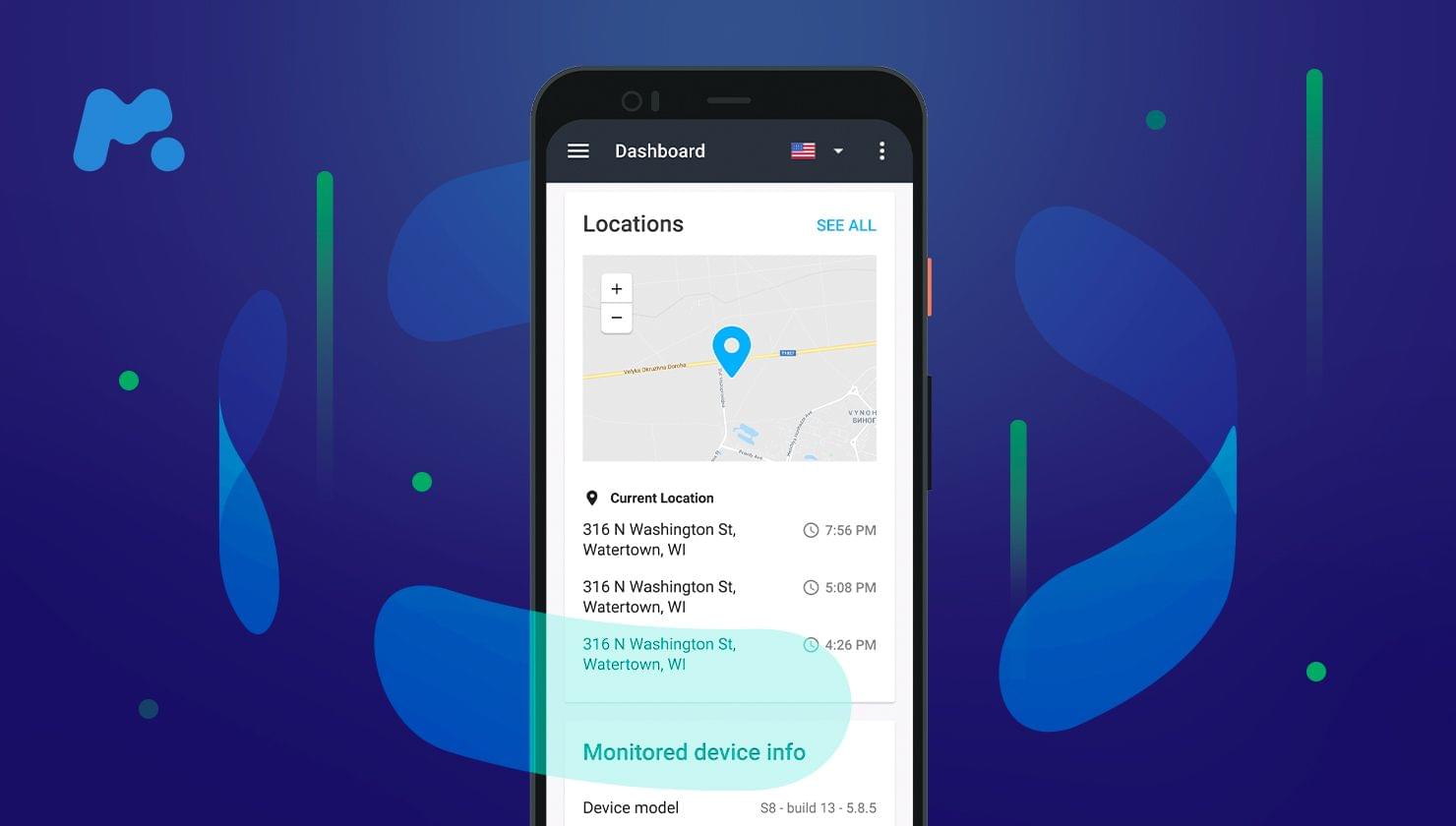
mSpy is a popular monitoring application designed to track and record activity on a target smartphone or tablet. Once installed on a device, it operates discreetly in the background, collecting data such as call logs, text messages, GPS location, social media interactions, browsing history, and more. This data is then uploaded to a secure online control panel, accessible to the subscriber from any web browser.
The primary use cases for mSpy often fall into two main categories:
- Parental Control: Many parents utilize mSpy to monitor their children’s online activities, track their location, and ensure their safety in the digital and physical world. This aligns with the “Digital Security” aspect of our Tech focus, aiming to protect vulnerable users from cyberbullying, online predators, and inappropriate content.
- Employee Monitoring: Businesses may deploy mSpy on company-owned devices to track employee productivity, prevent data leaks, and ensure compliance with company policies. This, however, requires explicit consent and adherence to labor laws, highlighting the importance of “Digital Security” and “Corporate Identity” within the Brand context.
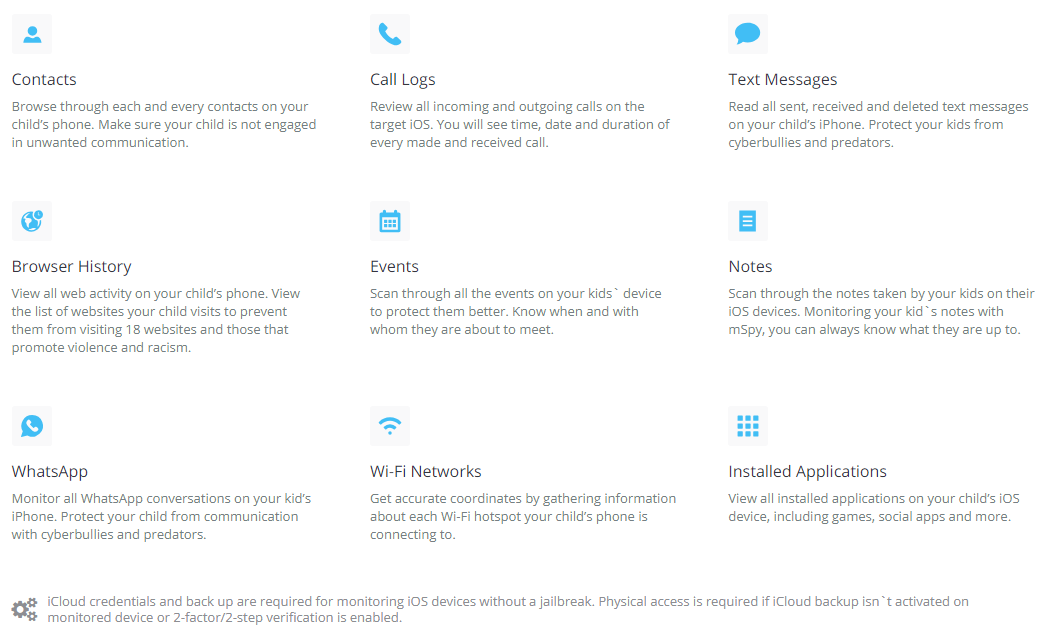
mSpy’s appeal lies in its comprehensive feature set, which often includes:
- Call Monitoring: Viewing incoming/outgoing calls, timestamps, and contact details.
- Text Message Tracking: Accessing sent and received SMS/MMS messages.
- GPS Location Tracking: Real-time location and geo-fencing capabilities.
- Social Media Monitoring: Tracking activity on platforms like WhatsApp, Facebook Messenger, Snapchat, Instagram, and more.
- Internet Activity: Monitoring browser history, bookmarks, and Wi-Fi networks.
- Keylogger: Recording all keystrokes made on the device.
- Multimedia Files: Accessing photos and videos stored on the device.
Navigating the Ethical and Legal Landscape
The power offered by monitoring software like mSpy comes with significant ethical and legal responsibilities. It’s crucial to understand that installing monitoring software on a device without the owner’s knowledge and explicit consent is illegal in most jurisdictions. This is not just a moral grey area; it can lead to severe legal penalties.
- Consent is Key: For parental control, most laws allow parents to monitor their minor children’s devices. However, children, especially older teenagers, often have an expectation of privacy, making open communication paramount. For employee monitoring, it is legally mandated to inform employees that their company-issued devices are being monitored.
- Privacy Concerns: The fundamental right to privacy is at stake. Even with consent, the extent of monitoring should be carefully considered and limited to what is truly necessary. The “Digital Security” aspect, in this case, applies to protecting the monitored individual’s data from misuse by the monitor.
- Brand Reputation: For mSpy as a Brand, its marketing often emphasizes ethical use cases (parental control). However, the potential for misuse impacts its overall public perception. Users considering mSpy should also be aware of the implications for their own “Personal Branding” or reputation if found to be using the software illegally or unethically.
Always consult with legal professionals if you are unsure about the legality of using mSpy in your specific situation or jurisdiction. Responsible use is not just a recommendation; it is a legal imperative.
Preparing for Installation: Prerequisites and Account Setup
Before you can install mSpy, there are several crucial preparatory steps. These involve ensuring the target device meets the necessary requirements, selecting the appropriate subscription plan, and setting up your mSpy account. Proper preparation ensures a smooth installation process and optimal performance of the software.
Compatibility Check: Devices and Operating Systems
mSpy supports a wide range of devices and operating systems, but compatibility is paramount. Attempting to install the software on an unsupported device or OS version can lead to installation failures or incomplete functionality.
- Android Devices: mSpy typically supports most Android smartphones and tablets running recent versions of the Android OS (e.g., Android 4.0 up to the latest versions). Physical access to the device is almost always required for Android installation. You will also need to disable Google Play Protect and allow installation from unknown sources during the process.
- iOS Devices (iPhone/iPad): For Apple devices, mSpy offers two primary installation methods:
- No-Jailbreak Method: This popular option does not require physical access to the device if you have the iCloud credentials (Apple ID and password) and two-factor authentication (2FA) is either disabled or you have access to the 2FA code. This method relies on iCloud backups to extract data, meaning some real-time features might be limited compared to direct installation.
- Jailbreak Method: This method requires physically jailbreaking the iOS device, which involves modifying its operating system to allow the installation of third-party apps not available on the App Store. While it offers the most comprehensive monitoring features, jailbreaking can void the device’s warranty, potentially compromise its security, and is a more complex process. Physical access is mandatory.
Always visit the official mSpy website to check the most up-to-date compatibility list before purchasing a subscription. This ensures that the Tech solution you’re investing in will work with your target device.
Choosing Your mSpy Subscription Plan
mSpy is a premium service, and its functionality is gated behind various subscription tiers. This directly relates to the “Money” aspect of your decision-making. Different plans offer varying levels of features and subscription durations (e.g., 1 month, 3 months, 12 months).
- Basic vs. Premium: Typically, mSpy offers a “Basic” plan with essential monitoring features and a “Premium” plan that unlocks the full suite of advanced functionalities like social media tracking, keylogger, and remote control options. The “Premium” plan usually provides the most comprehensive data, aligning with advanced “Tech” requirements.
- Subscription Duration: Longer subscription periods often come with a lower per-month cost, representing a better “Investing” opportunity if you anticipate long-term use. Consider your needs and budget carefully.
- Value Proposition: Evaluate which features are essential for your monitoring goals. Paying for a “Premium” plan when a “Basic” one suffices is an unnecessary expenditure. Conversely, opting for a “Basic” plan and missing critical features can be counterproductive.
Researching the different plans on the official mSpy website will allow you to match your needs with the appropriate Money investment.
Creating Your mSpy Account
Once you’ve confirmed compatibility and decided on a subscription plan, the next step is to create your mSpy account.
- Purchase Your Subscription: Go to the official mSpy website and select your desired plan. Complete the purchase process.
- Receive Welcome Email: After a successful purchase, you will receive a welcome email. This email contains important information, including your login credentials (username and password) for your mSpy control panel and a link to access it. It may also include a link to the installation guide or direct instructions.
- Log In to Your Control Panel: Use the provided credentials to log in to your personal mSpy control panel from any web browser. This dashboard will be your central hub for managing your subscription, accessing installation instructions, and viewing the monitored data. Familiarize yourself with its interface.
This account serves as the bridge between the installed software on the target device and your ability to review the collected data, a core component of the Tech ecosystem mSpy provides.
Step-by-Step Installation Guides
The installation process varies significantly depending on whether the target device is an Android or an iOS device, and for iOS, whether you choose the no-jailbreak or jailbreak method. It’s crucial to follow the instructions precisely to ensure successful installation and proper functioning.
Installing mSpy on Android Devices
For Android devices, physical access to the target phone or tablet is always required. The process involves adjusting security settings, downloading the mSpy app, and configuring it on the device.
- Access the Target Device: Securely obtain the Android device you wish to monitor. Ensure it is connected to a stable internet connection (Wi-Fi is recommended to save mobile data).
- Disable Play Protect: Google Play Protect is Android’s built-in security feature that scans apps for potential harm. It needs to be temporarily disabled to install mSpy without interference.
- Go to Settings > Google > Security > Play Protect.
- Tap the gear icon in the top right corner.
- Turn off “Scan apps with Play Protect” and “Improve harmful app detection.”
- Confirm the action if prompted.
- Allow Installation from Unknown Sources: Android’s default security prevents installing apps from outside the Google Play Store.
- Go to Settings > Apps & Notifications (or simply Apps).
- Tap Special app access (or find Install unknown apps).
- Find your browser (e.g., Chrome) and toggle on “Allow from this source.” This allows you to download and install the mSpy APK file. (Note: On some older Android versions, this might be under Settings > Security > Unknown Sources).
- Download and Install mSpy:
- Open the web browser on the target Android device.
- Enter the unique download link provided in your mSpy welcome email or control panel.
- Download the mSpy APK file.
- Once downloaded, locate the file (usually in the “Downloads” folder) and tap it to begin installation.
- Follow the on-screen prompts, granting all necessary permissions to the app. These permissions are critical for mSpy to function correctly and collect data.
- Configure and Activate:
- After installation, open the mSpy app.
- Accept the terms and conditions.
- Enter the registration code provided in your mSpy control panel. This links the app on the device to your account.
- Follow any remaining setup prompts, such as allowing specific tracking features or optimizing battery usage to ensure the app runs continuously.
- Choose whether to hide the mSpy icon. For discreet monitoring, hiding the icon is generally preferred.
- Re-enable Play Protect (Optional but Recommended): Once mSpy is fully installed and configured, you can re-enable Google Play Protect if desired, although some users report that this might sometimes flag the mSpy app, requiring it to be disabled again or the mSpy app to be whitelisted.
- Clear Browser History: To maintain discretion, clear the browsing history on the target device after installation.
Installing mSpy on iOS Devices (No-Jailbreak Method)
The no-jailbreak method is often preferred for its simplicity and the absence of warranty voiding. It relies on accessing iCloud backups.
- Access iCloud Credentials: You will need the Apple ID and password of the target iOS device owner.
- Disable Two-Factor Authentication (2FA) (If Enabled): If 2FA is enabled on the iCloud account, you will either need to disable it (which might trigger alerts on the target device) or have access to the device to receive and input the verification code during the setup process.
- Ensure iCloud Backup is Enabled:
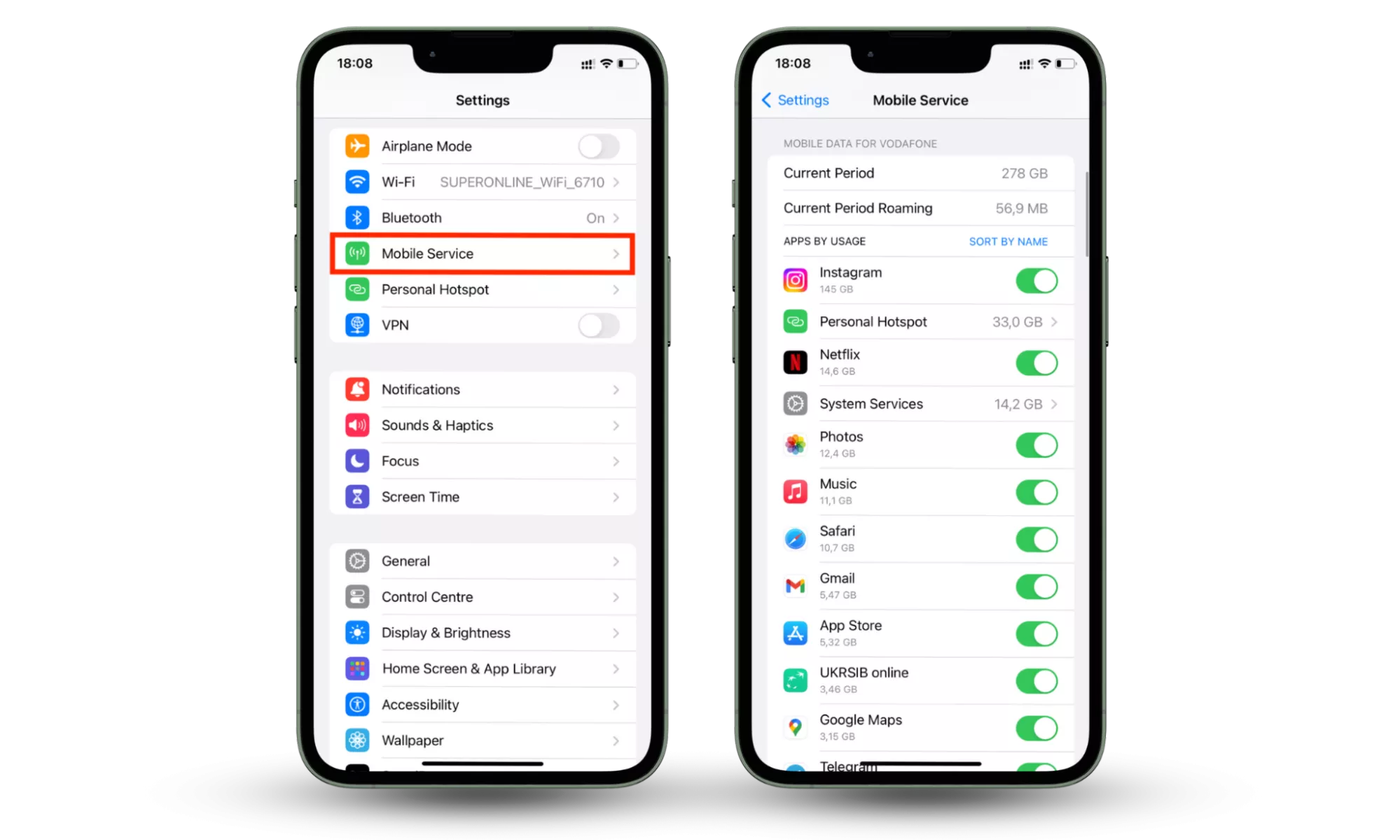
- On the target iOS device, go to Settings > [Your Name] > iCloud > iCloud Backup.
- Ensure “iCloud Backup” is toggled ON.
- Make sure a recent backup has occurred. If not, initiate a manual backup. This is crucial as mSpy retrieves data from these backups.
- Log In to Your mSpy Control Panel:
- Access your mSpy control panel from a web browser on your own device.
- Follow the setup wizard for iOS (No-Jailbreak).
- Enter iCloud Credentials: You will be prompted to enter the Apple ID and password of the target device’s iCloud account.
- Verify iCloud Account: mSpy will verify the credentials. If 2FA is active, you will be prompted to enter the code received on the target device.
- Select Device (If Multiple): If multiple iOS devices are associated with that iCloud account, select the specific device you wish to monitor.
- Wait for Data Sync: Once verified, mSpy will begin extracting data from the iCloud backups. This process can take some time, depending on the amount of data and internet speed. You will see a “Connecting” or “Processing” status on your dashboard.
- Start Monitoring: Once the data is synced, you can start viewing the collected information directly from your mSpy control panel.
Installing mSpy on iOS Devices (Jailbreak Method)
This method provides the most extensive monitoring features but is more complex and carries risks. Physical access to the device is mandatory, and the device must be jailbroken beforehand. If the device is not already jailbroken, you would need to perform that step first using a compatible jailbreaking tool, which is outside the scope of this mSpy-specific guide but is a significant Tech undertaking.
- Ensure Device is Jailbroken: The iOS device must already be successfully jailbroken. This means Cydia (the alternative app store for jailbroken devices) should be present on the home screen.
- Access the Target Device: Obtain the physically jailbroken iOS device.
- Open Cydia: Launch the Cydia app on the target device.
- Add mSpy Source:
- Go to Sources > Edit > Add.
- Enter the mSpy repository URL (provided in your mSpy control panel or welcome email).
- Tap “Add Source.”
- Install mSpy Package:
- Once the source is added, search for “mSpy” within Cydia.
- Select the mSpy package and tap “Install” then “Confirm.”
- Configure and Activate:
- After installation, the mSpy icon may or may not appear on the home screen, depending on the version.
- Follow the instructions provided in your mSpy control panel to complete the activation, which usually involves entering a registration code.
- You might be prompted to hide the Cydia icon and any other traces of the jailbreak to maintain discretion.
- Start Monitoring: The device should now be linked to your mSpy account, and data will begin uploading to your control panel.
Post-Installation and Utilizing the mSpy Dashboard
Successfully installing mSpy is only the first step. The true power of the software lies in its control panel, which serves as your central hub for data access and management. Understanding how to navigate and utilize this dashboard is key to effective monitoring.
Accessing and Navigating Your Control Panel
After installation, all collected data from the target device is uploaded to your secure mSpy online control panel.
- Log In: Open your web browser on your preferred device (computer, tablet, or smartphone) and go to the mSpy login page. Enter your credentials (username and password) from your welcome email.
- Dashboard Overview: Upon logging in, you’ll be presented with a dashboard that provides a summary of the monitored device’s activity. This often includes quick stats on recent calls, messages, location, and a device status indicator.
- Feature Menu: On the left-hand side or top of the dashboard, you’ll find a menu listing all the available monitoring features (e.g., Call Logs, SMS, GPS Locations, WhatsApp, Keylogger, etc.). Clicking on each category will take you to a detailed view of the collected data.
- Data Filtering and Export: Most sections allow you to filter data by date, type, or specific contacts. You may also have options to export data for record-keeping.
- Settings and Device Management: Within the dashboard, you can also access settings related to your subscription, manage the monitored device (e.g., update data sync frequency, remotely uninstall mSpy), and contact support.
Regularly checking the dashboard allows you to stay updated on the target device’s activity, directly leveraging the “Tech” capabilities of the software.
Optimizing mSpy for Stealth and Performance
For those requiring discreet monitoring (within legal and ethical bounds, such as parental control where the child is aware but the app is not conspicuously visible), optimizing mSpy for stealth and performance is important.
- Hiding Icons: During installation on Android, you typically have an option to hide the mSpy icon. For jailbroken iOS devices, ensure Cydia and any jailbreak-related apps are hidden. For no-jailbreak iOS, there’s no app on the device itself, so no icon to hide.
- Battery Optimization: Monitoring apps, especially those that frequently upload data, can consume battery life. On Android, go to Settings > Apps & Notifications > (find mSpy or a generic system service name it might use) > Battery and set it to “Unrestricted” or “Don’t optimize.” This ensures the app isn’t shut down by the system to save battery.
- Data Usage: Be mindful of data consumption. While most data is small, constant uploading can add up. Ensure the target device has a sufficient data plan or primarily connects via Wi-Fi.
- Updates: Periodically check your mSpy dashboard for any software updates. Keeping the app updated ensures compatibility with newer OS versions and improves performance and stability.
These optimization steps are part of maximizing the “Tech” efficiency and discretion of your monitoring solution.
Beyond Installation: Support, Troubleshooting, and Responsible Use
The journey with mSpy doesn’t end with successful installation. Like any sophisticated Tech product, you might encounter issues, require support, or need to revisit your approach to ensure responsible and lawful use.
Common Issues and How to Resolve Them
Even with careful installation, users may face challenges. Here are a few common mSpy issues and general troubleshooting tips:
- No Data Uploading/Syncing:
- Check Internet Connection: Ensure the target device has a stable internet connection.
- Verify mSpy Activation: Confirm the app is correctly activated on the device and linked to your account.
- Permissions: For Android, verify all necessary permissions have been granted to the mSpy app.
- iCloud Backup (iOS No-Jailbreak): Ensure iCloud backup is enabled and recent backups are occurring. Also, check that 2FA is handled correctly.
- Device Updates: If the target device’s operating system recently updated, mSpy might need an update to maintain compatibility. Check your dashboard for notifications.
- Battery Drain on Target Device:
- Excessive Monitoring: Reduce the frequency of data uploads or disable less critical features.
- Optimization Settings: Revisit battery optimization settings on Android to ensure mSpy is not being overly aggressive.
- mSpy Detected:
- Security Software: If antivirus or anti-malware software on the target device detects mSpy, you may need to whitelist it or ensure Play Protect is properly handled.
- Physical Traces: Double-check that all browser history, download files, and temporary icons have been removed after installation.
For persistent issues, the mSpy support team is typically available via chat, email, or phone. Utilizing their support channels is part of managing your “Tech” investment effectively.
The Importance of Responsible and Lawful Use
Reiterating the legal and ethical considerations is paramount. mSpy’s Brand reputation and your own “Personal Branding” or legal standing depend on adhering to these principles.
- Legal Compliance: Always adhere to local, state, and federal laws regarding surveillance and privacy. Installing mSpy on a device you do not own or have explicit, informed consent to monitor is illegal.
- Transparency: When monitoring adults (e.g., employees), transparency is legally mandated. For children, while parental rights often allow monitoring, open communication fosters trust and can be more effective than covert surveillance.
- Data Security: The data collected by mSpy is sensitive. Ensure your mSpy account is secured with a strong, unique password and, if available, two-factor authentication. Do not share your login credentials.
- Purpose-Driven Monitoring: Only monitor what is necessary to achieve your legitimate goals (e.g., child safety, business security). Avoid excessive or intrusive monitoring that oversteps boundaries.
Weighing the Costs and Benefits
Finally, considering the “Money” aspect, mSpy represents a financial investment. Evaluate this investment against the benefits it provides:
- Financial Cost: Subscription fees can range from a few dollars to a substantial amount annually. Factor this into your “Personal Finance” or “Business Finance” budget.
- Time Investment: Installation, configuration, and regular monitoring require time and effort.
- Peace of Mind vs. Privacy: For parents, the peace of mind derived from knowing their children are safe online and offline can be invaluable. For businesses, protecting proprietary information or ensuring productivity can have a clear financial ROI. However, this must always be balanced against the privacy implications.
- Potential Risks: The financial and reputational costs of illegal or unethical use (e.g., legal fees, fines, damage to relationships) far outweigh the subscription cost of the software itself.
In conclusion, mSpy offers a powerful Tech solution for digital monitoring, with a comprehensive suite of features. Its installation, though requiring careful attention to detail, is manageable across different platforms. However, the decision to use such software carries significant weight. By understanding the Brand’s offering, making a wise Money investment, and most critically, upholding legal and ethical responsibilities, users can leverage mSpy’s capabilities responsibly and effectively to meet their monitoring needs.
aViewFromTheCave is a participant in the Amazon Services LLC Associates Program, an affiliate advertising program designed to provide a means for sites to earn advertising fees by advertising and linking to Amazon.com. Amazon, the Amazon logo, AmazonSupply, and the AmazonSupply logo are trademarks of Amazon.com, Inc. or its affiliates. As an Amazon Associate we earn affiliate commissions from qualifying purchases.