
In today’s digitally driven world, Microsoft Office remains an indispensable suite of productivity tools for individuals and businesses alike. From crafting professional documents with Word to managing data with Excel and presenting ideas with PowerPoint, the applications within Office are fundamental to countless daily tasks. This guide delves into the essential steps and considerations for installing Microsoft Office, ensuring you can leverage its full potential without a hitch. Whether you’re a new user navigating the process for the first time or an existing user looking to reinstall or upgrade, we’ve got you covered.

The world of technology is constantly evolving, and Microsoft Office is no exception. Understanding the different versions, subscription models, and installation procedures is key to making the right choice and ensuring a smooth setup. This article, drawing from our expertise in Tech, aims to demystify the process of installing Microsoft Office, making it accessible and straightforward. We’ll touch upon the broader implications of having a robust productivity suite, linking it to how it empowers your Brand – whether personal or corporate – and how efficient use can ultimately contribute to your Money goals by saving time and enhancing output.
Understanding Your Microsoft Office Options
Before diving into the installation itself, it’s crucial to understand the various ways you can acquire and install Microsoft Office. Microsoft offers different products to cater to diverse user needs and budgets. Recognizing these distinctions will prevent confusion and ensure you select the most suitable option.
Microsoft 365: The Subscription Powerhouse
The most prominent offering from Microsoft is Microsoft 365. This is a subscription-based service that provides always-up-to-date versions of the core Office applications (Word, Excel, PowerPoint, Outlook, etc.) along with other productivity tools like OneDrive for cloud storage and Teams for collaboration. The advantage of Microsoft 365 is that you always have the latest features and security updates. It’s ideal for users who require continuous access to cutting-edge tools and cloud-based services.
There are various Microsoft 365 plans:
- Microsoft 365 Personal: Designed for individuals, offering installation on up to five devices (PCs, Macs, tablets, and phones) per user.
- Microsoft 365 Family: Similar to Personal but allows sharing with up to six people, each getting their own 1TB OneDrive storage and ability to install Office on their devices.
- Microsoft 365 Business/Enterprise: Tailored for organizations, with plans offering advanced security features, business-grade email, and more.
When you subscribe to Microsoft 365, you don’t technically “install” a perpetual version. Instead, you download and install the latest Office applications from your Microsoft account portal. This installation process is typically straightforward and guided.
Office 2021: The One-Time Purchase Option
For users who prefer a perpetual license and don’t need the continuous updates or cloud services, Office 2021 is the latest one-time purchase option. This version provides a set of core Office applications (Word, Excel, PowerPoint, Outlook, etc.) that you own outright. Once purchased, you install it, and it remains on your device without recurring costs.
However, it’s important to note that Office 2021 does not receive feature updates; it only receives security updates. This means you won’t get new functionalities that are introduced in Microsoft 365 over time. Office 2021 is typically available in two editions:
- Office Home & Student 2021: Includes Word, Excel, and PowerPoint.
- Office Home & Business 2021: Includes Word, Excel, PowerPoint, and Outlook.
The installation for Office 2021 involves using a product key to activate a downloaded installer.
Free Alternatives and Web Versions
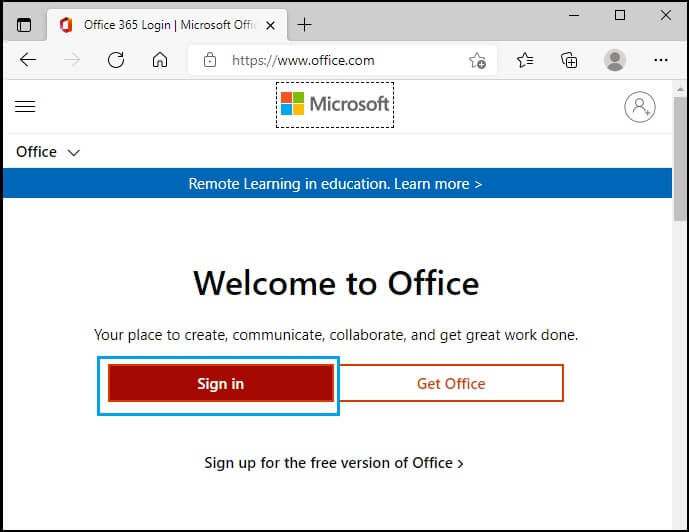
While not a direct installation of the full desktop suite, it’s worth mentioning that Microsoft offers Office for the web. These are free, browser-based versions of Word, Excel, and PowerPoint that allow basic editing and document creation. They are accessible through a web browser and are a great option for quick edits or for users who don’t require the advanced features of the desktop applications. You can access them by signing in with a Microsoft account at office.com.
Step-by-Step Installation of Microsoft Office
The installation process will vary slightly depending on whether you are installing Microsoft 365 or a one-time purchase version like Office 2021. However, the general flow is similar and relies on your Microsoft account.
Installing Microsoft 365 (Subscription)
This is the most common method for new users and those looking for the latest features.
1. Purchase or Renew Your Subscription:
If you don’t already have a Microsoft 365 subscription, you’ll need to purchase one from the official Microsoft website. Choose the plan that best suits your needs (Personal, Family, Business, etc.). If you have an existing subscription, ensure it’s active.
2. Sign In to Your Microsoft Account:
Navigate to your Microsoft account dashboard by visiting account.microsoft.com. Sign in with the Microsoft account associated with your subscription.
3. Locate the “Install Office” Option:
Once logged in, you should see an option or button related to installing Office. It might be labeled “Install Office,” “Install apps,” or something similar. Click on this.
4. Select Your Version and Language:
You’ll typically be presented with an option to choose the version (e.g., 64-bit or 32-bit) and language for your Office installation. For most modern computers, the 64-bit version is recommended.
5. Download the Installer:
Click the “Install” button. This will download a small setup file (an .exe file on Windows).
6. Run the Installer:
Locate the downloaded file (usually in your Downloads folder) and double-click it to run.
7. Follow On-Screen Prompts:
The Microsoft Office installer will launch. It typically proceeds automatically, downloading and installing the necessary applications. You’ll see a progress bar indicating the installation status. This process can take some time depending on your internet speed and computer performance. Do not close the installer window.
8. Activation:
Once the installation is complete, you will likely be prompted to open an Office application (like Word or Excel). When you open an application for the first time, you will be asked to sign in with your Microsoft account. This is how Office verifies your subscription and activates.

9. Start Using Office:
After successful activation, you can start using your Microsoft Office applications. You can typically find them in your Start Menu (Windows) or Applications folder (Mac).
Installing Office 2021 (One-Time Purchase)
For users who have purchased Office 2021, the installation process involves using a product key.
1. Purchase Your Product Key:
Ensure you have purchased a valid product key for Office 2021 (e.g., Office Home & Student 2021 or Office Home & Business 2021).
2. Redeem Your Product Key:
Go to setup.office.com and sign in with your Microsoft account. You will be prompted to enter your 25-character product key. If you’re setting up Office for the first time with this key, follow the on-screen instructions to associate it with your Microsoft account.
3. Download the Installer:
After redeeming your key, you’ll be directed to a page where you can download the Office installer. Similar to Microsoft 365, you can choose the language and bit version (32-bit or 64-bit).
4. Run the Installer:
Locate the downloaded setup file and run it.
5. Follow On-Screen Prompts:
The installer will guide you through the installation process. It will download and install the Office applications onto your computer.
6. Activate Office:
Once the installation is complete, open any Office application (e.g., Word). You will be prompted to enter your product key again or, more commonly, to sign in with the Microsoft account you used to redeem the key. This step activates your Office 2021 license.
7. Start Using Office:
Your Office 2021 applications are now ready to use.
Troubleshooting Common Installation Issues
Even with a straightforward process, you might encounter hiccups during installation. Here are some common issues and their solutions:
Installation Fails or Stops Midway
- Internet Connection: Ensure you have a stable and strong internet connection.
- Disk Space: Verify that you have enough free space on your hard drive. Office applications can take up a significant amount of space.
- Antivirus Interference: Temporarily disable your antivirus software. Sometimes, security programs can mistakenly flag the installer as a threat and block its execution. Remember to re-enable it after installation.
- Corrupted Download: If the download was interrupted, try downloading the installer again.
- Previous Office Versions: If you are upgrading or reinstalling, try uninstalling any previous versions of Office completely before attempting a new installation. You can use the Microsoft Support and Recovery Assistant tool for a thorough uninstall.
Activation Errors
- Incorrect Microsoft Account: Ensure you are signing in with the correct Microsoft account linked to your subscription or product key.
- Product Key Issues: Double-check that you have entered the product key correctly. If you purchased from a third-party vendor, ensure the key is legitimate.
- Office Already Installed on Max Devices: If you’re using Microsoft 365 and get an error that Office is installed on too many devices, you can manage your installations from your Microsoft account dashboard and deactivate older installations.
- Date and Time Settings: Incorrect system date and time settings can sometimes interfere with activation. Ensure your computer’s date, time, and time zone are set correctly.
Application Not Opening After Installation
- Restart Your Computer: A simple restart can resolve many temporary glitches.
- Repair Office: If Office applications are installed but not opening or behaving erratically, you can repair the installation. Go to Control Panel > Programs and Features (or Apps & features in Windows 10/11), find your Microsoft Office installation, right-click it, and select “Change” then “Repair.” Choose between a Quick Repair or an Online Repair. An Online Repair is more thorough but requires an internet connection.
Maximizing Your Office Investment: Beyond Installation
Installing Microsoft Office is the first step towards enhanced productivity. To truly maximize your investment, consider how these tools can elevate your Brand and contribute to your Money goals.
Enhancing Your Personal and Corporate Brand
A well-installed and expertly used Microsoft Office suite can significantly bolster your brand presence:
- Professional Documents: Crafting polished resumes, reports, and proposals with Word reflects professionalism and attention to detail, crucial for personal and corporate branding.
- Compelling Presentations: PowerPoint allows you to create visually engaging presentations that effectively communicate your message and brand identity, whether you’re pitching a new idea, training employees, or addressing clients.
- Organized Data and Insights: Excel’s capabilities in data analysis and visualization can help you identify trends, manage finances, and make informed decisions, demonstrating strategic thinking – a key brand attribute.
- Efficient Communication: Outlook streamlines email communication, while Teams fosters collaboration, ensuring your brand message is delivered consistently and efficiently across your organization.
By mastering these tools, you present a more competent, organized, and professional image, strengthening both your individual reputation and your company’s standing in the market.
How Efficient Office Use Contributes to Financial Gains
The connection between productivity software and financial outcomes might not be immediately obvious, but it’s profound:
- Time Savings: Efficiently using Word templates, Excel formulas, or PowerPoint design tools can drastically reduce the time spent on tasks. This saved time can be reinvested into revenue-generating activities, strategic planning, or business development.
- Improved Decision-Making: The analytical power of Excel can uncover hidden financial insights, leading to better investment decisions, cost-saving opportunities, and optimized resource allocation.
- Increased Output and Quality: Producing high-quality documents, presentations, and analyses faster leads to greater output. This can translate to closing more deals, serving more clients, or delivering more projects, directly impacting your bottom line.
- Reduced Errors: Well-structured documents and accurate spreadsheets minimize costly errors that can arise from manual processes or misinterpretations.
- Streamlined Operations: Features like OneDrive for document sharing and Teams for team collaboration improve workflow efficiency, reducing operational overhead and boosting overall profitability.
By investing time in learning and correctly installing Microsoft Office, you are investing in a tool that directly supports your financial success through increased efficiency, better decision-making, and enhanced output.
In conclusion, installing Microsoft Office is a foundational step for anyone looking to enhance their digital productivity. By understanding your options, following the installation guides, and troubleshooting effectively, you can ensure a smooth experience. Remember, the power of Office extends far beyond just installation; it’s about how these tools can empower your brand and contribute positively to your financial goals.
aViewFromTheCave is a participant in the Amazon Services LLC Associates Program, an affiliate advertising program designed to provide a means for sites to earn advertising fees by advertising and linking to Amazon.com. Amazon, the Amazon logo, AmazonSupply, and the AmazonSupply logo are trademarks of Amazon.com, Inc. or its affiliates. As an Amazon Associate we earn affiliate commissions from qualifying purchases.