
ElvUI is a highly popular and comprehensive user interface (UI) modification for the game World of Warcraft. It aims to streamline and enhance the default game interface, offering a cleaner, more organized, and customizable experience for players of all skill levels. Whether you’re a seasoned raider looking for optimal raid frames, a Dungeon Finder enthusiast needing clearer combat text, or a casual player wanting a more aesthetically pleasing UI, ElvUI can significantly improve your gameplay. However, for new users, the installation process might seem a bit daunting. This guide will walk you through every step, from downloading the necessary files to configuring your UI for the best possible experience.
The appeal of ElvUI lies in its ability to centralize information and provide a more intuitive layout. Unlike many other addons that focus on a single aspect of the UI, ElvUI is an all-in-one solution that replaces most of the default game elements. This includes action bars, unit frames, buffs and debuffs, minimap, chat windows, and much more. The sheer number of customization options available can be overwhelming at first, but that’s also its greatest strength, allowing you to tailor the UI precisely to your preferences and playstyle. For those who find the default WoW interface cluttered or inefficient, ElvUI offers a breath of fresh air, enhancing both visual clarity and functional efficiency. This guide is designed to demystify the installation and initial setup, making ElvUI accessible to everyone.
Understanding ElvUI and Its Benefits
Before diving into the installation, it’s crucial to understand what ElvUI is and why so many World of Warcraft players swear by it. At its core, ElvUI is a complete overhaul of the game’s user interface. It replaces nearly every default element with its own, highly configurable alternatives.
Key Features and Advantages of ElvUI
ElvUI isn’t just about aesthetics; it’s about improving gameplay through a more efficient and informative interface. Here are some of its standout features:
- Centralized Action Bars: ElvUI offers a wide array of customizable action bars that can be moved, resized, and configured to your exact needs. This allows for better accessibility to your abilities and macros.
- Streamlined Unit Frames: Player, target, pet, and party/raid frames are completely redesigned to be more informative and less intrusive. You can easily track health, buffs, debuffs, and important cooldowns at a glance.
- Enhanced Buffs and Debuffs: The management of buffs and debuffs is crucial in World of Warcraft, especially in challenging content. ElvUI provides clear indicators for your own buffs and debuffs, as well as those on your target and party members, making it easier to react to game mechanics.
- Customizable Chat Windows: While often overlooked, the chat interface plays a vital role. ElvUI allows you to create multiple chat tabs, filter messages, and customize the appearance of your chat windows for better readability and organization.
- Minimalist Design: ElvUI often adopts a cleaner, more minimalist aesthetic compared to the default UI, reducing visual clutter and helping players focus on the game world and critical combat information.
- Boss Mod Integration: ElvUI often integrates with popular boss mods, providing crucial timers and warnings for raid encounters directly within the UI.
- Built-in Addon Management: ElvUI comes with its own configuration panel, which acts as a central hub for all its settings. This panel is incredibly powerful, allowing for granular control over every aspect of the UI.
The primary benefit of using ElvUI is the significant improvement in gameplay efficiency and awareness. By presenting critical information in a more organized and accessible manner, players can react faster to in-game events, make better decisions, and ultimately perform better. Furthermore, the aesthetic appeal of a well-configured ElvUI can make the game more enjoyable for many players. The ability to personalize every element, from the color schemes to the placement of frames, allows for a truly unique and optimized gaming experience.
Step-by-Step Installation Guide
Installing ElvUI is a straightforward process, but it requires careful attention to a few key steps to ensure it functions correctly within your World of Warcraft client. The most common and recommended method involves downloading ElvUI directly from its official sources.
Downloading and Extracting ElvUI
The first and most critical step is to obtain the ElvUI files. It’s highly recommended to always download addons from reputable sources to avoid malware or outdated versions.
- Visit the Official ElvUI Website: The primary source for ElvUI is their official website. A quick search for “ElvUI official” will lead you to the correct destination. Look for the download section.
- Download the Latest Version: On the download page, you will find the latest stable release of ElvUI. Download the
.zipor.rarfile. Do not download any standalone installers unless they are explicitly provided and verified as official by the ElvUI developers. - Locate Your World of Warcraft Addons Folder: Before you can install ElvUI, you need to know where your game stores its addon files. This is typically located within your World of Warcraft installation directory.
- For PC (Windows): The default path is usually something like
C:Program Files (x86)World of Warcraft_retail_InterfaceAddOns. If you have the game installed on a different drive or in a custom location, you’ll need to navigate to that directory. The_retail_folder is for the modern version of WoW; if you’re using the Classic client, you might look for_classic_or_classic_era_. - For Mac: The path is typically
/Applications/World of Warcraft/_retail_/Interface/AddOns.
- For PC (Windows): The default path is usually something like
- Extract the Downloaded Files: Once you have the ElvUI
.zipor.rarfile, you’ll need to extract its contents. You can usually do this by right-clicking the file and selecting “Extract All…” or by using a program like WinRAR or 7-Zip. - Place the Extracted Folders: Inside the extracted ElvUI archive, you should find at least two folders:
ElvUIandElvUI_Config. You need to copy both of these folders directly into your World of WarcraftAddOnsfolder.- Important: Ensure that you are not placing the folders inside another folder named “ElvUI” that might have been created during extraction. You should see
ElvUIandElvUI_Configdirectly within yourInterfaceAddOnsdirectory.
- Important: Ensure that you are not placing the folders inside another folder named “ElvUI” that might have been created during extraction. You should see
Initial Setup and Configuration
After placing the files correctly, the next step is to launch World of Warcraft and initiate the ElvUI setup.
- Launch World of Warcraft: Start the game as you normally would.
- Enable Outdated Addons (If Necessary): When you first log in, if ElvUI is not already active, you might see a message at the bottom of your character selection screen or upon logging into your character indicating that addons are disabled or outdated. Click the “Addons” button at the bottom left of the character screen and ensure that “Load Outdated Addons” is checked. Then, make sure both
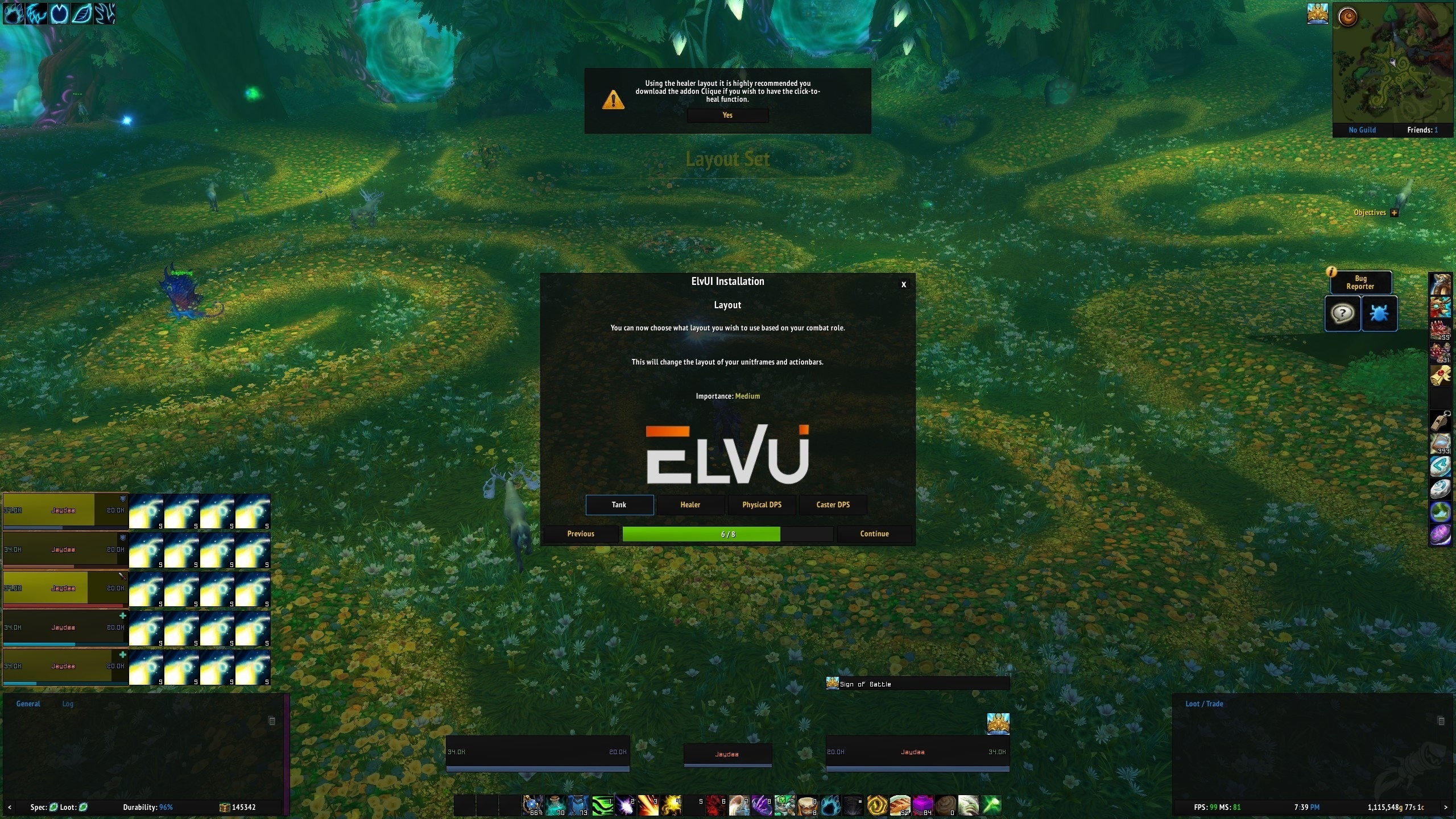
ElvUIandElvUI_Configare enabled. - Run the ElvUI Installer: The first time you log in with ElvUI installed, it will automatically launch its own installation wizard. This wizard guides you through the initial setup.
- Welcome Screen: Click “Next” to proceed.
- Profile Selection: You’ll be presented with options to use default profiles or import profiles from other users. For your first installation, it’s generally recommended to start with the default ElvUI profile. You can always import or create custom profiles later.
- General Settings: The installer will walk you through some basic settings, such as the size of your action bars, the placement of your chat, and other fundamental UI elements. Take your time to review these options.
- Optional Addons: ElvUI often prompts you to install additional, complementary addons that work well with it, such as BenikUI (for enhanced unit frames) or AddOnSkins (for improved styling of other addons). It’s usually a good idea to install these if you’re looking for a complete UI overhaul.
- Completion: Once you’ve gone through the installer, click “Finish.”
Your ElvUI should now be active and configured with your chosen settings. You’ll immediately notice a significant change in your game’s interface.
Configuring ElvUI to Your Preferences
The real power of ElvUI lies in its extensive customization options. The initial installer gets you up and running, but to truly make ElvUI work for you, you’ll want to dive into its configuration panel.
Accessing the ElvUI Configuration Panel
The ElvUI configuration panel is your central command center for all its settings.
- Chat Command: The easiest way to open the ElvUI configuration is by typing
/elvuiinto your chat window and pressing Enter. - Addon Menu: Alternatively, you can access it through the game’s Addon menu. Press the Esc key to bring up the game menu, click “Addons,” and then select “ElvUI.”
Once the configuration panel is open, you’ll see a sidebar with various categories of settings.
Key Configuration Areas and What to Adjust
The ElvUI configuration panel is vast, so let’s highlight some of the most important areas to focus on when fine-tuning your UI.

General Settings
This section covers broad UI elements and behaviors.
- Action Bars: This is a crucial area. Here you can:
- Enable/Disable Bars: Show or hide specific action bars.
- Size and Rows: Adjust the overall size of your bars and how many rows they are split into.
- Grid and Spacing: Precisely control the spacing between buttons.
- Visibility: Set conditions for when bars should appear (e.g., only in combat, only when stance is changed).
- Unit Frames: This is where you customize how your character, target, party, and raid frames look and behave.
- Player/Target Frames: Adjust their size, position, and what information is displayed (e.g., health percentage, cast bars, buffs/debuffs).
- Raid Frames: This is incredibly important for healing and raid leaders. You can configure everything from the size and shape of frames to the icons displayed for buffs, debuffs, and incoming heals.
- Nameplates: Control the appearance and information displayed on enemy nameplates above characters’ heads.
- Chat: Customize your chat windows here.
- New Windows: Create additional chat tabs for specific purposes (e.g., Guild, Party, Combat Log).
- Filters: Set up filters to show or hide specific types of chat messages.
- Appearance: Change font sizes, colors, and transparency.
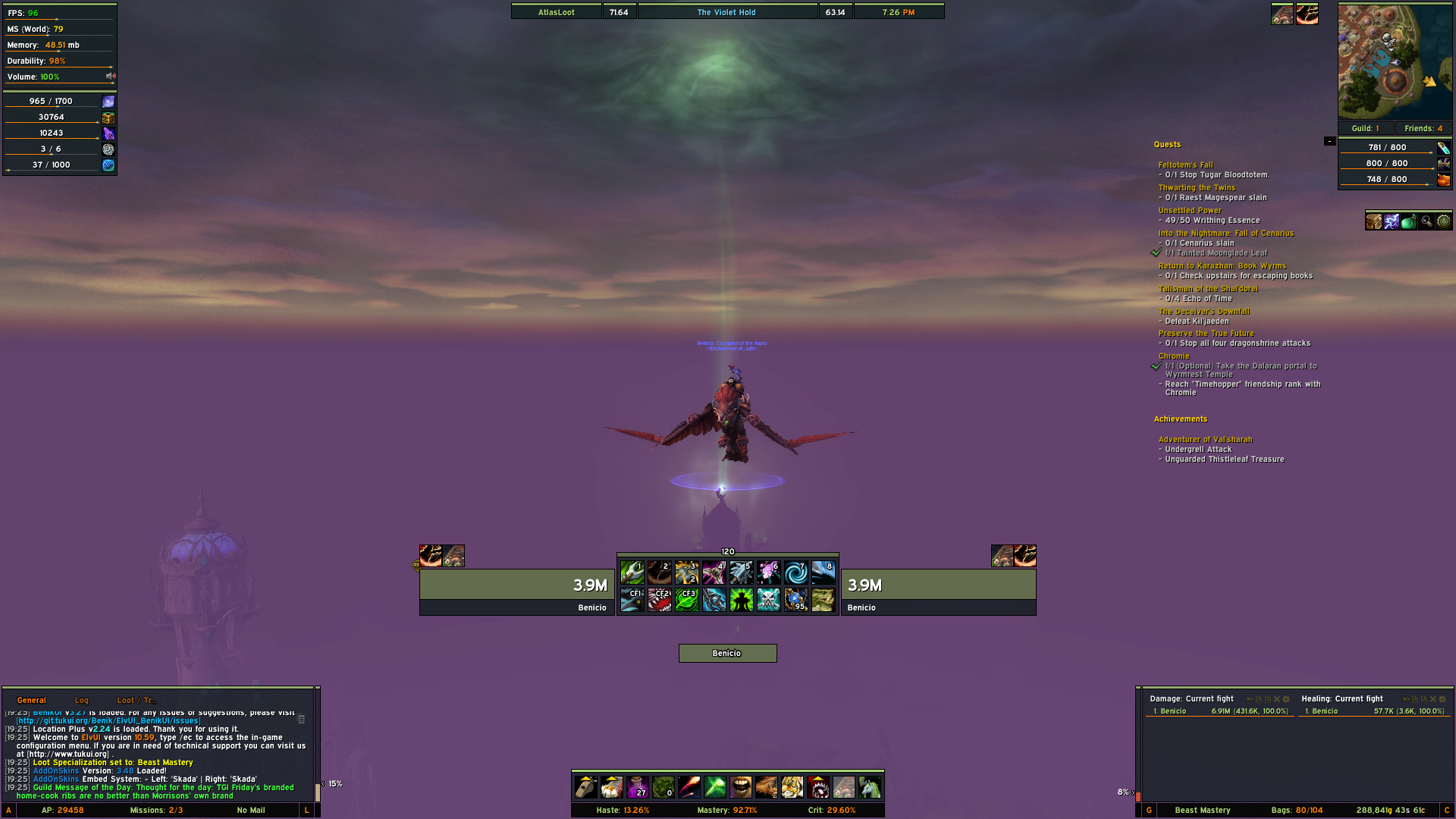
- Datatexts: These are the small text panels that display useful information like your current FPS, latency, durability, bag space, and more. You can configure their content, size, and position.
- Skins: This section allows ElvUI to skin other popular addons, making them fit seamlessly with the ElvUI aesthetic. Ensure any addons you use are enabled here for a cohesive look.
Profiles and Layouts
ElvUI uses a profile system, which is incredibly useful.
- Profiles: You can create multiple profiles for different characters or specializations. For example, you might have one profile optimized for your Healer spec and another for your DPS spec. You can easily switch between these profiles.
- Layouts: Within the “Profiles” section, you can also save and load UI layouts. This is great for sharing your UI with friends or backing up your configuration. If you find a cool ElvUI layout online, you can often import it here.
Tools and Other Settings
- Cooldown Pulse: Enable visual cues on your action bar buttons to indicate when abilities are off cooldown.
- Tooltip Settings: Customize what information appears on your tooltips when you mouse over items, spells, or units.
- Vehicle UI: Adjust the UI when you’re in a vehicle or operating a garrison follower.
Take your time exploring these options. A good strategy is to make one small change at a time and then check it in-game to see how it looks and feels. Don’t be afraid to experiment; you can always reset settings or reload your UI if something goes wrong.
Troubleshooting Common Issues
Even with a straightforward installation, sometimes things don’t go exactly as planned. Here are some common issues users encounter with ElvUI and how to resolve them.
UI Not Loading or Displaying Correctly
This is the most frequent problem new users face.
- Check Addon List: As mentioned earlier, ensure that ElvUI and ElvUI_Config (and any other ElvUI-related addons like BenikUI) are enabled in the Addons menu. Also, make sure “Load Outdated Addons” is checked if you’re using a version that the game flags as potentially outdated (though this is less common with official downloads).
- Correct Folder Structure: Double-check that the
ElvUIandElvUI_Configfolders are directly inside yourWorld of Warcraft_retail_InterfaceAddOnsfolder. You should not have a nested folder likeWorld of Warcraft_retail_InterfaceAddOnsElvUIElvUI. - Corrupted Download: If you suspect the download was incomplete or corrupted, try downloading ElvUI again from the official website and re-extracting it into your AddOns folder.
- Reload UI: After making any changes to addons or their settings, it’s often necessary to reload your UI. Type
/reloadin the chat window and press Enter.
ElvUI Installer Not Appearing
If you’ve installed ElvUI correctly but the setup wizard doesn’t launch when you log in, there are a couple of reasons.
- Already Configured: If you previously had ElvUI installed and then removed it, the game might remember your configuration, and the installer won’t run again. In this case, you’ll need to manually access the ElvUI configuration panel (
/elvui) and begin setting it up from scratch. - Corrupted ElvUI_Config: The installer is part of the
ElvUI_Configaddon. If this specific addon is corrupted or missing, the installer won’t launch. Re-downloading and re-installing bothElvUIandElvUI_Configshould resolve this.
Specific UI Elements Not Working as Expected
- Check ElvUI Configuration: Most issues with specific UI elements (like action bars not showing certain spells, or raid frames not displaying buffs) can be fixed within the ElvUI configuration panel itself. Carefully navigate to the relevant section (e.g., Action Bars, Raid Frames) and review its settings.
- Conflicting Addons: While ElvUI is designed to be comprehensive, other addons can sometimes conflict with it. If you suspect a conflict, try disabling other addons one by one (except for ElvUI and its dependencies) to see if the issue resolves. If it does, you’ve found the culprit. You might then need to look for addon compatibility notes or consider finding an alternative addon.
- Profile Issues: If you’ve imported a profile or made extensive changes, a specific setting might be causing the problem. Try resetting the specific module within ElvUI configuration or, as a last resort, resetting ElvUI to its default settings through the configuration panel.
By following these troubleshooting steps, you should be able to resolve most common installation and configuration problems. Remember that the ElvUI community is also a great resource; forums and dedicated Discord servers can offer help from experienced users.
Conclusion: Mastering Your World of Warcraft Interface with ElvUI
Installing and configuring ElvUI is a journey that significantly enhances your World of Warcraft experience. By transforming the default interface into a streamlined, informative, and aesthetically pleasing powerhouse, ElvUI empowers players to focus on what truly matters: the game. From understanding its core benefits to meticulously following the installation steps and delving into its vast configuration options, this guide has aimed to equip you with the knowledge to make ElvUI your own.
The initial setup, involving downloading from official sources and correctly placing files in your AddOns folder, is the foundation. The automated installer then provides a crucial head start, guiding you through the essential settings. However, the true mastery comes from exploring the ElvUI configuration panel. Whether you’re adjusting action bar layouts for optimal keybind accessibility, fine-tuning raid frames for critical healing awareness, or customizing datatexts for vital performance metrics, ElvUI offers unparalleled control.
Remember that ElvUI is not just a cosmetic change; it’s a tool for improving your gameplay efficiency and decision-making. A well-configured UI reduces visual noise, highlights crucial information, and allows for quicker reactions to in-game mechanics, ultimately leading to better performance in dungeons, raids, and PvP. The ability to save and load profiles ensures that your optimized setup can be easily replicated across characters or shared with guildmates.
While troubleshooting might be necessary for some, the steps outlined for common issues should help you overcome any hurdles. The World of Warcraft community, and specifically the ElvUI user base, is often a supportive environment where solutions to niche problems can be found.
In conclusion, embracing ElvUI is an investment in a superior World of Warcraft experience. Take the time to learn its features, experiment with its settings, and tailor it to your unique playstyle. The result will be an interface that not only looks great but also significantly contributes to your success and enjoyment within Azeroth. Happy adventuring with your newly optimized UI!
aViewFromTheCave is a participant in the Amazon Services LLC Associates Program, an affiliate advertising program designed to provide a means for sites to earn advertising fees by advertising and linking to Amazon.com. Amazon, the Amazon logo, AmazonSupply, and the AmazonSupply logo are trademarks of Amazon.com, Inc. or its affiliates. As an Amazon Associate we earn affiliate commissions from qualifying purchases.