
The allure of a Chromebook is undeniable: its lightweight design, lightning-fast boot times, and seamless integration with cloud services make it an attractive option for many. However, for some users, the limitations of Chrome OS can become a bottleneck, especially when specific Windows-only software is a necessity. This naturally leads to a common question: Can you install Windows on a Chromebook? The answer, while not a simple yes or no, is nuanced and depends on several factors, including your Chromebook’s hardware, your technical expertise, and your tolerance for potential compromises.

This article will delve deep into the possibilities and challenges of running Windows on your Chromebook. We’ll explore the different methods available, from official support to more experimental approaches, and weigh the pros and cons of each. Whether you’re a professional needing specific Windows applications, a student requiring certain software for your coursework, or simply a tech enthusiast curious about pushing the boundaries of your hardware, understanding the landscape of running Windows on a Chromebook is crucial.
The Fundamental Differences: Why It’s Not a Straightforward Installation
Before we explore the “how,” it’s essential to understand why installing Windows on a Chromebook isn’t as simple as installing it on a traditional PC. The core of this difference lies in the operating system and the hardware architecture.
Chrome OS and Its Design Philosophy
Chrome OS is built on a foundation of speed, security, and simplicity. It’s primarily designed to run web applications, Android apps, and Linux apps. Its lightweight nature contributes to the rapid startup times and extended battery life that Chromebooks are known for. This design philosophy also means that Chrome OS uses a different boot process and has different driver requirements compared to Windows. Chromebooks often utilize specialized firmware and hardware configurations that are optimized for Chrome OS, not for the broader compatibility that Windows expects.
Hardware Architecture and Drivers
Most modern Chromebooks are powered by Intel or ARM processors. While Windows can run on both, the specific motherboard, chipset, and integrated components within a Chromebook are often not designed with Windows driver support in mind. Manufacturers typically only provide drivers for Chrome OS. This means that even if you manage to get Windows to boot, essential hardware like the touchpad, Wi-Fi card, audio, or even the display might not function correctly without specific drivers, which are often unavailable or extremely difficult to find.
UEFI vs. BIOS: The Boot Process Hurdle
Traditional PCs use either BIOS or UEFI firmware to boot up. Chromebooks, however, use a specialized firmware called Coreboot. While Coreboot is a powerful and secure bootloader, it’s not natively designed to boot Windows. This incompatibility is one of the primary technical hurdles to overcome when attempting a Windows installation. You’ll often need to replace or modify the existing firmware to even get to the point where a Windows installer can be launched.
Exploring the Options: Methods for Running Windows on a Chromebook
Given the inherent differences, how can one go about installing Windows on a Chromebook? The methods range from officially supported (though limited) to advanced, often requiring significant technical skill and potentially voiding warranties.
Option 1: Chrome OS Flex (The “Official” and Safest Route)
While not a direct Windows installation, Chrome OS Flex offers a compelling alternative for users who want a Chrome OS-like experience on their existing hardware, including older Windows PCs. It’s important to note that Chrome OS Flex is designed to be installed on a machine that previously ran Windows, not necessarily the other way around. However, the underlying principles of flexibility are relevant.
How it works: Google has developed Chrome OS Flex, a cloud-first operating system that can be installed on a wide range of hardware. If you have a Chromebook that’s no longer supported by Google or you want to experiment with a different OS on a machine, Chrome OS Flex might be an option if your Chromebook hardware is certified for it (though this is rare for actual Chromebooks, it’s more for older Windows laptops).
Pros:
- Official Google Support: This is the safest and most supported method.
- Ease of Installation: Relatively straightforward to install from a USB drive.
- Familiar Chrome OS Interface: If you like the Chrome OS experience, this is a good way to extend it.
- Security and Speed: Inherits the benefits of Chrome OS.
Cons:
- Not Windows: You are not installing Windows. You are installing Chrome OS Flex.
- Limited Hardware Compatibility: While broad, not all Chromebook hardware might be fully supported.
- No Traditional Windows Applications: You can’t run legacy Windows desktop applications directly. You’ll rely on web apps, Android apps, and Linux apps.
Option 2: Dual Booting (The Technically Challenging Path)
Dual booting involves installing Windows alongside Chrome OS, allowing you to choose which operating system to boot into when you start your device. This is a popular approach for those who want the best of both worlds but is fraught with technical difficulties.
Modifying the Chromebook Firmware
The most significant hurdle in dual booting is replacing or modifying the Chromebook’s firmware. This usually involves:
- Enabling Developer Mode: This is a necessary first step on most Chromebooks to gain deeper access to the system. It comes with security warnings.
- Flashing Custom Firmware: You’ll need to flash a custom UEFI firmware (like MrChromebox’s UEFI firmware) that replaces the stock Coreboot. This firmware is designed to allow standard operating systems like Windows to boot. This is a critical and potentially risky step.
- Partitioning the Drive: You’ll need to resize your internal storage to create space for Windows.
Installing Windows
Once the firmware is modified, the installation process resembles installing Windows on any other laptop:
- Create a Bootable Windows USB Drive: Use tools like the Media Creation Tool from Microsoft.
- Boot from the USB Drive: Access the boot menu (which will now be accessible via the custom firmware) and select your USB drive.
- Follow the Windows Installation Prompts: This includes selecting the partition where you want to install Windows.
Driver Acquisition
This is where the real challenge begins. Even if you get Windows to install, you’ll likely encounter many non-functional hardware components.
- Searching for Drivers: You’ll need to meticulously search for Windows drivers that are compatible with your specific Chromebook model’s hardware. This often involves identifying individual hardware components (using tools like Device Manager in Windows) and then searching for generic drivers or drivers from similar Intel-based laptops.
- Community Resources: Websites and forums dedicated to Chromebook modding (like the MrChromebox forums) are invaluable resources for finding information and potential driver solutions.
- Partial Functionality: It’s common to end up with a setup where some hardware works, but others (like the webcam, audio, or specific function keys) may remain stubbornly non-operational.
Pros:
- Full Windows Functionality: Access to all Windows applications and features.
- Choice of OS: Switch between Chrome OS and Windows as needed.
- Utilize Existing Hardware: Keep your Chromebook and its hardware.
Cons:
- High Technical Skill Required: This is not for the faint of heart. Mistakes can render your Chromebook unusable (bricked).
- Risk of Bricking: Flashing firmware carries a significant risk of permanently damaging your device.
- Driver Nightmares: Finding and installing drivers can be incredibly difficult and time-consuming, often resulting in incomplete functionality.
- Voided Warranty: Modifying firmware and installing an unsupported OS will almost certainly void your Chromebook’s warranty.
- Performance Compromises: Some Chromebook hardware might not be optimized for Windows, leading to slower performance or higher power consumption.
- Chrome OS Updates Can Break Things: Future Chrome OS updates or even firmware updates could potentially interfere with the Windows installation.
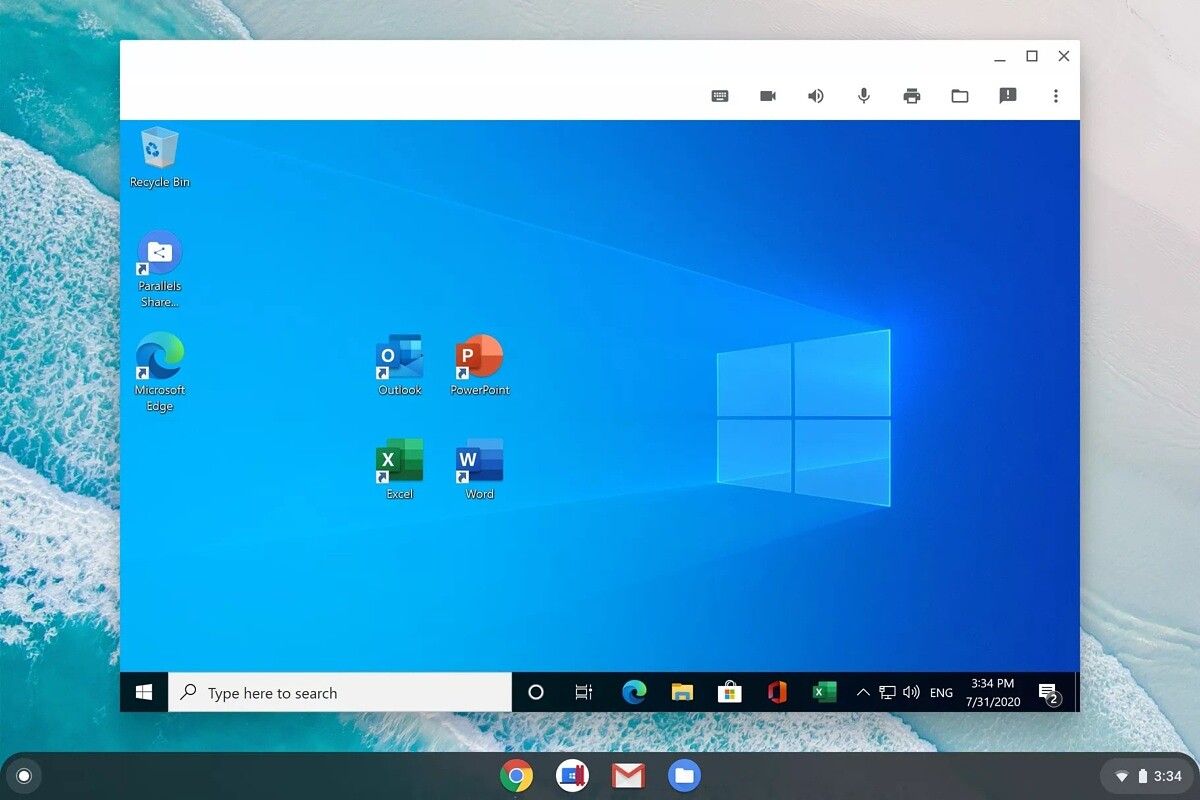
Option 3: Virtualization (The Safer, But More Resource-Intensive Approach)
Virtualization allows you to run an operating system within another operating system. In this context, you would run Windows as a virtual machine (VM) inside Chrome OS.
Using a Virtual Machine Software
- Install Linux (Beta): Most modern Chromebooks support the Linux (Beta) environment. This provides a Linux container where you can install software.
- Install Virtual Machine Software: Within the Linux environment, you can install virtualization software like VirtualBox or VMware Workstation Player.
- Install Windows: Download a Windows ISO image and use the virtualization software to create a new virtual machine, then install Windows within that VM.
Pros:
- Safer: Less risk of bricking your device compared to firmware modification.
- Less Impact on Chrome OS: Your primary Chrome OS environment remains intact.
- Access to Windows Apps: You can run Windows applications within the VM.
- Reversibility: Easier to uninstall or remove the VM if it doesn’t meet your needs.
Cons:
- Performance Limitations: Virtualization is resource-intensive. Performance will be significantly slower than running Windows natively, especially on lower-end Chromebooks. The VM will have to share CPU, RAM, and storage with Chrome OS and Linux.
- Hardware Passthrough Issues: Getting full hardware acceleration (especially for graphics) within a VM can be challenging, impacting the performance of graphically demanding Windows applications.
- Storage Consumption: A Windows installation and its applications will consume a considerable amount of storage space.
- Resource Hungry: Requires a Chromebook with ample RAM and a capable processor to run smoothly.
- Not a “True” Installation: You are not running Windows directly on the hardware.
Option 4: Remote Desktop or Cloud Computing (The Practical Workaround)
For many users, the desire to run Windows applications on a Chromebook stems from needing access to specific software rather than a full-blown Windows experience. In such cases, remote desktop solutions or cloud computing services can be incredibly effective.
Remote Desktop Solutions
- Microsoft Remote Desktop: If you have a Windows PC at home or in the office, you can use Microsoft’s Remote Desktop app (available for Chrome OS) to connect to it and control it remotely from your Chromebook. This gives you access to your full Windows environment.
- Third-Party Remote Access Tools: Services like TeamViewer, AnyDesk, or Chrome Remote Desktop (from Google) allow you to access another computer remotely.
Cloud Computing Services
- Windows Virtual Desktops (e.g., Azure Virtual Desktop, Amazon WorkSpaces): These services provide a full Windows desktop environment hosted in the cloud. You can access it from your Chromebook via a web browser or a dedicated client. This is ideal for business or professional use where specific, demanding applications are required.
- Application Streaming: Some services allow you to stream individual Windows applications to your device without needing to install the entire OS.
Pros:
- No Installation Hassle: No complex firmware flashing or driver hunting.
- Full Windows Power: Access to the full capabilities of a Windows machine, often with better performance if using a powerful remote server.
- Security: Your Chromebook remains a secure Chrome OS device.
- Flexibility: Access your Windows environment from any device with an internet connection.
Cons:
- Requires a Second Windows Machine or Subscription: You either need a separate Windows computer or a paid subscription to a cloud service.
- Internet Dependency: A stable and fast internet connection is absolutely essential for a smooth experience. Lag can make the experience frustrating.
- Potential Costs: Cloud services can incur recurring costs.
Is It Worth the Effort? Weighing the Pros and Cons
The question of whether you can install Windows on a Chromebook is only half the battle. The more critical question is whether it’s worth the effort for your specific needs.
When it Might Be Worth It:
- You Absolutely Need Specific Windows Software: If a critical application for your work, studies, or hobby is only available on Windows, and other solutions (like web apps or Android apps) are insufficient, then exploring the advanced methods might be a necessary evil.
- You Are a Dedicated Tinkerer and Learner: If you enjoy the challenge of troubleshooting, learning about firmware, and pushing the boundaries of your hardware, the process itself can be a rewarding learning experience.
- You Have a High-End Chromebook and Only Need Occasional Windows Access: A powerful Chromebook with ample RAM and storage might handle a Windows VM or even a dual-boot setup with moderate success for less demanding tasks.
When It’s Probably Not Worth It:
- You Need a Seamless, Reliable Windows Experience: The likelihood of achieving a perfectly functional Windows installation with all drivers working correctly is low. Expect compromises.
- You’re Not Technically Proficient: The risk of damaging your Chromebook is real, and without a solid understanding of hardware and software, you’re likely to get stuck.
- You Just Want a “Windows-like” Experience: Consider Chrome OS Flex, Android apps, or Linux apps first. These offer a more integrated and supported experience.
- Your Chromebook is Low-End: Running Windows, especially via virtualization, will be a poor experience on less powerful hardware.
- You Rely on Your Chromebook for Essential Tasks: Don’t risk bricking a device you depend on for daily productivity unless you have a solid backup plan and are comfortable with the potential downtime.
Alternatives to Consider: Maximizing Your Chromebook’s Potential
Before diving into the complexities of installing Windows, it’s crucial to explore the native capabilities of Chrome OS and available alternatives that might meet your needs without requiring such drastic measures.
Leveraging Android Apps
The Google Play Store offers a vast library of Android applications. Many common productivity, entertainment, and even some specialized software are available as Android apps. This is often the easiest and most integrated way to expand your Chromebook’s functionality.
Embracing Linux Apps
The Linux (Beta) feature on many Chromebooks opens up a world of powerful desktop applications. You can install a wide range of Linux software, including development tools, office suites, creative applications, and much more. This is an excellent way to run more complex software that isn’t web-based.
Web-Based Alternatives
For many tasks that traditionally required desktop Windows applications, excellent web-based alternatives now exist. Google Workspace (Docs, Sheets, Slides), Microsoft 365 for the web, Canva, and countless other cloud-based tools offer robust functionality directly within your browser.
Conclusion: A Verdict on Installing Windows on a Chromebook
So, can you install Windows on a Chromebook? Technically, yes, but it’s a journey fraught with challenges, requiring significant technical expertise and a willingness to accept potential compromises. The most viable and less risky methods involve virtualization or leveraging remote desktop/cloud computing solutions. Directly flashing custom firmware and installing Windows natively is a path for the highly dedicated enthusiast, with a significant risk of hardware damage.
For the average user, the answer is likely no. The inherent design of Chromebooks, their specialized firmware, and the lack of readily available Windows drivers make it an impractical and often frustrating endeavor. Instead, focus on maximizing the strengths of Chrome OS, exploring its robust Android and Linux app ecosystems, and utilizing web-based solutions. These avenues offer a more stable, secure, and enjoyable computing experience that aligns with the Chromebook’s intended purpose. If a full Windows experience is a strict requirement, investing in a traditional Windows laptop or desktop might be a far more practical and less headache-inducing solution.
aViewFromTheCave is a participant in the Amazon Services LLC Associates Program, an affiliate advertising program designed to provide a means for sites to earn advertising fees by advertising and linking to Amazon.com. Amazon, the Amazon logo, AmazonSupply, and the AmazonSupply logo are trademarks of Amazon.com, Inc. or its affiliates. As an Amazon Associate we earn affiliate commissions from qualifying purchases.