
Apple CarPlay has transformed the in-car entertainment and navigation experience, seamlessly integrating your iPhone with your vehicle’s infotainment system. Gone are the days of fumbling with separate GPS devices or struggling to use your phone while driving. CarPlay offers a familiar, intuitive interface designed for safe and convenient access to your essential apps, from navigation and music to messaging and calls. But how exactly do you get this powerful technology up and running in your car? This comprehensive guide will walk you through the entire process, from understanding compatibility to troubleshooting common issues, ensuring you can enjoy a smarter, safer drive.
Understanding CarPlay Compatibility and Requirements
Before diving into the installation process, it’s crucial to ensure your vehicle and iPhone are ready for CarPlay. This isn’t a one-size-fits-all solution, and a little upfront checking can save you a lot of potential frustration.
Vehicle Compatibility: Is Your Car Ready for CarPlay?
The most fundamental requirement for Apple CarPlay is that your car must be equipped with a compatible infotainment system. Manufacturers have been steadily integrating CarPlay support into their models since its introduction in 2014, but not all vehicles from a given year will have it.
How to Check Your Vehicle’s Compatibility:
- Consult Your Car’s Manual: The most definitive source of information is your vehicle’s owner’s manual. Look for a section on infotainment, multimedia system, or smartphone integration. It should explicitly mention Apple CarPlay or iPhone connectivity.
- Check the Manufacturer’s Website: Most car manufacturers have dedicated pages on their websites detailing the features of their vehicles, including infotainment systems. You can usually find a list of models and model years that support CarPlay.
- Contact Your Dealership: If you’re unsure, your local car dealership’s service or sales department can quickly confirm whether your specific vehicle is CarPlay-enabled. They often have databases that can cross-reference your Vehicle Identification Number (VIN) with compatible features.
- Look for the CarPlay Logo: Many car dashboards and infotainment screens will display the CarPlay logo when it’s available or when you connect your iPhone.
It’s important to note that CarPlay is often a factory-installed option or part of a specific trim level or technology package. If your current vehicle doesn’t have it, don’t despair. Aftermarket head units are available that can add CarPlay functionality to older cars.
iPhone Requirements: Ensuring Your Device is Ready
Beyond your vehicle, your iPhone also needs to meet certain criteria to function with CarPlay.
- iOS Version: Apple CarPlay requires a relatively recent version of iOS. Generally, an iPhone 5 or later running iOS 7.1 or later is supported. However, for the best and most up-to-date experience, it’s always recommended to have the latest stable version of iOS installed on your iPhone. You can check and update your iOS version by going to Settings > General > Software Update on your iPhone.
- Lightning Cable: For wired CarPlay connections, you’ll need a high-quality Lightning to USB cable. While the cable that came with your iPhone will usually work, using a certified “Made for iPhone” (MFi) cable is recommended to ensure optimal performance and reliability. Cheap, uncertified cables can sometimes lead to connection issues or intermittent performance.
Connecting Your iPhone to CarPlay
Once you’ve confirmed compatibility, the next step is to physically connect your iPhone to your car’s infotainment system. There are two primary methods: wired and wireless.
Wired Connection: The Traditional Method
The wired connection is the most common and often the most reliable way to get CarPlay up and running.
Steps for Wired Connection:
- Locate the USB Port: Most cars equipped with CarPlay have a dedicated USB port designed for smartphone integration. This port is typically found in the center console, dashboard, or glove compartment. It might be labeled with a smartphone icon or the CarPlay logo.
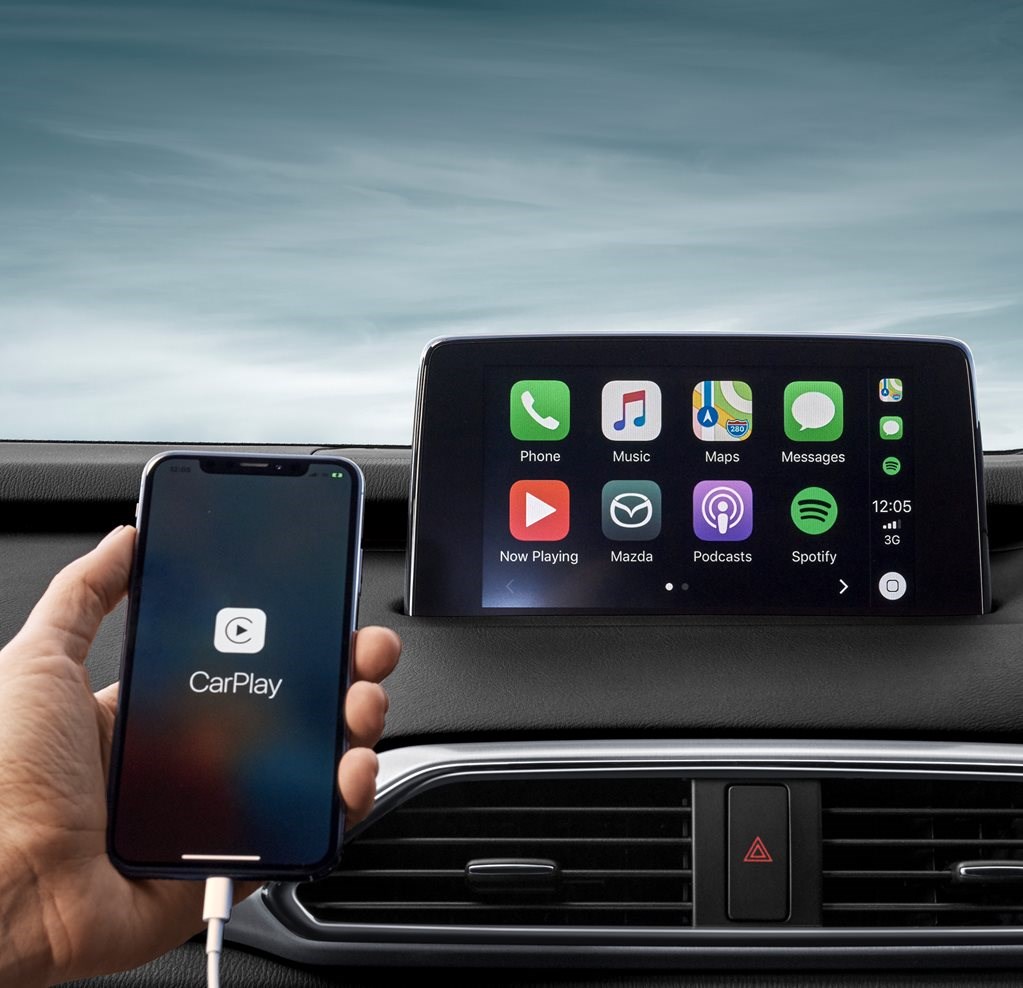
- Connect Your iPhone: Using your Lightning to USB cable, plug one end into the charging port of your iPhone and the other end into the designated USB port in your car.
- Grant Permissions:
- On your iPhone, you might see a prompt asking if you want to “Allow CarPlay” or “Allow Accessories.” Tap “Allow” to enable the connection.
- Your car’s infotainment screen might also display a prompt or automatically switch to the CarPlay interface. If it doesn’t, you may need to select “CarPlay,” “iPhone,” or a similar option from your car’s main menu.
- CarPlay Interface Appears: If all goes well, the Apple CarPlay interface will load on your car’s display, showing your iPhone’s home screen with CarPlay-optimized apps.
Tips for a Smooth Wired Connection:
- Ensure the Car is in Park: For safety reasons, most vehicles will only allow CarPlay to initiate when the car is in Park.
- Unlock Your iPhone: Your iPhone might need to be unlocked for the initial connection and data transfer.
- Try a Different USB Port: If your car has multiple USB ports, try a different one if the first doesn’t work. Some ports are only for charging.
- Use a Quality Cable: As mentioned earlier, a reliable MFi-certified cable is essential.
Wireless Connection: The Convenience of No Cables
Many newer vehicles and some aftermarket head units offer wireless CarPlay, which eliminates the need for a physical connection after the initial setup. This provides a much cleaner and more convenient experience.
Steps for Wireless Connection:
- Ensure Your Car Supports Wireless CarPlay: Not all CarPlay-compatible vehicles support wireless connectivity. Check your car’s manual or manufacturer’s website to confirm.
- Enable Bluetooth and Wi-Fi on Your iPhone: Wireless CarPlay uses both Bluetooth and Wi-Fi to establish and maintain its connection. Make sure both are turned on in your iPhone’s Settings.
- Pair Your iPhone via Bluetooth:
- On your car’s infotainment system, navigate to the Bluetooth settings and initiate a device search.
- On your iPhone, go to Settings > Bluetooth and look for your car’s system in the list of available devices.
- Select your car’s system from your iPhone and confirm any pairing codes that appear on both your phone and the car’s screen.
- Initiate CarPlay Connection:
- After the Bluetooth pairing is successful, your car’s system might automatically prompt you to connect to CarPlay. If not, look for an option like “Add Phone” or “CarPlay.”
- Your iPhone will then likely display a prompt asking if you want to enable CarPlay wirelessly. Tap “Enable CarPlay” or “Allow.”
- CarPlay Interface Appears: Once connected, the CarPlay interface will appear on your car’s display.

Important Notes for Wireless CarPlay:
- Initial Setup Required: While subsequent connections are automatic, you’ll typically need to perform the Bluetooth pairing and initial CarPlay setup once.
- Performance: Wireless CarPlay might consume more battery power from your iPhone than a wired connection. It’s still a good idea to have a charger handy for longer journeys.
- Interference: In rare cases, strong Bluetooth or Wi-Fi interference can cause occasional disruptions.
Navigating and Using Apple CarPlay
Once CarPlay is successfully installed and connected, you’ll find its interface remarkably similar to your iPhone’s home screen, making it easy to navigate.
The CarPlay Interface: Familiar and Intuitive
The CarPlay dashboard typically displays a grid of app icons that are optimized for a car environment. These icons are larger, easier to tap, and designed to minimize driver distraction.
- Home Screen: This is where you’ll find your most frequently used apps.
- App Dock: At the bottom of the screen, you’ll see a persistent dock that usually includes icons for Phone, Music, Maps, and potentially Siri.
- Status Bar: At the top, you’ll see standard indicators like time, cellular signal, and battery life.
- Control Center: Swiping down from the top right corner of the CarPlay screen often reveals a control center for quick access to settings like brightness and volume.
Essential CarPlay Apps and Features
CarPlay focuses on the apps you need most while driving:
- Navigation: Apple Maps and Google Maps are fully integrated, offering turn-by-turn directions, real-time traffic updates, and search capabilities. You can ask Siri for directions or search for destinations directly within the app.
- Music and Audio: Control your music playback from Apple Music, Spotify, Pandora, and other compatible audio apps. You can browse playlists, albums, and artists, and control playback using voice commands.
- Messaging: Send and receive text messages with iMessage and SMS. CarPlay reads your incoming messages aloud, and you can dictate responses using Siri.
- Phone Calls: Make and receive calls directly from CarPlay. The interface displays your contacts and call history, making it easy to connect with people.
- Siri: Apple’s virtual assistant is at the core of CarPlay. You can activate Siri by pressing and holding the voice command button on your steering wheel or by saying “Hey Siri” (if supported by your car). Use Siri for everything from getting directions and playing music to sending messages and making calls.
- Other Supported Apps: A growing number of third-party apps are compatible with CarPlay, including audiobook players, podcast apps, and even some messaging apps like WhatsApp.
Customizing Your CarPlay Experience
While CarPlay offers a streamlined experience, you can personalize it to a degree:
- Rearranging Apps: You can change the order of apps on your CarPlay home screen. On your iPhone, go to Settings > General > CarPlay > [Your Car’s Name]. Here, you can drag and drop app icons to rearrange them. You can also choose which apps appear in CarPlay by toggling them on or off.
- Setting Default Navigation App: You can choose whether Apple Maps or another compatible navigation app (like Google Maps or Waze) is your default. This is also done within your iPhone’s CarPlay settings for your car.
Troubleshooting Common CarPlay Issues
Even with a smooth installation, you might encounter occasional hiccups. Here’s how to address some common CarPlay problems:
Connection Issues
- iPhone Not Recognized:
- Check the Cable: Ensure your Lightning cable is securely plugged in at both ends and is an MFi-certified cable. Try a different cable.
- Restart Your iPhone and Car: Sometimes a simple restart can resolve temporary glitches.
- Check USB Port: Make sure you’re using the correct USB port in your car, and that it’s not solely for charging.
- Update Software: Ensure your iPhone has the latest iOS version installed.
- Wireless CarPlay Not Connecting:
- Bluetooth and Wi-Fi: Verify that both Bluetooth and Wi-Fi are enabled on your iPhone and that your car’s Bluetooth is discoverable.
- Forget and Re-pair: On your iPhone, go to Settings > Bluetooth, tap the “i” next to your car’s name, and select “Forget This Device.” Then, re-pair your iPhone with your car.
- Car’s Infotainment System Restart: Consult your car’s manual for instructions on how to restart its infotainment system.
App Malfunctions
- Specific App Not Working:
- Update the App: Ensure the app on your iPhone is updated to its latest version.
- Reinstall the App: Delete the app from your iPhone and reinstall it from the App Store.
- Check App Compatibility: Verify that the app developer has explicitly stated CarPlay support for their app.
Siri Not Responding
- Check Microphone: Ensure your car’s microphone is not obstructed and is functioning correctly.
- Siri & Search Settings: On your iPhone, go to Settings > Siri & Search and ensure “Listen for ‘Hey Siri'” and “Press Side Button for Siri” (or “Press Home for Siri” on older models) are enabled.
- CarPlay Permissions: Double-check that CarPlay has the necessary permissions to access your iPhone’s data.

General Tips
- Consult Your Car’s Manual: Your vehicle’s owner’s manual is an invaluable resource for specific instructions and troubleshooting steps related to its infotainment system.
- Check Apple Support: Apple’s official support website often has detailed articles and FAQs about CarPlay.
- Contact Dealership/Manufacturer Support: If you’ve tried everything else and are still experiencing issues, reach out to your car dealership or the manufacturer’s customer support for assistance.
By following these steps and understanding the potential troubleshooting methods, you can confidently install and enjoy the benefits of Apple CarPlay, making every drive safer, more connected, and more enjoyable.
aViewFromTheCave is a participant in the Amazon Services LLC Associates Program, an affiliate advertising program designed to provide a means for sites to earn advertising fees by advertising and linking to Amazon.com. Amazon, the Amazon logo, AmazonSupply, and the AmazonSupply logo are trademarks of Amazon.com, Inc. or its affiliates. As an Amazon Associate we earn affiliate commissions from qualifying purchases.