
In today’s digitally driven world, the ability to create, share, and archive documents in a universally compatible format is paramount. Portable Document Format (PDF) has become the de facto standard for this purpose, offering a consistent viewing experience across various operating systems and devices. While many applications allow you to save directly as PDF, there are times when you need a dedicated tool to “print” any document to a PDF file. This is where the Adobe PDF Printer, a virtual printer driver, comes into play.

This guide will walk you through the process of installing and utilizing the Adobe PDF Printer, ensuring you can effortlessly transform any printable file into a professional-looking PDF. We’ll delve into the different methods, potential issues, and best practices, covering aspects relevant to both technology enthusiasts and everyday users seeking efficient productivity solutions.
Understanding the Adobe PDF Printer and Its Significance
Before we dive into the installation process, let’s briefly touch upon what the Adobe PDF Printer is and why it’s a valuable asset in your digital toolkit.
What is the Adobe PDF Printer?
The Adobe PDF Printer is not a physical device but rather a software component that integrates with your operating system’s printing subsystem. When you choose to “print” a document to the Adobe PDF Printer, instead of sending it to a physical printer, it generates a PDF file on your computer. This virtual printer driver is often bundled with Adobe Acrobat or Adobe Acrobat Reader, making it readily available to users of these popular Adobe products.
Its primary function is to convert the content of any application that supports printing into a PDF. This means whether you’re working in a word processor, a spreadsheet program, a web browser, or even a more specialized design application, you can leverage the Adobe PDF Printer to produce a PDF output.
Why is it Essential in the Digital Workflow?
The Adobe PDF Printer offers several compelling advantages that make it an indispensable tool for individuals and businesses alike:
- Universal Compatibility: PDFs are designed to look the same regardless of the software, hardware, or operating system used to view them. This ensures that your documents maintain their intended layout, formatting, and fonts, preventing compatibility issues that can arise with other file types.
- Preservation of Formatting: Unlike simply copying and pasting text, printing to PDF captures the exact visual representation of your document. This is crucial for reports, presentations, legal documents, and any other content where precise formatting is essential.
- Enhanced Security: PDFs support various security features, including password protection, restricted printing, and content copying. This allows you to control who can access and modify your sensitive information.
- Archival Quality: PDFs are an excellent format for long-term archiving. They are stable, self-contained, and widely supported, making them ideal for storing important documents for future reference.
- Streamlined Collaboration: Sharing PDFs makes collaboration more efficient. Recipients don’t need to have the same software installed to view the document, reducing the back-and-forth associated with incompatible file formats.
- Reduced File Size (Often): While not always the case, PDFs can often be optimized to have smaller file sizes compared to their original source documents, making them easier to share and store.
The ubiquity and reliability of PDFs have made the Adobe PDF Printer a cornerstone for efficient document management and professional communication.
Installing the Adobe PDF Printer: A Step-by-Step Approach
The installation process for the Adobe PDF Printer typically depends on whether you have Adobe Acrobat or Adobe Acrobat Reader installed on your system. In most cases, if you have these programs, the PDF printer driver will be installed automatically. However, there are scenarios where you might need to manually initiate or troubleshoot the installation.
Method 1: Installation via Adobe Acrobat or Acrobat Reader
This is the most common and straightforward method. Adobe, being the originator of the PDF format, integrates its PDF printer seamlessly with its flagship software.
For Adobe Acrobat (Pro/Standard):
If you have a licensed version of Adobe Acrobat installed, the Adobe PDF Printer is almost certainly already available. You don’t need to perform a separate installation for the printer itself. It’s usually set up during the initial installation of Acrobat.
- Open the application from which you want to create a PDF (e.g., Microsoft Word, Google Chrome, Notepad).
- Go to File > Print.
- In the printer selection dialog box, look for an option named “Adobe PDF” or “Adobe PDF Converter.”
- Select “Adobe PDF” as your printer.
- Click “Print.”
- A “Save Adobe PDF As” dialog box will appear, allowing you to choose the location and name for your PDF file.
If you don’t see “Adobe PDF” in your printer list, it’s possible that it was deselected during the Acrobat installation, or a component might be missing. In such cases, you might need to repair or reinstall Adobe Acrobat.
For Adobe Acrobat Reader (Free Version):
Adobe Acrobat Reader, the free version for viewing PDFs, also typically includes the ability to “print” to PDF, though it might be referred to differently or require a specific step to enable.
- Ensure you have the latest version of Adobe Acrobat Reader installed. You can download it for free from the official Adobe website.
- During the installation of Acrobat Reader, there’s usually an option to install the “Adobe PDF printer driver.” Make sure this option is selected. If you’ve already installed Reader without it, you might need to uninstall and reinstall, or check for a repair option within the Adobe Reader installer.
- Once installed, follow the same steps as outlined for Adobe Acrobat: File > Print, select “Adobe PDF” or “Adobe PDF Converter” from the printer list, and click “Print.”
Troubleshooting “Adobe PDF” Not Appearing:
- Restart your computer: Sometimes, a simple reboot can resolve issues where the printer driver doesn’t register correctly.
- Check Printer Ports: Ensure the Adobe PDF printer is configured to use a valid port. You can check this in your system’s printer settings.
- Repair Installation: In Adobe Acrobat or Reader, look for a “Repair Installation” option. This can fix corrupted files or missing components.
- Reinstall Adobe Software: If all else fails, a clean uninstall and reinstallation of Adobe Acrobat or Reader might be necessary.
Method 2: Installing Adobe Acrobat Pro DC (Subscription Service)
If you are a professional or a business user requiring more advanced PDF features, subscribing to Adobe Acrobat Pro DC is the way to go. This comprehensive suite includes the robust Adobe PDF Printer functionality as part of its integrated workflow.
- Subscribe to Adobe Acrobat Pro DC: Visit the Adobe website and choose a subscription plan that suits your needs.
- Download and Install: Follow the on-screen instructions to download and install the Acrobat Pro DC application.
- Automatic Integration: The Adobe PDF Printer will be automatically installed as part of the Acrobat Pro DC suite. Once the installation is complete, you can access it via the File > Print menu in any application, just as described in Method 1.
Acrobat Pro DC offers additional features for creating, editing, converting, and signing PDFs, making it a powerful solution for demanding users.
Method 3: Using the “Microsoft Print to PDF” Alternative (Windows 10 and Later)
While this guide focuses on the Adobe PDF Printer, it’s important to acknowledge that modern operating systems, particularly Windows 10 and its subsequent versions, have a built-in PDF printer called “Microsoft Print to PDF.” This offers similar functionality and is a viable alternative if you don’t have Adobe software installed or prefer a native solution.
- Open the application you want to print to PDF.
- Go to File > Print.
- In the printer selection dialog box, select “Microsoft Print to PDF.”
- Click “Print.”
- A “Save Print Output As” dialog will appear, allowing you to name and save your PDF file.
When to Consider “Microsoft Print to PDF”:
- No Adobe Software: If you don’t have Adobe Acrobat or Reader installed, this is your go-to solution for creating PDFs from any application.
- Simplicity: For basic PDF creation without advanced features, Microsoft’s built-in option is quick and efficient.
- System Updates: Ensure your Windows operating system is up-to-date to have this feature available.
While Microsoft Print to PDF is excellent for general use, Adobe’s solution often provides more advanced options for PDF creation, optimization, and integration with other Adobe tools, especially in professional workflows.
Optimizing Your PDF Creation Workflow with Adobe PDF Printer
Once installed, the Adobe PDF Printer offers various settings and options to tailor your PDF output to your specific needs. Understanding these can significantly enhance your productivity and the quality of your documents.
Understanding PDF Settings and Options
When you select “Adobe PDF” as your printer and click “Print,” you’ll typically encounter a dialog box with various settings. These can include:
- Adobe PDF Settings (Presets): Adobe provides pre-configured settings optimized for different purposes, such as:
- [Press Quality]: For high-quality printing, suitable for professional printing services.
- [High Quality Print]: A good balance between quality and file size for general printing.
- [Smallest File Size]: Optimizes the PDF for web sharing and email, reducing file size at the expense of some quality.
- [Standard]: A general-purpose setting that is often the default.
- General Settings: Here you might find options to:
- View Adobe PDF results: Automatically opens the created PDF in Adobe Reader.
- Prompt for Adobe PDF filename: Allows you to name and save the file each time.
- Edit Properties: Clicking “Edit Properties” or a similar button (often near the presets) opens a more detailed dialog box where you can fine-tune:
- Images: Compression, downsampling, and color management.
- Fonts: Embedding fonts (crucial for ensuring consistent display across all devices).
- Color: Color spaces and conversion settings.
- OPI: Options for managing images in print workflows.
- Advanced: For more technical settings.
Best Practices for Setting Custom Presets:
- Embed Fonts: Always embed fonts to ensure your PDF looks the same on any computer. This is particularly important for documents with specialized fonts.
- Choose Appropriate Resolution: For web use, 72-150 dpi is usually sufficient. For print, aim for 300 dpi or higher.
- Balance File Size and Quality: Select presets or adjust settings to achieve the best balance for your intended use.
- Save Custom Presets: If you frequently use specific settings, save them as a custom preset for quick access.
Integrating with Brand Guidelines
For businesses and individuals focused on branding, ensuring consistency in PDF output is vital. The Adobe PDF Printer, especially when used with Adobe Acrobat Pro DC, can be configured to adhere to brand guidelines.
- Watermarks and Logos: Acrobat Pro DC allows you to add watermarks (like company logos or “Confidential” stamps) to your PDFs during the printing process, reinforcing your brand identity.
- Consistent Color Profiles: By setting up specific color profiles within the PDF printer settings, you can ensure that your brand colors are accurately represented in every PDF created.
- Templating: While not directly part of the printer driver, using templates in your source documents (e.g., Word templates with pre-defined headers/footers and logos) will ensure that when printed to PDF, your brand elements are consistently included.
- Metadata: You can add metadata (author, title, keywords) to your PDFs, which can be helpful for document management and searchability, further strengthening your brand’s organized presence.
By carefully configuring the Adobe PDF Printer and integrating it into your creative and business processes, you can ensure that every PDF you produce is not only functional but also a professional representation of your brand.
Advanced Scenarios and Troubleshooting
While the Adobe PDF Printer is generally reliable, you might encounter specific issues or have advanced needs.
Scenario 1: Missing Printer After Software Update or Uninstall
Occasionally, after updating your operating system or Adobe software, the Adobe PDF Printer might disappear.
- Re-run the Installer: If you have the original installer for your Adobe product, try running it again. Look for options to “Repair” or “Add/Remove Features” and ensure that the PDF printer component is selected.
- Check for Updates: Ensure both your Adobe software and your operating system are fully updated. Sometimes, updates include fixes for such issues.
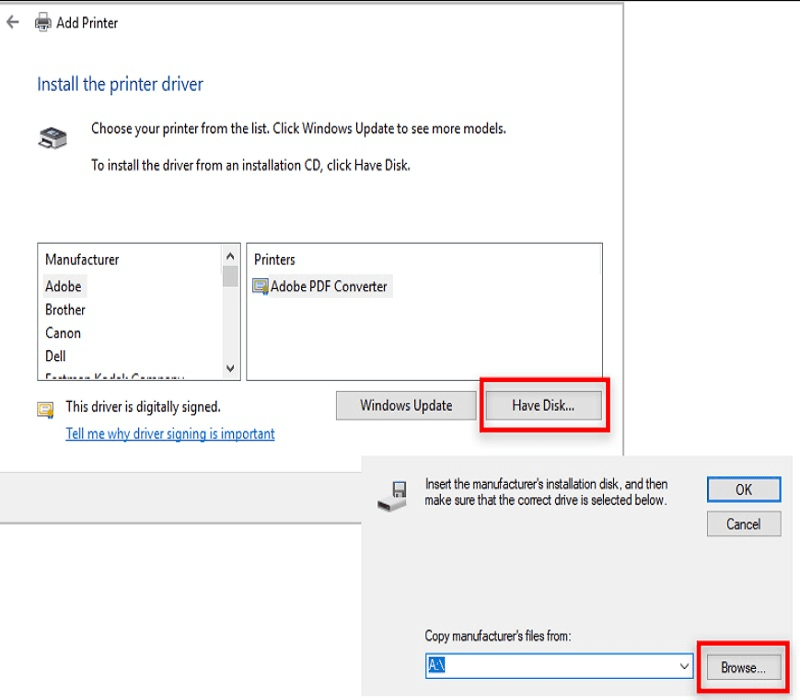
- Manual Driver Installation (Advanced): In rare cases, you might need to manually add the printer driver through your operating system’s printer management settings. This usually involves pointing to the driver files provided by Adobe, which can be complex and may require advanced technical knowledge.
Scenario 2: Creating PDFs from Applications Without a Print Option
While most applications allow you to print, some specialized or legacy software might not. In such cases, the Adobe PDF Printer is still your friend.
- Screen Capture and Convert: If you can’t print directly, you might need to take a screenshot of the content you want to convert. Then, open the screenshot in an image editor and “print” it to the Adobe PDF Printer. This is a workaround but can be effective for capturing visual information.
- Export as Image: Some applications allow you to export their content as an image file (JPEG, PNG, TIFF). You can then insert these images into a document (like a Word file) and print that document to the Adobe PDF Printer.
Scenario 3: Ensuring PDF Compatibility for Different Platforms
When sharing PDFs, especially with individuals who may not have Adobe Reader installed or are using older systems, ensuring compatibility is key.
- Save as PDF/A: For archival purposes, consider saving your PDF in a PDF/A format. This format is specifically designed for long-term archiving and ensures that the PDF can be opened and displayed in the future, independent of the software or hardware used. Adobe Acrobat Pro DC offers options to save as PDF/A.
- Use PDF 1.4 or Earlier (if needed): If you’re concerned about compatibility with very old PDF viewers, you might need to adjust the PDF version settings during the print process. However, most modern viewers support newer versions.

Conclusion: Mastering Document Conversion
The Adobe PDF Printer remains a powerful and essential tool for anyone who needs to create, share, and archive documents in a reliable and universally compatible format. Whether you’re a student creating assignments, a professional drafting reports, or a designer preparing files for print, understanding how to install and effectively use the Adobe PDF Printer will significantly streamline your workflow.
By following the steps outlined in this guide, you can ensure you have the Adobe PDF Printer up and running, ready to transform any printable content into a polished PDF. Remember to explore the various settings and options to optimize your output for different needs, ensuring your documents are always professional, secure, and accessible. In the ever-evolving landscape of technology and digital communication, mastering tools like the Adobe PDF Printer is a crucial step towards enhanced productivity and effective information management.
aViewFromTheCave is a participant in the Amazon Services LLC Associates Program, an affiliate advertising program designed to provide a means for sites to earn advertising fees by advertising and linking to Amazon.com. Amazon, the Amazon logo, AmazonSupply, and the AmazonSupply logo are trademarks of Amazon.com, Inc. or its affiliates. As an Amazon Associate we earn affiliate commissions from qualifying purchases.