
In an increasingly digital world, traditional cable television is steadily giving way to the flexibility and personalization offered by streaming services. Among the most prominent players in this evolving landscape is YouTube TV, Google’s robust live TV streaming platform that offers a comprehensive alternative to conventional pay-TV subscriptions. With a vast array of live channels, an unlimited cloud DVR, and the convenience of on-demand content, YouTube TV has become a top choice for cord-cutters and modern viewers alike. However, for many, the initial hurdle remains: how exactly does one get this powerful streaming service onto the biggest screen in their home – the television?
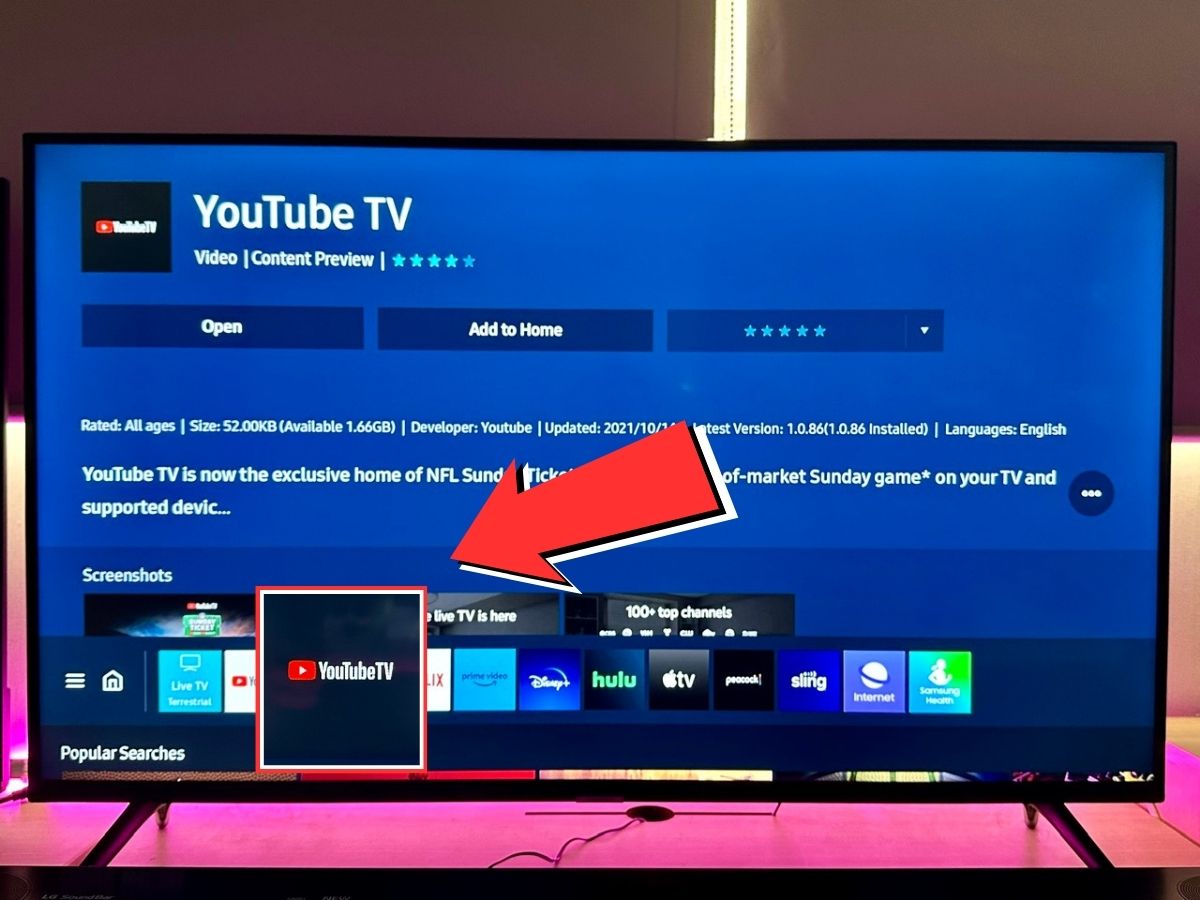
This guide serves as your definitive roadmap to bringing YouTube TV to life on your television set, regardless of your current setup. We’ll delve into the essential requirements, explore the diverse range of compatible devices, provide step-by-step installation instructions for popular platforms, and offer insights into optimizing your viewing experience. By the end of this article, you’ll be well-equipped to navigate the world of YouTube TV, transforming your viewing habits with ease and confidence.
Understanding YouTube TV and Its Essential Prerequisites
Before diving into the technicalities of installation, it’s crucial to grasp what YouTube TV offers and what foundational elements you’ll need to enjoy it seamlessly. This foundational knowledge will ensure a smooth setup process and a satisfying streaming experience.
What is YouTube TV?
YouTube TV is a subscription-based live television streaming service that provides access to dozens of popular broadcast and cable channels, including local sports and news networks, without the need for a cable box. Unlike traditional YouTube, which primarily hosts user-generated and on-demand content, YouTube TV focuses on delivering live programming. Key features include:
- Live Channels: A broad selection of channels from major networks like ABC, CBS, FOX, NBC, ESPN, TNT, CNN, and many more, varying by region.
- Unlimited Cloud DVR: Record as many shows as you want simultaneously, and keep them for nine months. This feature is a game-changer, allowing you to build a vast library of your favorite content without storage limits.
- On-Demand Content: Access to a library of shows and movies from the channels included in your subscription.
- Family Sharing: Up to six accounts can be included per membership, each with its own personalized library and recommendations.
- Multi-Device Compatibility: Stream on smartphones, tablets, computers, and, critically, on various TV devices.
YouTube TV essentially combines the best aspects of traditional television with the flexibility and advanced features of modern streaming, all accessible through an internet connection rather than a physical cable line.
Essential Prerequisites for a Smooth Experience
To ensure a seamless YouTube TV experience on your television, you’ll need a few fundamental components in place. Overlooking these can lead to frustration during setup or degraded viewing quality.
Firstly, a reliable and robust internet connection is paramount. Streaming high-definition video consumes significant bandwidth. YouTube TV recommends a minimum sustained download speed of 3 Mbps for standard definition, 7 Mbps for a single 1080p stream, and 13 Mbps for multiple 1080p streams or 4K content (where available). For optimal performance and to avoid buffering, especially in households with multiple internet users, a connection of 25 Mbps or higher is advisable. Consider a wired Ethernet connection for your primary streaming device if possible, as it generally offers more stability and faster speeds than Wi-Fi.
Secondly, you must have an active YouTube TV subscription. While the app is free to download, you’ll need to subscribe to the service to access content. New users often benefit from a free trial period, which is an excellent way to test the service and ensure it meets your viewing needs before committing to a paid monthly plan. You can sign up directly through the YouTube TV website on a computer or mobile device.
Lastly, and most crucially for this guide, you need a compatible television or streaming device. YouTube TV is not universally supported on every smart TV ever made, nor can you directly install it on older, “dumb” TVs without an additional device. Understanding the range of compatible hardware is the next critical step in getting YouTube TV onto your screen.
Compatible Devices: Your Gateway to YouTube TV
The beauty of YouTube TV lies in its widespread device compatibility, making it accessible to a vast majority of users. However, the method of getting it on your TV will largely depend on the type of device you own.
Smart TVs with Built-in Apps
Many modern televisions come equipped with “smart” capabilities, meaning they have an operating system and an app store built right in. If you have a smart TV from a major manufacturer purchased within the last few years, chances are it supports the YouTube TV app directly.
- Supported Brands: This includes popular brands such as Samsung (Tizen OS), LG (webOS), Sony (Android TV/Google TV), Vizio (SmartCast), Hisense (Android TV/Roku TV/Vidaa), TCL (Roku TV/Google TV), and Panasonic. The specific steps for finding and installing the app will vary slightly by brand and operating system, but the general principle is the same: navigate to your TV’s app store.
- Benefits: Direct integration means fewer remotes, simpler setup, and often a more streamlined user experience.
- Considerations: Ensure your TV’s firmware is up to date, as older versions might not support the latest YouTube TV app.
Dedicated Streaming Devices
For those with older, non-smart TVs or users who prefer a more robust or standardized streaming interface, dedicated streaming devices are an excellent solution. These small boxes or sticks plug into your TV’s HDMI port and provide access to a plethora of streaming apps, including YouTube TV. They are often updated more frequently than smart TV operating systems, ensuring access to the latest app versions and features.
- Roku Devices: Extremely popular for their user-friendly interface and vast app selection. Compatible with all Roku streaming players (Roku Express, Streaming Stick, Ultra, Streambar) and Roku TVs.
- Amazon Fire TV Devices: Amazon’s line of streaming sticks and cubes (Fire TV Stick Lite, Fire TV Stick 4K Max, Fire TV Cube) offers a content-forward interface and integration with Alexa.
- Apple TV: Apple’s premium streaming box (Apple TV HD, Apple TV 4K) offers a slick user experience, tight integration with the Apple ecosystem, and excellent performance.
- Chromecast with Google TV: This device offers a full Google TV interface, allowing you to browse and install apps directly, much like other streaming devices.
- Older Chromecast Devices (without Google TV): These devices function differently. Instead of having a native app, you “cast” content to them from a YouTube TV app running on a smartphone, tablet, or computer. This method is still highly effective and widely used.
- NVIDIA Shield TV: A high-performance Android TV device popular with power users and gamers, offering excellent streaming capabilities.
Gaming Consoles
For many, their gaming console doubles as a primary entertainment hub. Both of the major current-generation consoles support the YouTube TV app.
- Xbox Consoles: Xbox One, Xbox Series X, and Xbox Series S.
- PlayStation Consoles: PlayStation 4 and PlayStation 5.
While gaming consoles are capable of running YouTube TV, some users might find dedicated streaming devices or smart TV apps more streamlined for a pure TV viewing experience. However, if your console is already hooked up, it’s a perfectly viable option.
By identifying which category your setup falls into, you’re ready to proceed to the specific installation steps tailored to your device.
Step-by-Step Installation Guides for Popular Platforms
Once you’ve identified your compatible device, the process of getting YouTube TV up and running is straightforward. While specific menu names might vary slightly, the general workflow remains consistent across platforms.
Installing on a Smart TV (General Steps)
Most smart TVs follow a similar pattern for app installation.
- Turn on your Smart TV and ensure it’s connected to your home’s Wi-Fi or Ethernet network.
- Navigate to the Home Screen or the “Apps” section. Look for an icon labeled “App Store,” “Smart Hub,” “LG Content Store,” “Google Play Store,” or similar. This is your TV’s central hub for downloading applications.
- Search for the YouTube TV App. Use the search function (often a magnifying glass icon) and type “YouTube TV.”
- Select and Install. Once you find the YouTube TV app, select it and choose the “Install” or “Add” option. The app will download and install on your TV.
- Launch the App. After installation, open the YouTube TV app. It will typically appear on your home screen or in your list of installed apps.
Installing on Roku Devices

Roku devices are known for their simplicity.
- Turn on your TV and select the HDMI input your Roku device is connected to.
- From the Roku Home Screen, scroll down and select “Streaming Channels” (or “Channel Store” on older models).
- Select “Search Channels” and type “YouTube TV.”
- Select the YouTube TV app from the search results.
- Choose “Add channel.” The app will download and appear at the bottom of your list of channels on the Home Screen. You can move it to a preferred position later.
- Launch the App.
Installing on Amazon Fire TV Devices
Amazon Fire TV devices integrate tightly with the Amazon ecosystem.
- Turn on your TV and switch to the Fire TV’s HDMI input.
- From the Fire TV Home Screen, use the search icon (magnifying glass) or hold down the Alexa voice button on your remote and say “YouTube TV.”
- Select the YouTube TV app from the search results.
- Choose “Download” or “Get.” The app will install.
- Once installed, select “Open” to launch the app. It will also be added to your apps library.
Installing on Apple TV
Apple TV provides a clean, iOS-like app experience.
- Turn on your TV and navigate to the Apple TV’s home screen.
- Open the App Store icon.
- Use the search function (magnifying glass icon) and type “YouTube TV.”
- Select the YouTube TV app from the results.
- Choose the “Get” button (it may show a cloud icon if you’ve previously downloaded it). You might be asked to enter your Apple ID password or use Face ID/Touch ID if enabled.
- Launch the App.
Installing on Chromecast with Google TV
This newer Chromecast model operates like a full streaming device.
- Turn on your TV and select the Chromecast’s HDMI input.
- From the Google TV Home Screen, scroll to the “Apps” tab.
- Navigate to “Search for apps” or use the voice search feature on your remote and say “YouTube TV.”
- Select the YouTube TV app from the search results.
- Choose “Install.”
- Launch the App.
Casting from a Mobile Device (for Older Chromecast and as an alternative)
If you have an older Chromecast dongle without the Google TV interface, or if you simply prefer to control your TV viewing from your phone or tablet, casting is the method for you.
- Ensure your mobile device (smartphone or tablet) and your Chromecast are connected to the same Wi-Fi network.
- Download and open the YouTube TV app on your mobile device (from the App Store for iOS or Google Play Store for Android).
- Sign in to your YouTube TV account within the app.
- Begin playing any show or channel.
- Look for the Cast icon (a rectangle with a Wi-Fi symbol in the bottom-left corner) typically found in the top-right corner of the video player.
- Tap the Cast icon and select your Chromecast device from the list.
- The content will begin playing on your TV, and your mobile device will become a remote control.
With the app installed and running on your chosen device, the final step is to activate your subscription and begin watching.
Activating Your YouTube TV Subscription and First Watch
Once the YouTube TV app is successfully installed on your TV device, the next stage is to link your subscription and get familiar with the interface. This ensures you can access all your channels and features.
Signing In and Linking Your Account
Upon opening the YouTube TV app on your TV for the first time, you won’t immediately see content. Instead, you’ll be prompted to sign in. The process is designed for ease and security, usually involving a second device like a smartphone or computer.
- Open the YouTube TV app on your TV.
- You will typically see a screen displaying an activation code (e.g., “ABCD-EFGH”) and instructions to visit a specific URL (usually
tv.youtube.com/startoryoutube.com/activate) on a web browser on your phone or computer. Some devices might also offer a QR code to scan. - On your phone or computer, open a web browser and navigate to the provided URL.
- Sign in with your Google Account that is associated with your YouTube TV subscription. If you are already signed in, ensure it’s the correct account.
- Enter the activation code displayed on your TV into the field on your web browser.
- Confirm the activation. Your TV screen should refresh within a few moments, logging you into your YouTube TV account.
This secure method prevents you from having to type lengthy email addresses and passwords using your TV remote, which can be cumbersome. Once linked, your TV will remember your login, so you won’t need to repeat this process unless you sign out or reinstall the app.
Navigating the YouTube TV Interface
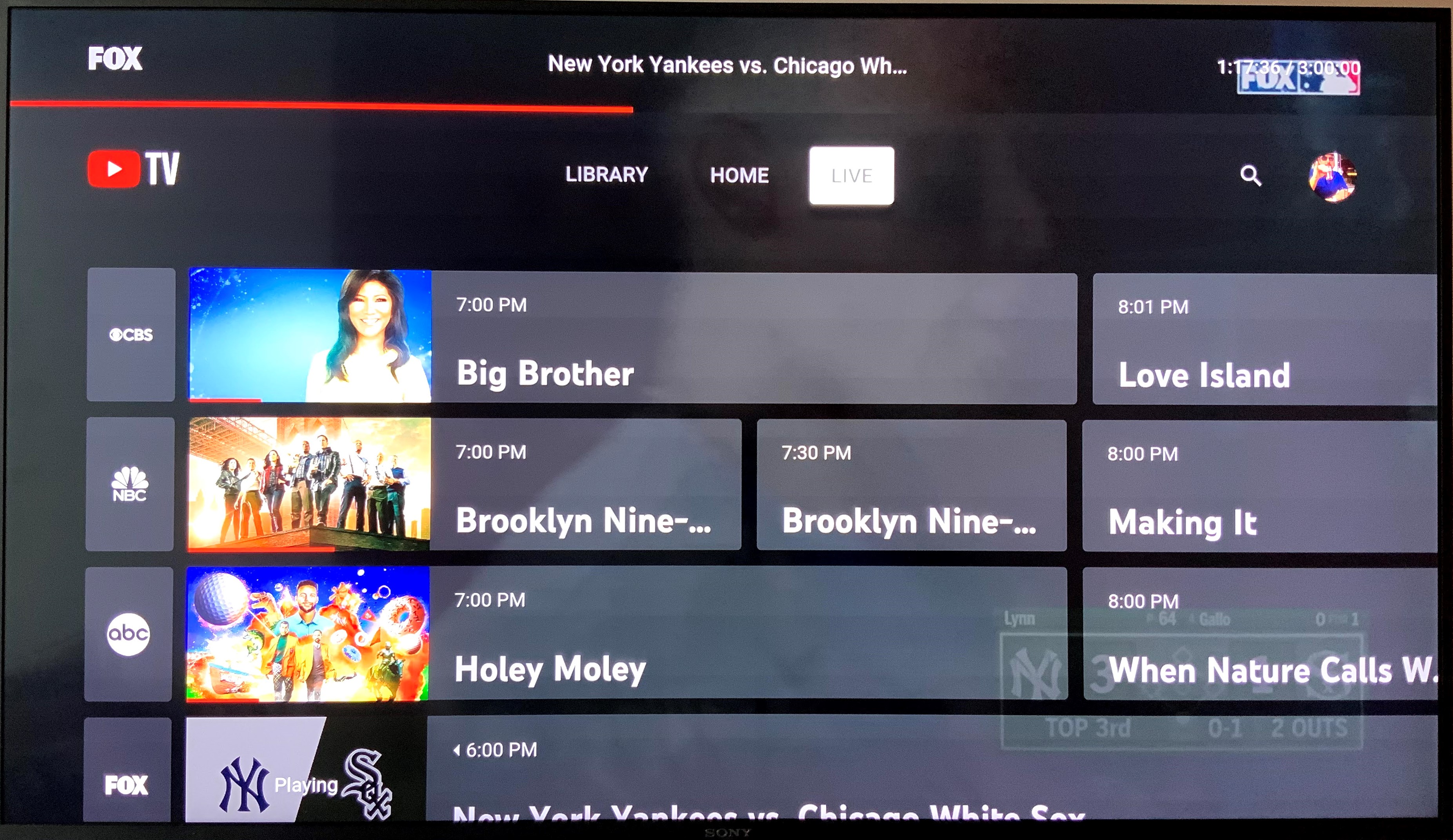
The YouTube TV interface is designed to be intuitive, mimicking the familiar layout of traditional cable TV guides while incorporating modern streaming conveniences.
- Live Guide: This is your primary hub for live content. It presents a grid of channels and their current and upcoming programs, similar to an electronic program guide (EPG). You can scroll through channels and showtimes to find what you want to watch.
- Library: This section houses all your recorded shows and movies from the cloud DVR. It’s organized to help you quickly find series, movies, or individual episodes you’ve recorded. Thanks to the unlimited DVR, this can become a vast personal collection.
- Home: This is a personalized feed that offers recommendations based on your viewing history, trending live shows, and quick access to channels you frequently watch.
- On Demand: Find shows and movies available from the networks included in your subscription that you can watch anytime, without having to record them.
- Search: A robust search function allows you to find specific channels, shows, movies, or even sports teams.
Familiarize yourself with these main sections using your TV remote. Most remotes will have directional pads for navigation, a “back” button, and a “home” button to return to the main TV interface.
Customizing Your Experience
YouTube TV offers several customization options to enhance your viewing pleasure:
- Reorder Channels: You can customize the order of channels in your Live Guide. Go to the settings within the YouTube TV app (often a gear icon), then select “Live Guide” to arrange channels in your preferred sequence. This can make finding your favorite channels much quicker.
- Manage DVR Recordings: In your Library, you can manage recordings, set series to record all new episodes, or delete unwanted content.
- Parental Controls: If you have children, you can set parental controls to restrict content based on ratings, ensuring they only access age-appropriate programming.
- Dark Theme: Many platforms offer a “dark mode” option within the settings, which can be easier on the eyes, especially in low-light environments.
By taking a few moments to explore these features, you can tailor YouTube TV to perfectly suit your household’s viewing preferences, transforming it from a simple streaming service into a personalized entertainment hub.
Conclusion
Getting YouTube TV on your television is a straightforward process that unlocks a world of live and on-demand entertainment, offering a compelling alternative to traditional cable. By understanding the core requirements – a solid internet connection and an active subscription – and identifying the right compatible device for your setup, you’ve already cleared the biggest hurdles.
Whether you’re leveraging the smart capabilities of your modern TV, adding a dedicated streaming device like a Roku or Fire TV, or utilizing a gaming console, the step-by-step instructions provided in this guide aim to demystify the installation process. Once installed and activated with your Google account, the intuitive interface and powerful features like the unlimited cloud DVR and family sharing will quickly demonstrate why YouTube TV has become a favorite among cord-cutters.
Embrace the future of television. With YouTube TV now seamlessly integrated into your biggest screen, you’re ready to dive into your favorite live sports, breaking news, hit shows, and extensive library of recorded content, all with the flexibility and convenience that modern technology affords. Welcome to a more personalized and liberated viewing experience.
aViewFromTheCave is a participant in the Amazon Services LLC Associates Program, an affiliate advertising program designed to provide a means for sites to earn advertising fees by advertising and linking to Amazon.com. Amazon, the Amazon logo, AmazonSupply, and the AmazonSupply logo are trademarks of Amazon.com, Inc. or its affiliates. As an Amazon Associate we earn affiliate commissions from qualifying purchases.