
In the modern digital landscape, an Amazon account serves as more than just a gateway to an e-commerce platform; it is a foundational digital identity that grants access to a massive ecosystem of cloud services, streaming media, smart home integration, and logistics. For those looking to establish their presence within this ecosystem, the process is straightforward, yet it requires a keen understanding of digital security and configuration to ensure the long-term safety of your personal data.
Whether you are accessing the platform via a desktop browser or a mobile interface, creating an account is the first step toward leveraging one of the world’s most sophisticated technological infrastructures. This guide provides a technical walkthrough of the setup process, explores essential security protocols, and examines how to optimize your account for the broader Amazon digital environment.

Navigating the Setup Process: Step-by-Step for Web and Mobile
The architecture of Amazon’s sign-up process is designed for high conversion and low friction, yet it maintains strict validation protocols to ensure user authenticity. Depending on your primary hardware—be it a PC, Mac, or smartphone—the interface may vary, but the underlying database requirements remain the same.
Creating an Account via Desktop Browser
For users who prefer the comprehensive view of a desktop environment, the setup begins at the primary domain.
-
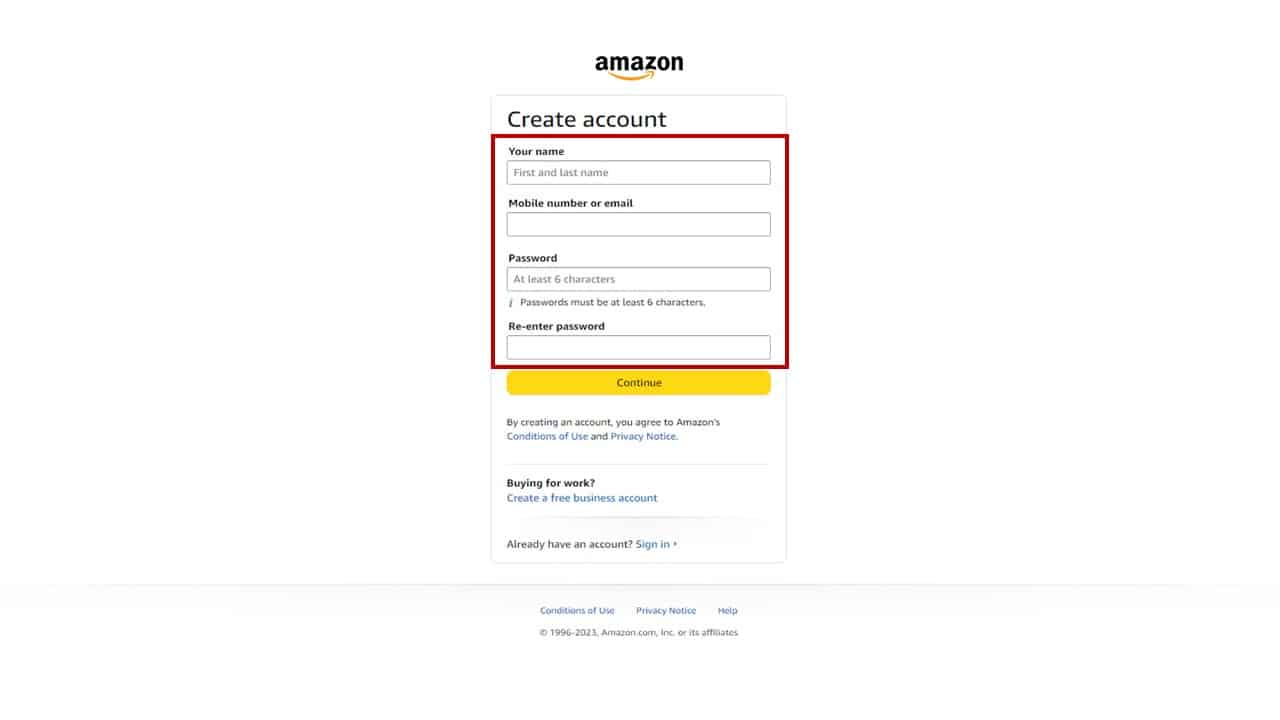
Access the Portal: Navigate to the Amazon homepage. In the top-right corner, you will find the “Accounts & Lists” dropdown menu.
-
Initialize Registration: Click on “Start here” located just below the “Sign in” button. This directs you to the registration form.
-
Data Entry: You will be prompted to enter your name, an email address, and a password. From a technical standpoint, ensure the email address is one you have permanent access to, as it serves as your primary identifier for recovery and multi-factor authentication.
-
Password Requirements: Amazon requires a minimum of six characters, but for optimal security, a complex string including alphanumeric characters and symbols is recommended.
-
Email Verification: Once the form is submitted, Amazon’s automated system sends an One-Time Password (OTP) to your email. This verification step is crucial for preventing bot-generated accounts and ensuring that the communication channel is valid. Enter the code on the setup screen to finalize the creation.
The Mobile Experience: Setting Up via the Amazon App
On mobile devices (iOS and Android), the process is integrated into the app’s native UI, often offering more seamless integration with biometric security features.
-
Download and Install: Obtain the official Amazon Shopping app from the Apple App Store or Google Play Store.
-
Initial Launch: Upon opening the app, you will be greeted with a sign-in screen. Select “Create an account.”
-
Credential Input: Similar to the web version, you will provide your name and email. Mobile users also have the option to register using a mobile phone number as the primary login credential.
-
Verification: If using a phone number, the OTP will be sent via SMS. If using an email, it arrives in your inbox.
-
Biometric Integration: Once the account is created, most modern smartphones will prompt you to enable FaceID or TouchID for future logins, adding a hardware-based layer of security to the software account.
Fortifying Your Digital Presence: Security Best Practices
An Amazon account often contains sensitive information, including saved payment methods, physical addresses, and digital content libraries. Consequently, the technical configuration of your security settings is arguably more important than the initial setup.
Implementing Two-Step Verification (2FA)
Two-Step Verification (also known as Multi-Factor Authentication or MFA) is the single most effective way to prevent unauthorized access. By requiring two forms of identification—your password and a temporary code—you protect yourself even if your password is compromised in a data breach elsewhere.
To enable this, navigate to “Login & Security” within your account settings. Amazon offers two primary methods for 2FA:
-
SMS/Text Message: The system sends a code to your registered mobile number. While convenient, this is susceptible to “SIM swapping” attacks.
-
Authenticator Apps: This is the more secure, tech-forward option. Using apps like Google Authenticator or Microsoft Authenticator, you scan a QR code provided by Amazon. The app then generates time-based codes locally on your device. This method works even without a cellular signal and is significantly harder for hackers to intercept.
Password Management and Robust Credentials
The strength of your password is your first line of defense. Technologists recommend using a dedicated password manager (such as Bitwarden, 1Password, or LastPass) to generate and store unique, high-entropy passwords. Avoid reusing passwords across different platforms; a breach at a minor site could lead to a “credential stuffing” attack on your Amazon account, where hackers attempt to use known email/password combinations to gain entry.
Managing Authorized Devices and Login Activity
Amazon provides a dashboard where you can view every device currently logged into your account. Regularly auditing this list is a vital part of digital hygiene. If you see a browser or device you do not recognize, or an old tablet you no longer use, you can remotely sign out that device. This prevents persistent sessions from remaining active on hardware that is no longer in your possession.
Maximizing the Digital Ecosystem: Prime, Alexa, and Cloud Integration
Once your account is established and secured, it acts as the “Single Sign-On” (SSO) for a vast array of interconnected services. Understanding this integration is key to mastering the Amazon tech stack.
Understanding the Service Interconnectivity
Your Amazon account is the master key for several distinct platforms:
-
Prime Video and Music: These services utilize your account credentials to manage licensing, watchlists, and algorithmic recommendations.
-
Kindle and Audible: Digital rights management (DRM) for your e-books and audiobooks is tied directly to your account ID.
-
Amazon Web Services (AWS): While AWS typically requires a separate professional console setup, the underlying identity verification often utilizes similar protocols.
Integrating Smart Home Devices
For users of the Echo ecosystem, the Amazon account is the central hub for the Alexa Voice Service (AVS). When you set up an Alexa-enabled device, you link it to your account via the Alexa app. This link allows the device to access your calendars, smart home “skills,” and personalized voice profiles. From a technical perspective, this creates a cloud-based bridge between your physical hardware and Amazon’s servers, enabling real-time processing of voice commands.
Troubleshooting Common Technical Barriers in Account Creation
Even with a streamlined process, users may encounter technical hurdles during account creation or initial login.
Verification Code Delays and SMTP Issues
One of the most common issues is the failure to receive the OTP email. This can be caused by aggressive spam filters or SMTP (Simple Mail Transfer Protocol) delays. If the code does not arrive within two minutes:
-
Check the “Junk” or “Promotions” folder of your email client.
-
Ensure that the email address
account-update@amazon.comis whitelisted. -
If using a corporate email, the internal firewall may be blocking automated messages from Amazon’s domains.
Regional and IP-Based Restrictions
Amazon operates on a localized infrastructure (e.g., amazon.com, amazon.co.uk, amazon.de). While an account created on one domain often works on others, your primary digital content (Kindle books, Prime Video) is frequently locked to the region where the account was initialized. If you are using a VPN (Virtual Private Network), Amazon’s fraud detection algorithms may flag the account creation as “suspicious activity” due to the IP address being associated with a data center rather than a residential ISP. To ensure a smooth setup, it is often best to disable VPNs during the initial registration and verification phase.
Privacy and Data Governance: Configuring Your Account Settings
In an era where data is a high-value commodity, configuring your privacy settings is an essential final step in getting an Amazon account. Amazon collects data on browsing habits, search history, and purchase patterns to refine its recommendation engine.
Ad Preferences and Tracking
Within the “Account” menu, navigate to “Your Ads Privacy Choices.” Here, you can opt-out of interest-based advertising. While this doesn’t stop Amazon from collecting data for its own internal logistics and inventory management, it prevents that data from being used to serve targeted advertisements across the web.

Communication and Notification Controls
Modern apps are notorious for “notification fatigue.” To optimize your user experience, go to “Communication Preferences.” Here, you can granularly control which automated emails and push notifications you receive. From a technical standpoint, reducing the number of unnecessary communications also reduces the surface area for phishing attempts; if you know you have turned off all marketing emails, any “promotional” email you receive is immediately identifiable as a fraudulent attempt to harvest your credentials.
By following these steps and prioritizing security and privacy configurations, you do more than just “get an account”—you establish a secure, efficient, and powerful digital identity within one of the world’s most advanced technological ecosystems.
aViewFromTheCave is a participant in the Amazon Services LLC Associates Program, an affiliate advertising program designed to provide a means for sites to earn advertising fees by advertising and linking to Amazon.com. Amazon, the Amazon logo, AmazonSupply, and the AmazonSupply logo are trademarks of Amazon.com, Inc. or its affiliates. As an Amazon Associate we earn affiliate commissions from qualifying purchases.