
In an increasingly digitized world, platforms like YouTube have become indispensable for entertainment, education, communication, and information dissemination. From viral cat videos to in-depth tutorials, documentaries, and global news, YouTube offers an unparalleled repository of video content. For many, simply watching videos is enough, but to truly engage, subscribe to channels, comment on content, create playlists, or even embark on your own content creation journey, a YouTube account is not just beneficial—it’s essential.
This guide will demystify the process of getting a YouTube account, breaking down the technical steps and offering insights into maximizing your experience from a purely technological standpoint. We’ll focus on the setup, essential features, and crucial security aspects that underpin your digital presence on the platform, ensuring you can navigate YouTube with confidence and control.
The Foundational Step: Creating a Google Account
At the heart of every YouTube account lies a Google account. This deep integration is a cornerstone of Google’s vast ecosystem, linking services like Gmail, Google Drive, Google Photos, and, of course, YouTube, under a single user identity. Understanding this relationship is the first step in comprehending your digital footprint across these powerful tools.
Why a Google Account is Essential
Google acquired YouTube in 2006, and since then, the platforms have become intricately linked. Your Google account serves as your universal key to this ecosystem. When you sign up for a Google account, you’re not just getting an email address; you’re establishing a digital identity that Google uses to personalize your experience across its services. For YouTube, this means that your watch history, subscriptions, liked videos, and comments are all tied back to your Google profile. This unified approach simplifies management and enhances functionality, making it a prerequisite for full YouTube engagement. Without a Google account, you can technically browse YouTube, but you cannot subscribe, comment, like, or create your own content.
Step-by-Step Google Account Creation
Creating a Google account is a straightforward process, designed to be user-friendly even for those new to digital platforms.
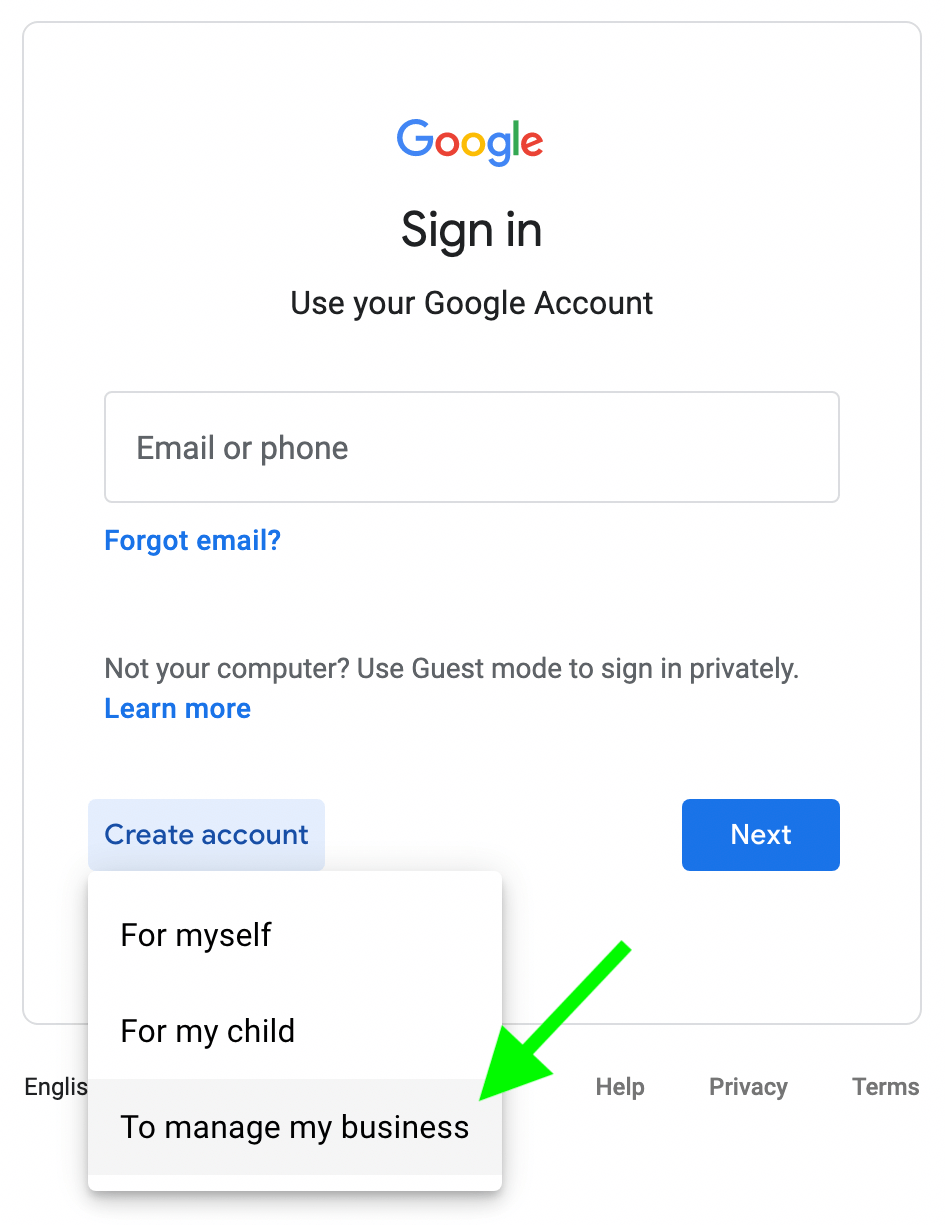
- Navigate to the Google Sign-Up Page: Open your web browser and go to accounts.google.com/signup. You’ll be prompted to create an account for yourself, for a child, or to manage a business. For personal YouTube use, select “For myself.”
- Enter Personal Details: You’ll be asked to provide your first and last name, along with your desired username. Google often suggests available usernames, or you can opt to create your own unique Gmail address.
- Choose a Strong Password: This is a critical security step. Your password should be a complex mix of uppercase and lowercase letters, numbers, and symbols. Avoid easily guessable information like birthdays or common phrases. Aim for at least 12-16 characters. This password will protect your entire Google ecosystem, not just YouTube.
- Provide Recovery Information: Google will request a phone number and/or an existing recovery email address. While optional for initial setup, providing these is highly recommended. They are crucial for account recovery if you forget your password or if there’s any suspicious activity on your account. This is a fundamental digital security best practice.
- Enter Your Birthdate and Gender: These details help Google comply with age restrictions and customize certain services. For YouTube, age verification is important to ensure access to age-restricted content is appropriate.
- Review and Agree to Terms: Carefully read Google’s Privacy Policy and Terms of Service. These documents outline how Google collects, processes, and uses your data. You must agree to these terms to proceed.
- Verify Your Account: Depending on your setup, Google might send a verification code to your phone number or recovery email to confirm your identity. Enter this code to finalize the account creation.
Once these steps are completed, you officially have a Google account, which means you’re automatically ready for YouTube.
Verifying Your Account
Account verification, often done via a code sent to your phone or email, is a crucial security measure. It confirms that a real person is creating the account and helps prevent automated spam or fraudulent account creation. For YouTube, having a verified Google account is often a prerequisite for accessing certain features, like uploading longer videos or live streaming, after you create a channel.
Activating Your YouTube Presence
With your Google account established, accessing YouTube is merely a matter of logging in. Your YouTube presence begins the moment you interact with the platform using your new Google identity.
Logging In to YouTube with Your New Google Account
The process is seamless:
- Go to youtube.com.
- Click the “Sign In” button, usually located in the top right corner of the page.
- You will be redirected to a Google login page. Enter the Gmail address and password you created for your Google account.
- If you’re already signed into Google in your browser, YouTube might automatically sign you in.
Once logged in, your YouTube interface will transform, displaying your profile icon (often your initial or a default avatar) in the top right, indicating you are successfully signed in.
Understanding Your YouTube Profile
Upon logging in, you’ll see your personalized YouTube homepage. This includes recommended videos based on popular content, your potential interests, and later, your watch history.
- Default View vs. Channel View: Initially, your YouTube presence is tied to your Google account. You can watch, subscribe, and comment. However, if you wish to upload videos, you’ll need to create a “YouTube Channel.” This is a distinct entity within your Google account, allowing for content creation and specific branding. We’ll delve into channel creation later, but it’s important to differentiate between simply being logged in and having an active channel.
- Personalizing Your Profile: Even without a channel, you can update your Google account’s profile picture, which will appear as your avatar on YouTube comments and subscriptions. This adds a touch of personal identity to your interactions.
Navigating the YouTube Interface Post-Login
Once logged in, the YouTube interface offers a wealth of features:
- Home Feed: The central hub, dynamically updated with recommended videos.
- Subscriptions: A dedicated feed showing the latest uploads from channels you follow.
- Library: Here you’ll find your watch history, “Watch Later” playlist, custom playlists you’ve created, and videos you’ve liked.
- Search Bar: A powerful tool at the top to find specific content, channels, or topics.
- Notifications Bell: Alerts you to new uploads from subscribed channels, replies to your comments, and other activities.
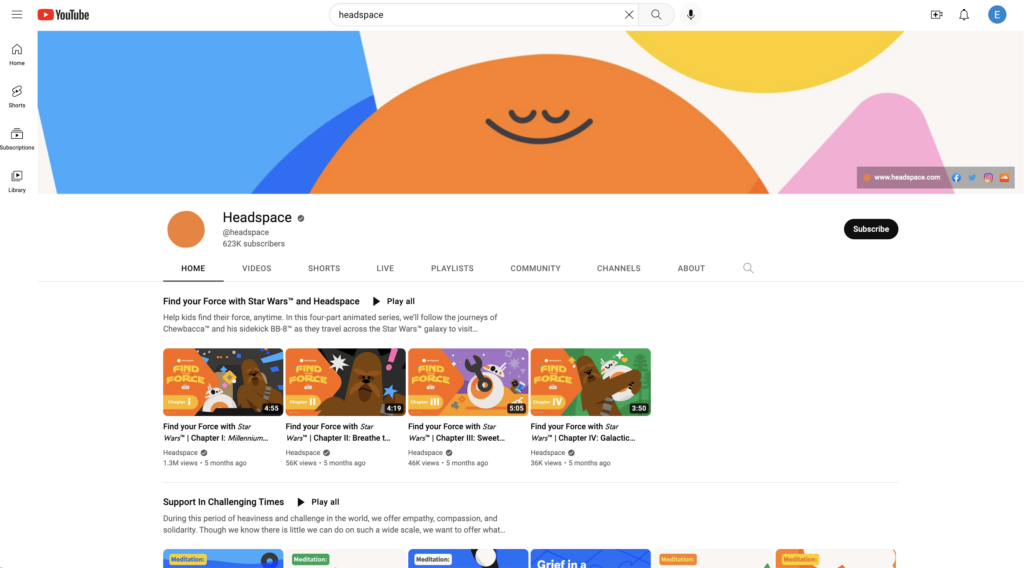
Logging in grants you access to these features, transforming YouTube from a passive viewing experience to an interactive platform.
Enhancing Your YouTube Experience with Essential Tech Settings
Beyond simply getting an account, understanding and utilizing YouTube’s settings is crucial for tailoring the platform to your preferences and ensuring your digital security and privacy. These are fundamental technical controls that empower you as a user.
Privacy Settings and Controls
YouTube offers granular control over your privacy, allowing you to manage what information is visible to others and how your activity is tracked.
- Visibility of Subscriptions and Liked Videos: Through your YouTube settings (accessible by clicking your profile icon > “Settings” > “Privacy”), you can choose whether your list of subscriptions and liked videos are public or private. Making them private ensures that other users cannot see which channels you follow or which videos you’ve expressed approval for.
- Activity Controls (Search History, Watch History): Google (and by extension, YouTube) tracks your search and watch history to personalize recommendations. Within your Google Account Activity Controls (accessible via YouTube settings), you can pause or delete your YouTube search history and watch history. You can also set these histories to auto-delete after a certain period (3, 18, or 36 months). This provides significant control over your data footprint.
- Ad Personalization Settings: Google uses your activity to tailor ads. You can control ad personalization settings directly from your Google Account settings, choosing to turn it off entirely or review the categories Google thinks you’re interested in. While you’ll still see ads, they won’t be as specifically targeted.
Notification Management
YouTube can be quite active, and managing notifications is key to avoiding overload while staying informed about content you care about.
- Customizing Email and Push Notifications: In your YouTube settings under “Notifications,” you can toggle various alerts. Decide if you want emails for recommended videos, activity on your comments, or general product updates. For mobile users, you can also manage push notifications directly through your device’s operating system settings.
- Subscription Notifications: When you subscribe to a channel, you’ll see a bell icon next to the “Subscribed” button. Clicking this bell allows you to choose between “All,” “Personalized,” or “None” for notifications from that specific channel. “All” means you’ll be notified of every new upload, “Personalized” means YouTube will decide based on your viewing habits, and “None” means no alerts. This allows for fine-tuned control over your feed.
Digital Security Best Practices for Your YouTube Account
Given that your YouTube account is tied to your Google account, its security is paramount. Implementing robust digital security measures is not optional; it’s essential.
- Two-Factor Authentication (2FA) for Your Google Account: This is arguably the most important security measure you can enable. 2FA adds an extra layer of security beyond just your password. When you sign in, you’ll enter your password, and then you’ll be prompted for a second verification step, such as a code sent to your phone, a prompt on a trusted device, or a physical security key. This drastically reduces the risk of unauthorized access even if your password is stolen.
- Recognizing Phishing Attempts: Be vigilant against emails or messages pretending to be from YouTube or Google, asking for your login credentials. Always check the sender’s email address and hover over links before clicking to ensure they lead to legitimate Google or YouTube domains. Google will never ask for your password via email.
- Regular Password Updates: While 2FA is powerful, regularly updating your strong, unique password adds another layer of defense. Avoid reusing passwords across different services.
- Reviewing Connected Apps: Periodically check which third-party applications have access to your Google account. You can do this via your Google Account security settings. Remove access for any apps you no longer use or don’t recognize. Granting access to suspicious apps can compromise your account.
Beyond Basic Viewing: Exploring YouTube’s Deeper Features (Tech Perspective)
While simply watching videos is the primary function, YouTube offers a suite of advanced features, particularly for those interested in creating and managing content. These features are fundamentally technical tools designed for content management and distribution.
Creating Your First YouTube Channel
As mentioned, a YouTube channel is distinct from your personal Google account. It’s the public face for any content you wish to upload or curate.
- Distinction Between Personal Account and Channel: Your Google account allows you to consume content. A YouTube channel allows you to produce content. When you create a channel, you’re essentially setting up a public profile specifically for your videos.
- Steps to Create a Channel:
- Log in to YouTube.
- Click on your profile icon in the top right corner.
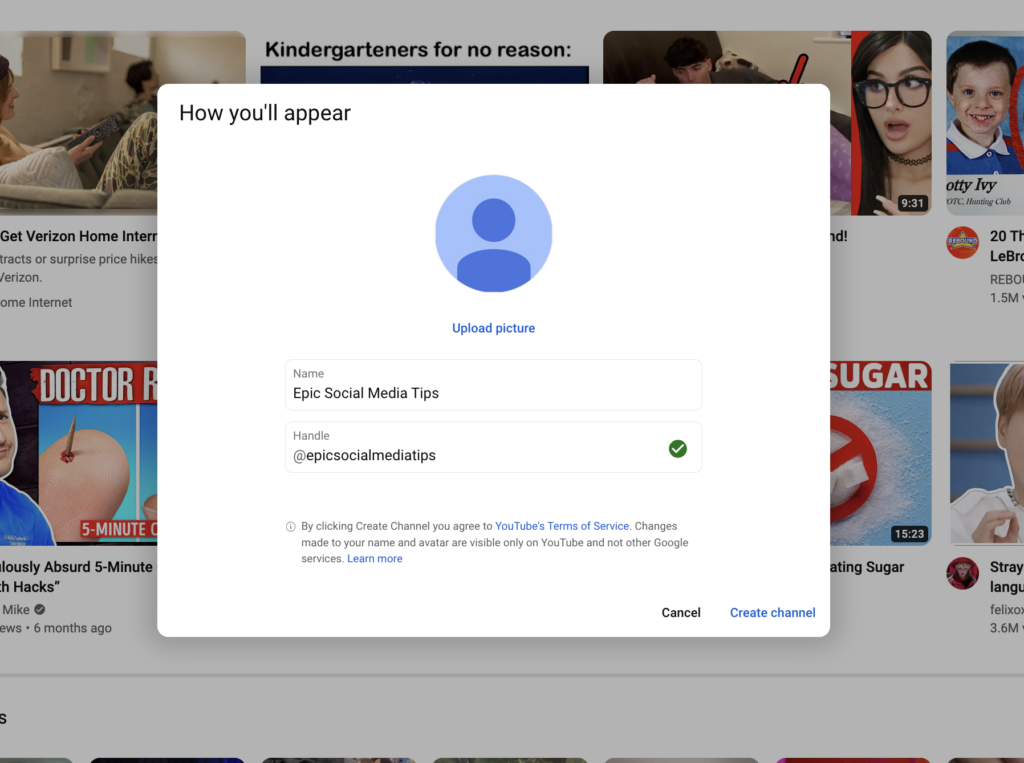
- Select “Create a channel.”
- You’ll be prompted to use your Google account name, or to create a “custom name” for a brand account. For most individuals starting out, using their name is fine, but a custom name offers more flexibility for branding later on.
- Follow the prompts to finalize the channel creation.
- Initial Channel Customization (Icon, Banner, Description): Once your channel is created, you can access YouTube Studio (more on this below) to upload a channel icon (profile picture), a channel art banner (header image), and write a channel description. These elements are crucial for telling viewers what your channel is about and establishing a visual identity. Technically, these are image and text file uploads with specific size and resolution requirements.
Uploading Content: The Technicalities
Uploading a video to YouTube involves more than just selecting a file; it requires understanding basic technical specifications and metadata.
- Video Formats and Resolution: YouTube supports a wide range of video formats (e.g., MP4, MOV, AVI) and resolutions (e.g., 720p, 1080p, 4K). For optimal viewing quality, it’s generally recommended to upload videos in high definition (1080p or higher) and in common aspect ratios like 16:9. Understanding bitrate and frame rate can further optimize quality.
- Basic Upload Process:
- Click the “Create” button (camera icon) in the top right corner of YouTube and select “Upload video.”
- Drag and drop your video file or select it from your computer.
- While the video uploads, you’ll be prompted to add a Title, Description, and Tags. These are crucial metadata fields that help YouTube’s algorithm (and users) understand what your video is about, aiding discoverability.
- Select a Thumbnail (either a generated one or a custom image you upload).
- Choose your Audience (whether the video is “made for kids” or not, for COPPA compliance).
- Set Visibility: Public (anyone can see), Unlisted (only those with the link can see), or Private (only you and chosen users can see).
- Click “Save” or “Publish.”
- Copyright Considerations (from a technical perspective): YouTube employs sophisticated content ID systems to detect copyrighted material. If your video contains copyrighted music, film clips, or other media without permission, YouTube may automatically mute, block, or even demonetize your video. Technically, this is an automated system checking audio and visual fingerprints against a vast database. Users need to be aware that this technical detection is robust.
Utilizing YouTube Studio (Creator Studio)
YouTube Studio is your backend dashboard for managing your channel and content. It’s a suite of technical tools designed for creators.
- A Dashboard for Managing Content: From YouTube Studio, you can:
- View all your uploaded videos.
- Edit video details (title, description, tags, privacy).
- Add end screens and cards (interactive elements).
- Manage comments.
- Access basic Analytics: This powerful feature provides data on your video’s performance – views, watch time, audience demographics, traffic sources, etc. While deep interpretation can lean into marketing, understanding the display of this data is a key technical aspect of content management on YouTube.
Conclusion
Getting a YouTube account is a fundamental step in engaging with one of the world’s largest and most influential digital platforms. It begins with establishing a robust Google account, which serves as your gateway to the entire ecosystem. From there, activating your YouTube presence, personalizing your settings, and prioritizing digital security are all crucial technical considerations that enhance your user experience and protect your digital identity.
Whether you’re looking to simply consume content, interact with your favorite creators, or even embark on your own content creation journey, the technical steps and best practices outlined in this guide will ensure you’re well-equipped to navigate YouTube safely, efficiently, and effectively. Embrace the vast world of video content and interaction, confident in your technical foundation on the platform.
aViewFromTheCave is a participant in the Amazon Services LLC Associates Program, an affiliate advertising program designed to provide a means for sites to earn advertising fees by advertising and linking to Amazon.com. Amazon, the Amazon logo, AmazonSupply, and the AmazonSupply logo are trademarks of Amazon.com, Inc. or its affiliates. As an Amazon Associate we earn affiliate commissions from qualifying purchases.