
In the fast-paced world of technology, keeping track of your devices and their specifications can sometimes feel like a full-time job. Among the most popular smartphones globally, the iPhone stands out for its sleek design, robust features, and user-friendly interface. However, with Apple consistently releasing new models and software updates, it’s easy to get a little hazy on the exact version of iPhone you’re currently using. This knowledge isn’t just trivia; it’s crucial for a multitude of reasons, from understanding compatibility with new apps and accessories to ensuring you’re getting the most out of its features and even for troubleshooting potential issues.
This guide will walk you through the simple yet essential process of identifying your iPhone version. Whether you’re a seasoned Apple enthusiast or a newcomer to the iOS ecosystem, understanding how to pinpoint your device’s model and operating system version is a fundamental skill. We’ll explore the straightforward methods within your iPhone’s settings, as well as touch upon why this information is so valuable, particularly within the broader contexts of technology trends, personal branding, and even financial decision-making.
Understanding Your iPhone’s Identity: Model and Software
Before diving into the “how-to,” let’s clarify what we mean by “iPhone version.” Generally, when people ask this question, they’re referring to two distinct but related pieces of information:
- iPhone Model: This refers to the physical hardware generation of your iPhone. Apple names its models sequentially (iPhone 3G, iPhone 4, iPhone 5, etc.) and then introduces variations like “s” (faster processor), “c” (colorful), “Plus” (larger screen), “Pro” (enhanced camera and features), and “mini” (smaller form factor). Identifying your model helps you understand its capabilities, processor speed, camera quality, and physical design.
- iOS Version: This refers to the operating system that powers your iPhone. iOS is the software that dictates the user interface, features, security updates, and overall functionality of your device. Apple regularly releases new versions of iOS (e.g., iOS 15, iOS 16, iOS 17), each bringing new capabilities and improvements.
Knowing both your iPhone model and its iOS version is key to navigating the tech landscape effectively.
Identifying Your iPhone Model: A Step-by-Step Guide
The most direct and reliable way to find out your iPhone model is through the device’s “Settings” app. This method requires no external tools and is accessible to everyone.
The Settings App: Your Primary Source of Information
- Open the Settings App: Locate the grey gear icon on your iPhone’s home screen and tap it. This is the gateway to all your device’s configurations.
- Navigate to “General”: Within the Settings menu, scroll down and tap on “General.” This section contains various system-level information and controls.
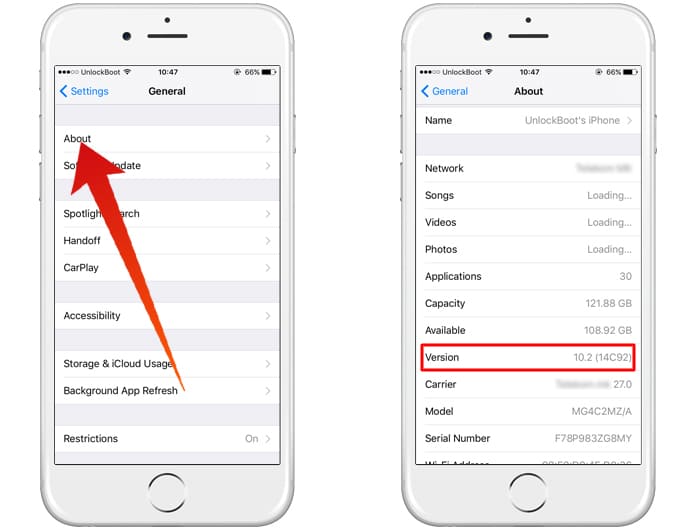
- Tap on “About”: The “About” screen is where you’ll find a summary of your iPhone’s key details. Tap on “About.”
- Locate “Model Name”: On the “About” screen, you will see several lines of information. Look for the line labeled “Model Name.” This will display the specific model of your iPhone, such as “iPhone 14 Pro Max,” “iPhone SE (3rd generation),” or “iPhone 11.”
Tip: If the model name is abbreviated or unclear, you can often tap on the “Model Name” itself to see a model number (e.g., A2643). You can then use this model number to search online for the exact iPhone model it corresponds to.
Beyond Settings: Alternative Methods for Model Identification
While the Settings app is the most convenient, there are a couple of other ways to confirm your iPhone model, especially if you can’t access the device directly or are troubleshooting.
- Original Packaging: If you still have the original box your iPhone came in, the model name and often a visual representation of the device will be printed on it.
- Receipt or Purchase History: Your purchase receipt from Apple or an authorized retailer will clearly state the model of the iPhone you bought. Online purchase histories with retailers like Apple, Amazon, or Best Buy will also contain this information.
- Back of the iPhone (Older Models): For iPhones manufactured before the iPhone 8, the model number (e.g., A1778) was often subtly printed on the back of the device, usually in small text near the bottom. Newer iPhones have this information etched into the SIM tray area or can only be found via software.
Determining Your iOS Version: Essential for Software Compatibility
Knowing your iOS version is equally important. It dictates which apps you can download, which features you have access to, and how secure your device is.

Finding Your iOS Version in Settings
The process for finding your iOS version is very similar to finding your iPhone model.
- Open the Settings App: Again, start by tapping the grey gear icon.
- Navigate to “General”: Scroll down and tap “General.”
- Tap on “About”: This is the same “About” screen where you found your model name.
- Locate “Software Version”: On the “About” screen, you will see a line labeled “Software Version.” This will display the current iOS version installed on your iPhone, such as “iOS 16.6,” “iOS 17.1.1,” or similar.
Why is knowing your iOS version so critical?
From a Tech perspective, staying updated ensures you have access to the latest security patches, bug fixes, and new features. Developers often target specific iOS versions for their applications, meaning older iOS versions might not support the newest apps or app updates. If you’re looking at cutting-edge AI tools or productivity apps, compatibility with the latest iOS is often a prerequisite.
The Importance of Knowing Your iPhone Version
Understanding your iPhone’s model and software version transcends mere technical curiosity. It has practical implications across various aspects of your digital life, touching upon technology trends, personal branding, and even financial planning.
Technology Trends and Your iPhone
The technology landscape is constantly evolving. New advancements in mobile technology, from camera innovations and processing power to battery life and connectivity (like 5G), are often tied to specific iPhone generations.
- App Compatibility: As mentioned, newer apps and features often require a minimum iOS version. If you have an older iPhone, you might be unable to download or run the latest applications. This is particularly relevant for AI-powered apps, augmented reality (AR) experiences, and advanced gaming.
- Performance and Features: Each new iPhone model and iOS update brings performance enhancements, new camera capabilities, and user interface improvements. Knowing your version allows you to accurately assess whether your device can support these trends or if it’s time for an upgrade.
- Accessory Compatibility: Many accessories, from chargers and cases to smartwatches and headphones, are designed with specific iPhone models in mind. Knowing your model ensures you purchase compatible accessories.
Brand and Personal Branding: How Your Device Reflects You
In today’s digitally connected world, the devices we use can subtly contribute to our personal and professional brand. While not as direct as a company’s corporate identity, the technology you employ can send signals.
- Professional Image: For some, using the latest iPhone model or a consistently updated operating system can project an image of being tech-savvy, up-to-date, and professional. This can be particularly relevant in fields where technological adoption is valued.
- Marketing and Communication: If you’re a freelancer, small business owner, or involved in content creation, understanding your device’s capabilities is essential for your marketing and communication efforts. Knowing your iPhone version can help you leverage features for photography, videography, or social media management.
- Brand Loyalty and Perception: For many, owning an iPhone signifies a choice within a particular brand ecosystem. Understanding your specific model and its capabilities can enhance your appreciation for the brand’s strategy and design choices.
Money and Financial Considerations: Making Informed Decisions
Your iPhone, its model, and its software version also have financial implications.
- Upgrade Cycles: Knowing your current model helps you make informed decisions about when to upgrade. If your iPhone is several generations old and no longer supports essential apps or security updates, it might be financially prudent to consider a new device rather than investing in unsupported accessories or facing potential security risks.
- Resale Value: The model and condition of your iPhone significantly impact its resale value. If you plan to sell or trade in your device, knowing the exact model number is crucial for accurately assessing its worth.
- Cost of Ownership: While iPhones are premium devices, understanding your model can help you manage the cost of ownership. For instance, knowing if your phone supports the latest charging technologies or if you can extend its lifespan with a battery replacement can influence your budget.
- Investment in Apps and Services: When considering purchasing paid apps or subscriptions for services, knowing your iOS version helps ensure compatibility and that you’re investing in something that will work with your current device.
Conclusion
Identifying your iPhone model and its iOS version is a fundamental yet often overlooked aspect of smartphone ownership. It’s a simple process that unlocks a wealth of information, empowering you to make informed decisions about technology, manage your personal brand, and navigate your finances more effectively. By regularly checking your “About” settings, you ensure you’re leveraging your device to its full potential and staying connected in an ever-evolving digital world. Whether you’re a tech enthusiast, a brand-conscious individual, or a savvy financial planner, knowing “what iPhone version I have” is the first step towards a more informed and empowered mobile experience.
aViewFromTheCave is a participant in the Amazon Services LLC Associates Program, an affiliate advertising program designed to provide a means for sites to earn advertising fees by advertising and linking to Amazon.com. Amazon, the Amazon logo, AmazonSupply, and the AmazonSupply logo are trademarks of Amazon.com, Inc. or its affiliates. As an Amazon Associate we earn affiliate commissions from qualifying purchases.