
In the rapidly evolving landscape of Over-the-Top (OTT) streaming services, YouTube TV has established itself as a frontrunner in the cord-cutting revolution. By leveraging Google’s robust cloud infrastructure, it offers a seamless integration of live television and digital recording features. However, as the digital subscription economy grows more complex, users frequently find themselves needing to audit their SaaS (Software as a Service) portfolio. Whether you are migrating to a different tech stack or simply streamlining your digital life, knowing how to efficiently navigate the decommissioning of a YouTube TV account is a fundamental skill for the modern tech consumer.

This guide provides a deep dive into the technical steps required to cancel your YouTube TV subscription across various platforms, while also exploring the data implications and software alternatives available in the current market.
Understanding the YouTube TV Ecosystem: Pause vs. Cancel
Before initiating a full cancellation, it is critical to understand the software logic behind YouTube TV’s retention tools. Google offers two distinct paths for users looking to step away from the service: “Pausing” and “Canceling.”
The Mechanics of the Pause Feature
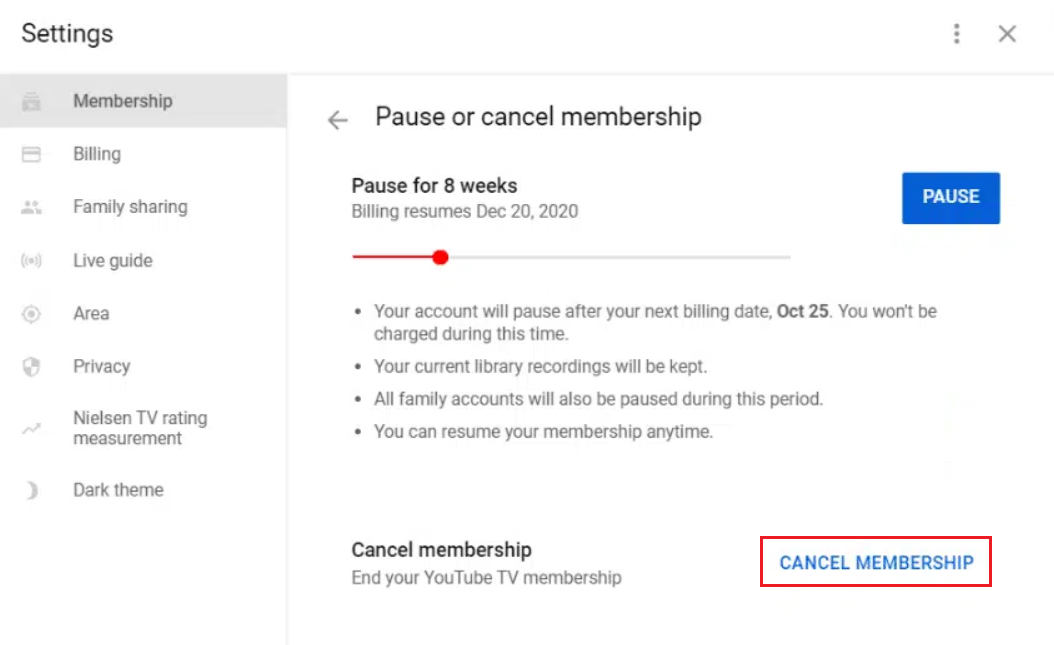
The “Pause” feature is a sophisticated piece of subscription management software designed to reduce churn. When you pause your membership, you essentially put a temporary hold on your billing cycle for a duration ranging from 4 weeks to 6 months. From a technical standpoint, this is highly beneficial for users who only watch seasonal content, such as live sports.
During a pause, your access to live content is revoked, but your library of recordings (Cloud DVR) is preserved. It is important to note that while your recordings are saved, they are still subject to the standard 9-month expiration date from the time of recording. Once the pause period expires, the software automatically resumes the subscription at the then-current monthly rate.
Full Cancellation and Data Retention Policies
Choosing to cancel is a more permanent action. When you cancel, you retain access to the service until the end of your current billing period. Once that period concludes, your access to live TV, local networks, and your Cloud DVR is terminated.
From a data perspective, Google typically retains your library preferences and “watch history” for a limited time. If you decide to restart the service later using the same Google account, you may find your personalized recommendations intact, but your previous DVR recordings will generally be purged after 21 days of inactivity following the final billing cycle.
Step-by-Step Technical Guide to Cancellation
The process of canceling YouTube TV varies significantly depending on the device and the original gateway through which you subscribed. Because Google operates within a multi-platform environment, the UI (User Interface) may differ between desktop, Android, and iOS.
Cancelling via Web Browser (Desktop/Laptop)
The most reliable way to manage any Google-based subscription is through a desktop browser. This method bypasses mobile app limitations and provides the most transparent view of your account settings.
- Authentication: Navigate to
tv.youtube.comand ensure you are logged into the Primary Account Holder’s profile. - Navigation: Click on your profile avatar in the top-right corner and select “Settings.”
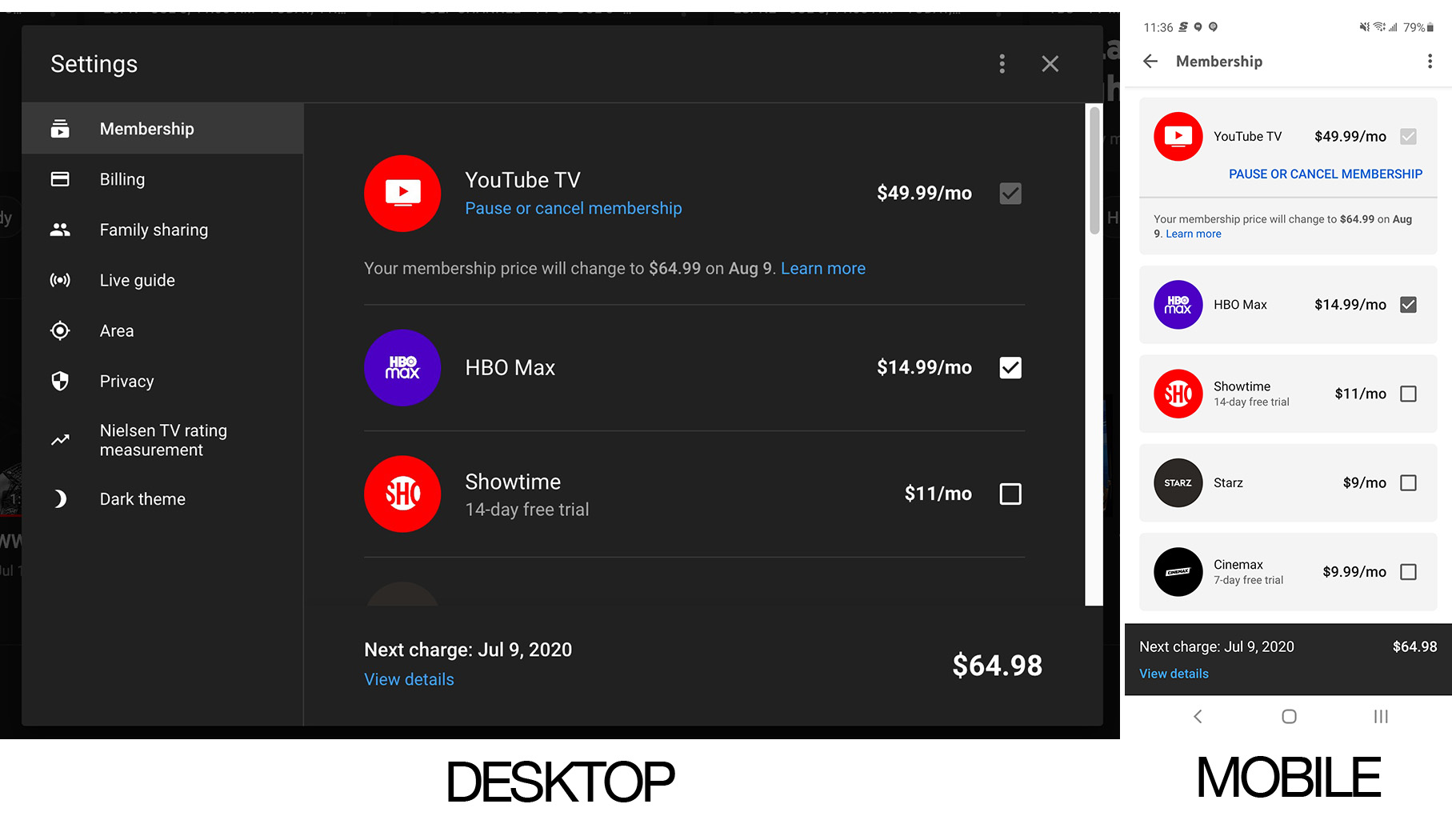
- Membership Management: Under the “Membership” tab, you will see your current base plan and any add-on “sparks” or premium channels.
- Initiation: Click “Manage” next to your base plan. Here, the system will offer you the option to “Pause” or “Cancel.”
- Confirmation Logic: Select “Cancel.” YouTube TV will likely prompt you with a brief survey regarding your reason for leaving. This data is used for their internal UX (User Experience) research. Follow the prompts until you receive a confirmation email.
Mobile Management: Android and iOS Differences
Managing subscriptions on mobile devices introduces the complexity of “In-App Purchases.”
- Android: Since YouTube TV and Android are both part of the Google ecosystem, the process is integrated. You can cancel through the YouTube TV app settings, which will redirect you to the Google Play Store’s subscription management interface.
- iOS (Apple): If you signed up for YouTube TV through the Apple App Store, Google does not manage your billing—Apple does. To cancel, you must go to your iPhone/iPad “Settings,” tap your Name/Apple ID, and select “Subscriptions.” If you do not see YouTube TV listed there, you likely signed up via a web browser and should use the desktop method described above.
Handling Third-Party Billing (Roku, T-Mobile, or Frontier)
Many users integrate their YouTube TV subscription into a broader tech bundle, such as those offered by T-Mobile or Frontier Internet. In these instances, the “Cancel” button in the YouTube TV app may be grayed out or replaced with a “Contact Provider” message. You must log into the portal of the third-party provider to decouple the service from your monthly utility or cellular bill.
Post-Cancellation: Managing Your Digital Profile
Once the cancellation is confirmed, there are several technical nuances regarding your digital footprint and hardware compatibility that you should consider.
Access Duration and Billing Cycles
A common misconception is that cancellation results in immediate loss of service. In reality, the software terminates the renewal of the license, not the current license itself. If your billing cycle began on the 1st of the month and you cancel on the 5th, your credentials will remain valid for the remaining 25 days. This is an industry-standard practice in SaaS architecture to prevent pro-rated refund complexities.
Re-enabling Your Account and Data Migration
If you decide to return to YouTube TV, the re-onboarding process is designed to be frictionless. By logging back in with your Google credentials, the system recognizes your previous profile. However, if you are looking to move your “Watch History” or data to a different service, you should be aware that there is currently no standardized “Export” function for Cloud DVR metadata. Your digital library is locked within the Google ecosystem, a phenomenon known in the tech world as “Vendor Lock-in.”
Troubleshooting Common Cancellation Hurdles
Even in a streamlined system, technical glitches can occur. Understanding the backend logic can help you resolve these issues without extensive customer support wait times.
Hidden Subscriptions and Family Sharing Settings
YouTube TV allows for “Family Sharing,” where up to six profiles can use one subscription. If you are a member of a family group but not the “Family Manager,” you cannot cancel the subscription. The technical administrative rights reside solely with the account that provides the payment method. If you are trying to cancel but don’t see the option, verify your role within the Google Family hierarchy.
Cache Issues and Browser Compatibility
Occasionally, users report that the “Confirm Cancellation” button fails to respond. This is often a client-side scripting error. To resolve this:
- Clear Cache: Remove cookies and cached images from your browser to ensure you are loading the latest version of the YouTube TV web app.
- Disable Extensions: Ad-blockers or script-blockers can sometimes interfere with the confirmation pop-ups required to finalize a cancellation.
- Incognito Mode: Using a private or incognito window often bypasses stored credential errors that might be preventing the account update.
Exploring the Streaming Landscape Post-YouTube TV
Canceling your subscription is often the first step toward migrating to a different technological solution for home entertainment. The “Post-YouTube TV” landscape is rich with diverse software platforms tailored to different user needs.
Alternative SaaS Platforms for Live TV
If you are looking for a similar “Live TV” experience but with a different UI or feature set, consider the following technical alternatives:
- Hulu + Live TV: Offers a superior integration with the Disney+ and ESPN+ tech stacks, making it a powerful choice for families already using those apps.
- FuboTV: Primarily focused on sports, Fubo offers a unique multi-view feature on certain devices (like Apple TV) that allows users to stream up to four channels simultaneously—a feature YouTube TV only recently began to replicate.
- Sling TV: A more modular approach to streaming, allowing users to pick smaller “Blue” or “Orange” packages, which is ideal for those who prefer a lightweight app footprint.
The Rise of Niche Digital Content Services
Many tech-savvy users are moving away from bloated Live TV packages in favor of specialized “On-Demand” stacks. By combining services like Netflix, HBO Max, and specialized apps like Criterion Channel or Mubi, you can create a customized content dashboard.
Furthermore, the integration of “Fast” (Free Ad-supported Streaming TV) services like Pluto TV or Tubi into smart TV OS environments (like LG’s webOS or Samsung’s Tizen) provides a zero-cost alternative to the traditional cable-replacement model. As the industry moves toward more AI-driven recommendation engines and personalized content delivery, the need for a 100+ channel live grid is becoming increasingly obsolete for the digital-native consumer.
By understanding the technical nuances of the YouTube TV cancellation process, you regain control over your digital environment. Whether you are troubleshooting a billing error or migrating to a new software platform, a methodical, tech-first approach ensures a smooth transition in your digital life.
aViewFromTheCave is a participant in the Amazon Services LLC Associates Program, an affiliate advertising program designed to provide a means for sites to earn advertising fees by advertising and linking to Amazon.com. Amazon, the Amazon logo, AmazonSupply, and the AmazonSupply logo are trademarks of Amazon.com, Inc. or its affiliates. As an Amazon Associate we earn affiliate commissions from qualifying purchases.