
In the evolving landscape of digital entertainment, streaming services have become a staple for millions. Paramount Plus, with its extensive library of movies, original series, and live sports, offers a compelling package. However, user preferences, viewing habits, and financial considerations often lead individuals to re-evaluate their subscriptions. The seemingly simple act of cancellation can sometimes feel like navigating a maze, particularly with the varied methods of subscription management across different platforms and devices.
This guide provides a detailed, tech-centric walkthrough on how to cancel your Paramount Plus subscription, ensuring you understand the process, regardless of how you initially signed up. We’ll delve into the mechanics of digital subscription management, platform-specific instructions, and crucial post-cancellation insights, empowering you to maintain control over your digital entertainment ecosystem.
Understanding Your Paramount Plus Subscription Lifecycle
Before diving into the “how-to,” it’s essential to understand the underlying technical architecture of your Paramount Plus subscription. Unlike a simple purchase, a subscription establishes an ongoing billing relationship, often with automatic renewals designed for user convenience but also requiring deliberate action for termination.
Identifying Your Subscription Origin: The Crucial First Step
The method you use to cancel Paramount Plus is dictated almost entirely by how you initially subscribed. Paramount Plus allows sign-ups directly through its website, but also through various third-party platforms acting as billing intermediaries. These include:
- Direct via ParamountPlus.com: Subscribed directly on the Paramount Plus website using a credit card or PayPal.
- Apple App Store: Subscribed through an iPhone, iPad, or Apple TV, billed via your Apple ID.
- Roku Devices: Subscribed through a Roku streaming player or Roku TV, billed via your Roku account.
- Amazon Prime Video Channels / Amazon Appstore: Subscribed either as a Prime Video Channel add-on or directly via the Paramount Plus app on Fire TV devices, billed through your Amazon account.
- Google Play Store: Subscribed through an Android phone, tablet, or Android TV device, billed via your Google Play account.
- Other Third-Party Providers: Less common but possible via cable providers (e.g., Xfinity, Verizon) or other digital storefronts.
Identifying your subscription origin is paramount (pun intended) because you must cancel the subscription through the platform that manages its billing. Attempting to cancel via the Paramount Plus website when you subscribed through Apple, for instance, will lead to frustration as the option simply won’t be available, or you’ll be redirected.
Why Cancellations Matter: Managing Digital Subscriptions
In an age of subscription fatigue, understanding and actively managing your digital subscriptions is a critical tech skill. Each active subscription, no matter how small, contributes to your overall digital footprint and recurring expenditure. From a technical standpoint, a subscription represents an open access token to a service, continuously renewed unless explicitly revoked. Proactively managing these ensures data privacy (by limiting active connections), optimizes device performance (by reducing background processes for unused apps), and, significantly, prevents unwanted charges.
The Auto-Renewal Mechanism: What You Need to Know
Almost all digital subscriptions, Paramount Plus included, are set to auto-renew by default. This mechanism is designed for seamless, uninterrupted service. Technically, it means that at the end of each billing cycle (monthly or annually), the system automatically processes a new charge to your linked payment method. When you “cancel” a subscription, you are not immediately losing access; rather, you are turning off this auto-renewal function. You retain access to Paramount Plus until the end of your current paid billing period, at which point the subscription will simply not renew. This is a crucial distinction, preventing immediate loss of service while giving you full control over future charges.
Step-by-Step Guide to Cancelling Paramount Plus (Platform-Specific)
The following sections provide detailed technical steps for cancelling your Paramount Plus subscription, categorized by the platform through which you subscribed. Follow the instructions relevant to your specific billing method.
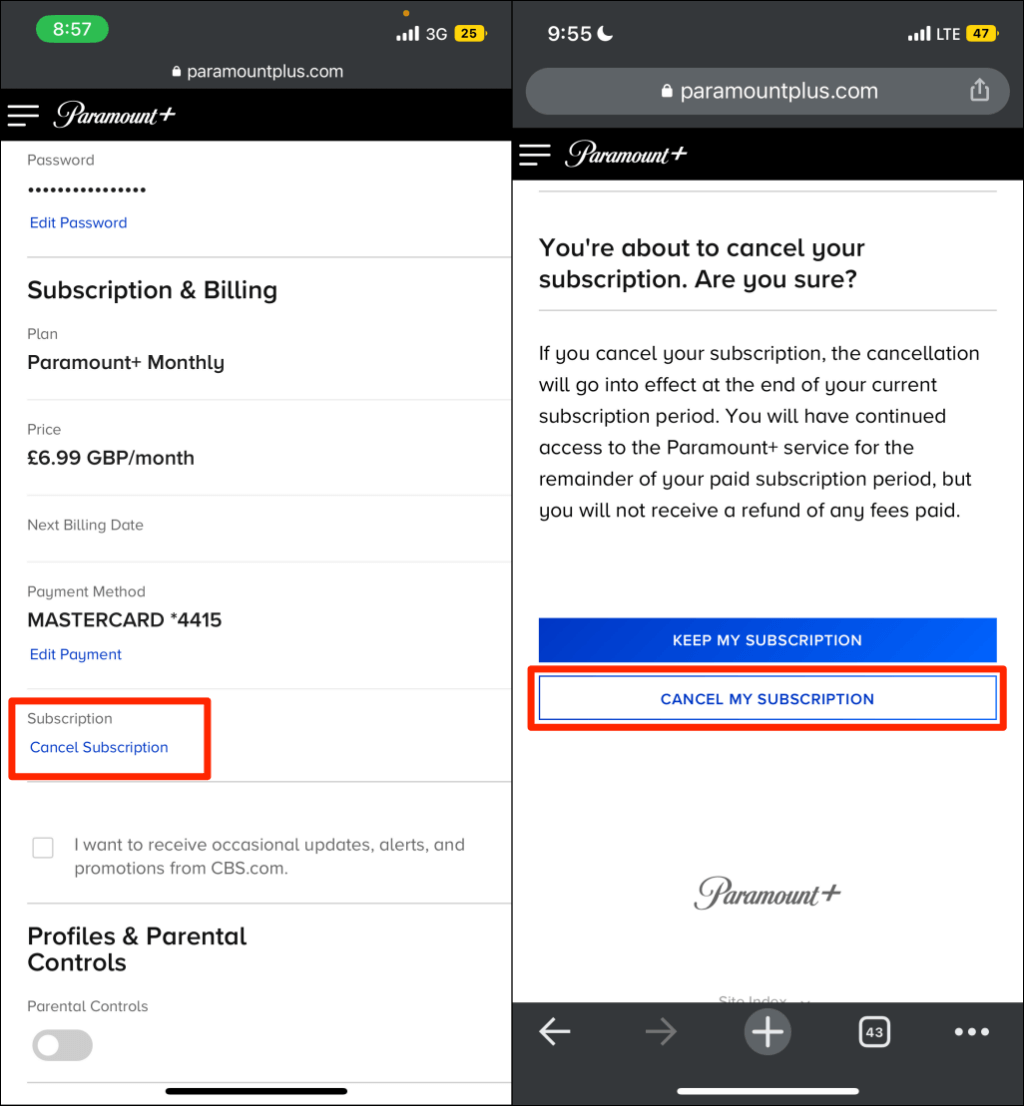
Cancelling via ParamountPlus.com (Web Browser)
This is the method for users who subscribed directly through the Paramount Plus website.
- Access ParamountPlus.com: Open your preferred web browser and navigate to www.paramountplus.com.
- Log In: Click the “Sign In” button (usually in the top right corner) and enter your Paramount Plus email address and password.
- Navigate to Account Settings: Once logged in, hover over your profile icon (usually in the top right corner) and select “Account” or “Account & Settings” from the dropdown menu.
- Locate Subscription & Billing: On your account page, find the “Subscription & Billing” or “Subscription” section. This area provides details about your current plan, next billing date, and payment method.
- Initiate Cancellation: Look for a prominent button or link that says “Cancel Subscription,” “Cancel,” or “Manage Subscription.” Click on it.
- Follow On-Screen Prompts: Paramount Plus may ask you for feedback on why you’re cancelling or offer an incentive to stay. Read these prompts carefully and proceed by confirming your decision to cancel.
- Confirm Cancellation: After a series of prompts, you will typically see a final confirmation screen. Ensure you complete this step to finalize the cancellation. You should receive an email confirming the cancellation.
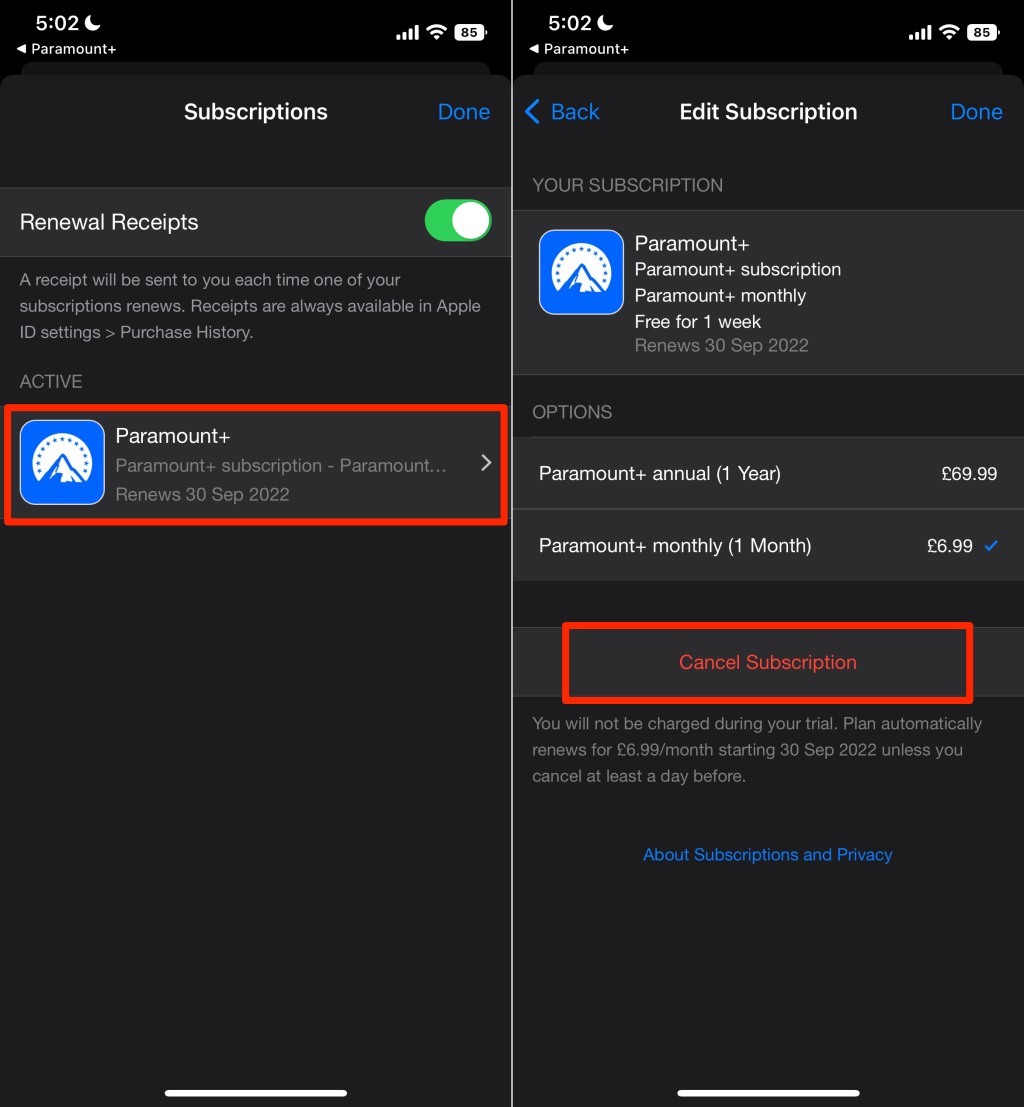
Cancelling via Apple App Store (iOS Devices)
For subscriptions billed through your Apple ID (iPhone, iPad, Apple TV).
- Open Settings: On your iOS device, tap the “Settings” app icon.
- Access Apple ID: Tap on your name/Apple ID banner at the very top of the Settings menu.
- Go to Subscriptions: Tap “Subscriptions.” You might need to authenticate with Face ID, Touch ID, or your Apple ID password.
- Find Paramount Plus: From the list of active and inactive subscriptions, locate and tap on “Paramount+.”
- Cancel Subscription: Tap the “Cancel Subscription” button.
- Confirm: Tap “Confirm” to finalize the cancellation. You will retain access until the end of the current billing cycle.
Cancelling via Roku Devices
For subscriptions billed through your Roku account.
- Go to Roku Home Screen: Press the “Home” button on your Roku remote.
- Highlight Paramount Plus: Navigate to the Paramount Plus channel tile on your home screen. Do not open the channel.
- Access Options: Press the Star (*) button on your Roku remote. This will open an options menu for the channel.
- Manage Subscription: Select “Manage subscription.”
- Cancel Subscription: Select “Cancel subscription.”
- Confirm: Follow the on-screen prompts to confirm your cancellation. You will see a message indicating the date your subscription will end.
Cancelling via Amazon Prime Video Channels / Amazon Appstore
For subscriptions billed through your Amazon account (either as a Prime Video Channel or directly via the Paramount Plus app on Fire TV).
- Access Amazon Account: Go to Amazon.com on a web browser and sign in to your Amazon account.
- Navigate to Memberships & Subscriptions: Hover over “Accounts & Lists” in the top right corner, then select “Memberships & Subscriptions” from the dropdown.
- Find Paramount Plus: Locate “Paramount+” in your list of subscriptions.
- Manage Subscription: Click the “Manage subscription” button next to Paramount Plus.
- Cancel Channel/Subscription: Look for an option like “Cancel Channel,” “Cancel Subscription,” or “End Subscription.”
- Confirm: Follow any additional prompts to confirm the cancellation. You’ll usually receive an email confirmation.
Cancelling via Google Play Store (Android Devices)
For subscriptions billed through your Google Play account (Android phones, tablets, Android TV).
- Open Google Play Store: On your Android device, open the “Google Play Store” app.
- Access Profile Menu: Tap your profile icon (usually in the top right corner).
- Go to Payments & Subscriptions: Select “Payments & subscriptions,” then “Subscriptions.”
- Find Paramount Plus: Locate “Paramount+” in your list of subscriptions.
- Cancel Subscription: Tap “Cancel subscription.”
- Confirm: Select a reason for cancelling (optional) and then tap “Continue” and “Cancel subscription” to confirm. You will retain access until the end of your current billing cycle.
Other Third-Party Providers
If you subscribed through a non-standard provider (e.g., through a cable company package), you will need to contact that specific provider directly. Their customer service or online account management portal will be the only avenue for cancellation. Be prepared to provide account details associated with that provider.
Post-Cancellation Considerations and Troubleshooting
Successfully canceling a digital subscription involves more than just clicking a button; it’s about understanding the immediate and long-term implications, as well as being prepared for potential technical glitches.
What Happens After You Cancel?
Upon cancellation, your Paramount Plus subscription immediately deactivates the auto-renewal feature. However, you do not lose access to the service instantly. Instead, you can continue streaming all Paramount Plus content until the last day of your current paid billing period. For example, if you pay monthly on the 15th and cancel on the 1st, you will still have access until the 14th of that month. This grace period is a standard technical feature across most subscription services, ensuring users get full value for their last payment.
Verifying Your Cancellation
Technical processes can sometimes fail, or confirmations can be missed. It is highly recommended to verify your cancellation.
- Email Confirmation: Look for a cancellation confirmation email from Paramount Plus or the third-party platform (Apple, Roku, Amazon, Google). Check your spam or junk folders if you don’t see it immediately.
- Account Status Check: Revisit your subscription settings on the platform where you cancelled. It should clearly indicate that your subscription is cancelled and will not renew, often showing the date your access will cease.
- Bank Statement Monitoring: For an added layer of assurance, briefly monitor your bank or credit card statements for a month or two after the expected end date to ensure no further charges appear.
Common Cancellation Hurdles and Solutions
- “No Cancel Button”: If you’re on ParamountPlus.com but don’t see a cancellation option, it’s almost certainly because you subscribed through a third-party platform. Re-read “Identifying Your Subscription Origin” and follow the correct platform-specific instructions.
- Login Issues: Forgotten passwords or incorrect email addresses are common. Use the “Forgot Password” functionality on Paramount Plus or the respective third-party platform. If you used a social media login (like Facebook or Google) for Paramount Plus, ensure you’re using that method.
- Confusing UI: Some platforms intentionally or unintentionally make cancellation less obvious. Take your time, read all text carefully, and look for small links or buttons that might lead to the cancellation path.
- Billing Cycle Confusion: Remember, cancelling stops future billing, not current access. Don’t expect immediate refunds unless you’re within a very specific refund window defined by the platform’s terms of service (e.g., within 48 hours of purchase for some app stores).
Re-subscribing to Paramount Plus
Should your circumstances change, or new content pique your interest, re-subscribing to Paramount Plus is typically a straightforward process. You can simply log back into your account on ParamountPlus.com or through the app on your preferred device, and the system will usually prompt you to reactivate your subscription. Your viewing history and profiles are often retained, offering a seamless return.
Best Practices for Managing Your Digital Subscriptions
Beyond the immediate task of cancelling Paramount Plus, developing good habits for managing all your digital subscriptions is a crucial aspect of modern tech literacy.
The Subscription Audit: Regularly Reviewing Your Services
Make it a habit to perform a “subscription audit” every few months. This involves:
- Listing All Subscriptions: Use a spreadsheet or a dedicated app to list every recurring service you pay for.
- Evaluating Usage: For each, honestly assess how often you use it and whether it provides sufficient value.
- Consolidating: Are there overlapping services? Can you get similar functionality for free or cheaper elsewhere?
- Cancelling Unused Services: Promptly cancel anything you no longer need or use.
Leveraging Account Settings for Control
Familiarize yourself with the account settings sections of your most used app stores (Apple App Store, Google Play Store) and major platforms (Amazon, Roku). These dashboards are centralized hubs for managing not just Paramount Plus but virtually all your digital subscriptions, providing an invaluable overview and control point.
Security and Privacy Post-Cancellation
While cancelling a subscription primarily addresses billing, it also has implications for your digital security and privacy. An inactive subscription means one less active connection to a third-party service, potentially reducing your data footprint. Consider deleting your account entirely if you’re certain you’ll never return to a service, though this is a more drastic step than simple cancellation and often removes all associated data. For Paramount Plus, cancelling the subscription is usually sufficient unless you have specific privacy concerns.
In conclusion, cancelling your Paramount Plus subscription is a manageable technical task once you understand the critical factor of your subscription origin. By following the platform-specific instructions and adopting best practices for digital subscription management, you can effectively control your streaming expenses and digital footprint, ensuring your tech environment aligns with your needs and preferences.
aViewFromTheCave is a participant in the Amazon Services LLC Associates Program, an affiliate advertising program designed to provide a means for sites to earn advertising fees by advertising and linking to Amazon.com. Amazon, the Amazon logo, AmazonSupply, and the AmazonSupply logo are trademarks of Amazon.com, Inc. or its affiliates. As an Amazon Associate we earn affiliate commissions from qualifying purchases.