
Navigating airport security can often feel like a digital maze, a bottleneck in an otherwise streamlined travel experience. For frequent flyers, TSA PreCheck offers a beacon of efficiency, promising faster security lines and a more predictable pre-flight process. However, the benefits of PreCheck are only realized when your Known Traveler Number (KTN) is correctly linked to your airline reservations. This guide provides a comprehensive tutorial on seamlessly integrating your TSA PreCheck credentials with your American Airlines profile and bookings, ensuring a smoother digital journey from booking to boarding.

Understanding TSA PreCheck and American Airlines Integration
At its core, TSA PreCheck is a government program designed to expedite security screening for low-risk travelers. The “how-to” aspect of leveraging this program with a specific airline, like American Airlines, fundamentally revolves around digital information management and system integration.
What is TSA PreCheck and its Benefits?
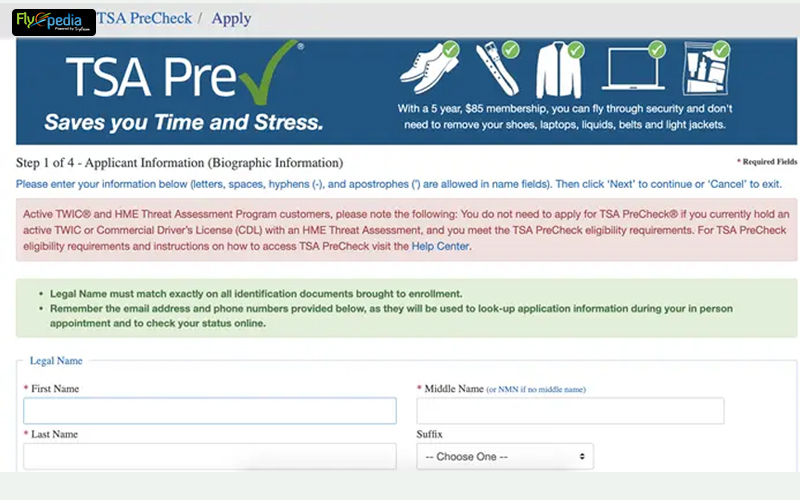
TSA PreCheck allows approved travelers to use dedicated security lanes at over 200 U.S. airports. Participants typically don’t need to remove shoes, laptops, liquids, belts, or light jackets, significantly speeding up the screening process. From a technology standpoint, this program relies on a robust database to verify traveler identities and assign a unique Known Traveler Number (KTN). The digital convenience lies in the ability for airlines to query this database using your KTN, flagging your boarding pass for expedited screening. For American Airlines passengers, this translates into a more efficient check-in and security experience, optimizing the pre-flight phase of travel.
Why Integration with Your American Airlines Profile Matters
Your American Airlines AAdvantage profile serves as your central hub for all travel-related information. Integrating your KTN into this digital profile is crucial for several reasons. Firstly, it ensures that your KTN is automatically applied to all future bookings made under that profile, eliminating the need for manual entry each time. This not only saves time but also reduces the risk of errors. Secondly, a properly linked KTN means the “TSA PRE” indicator will appear on your American Airlines boarding pass – whether printed or digital via their mobile app – which is the definitive visual cue for accessing the expedited lanes. Without this digital handshake, even if you have PreCheck, you won’t be able to use the dedicated lanes. It’s a prime example of how digital security credentials need to be actively managed within various online platforms to unlock their full utility.
Locating Your Known Traveler Number (KTN)
Before you can add your TSA PreCheck to your American Airlines details, you need to have your Known Traveler Number readily available. This unique nine-digit alphanumeric code is your digital key to the PreCheck program.
Where to Find Your KTN
Your KTN is typically issued upon approval of your TSA PreCheck application. There are several reliable digital and physical sources where you can locate it:
- TSA Universal Enroll Website: The most straightforward way to retrieve your KTN is by logging into the Universal Enroll website (www.universalenroll.dhs.gov/workflows?servicecode=11116V) where you initially applied. You can often look up your application status and find your KTN there.
- Approval Letter/Email: When your application was approved, you should have received an official notification, either via email or physical mail. Your KTN is clearly stated in this communication. Check your inbox for emails from “TSA PreCheck” or “DHS.”
- Previous Boarding Passes: If you’ve successfully used TSA PreCheck before, your KTN might be printed on an old boarding pass (though this is less common and primarily serves as a confirmation rather than the primary source for the number itself).
The Importance of a Correct KTN
Accuracy is paramount when dealing with your KTN. A single incorrect digit or letter will result in your PreCheck benefits not being recognized. The airline’s system and the TSA’s security databases perform an exact match check. If your KTN is entered incorrectly into your American Airlines profile or booking, the digital verification process will fail, and you will not receive the “TSA PRE” indicator on your boarding pass. This highlights the sensitivity of digital identity information and the need for careful data entry.
Adding KTN to Your American Airlines AAdvantage Profile
The most efficient way to ensure your TSA PreCheck is always applied is to embed your KTN directly into your American Airlines AAdvantage frequent flyer profile. This is a one-time digital setup that benefits all future bookings.
Step-by-Step Guide for Online Profile Update (Website Interface Tutorial)
- Log In: Go to AA.com and log in to your AAdvantage account.
- Access Your Profile: Once logged in, navigate to your “Profile” or “My Account” section. This is usually accessible by clicking on your name or AAdvantage number in the top right corner.
- Find Traveler Information: Within your profile, look for sections related to “Traveler Information,” “Personal Details,” or “Secure Flight Information.”
- Enter KTN: You should see a field specifically labeled “Known Traveler Number” or “KTN.” Carefully enter your KTN into this field. Double-check for accuracy.
- Save Changes: After entering your KTN, scroll down and click “Save Changes” or “Update Profile” to ensure your information is securely stored in American Airlines’ system.
Using the American Airlines Mobile App (App Interface Tutorial)
The American Airlines mobile app offers a convenient way to manage your profile on the go.
- Open and Log In: Launch the American Airlines app on your smartphone or tablet and log in to your AAdvantage account.
- Access Profile: Tap on the “Menu” icon (usually three horizontal lines or dots) and then select “Profile” or your name.
- Navigate to Traveler Info: Look for sections such as “Personal Information” or “Secure Flight.”
- Input KTN: Locate the “Known Traveler Number” field and accurately input your KTN.
- Save: Tap “Save” or “Done” to update your profile within the app.
Verifying KTN in Your Profile
After adding your KTN, it’s a good digital hygiene practice to verify that it has been successfully saved. Simply log out and log back into your AAdvantage account (either on the website or app) and navigate back to the “Traveler Information” section to confirm your KTN is still present and correct. This helps prevent data entry errors from causing issues later.
Applying KTN to Existing American Airlines Bookings
What if you’ve already booked a flight with American Airlines but forgot to add your KTN to your profile beforehand, or it wasn’t active yet? You can still add it to existing reservations.
Modifying a Reservation Online (Website Booking Management)
- Retrieve Your Reservation: Go to AA.com and click on “My Trips” or “Find a Trip.” Enter your last name and record locator (six-character booking reference).
- Access Passenger Details: Once your reservation is displayed, look for an option to “Edit Traveler Information” or “View/Modify Details” for each passenger.
- Add KTN: Within the passenger details section, you should find a field for “Known Traveler Number” or “Secure Flight Passenger Data.” Enter your KTN here.
- Save/Update: Be sure to save any changes made to the reservation. The system will then attempt to validate your KTN with TSA.
Updating via the American Airlines App (App Booking Management)
- Open and Log In: Launch the American Airlines app and log in.
- Access Your Trip: Tap on “Trips” or “My Trips” and select the relevant reservation.
- Edit Passenger Information: Look for an option to “Edit Passenger Details” or “Manage Passengers.”
- Enter KTN: Locate the field for “Known Traveler Number” and input it.
- Confirm Changes: Save or confirm your changes. It may take a few moments for the update to process.
Contacting Customer Service for Assistance
While self-service options are generally the most efficient, there are instances where you might need to contact American Airlines customer service. This could be necessary if:
- You encounter persistent technical glitches trying to add your KTN online or via the app.
- Your KTN isn’t appearing on your boarding pass even after following all steps.
- You have complex bookings, such as those made through a third-party travel agent, where online modification options might be limited.
When calling, have your record locator and KTN ready. The representative can manually add your KTN to your reservation, and you should ask for confirmation that the change has been made.
Common Issues and Troubleshooting Digital Integration
Even with careful data entry, digital systems can sometimes be finicky. Here are common issues and troubleshooting tips for ensuring your TSA PreCheck works seamlessly with American Airlines.
KTN Not Appearing on Boarding Pass (Checking Name Match, Profile Sync)
The most common reason for a KTN not appearing on a boarding pass is an exact mismatch between the name on your airline ticket and the name registered with your TSA PreCheck application. The digital verification process is highly sensitive:
- Exact Name Match: Ensure your name on your American Airlines booking (first, middle, last) exactly matches the name used for your TSA PreCheck application. Even a missing middle initial or a hyphenation difference can cause a mismatch.
- Date of Birth and Gender: Verify that your date of birth and gender on your American Airlines profile and booking also precisely match what’s on file with TSA PreCheck.
- Profile Sync: If you added the KTN to your AAdvantage profile, ensure enough time has passed for the changes to propagate through the system, especially for newly made bookings. For existing bookings, manual updates may take a few hours to reflect.
Expired or Incorrect KTN (Digital Validation Errors)
An expired KTN will naturally prevent you from receiving PreCheck benefits. TSA PreCheck approval is valid for five years.
- Check Expiration Date: Verify your KTN’s expiration date on the Universal Enroll website. If it’s expired, you’ll need to renew it before it can be used.
- Typos: As mentioned, a single typo in your KTN when entered into American Airlines’ system will lead to failure. Re-enter it carefully, perhaps even copying and pasting if possible to avoid manual errors.
Tips for a Seamless Digital Travel Experience
To maximize the benefits of TSA PreCheck and ensure a smooth journey with American Airlines:
- Enter KTN Early: Always add your KTN to your AAdvantage profile as soon as you receive it, and ideally before making any new bookings.
- Verify Before Travel: A few days before your flight, check your American Airlines reservation online or in the app to confirm that the “TSA PRE” indicator is present. If it’s missing, you have time to troubleshoot.
- Print Boarding Pass (Backup): While mobile boarding passes are convenient, having a physical copy can be a useful backup, especially if you encounter app issues or your phone battery dies. The “TSA PRE” indicator should be clearly visible.
- Stay Informed: Keep an eye on your email for notifications from American Airlines regarding your bookings and from TSA regarding your PreCheck status.
By diligently managing your digital credentials and utilizing the tools provided by American Airlines, you can ensure your TSA PreCheck benefits are consistently applied, transforming your pre-flight experience into a more efficient and stress-free part of your journey.
aViewFromTheCave is a participant in the Amazon Services LLC Associates Program, an affiliate advertising program designed to provide a means for sites to earn advertising fees by advertising and linking to Amazon.com. Amazon, the Amazon logo, AmazonSupply, and the AmazonSupply logo are trademarks of Amazon.com, Inc. or its affiliates. As an Amazon Associate we earn affiliate commissions from qualifying purchases.