
In the modern digital landscape, the Graphics Processing Unit (GPU) has evolved from a simple component used to render desktop windows into the powerhouse of the modern computer. Whether you are a hardcore gamer, a professional video editor, or someone exploring the burgeoning world of local AI models, your GPU is the engine driving your visual experience. However, hardware is only half of the equation. To bridge the gap between your operating system and your hardware, you need a driver.
Updating your graphics driver is one of the most effective ways to troubleshoot performance issues, unlock new software features, and ensure the stability of your system. In this guide, we will explore the technical nuances of graphics drivers, how to identify your hardware, and the most reliable methods for keeping your system at the cutting edge of technology.

1. Understanding the Role of Graphics Drivers in Modern Computing
Before diving into the “how,” it is essential to understand the “why.” A graphics driver is a specialized piece of software that allows your operating system (Windows, macOS, or Linux) to communicate with your graphics hardware. Without a functioning driver, your computer would not be able to instruct the GPU on how to render pixels, manage power, or handle complex 3D mathematics.
The Bridge Between Hardware and Software
Think of the graphics driver as a translator. Your game or professional application speaks a high-level language (like DirectX, Vulkan, or OpenGL), while your GPU hardware understands machine-level instructions. The driver translates those high-level requests into specific tasks for the GPU’s thousands of tiny cores. When drivers are outdated, this translation becomes inefficient, leading to “bottlenecks” where the hardware is capable of doing more work, but the software instructions are lagging behind.
Why Frequent Updates are Essential
The tech industry moves at a breakneck pace. Major GPU manufacturers—NVIDIA, AMD, and Intel—release driver updates frequently, often timed with the launch of major AAA video games or significant software updates (like a new version of Adobe Premiere or a Windows feature update). These updates contain “Game Ready” optimizations, security patches that prevent exploits via the GPU, and bug fixes for known system crashes.
Performance Gains and New Features
In many cases, a simple driver update can provide a “free” performance boost. For instance, manufacturers often find more efficient ways to handle memory allocation or shader compilation months after a GPU has been released. Additionally, modern drivers often unlock entire suites of AI-driven features, such as NVIDIA’s DLSS (Deep Learning Super Sampling) or AMD’s FSR (FidelityFX Super Resolution), which can dramatically improve frame rates without sacrificing visual quality.
2. Identifying Your Graphics Hardware
Before you can update your driver, you must know exactly what hardware is inside your machine. Using the wrong driver can lead to system instability or installation errors. There are several ways to identify your GPU using built-in system tools.
Using the Windows Device Manager
The most direct way to see your hardware profile is through the Device Manager.
- Right-click the Start button and select Device Manager.
- Locate the section labeled Display adapters.
- Click the arrow to expand it. You will see the name of your GPU listed there (e.g., “NVIDIA GeForce RTX 3060” or “AMD Radeon RX 6700 XT”).
If you see two entries—one being “Intel UHD Graphics” and the other a dedicated card—your system uses “switchable graphics,” a common setup in laptops where the integrated chip handles low-power tasks and the dedicated GPU handles intensive ones. Both may require updates, but the dedicated GPU is usually the priority for performance.
Utilizing System Information and Task Manager
For a more detailed view, you can use the Task Manager. Press Ctrl + Shift + Esc, go to the Performance tab, and click on GPU. This window will show you the model name, the current driver version, and the driver date. Knowing your current driver date is helpful to determine if you are actually behind on updates.
Third-Party Diagnostic Tools
If you want a deep dive into your hardware specs, tools like GPU-Z or Speccy provide granular details, including the specific BIOS version of your card, the type of VRAM (Video RAM) it uses, and its current clock speeds. While not strictly necessary for a basic update, these tools are invaluable for tech enthusiasts who want to ensure their hardware is performing at its theoretical limits.
3. Step-by-Step Methods to Update Your Drivers
There are three primary ways to update your graphics drivers. Each has its pros and cons depending on your technical comfort level and how much control you want over the process.
Method A: Using Manufacturer-Specific Software (Recommended)
This is the easiest and most reliable method for 90% of users. The major manufacturers provide “control centers” that monitor for updates automatically.
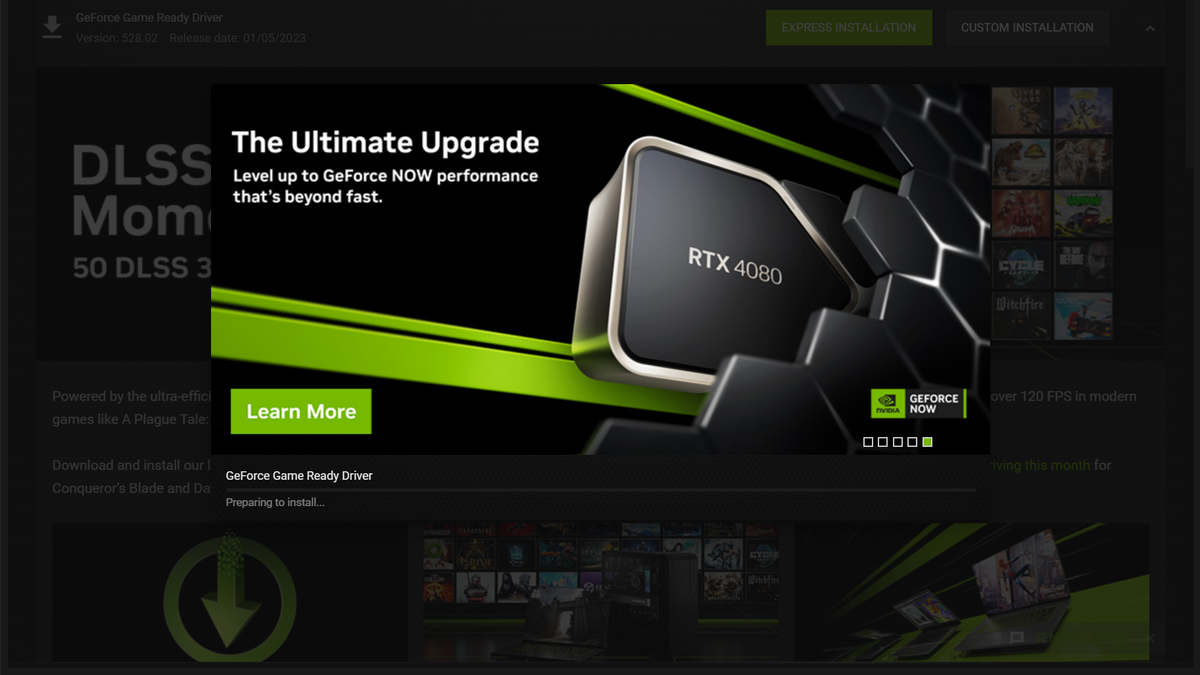
- NVIDIA GeForce Experience: This software notifies you when a new driver is available. With a single click, it downloads and installs the “Game Ready Driver.” It also allows for “Express Installation,” which handles the entire process in the background.
- AMD Software: Adrenalin Edition: Similar to NVIDIA, AMD’s software provides a “Check for Updates” button on the home screen. It also offers specific tuning profiles (Standard, Gaming, eSports) that adjust your driver settings automatically.
- Intel Graphics Command Center: For those using Intel Iris Xe or Arc GPUs, this tool manages updates and provides optimization settings for various displays.
Method B: Manual Installation via Official Websites
If you prefer not to have extra software running in the background, you can download drivers directly from the source. This is often the preferred method for IT professionals.
- Visit the official download page (NVIDIA.com, AMD.com, or Intel.com).
- Select your Product Type, Series, and Operating System.
- Download the executable (.exe) file.
- Run the file and follow the on-screen prompts.
Warning: Never download drivers from third-party “driver updater” websites. These sites often bundle malware or provide incorrect versions that can brick your operating system. Always stick to the official manufacturer’s domain.
Method C: Windows Update
Windows Update is the “set it and forget it” method. Windows will automatically download “WHQL” (Windows Hardware Quality Labs) certified drivers. While this ensures stability, these drivers are often several months old. If you are a gamer or a creator, Windows Update is usually too slow to provide the optimizations you need for the latest software releases.
4. Troubleshooting and Advanced Driver Management
Sometimes, an update doesn’t go as planned. You might experience screen flickering, “Blue Screens of Death” (BSOD), or performance regressions. In these cases, you need to employ more advanced technical strategies.
Performing a “Clean Install”
Over time, old driver files can accumulate and conflict with new ones. Most installers (like NVIDIA’s) have a checkbox for a “Clean Installation.” This removes old settings and profiles before installing the new version. If you are experiencing persistent crashes, this should be your first step.
Using Display Driver Uninstaller (DDU)
For the most stubborn issues, the tech community relies on a tool called DDU (Display Driver Uninstaller). This is a high-level utility that completely wipes every trace of a graphics driver from the Windows Registry and system folders.
- When to use it: If you are switching from an NVIDIA card to an AMD card, or if a driver update has completely broken your display.
- How to use it: You must run DDU in Windows Safe Mode to ensure no driver files are currently in use. After it finishes, your computer will look like it has no driver at all (running in basic VGA mode), allowing you to install a fresh driver without any legacy interference.
Rolling Back a Driver
If a brand-new driver causes issues that weren’t there before, you can “roll back” to the previous version.
- Go to Device Manager.
- Right-click your GPU and select Properties.
- Go to the Driver tab and click Roll Back Driver.
This is a quick fix that reverts your system to the last known working state.
5. Optimizing Your GPU Beyond the Driver
Updating the driver is just the beginning. To truly leverage your technology, you should look into how the driver interacts with your system settings.
Managing Power Settings
In the NVIDIA or AMD control panels, you can find settings for “Power Management Mode.” By default, these are set to “Optimal” or “Balanced.” If you are on a desktop and want maximum performance, switching this to “Prefer Maximum Performance” ensures the GPU doesn’t downclock during intense workloads.
Vertical Sync and Frame Rate Caps
Modern drivers offer features like G-Sync or FreeSync, which synchronize your monitor’s refresh rate with your GPU’s output. Ensuring these are enabled in your driver settings can eliminate “screen tearing” and provide a much smoother visual experience. Additionally, setting a global frame rate cap in the driver can save power and reduce heat, extending the lifespan of your hardware.

Keeping the Rest of the Tech Stack Updated
A GPU does not work in a vacuum. To get the most out of your updated drivers, ensure your BIOS/UEFI is current and your Chipset drivers are updated. Tech enthusiasts often overlook the Chipset, but it manages the communication between the GPU and the CPU. A mismatch here can cause “stuttering” even if your graphics driver is the latest version.
In conclusion, knowing how to update your graphics driver is a foundational skill in the digital age. It ensures that your hardware remains secure, stable, and capable of handling the increasingly demanding visual tasks of modern software. By following the structured approach of identifying your hardware, choosing the right update method, and knowing how to troubleshoot errors, you ensure that your investment in technology continues to pay dividends in performance and longevity.
aViewFromTheCave is a participant in the Amazon Services LLC Associates Program, an affiliate advertising program designed to provide a means for sites to earn advertising fees by advertising and linking to Amazon.com. Amazon, the Amazon logo, AmazonSupply, and the AmazonSupply logo are trademarks of Amazon.com, Inc. or its affiliates. As an Amazon Associate we earn affiliate commissions from qualifying purchases.