
The landscape of home entertainment has undergone a seismic shift over the last decade. The traditional tether of coaxial cables and bulky set-top boxes is rapidly being replaced by high-speed data packets and cloud-based distribution. At the forefront of this digital transformation is YouTube TV, a virtual Multichannel Video Programming Distributor (vMVPD) that has redefined how audiences consume live television. For those looking to transition from legacy systems to a streamlined, software-driven experience, understanding the technical requirements and the setup process is essential.
Understanding the Technology Behind YouTube TV
Before diving into the installation process, it is important to understand what differentiates YouTube TV from its predecessors. Unlike traditional cable, which relies on physical infrastructure owned by a local franchise, YouTube TV operates as an over-the-top (OTT) service. This means the content is delivered via the public internet rather than a closed network.
The Virtual MVPD Model
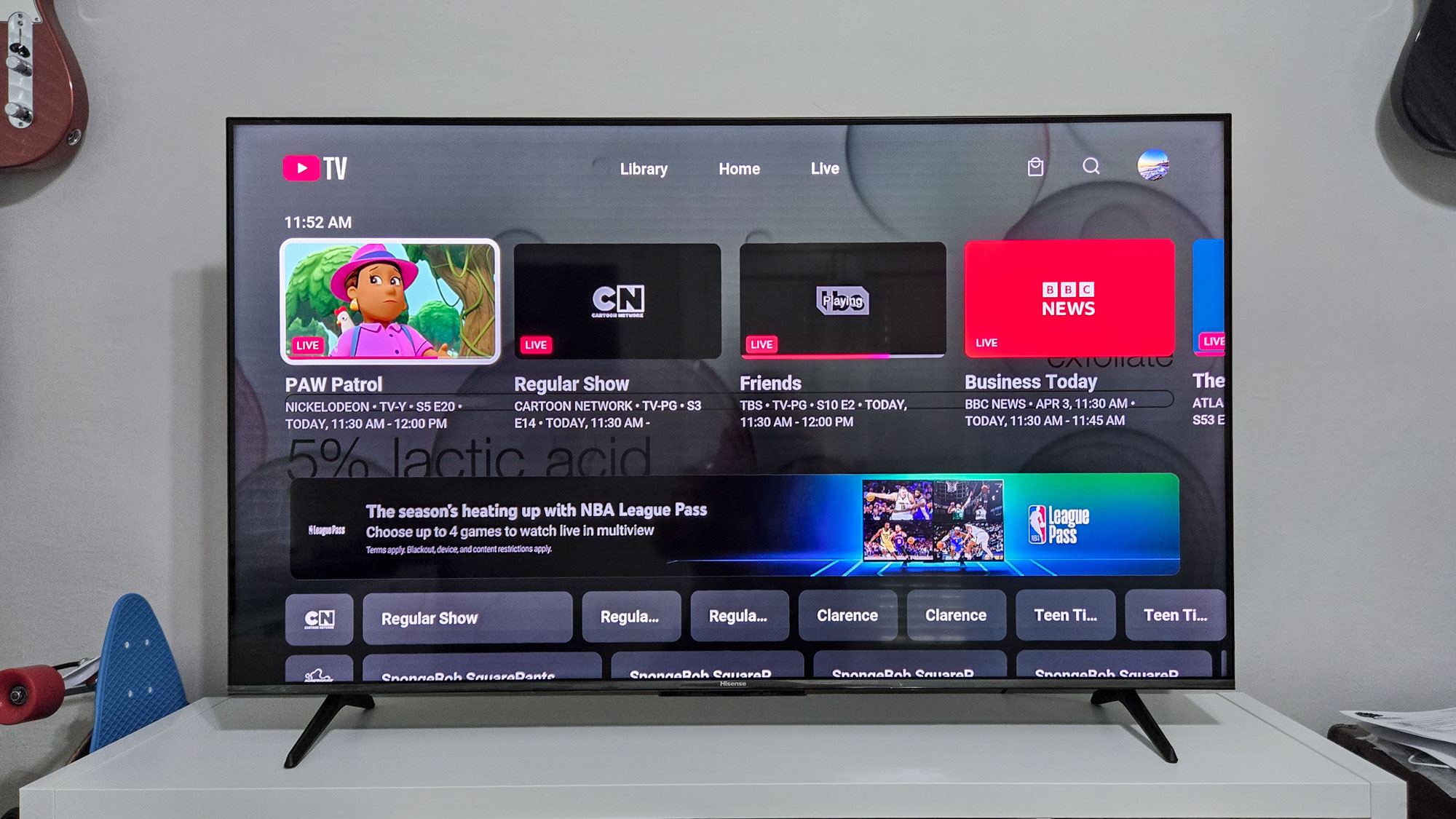
YouTube TV functions as a software layer that aggregates live broadcast networks, cable channels, and premium add-ons into a unified user interface. From a technical standpoint, this requires sophisticated server-side management to ensure that latency is minimized—a critical factor for live sports and news. The service utilizes Google’s massive global network of data centers to cache content closer to the end-user, significantly reducing “buffer bloat” and improving start times for live streams.
Cloud DVR Capabilities
One of the most significant technological advantages of getting YouTube TV is the transition from hardware-based Digital Video Recorders (DVR) to Cloud DVR. Traditional DVRs are limited by the physical size of a hard drive and the number of tuners in a box. YouTube TV uses cloud storage, allowing for unlimited simultaneous recordings and virtually infinite storage capacity. This data is tied to the user’s Google account, meaning recordings are accessible from any compatible device with an internet connection, rather than being trapped on a single piece of hardware in a living room.
Hardware Requirements and Device Compatibility
To get YouTube TV, the first step is ensuring your hardware ecosystem supports the application. Because the service is built on modern web standards, it is compatible with a wide array of silicon and operating systems.
Streaming Media Players and Smart TVs
The most common way to access YouTube TV is through a dedicated streaming device or a built-in Smart TV interface. Supported platforms include:
-
Google Chromecast: Specifically, the Chromecast with Google TV provides the most seamless integration, as the service is baked into the operating system’s “Live” tab.
-
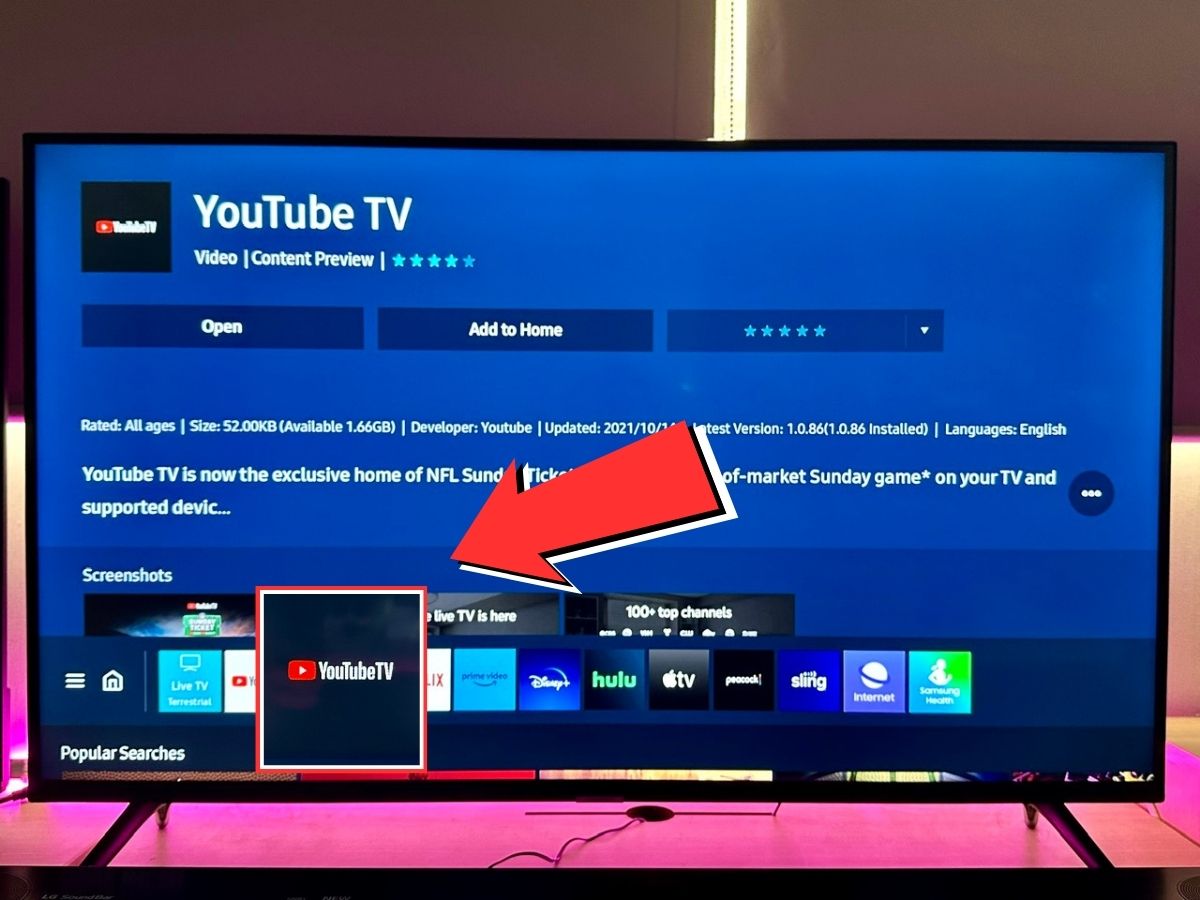
Roku and Amazon Fire TV: These are the most popular third-party sticks and boxes. Both require downloading the YouTube TV app from their respective channel stores.
-
Apple TV (4th Gen and 4K): Apple’s hardware offers a high-performance experience with support for high-bitrate streaming.
-
Smart TV OS: Most televisions manufactured after 2016 by Samsung, LG, Vizio, and Sony (via Android TV/Google TV) have native apps available in their app stores.
Mobile Devices and Computers
For those who prefer a portable experience, YouTube TV is accessible via:
-
iOS and Android: Dedicated apps are available on the Apple App Store and Google Play Store. These apps support “casting,” allowing you to send the video signal from your phone to a compatible TV.
-
Web Browsers: On desktops and laptops, YouTube TV can be accessed directly through a browser (Chrome, Firefox, Safari, or Edge) without the need for additional software installation.
Network Infrastructure
The quality of your YouTube TV experience is directly proportional to your home network’s performance. To stream in Standard Definition (SD), a minimum download speed of 3 Mbps is required. However, for High Definition (HD) 1080p streaming, 7 Mbps is the baseline. If you opt for the “4K Plus” add-on, you will need a consistent connection of at least 25 Mbps per stream. For households with multiple users, a fiber-optic or high-speed cable connection (100 Mbps or higher) is recommended to prevent network congestion.
The Step-by-Step Setup and Activation Process
Once you have identified your hardware, the process of “getting” the service involves account creation, location verification, and app authentication.
Creating and Configuring Your Account
YouTube TV requires a Google account. If you already have a Gmail address, you are halfway there.
-
Subscription Initialization: Visit the YouTube TV website on a computer or mobile device. Sign in with your Google credentials.
-
Location Permissions: This is a crucial technical step. Because live TV involves local broadcast rights, the service must verify your “Home Area.” You will be prompted to allow the browser or app to access your GPS or IP-based location. This determines which local affiliates (ABC, CBS, FOX, NBC) you will receive.
-
Customizing the Lineup: During setup, you can select add-on networks such as HBO Max, Showtime, or specialized sports packages. These are immediately integrated into your main digital program guide.
Authenticating Devices
After the account is created, you must link your hardware to your subscription.
-
Download the App: Navigate to the app store on your TV or streaming stick and search for “YouTube TV.”
-
The Activation Code: Upon opening the app, you will typically be presented with an alphanumeric code.
-
Cross-Device Authentication: On your smartphone or computer, go to the URL provided on the TV screen (usually tv.youtube.com/start). Enter the code shown on the TV. This links the device to your account without requiring you to type complex passwords using a TV remote.
Optimizing the User Experience through Software Settings
Getting the service is only the beginning; optimizing the software ensures you are leveraging the full power of the platform’s tech stack.
Managing User Profiles and Personalization
YouTube TV allows for up to six individual profiles per household. Each profile gets its own unique “Library” (DVR) and personalized recommendations. From a data perspective, this uses machine learning algorithms to analyze viewing habits and surface content that the specific user is likely to enjoy. Setting these up ensures that one family member’s interest in reality TV does not clutter another’s sports-heavy feed.
The Live Guide and Multiview
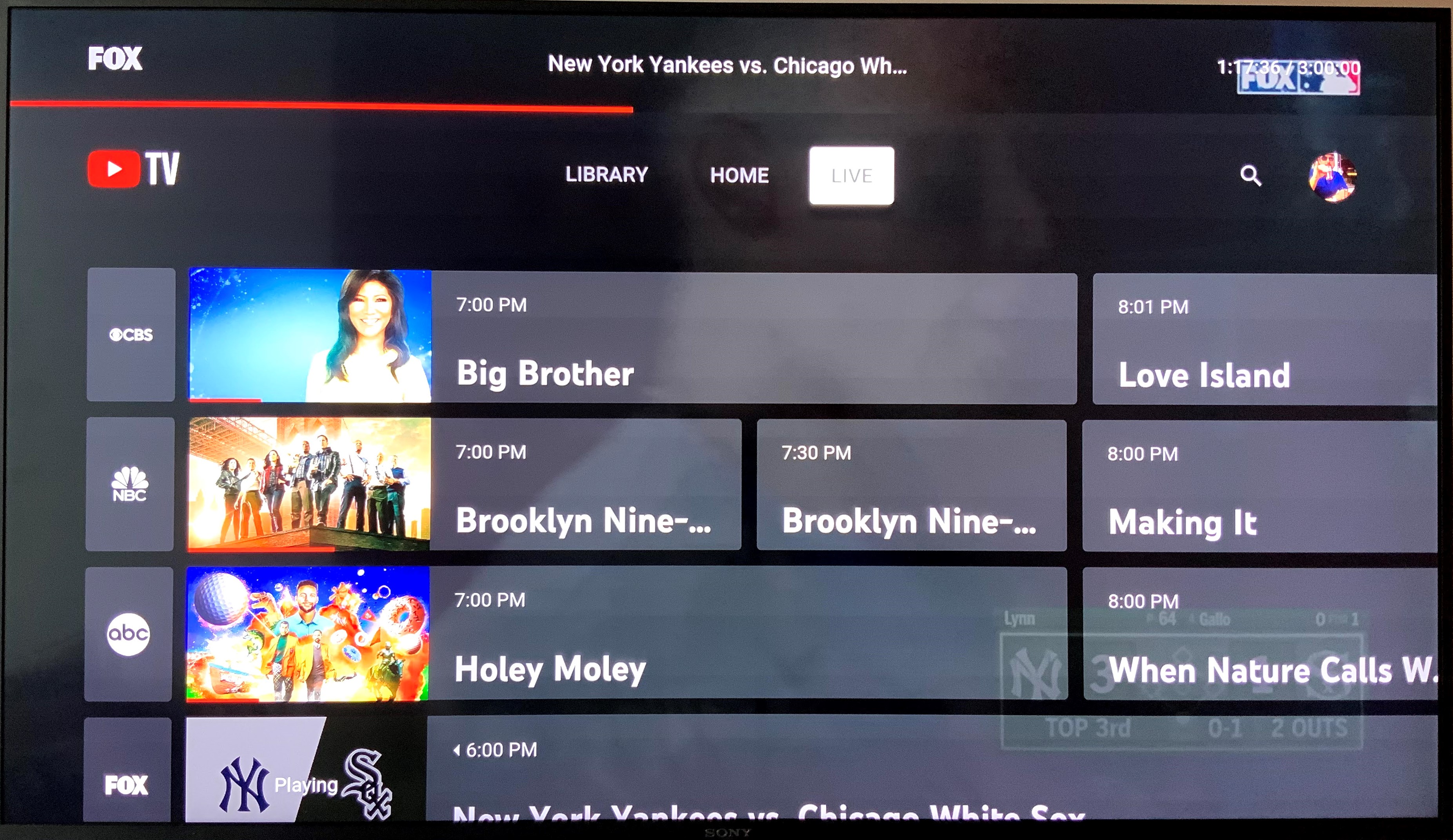
The software interface includes a “Live” tab that mimics the traditional grid guide. However, unlike cable, this guide is customizable. Users can reorder channels or hide those they never watch by accessing the “Custom” view settings in the mobile app.
Additionally, for sports enthusiasts, YouTube TV has introduced “Multiview.” This feature allows the server to stitch together up to four live streams into a single feed. This is a significant technical achievement, as it allows the end-user device to decode only one stream instead of four separate high-bandwidth signals, preserving device resources and preventing lag.
Bitrate and Resolution Control
While the app usually defaults to “Auto” resolution based on your current bandwidth, you can manually override this. In the playback settings (indicated by the gear icon), you can select specific resolutions (480p, 720p, 1080p, or 4K). This is particularly useful for users on metered data plans or those experiencing intermittent Wi-Fi interference who want to prioritize stability over raw pixel count.
Security and Privacy in the Streaming Era
As with any cloud-based service, securing your YouTube TV access is paramount. Since the service is tied to your Google account, the security of your television viewing is synonymous with the security of your digital identity.
Two-Factor Authentication (2FA)
It is highly recommended to enable two-factor authentication on the Google account linked to your YouTube TV subscription. This prevents unauthorized users from accessing your account, modifying your subscription, or viewing your DVR history.
Privacy Settings and Watch History
YouTube TV stores your watch history to improve its recommendation engine. However, for those concerned with digital footprints, the software provides tools to “Pause” or “Clear” watch and search history within the privacy settings. This prevents the service from using past data to influence future content suggestions.
Geographical Integrity and Traveling
Because YouTube TV is a location-aware service, it uses “Area Permissions” to manage regional sports networks and local news. When you travel, the app uses your device’s location to provide the local channels of your current city, while still allowing you to record programs from your “Home Area.” Understanding this geo-fencing technology is key to getting the most out of the service while away from home. Users must “check in” from their home area periodically (typically once every three months) to maintain their local station access.
The Future of Live Streamed Content
Getting YouTube TV represents a transition toward a more flexible, data-driven method of media consumption. By removing the limitations of physical hardware and leveraging the scalability of the cloud, users gain a level of control that was previously impossible. As internet speeds continue to increase with the rollout of 5G home internet and Wi-Fi 7, the technical barriers to entry will continue to drop, making high-fidelity, low-latency live streaming the standard for the modern household.
By following the hardware requirements, completing the digital authentication process, and optimizing the software features, any user can transform their living room into a sophisticated media hub. The shift to YouTube TV is not just a change in how you pay for television—it is a total upgrade of the underlying technology that brings the world’s content to your screen.
aViewFromTheCave is a participant in the Amazon Services LLC Associates Program, an affiliate advertising program designed to provide a means for sites to earn advertising fees by advertising and linking to Amazon.com. Amazon, the Amazon logo, AmazonSupply, and the AmazonSupply logo are trademarks of Amazon.com, Inc. or its affiliates. As an Amazon Associate we earn affiliate commissions from qualifying purchases.