
The question of whether Windows restarts your computer when installing updates is one that has undoubtedly vexed countless users worldwide. The short, often frustrating answer, is a resounding yes, it usually does. While the specifics of when and how these restarts occur have evolved significantly over various Windows versions, the fundamental need for a system reboot remains a cornerstone of the update process. This article delves deep into the mechanics of Windows updates, why restarts are necessary, how users can manage them, and the broader implications for productivity, security, and the overall user experience in our technology-driven world.
The Inevitable Reboot: Understanding Windows Update Mechanics
To fully grasp why your Windows PC often requires a restart after an update, it’s essential to understand what these updates entail and how operating systems function at a foundational level. Windows updates are not merely minor tweaks; they are often comprehensive packages designed to enhance security, introduce new features, improve performance, and patch vulnerabilities.
Why the Restart is Necessary
At its core, a computer restart serves a critical function in the update process: it allows the operating system to finalize changes to its most fundamental components. Imagine trying to change the engine of a car while it’s still driving; it’s simply not possible. Similarly, many parts of the Windows operating system are actively running, or “in use,” during normal operation. These include:
- Kernel and System Files: The Windows kernel is the central component of the operating system, managing system resources and acting as a bridge between hardware and software. Updates often involve modifying core kernel files, device drivers, and system libraries. Because these files are continuously in use by the running OS, they cannot be replaced or modified effectively until the system is brought down and then restarted, allowing the new files to be loaded clean slate.
- Locked Files and Processes: When a program or the operating system itself is using a file, that file is often “locked” to prevent corruption or data inconsistencies. Windows updates need to replace or modify these locked files. A restart ensures that all related processes are terminated, releasing the locks and allowing the update installer to swap out the old files for the new ones without interference.
- Driver Updates: Device drivers are software components that allow your operating system to communicate with hardware. Updates to drivers often require a restart to properly integrate the new driver with the hardware and operating system, ensuring stability and optimal performance.
- Configuration Changes: Beyond file replacement, many updates involve significant changes to the system registry, configuration settings, and service startup parameters. These changes are best applied during a controlled boot process to ensure all dependencies are correctly initialized.
Without a restart, updates could lead to system instability, corrupted files, security vulnerabilities, or simply incomplete installations, which could cause more problems than the original issue the update was meant to solve.
Types of Updates and Their Restart Requirements
Not all updates are created equal, and their restart requirements can vary. Understanding the different categories can help users anticipate when a reboot is likely.
- Security Updates (Critical/Important): These are perhaps the most vital updates, addressing newly discovered vulnerabilities that could be exploited by malicious actors. Due to their critical nature and often deep integration into the system, security updates almost invariably require a restart to ensure immediate protection. Failing to restart after these updates leaves your system exposed, making it a prime target for cyber threats – a significant concern for both personal digital security and corporate brand reputation.
- Feature Updates (e.g., Windows 10/11 versions 22H2): Released less frequently (typically once a year), these updates introduce significant new features, user interface changes, and major system improvements. They are essentially mini-upgrades to the operating system itself and always necessitate a full restart due to the breadth and depth of changes they introduce. These updates are pivotal for keeping your system modern and taking advantage of the latest technological advancements.
- Quality Updates (Cumulative Updates): These are the regular, monthly updates that include security patches, bug fixes, and performance improvements. While some smaller quality updates might only require a service restart or can be applied without a full reboot, the vast majority of cumulative updates, especially those released on “Patch Tuesday,” contain enough system-level changes to warrant a restart.
- Driver Updates: While Windows Update often delivers driver updates, some can be installed without a restart, especially for peripherals. However, core system drivers (e.g., graphics card, chipset) often demand a reboot for the new driver to take full effect and stabilize the system.
Navigating the Restart Process: Control and Customization
While restarts are largely unavoidable, Microsoft has made efforts to give users more control over when these restarts occur, aiming to minimize disruption and enhance the user experience. This balance between necessary security and user productivity is a key consideration in software design.
Setting Your Active Hours
One of the most user-friendly features introduced to manage restarts is “Active Hours.” This allows you to define a specific period during which you typically use your computer, and Windows will proactively avoid restarting during this time.
- How it Works: You can set a start and end time (up to an 18-hour window). During these hours, Windows will postpone automatic restarts, though it will still notify you if a restart is pending.
- Configuration: You can find and adjust Active Hours in Settings > Windows Update > Advanced options > Active hours. You can either set them manually or let Windows automatically adjust them based on your activity patterns.
- Impact: This feature is crucial for preventing unexpected reboots during important presentations, intense work sessions, or when streaming media, directly impacting personal and professional productivity.
Managing Restart Notifications and Options
Windows provides several ways to notify you about pending restarts and gives you options to defer them.
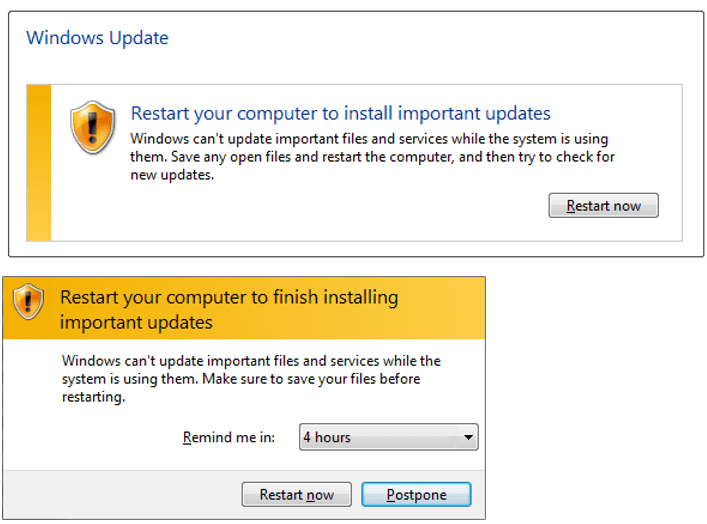
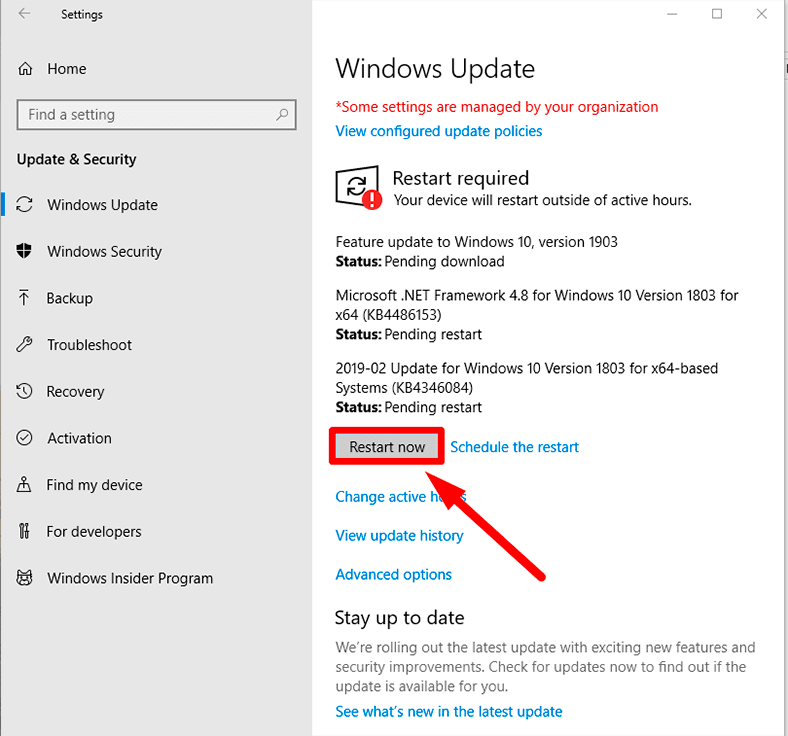
- Restart Notifications: When an update requires a restart, Windows will typically display notifications, often in the system tray or as pop-up messages. These notifications prompt you to restart immediately, schedule a restart, or snooze the reminder.
- Schedule a Restart: Instead of being forced into an immediate reboot, you can often schedule a more convenient time for the restart. This is particularly useful for planning around deadlines or ensuring data integrity by saving all open work.
- Pause Updates: For temporary relief from update prompts and restarts, Windows offers a “Pause updates” feature. This allows you to defer updates for a specified number of days (e.g., up to 35 days in Windows 10/11 Home, longer with Pro/Enterprise via Group Policy). This can be a lifesaver during critical projects or travel, though it’s vital not to postpone essential security updates indefinitely.
Advanced Deferment Strategies
For power users, IT administrators, and businesses, more granular control over updates and restarts is available.
- Group Policy (Windows Pro/Enterprise): Group Policy provides extensive options for managing Windows Updates within an organizational network. Administrators can configure specific update channels, defer updates for extended periods, set maintenance windows, and control restart behavior across multiple machines. This level of control is essential for maintaining consistent corporate identity through standardized software environments and ensuring operational continuity.
- Registry Editor: While generally not recommended for average users due to the risk of system instability, the Registry Editor offers even deeper customization options for Windows Update behavior. This might include settings for automatic restart suppression or specific update policies, often mirroring Group Policy settings for individual machines.
- Third-Party Tools: Some third-party software offers additional controls over Windows updates, though caution is advised when using non-Microsoft solutions, as they might interfere with intended system behavior or introduce security risks.
The Impact of Updates and Restarts on Productivity and Security
The necessity of Windows updates and their accompanying restarts creates a perpetual tension between maintaining system security and ensuring uninterrupted productivity. This balance is critical for individuals and businesses alike, touching upon both technology and financial considerations.
Mitigating Downtime and Data Loss
Unscheduled restarts can be a significant productivity drain. Imagine being in the middle of writing a crucial report, designing a complex graphic, or analyzing financial data, only for your computer to abruptly restart. The potential for unsaved work loss and the subsequent time spent recreating it can lead to considerable frustration and financial implications, especially in professional environments where “time is money.”
- Best Practices for Productivity:
- Save Frequently: Cultivate the habit of regularly saving your work, or utilize applications with auto-save features.
- Utilize Cloud Storage: Services like OneDrive, Google Drive, or Dropbox continuously sync your files, providing a safety net against data loss.
- Set Active Hours Prudently: Accurately configuring active hours is your primary defense against unexpected reboots during peak work times.
- Schedule Restarts Strategically: If a restart is pending, schedule it for a time when you’re not actively using the computer, such as overnight or during a lunch break.
The Crucial Role of Timely Updates for Digital Security
While inconvenient, the security aspect of Windows updates cannot be overstated. In an era of escalating cyber threats, keeping your operating system current is the single most effective defense against a myriad of attacks.
- Patching Vulnerabilities: Cybercriminals constantly seek and exploit flaws in software. Microsoft regularly releases updates to patch these “holes” before they can be widely exploited. Delaying these updates leaves your system vulnerable to malware, ransomware, and other sophisticated attacks. This not only compromises your personal data but can also severely damage the brand reputation and financial stability of businesses.
- Enhanced Features and Performance: Beyond security, updates often bring performance improvements, stability fixes, and new features that enhance the overall user experience and system capabilities. These advancements, while not always requiring an immediate restart, contribute to a more secure and efficient computing environment, ultimately boosting productivity and the return on investment in technology.
- Compliance and Risk Management: For businesses, adhering to update policies is often a matter of regulatory compliance and fundamental risk management. Outdated systems are liabilities that can lead to data breaches, legal penalties, and significant financial losses. Therefore, a robust update strategy is an integral part of maintaining a strong corporate identity and safeguarding assets.
Best Practices for a Smooth Update Experience
Navigating the world of Windows updates doesn’t have to be a constant battle. By adopting a proactive mindset and leveraging the tools at your disposal, you can transform a potentially disruptive process into a manageable one.
Proactive Preparation and Planning
A well-thought-out approach to updates can minimize their impact on your workflow.
- Regular Backups: Before any major update (especially feature updates), always back up your critical data. While rare, update failures can occur, and having a recent backup ensures you can recover your files. This is a fundamental digital security practice.
- Review Update Information: Before installing, take a moment to read about the update. Microsoft often provides release notes detailing what’s included, known issues, and potential impacts.
- Allocate Time: Treat updates like any other important maintenance task. Allocate a specific, non-critical time for installation and potential restart, rather than letting Windows dictate it. This could be at the end of the workday, overnight, or early morning.
- Maintain System Health: A well-maintained system is less likely to encounter update issues. Regularly run disk cleanup, defragment drives (if applicable), and ensure your antivirus software is up to date.
Troubleshooting Common Update Issues
Occasionally, updates don’t go as planned. Knowing how to approach common issues can save time and frustration.
- Windows Update Troubleshooter: Windows includes a built-in troubleshooter that can often automatically diagnose and fix common update problems. Navigate to Settings > System > Troubleshoot > Other troubleshooters and run the “Windows Update” troubleshooter.
- Check Disk Space: Ensure you have enough free disk space for updates. Lack of space is a common reason for update failures.
- Verify Internet Connection: A stable internet connection is vital for downloading update files. Intermittent connectivity can lead to corrupted downloads and failed installations.
- Reset Update Components: For stubborn issues, you might need to manually reset Windows Update components. This involves stopping certain services, clearing the update cache, and then restarting the services. This is a more advanced step, often requiring command prompt use, and should be done with caution.
- System Restore/Rollback: If an update causes significant problems, Windows offers options to revert to a previous system restore point or, for feature updates, to uninstall the update and revert to the prior version of Windows within a certain timeframe (usually 10 days).
In conclusion, the restarts associated with Windows updates are a necessary part of maintaining a secure, stable, and feature-rich operating system. While they can be inconvenient, Microsoft has continually worked to provide users with more control over the timing and management of these reboots. By understanding the underlying reasons for restarts, leveraging available settings like Active Hours, and adopting proactive maintenance practices, users can minimize disruption, enhance productivity, and ensure their systems remain protected against the ever-evolving landscape of digital threats. Embracing updates as a vital component of your digital life is key to a seamless and secure computing experience.
aViewFromTheCave is a participant in the Amazon Services LLC Associates Program, an affiliate advertising program designed to provide a means for sites to earn advertising fees by advertising and linking to Amazon.com. Amazon, the Amazon logo, AmazonSupply, and the AmazonSupply logo are trademarks of Amazon.com, Inc. or its affiliates. As an Amazon Associate we earn affiliate commissions from qualifying purchases.