
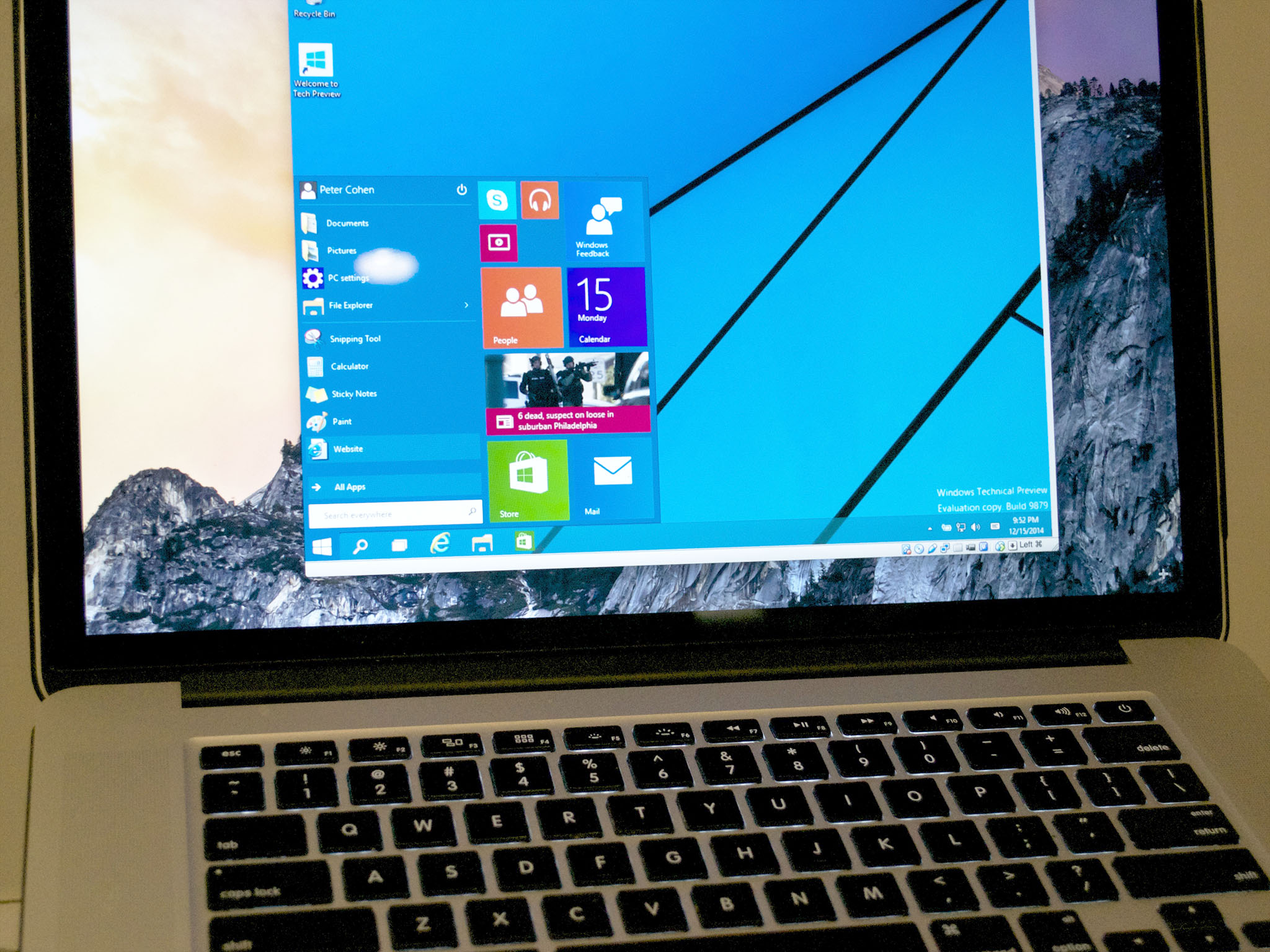
For years, the choice between a Windows PC and a Mac has been a defining one for many technology enthusiasts and professionals. Each platform boasts its unique strengths, catering to different user needs and preferences. However, the lines have blurred considerably in recent times. Many Mac users find themselves needing to run Windows applications or utilize Windows-specific software for work, gaming, or personal projects. This begs the crucial question: can you install Windows on a MacBook?
The definitive answer is a resounding yes. Apple’s hardware is incredibly capable, and the operating system flexibility it offers is a significant advantage. Whether you’re a creative professional who needs access to a particular piece of Windows-only software, a gamer who wants to play the latest titles not available on macOS, or simply someone who prefers the Windows environment, there are robust and well-supported methods to achieve this. This article will delve into the primary ways you can install and run Windows on your MacBook, exploring the pros and cons of each method, and helping you make an informed decision. We’ll touch upon the technical aspects, considering the implications for productivity and even the financial considerations that might arise.
Understanding Your Options: Two Primary Paths to Windows on Mac
When it comes to running Windows on your MacBook, you essentially have two main avenues to explore:
- Boot Camp: This is Apple’s official, built-in utility that allows you to install Windows on a separate partition of your Mac’s hard drive. This means you’ll have two distinct operating systems, and you can choose which one to boot into when you start your computer.
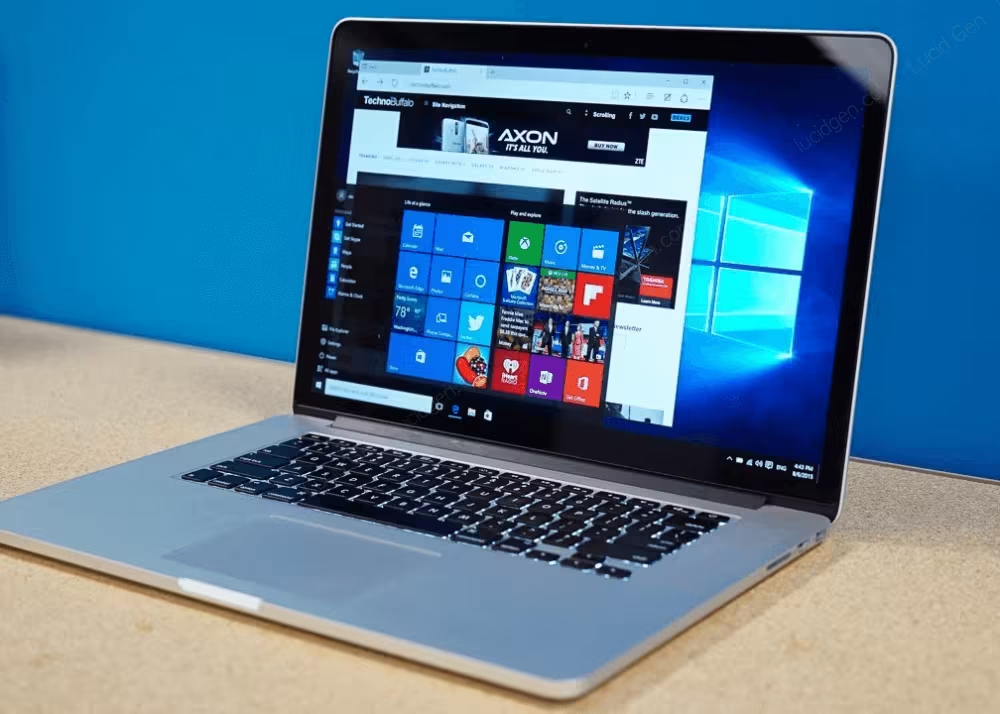
- Virtualization Software: This method involves running Windows as a “virtual machine” within macOS. Think of it as running a computer inside your computer. You can switch between macOS and your Windows virtual machine seamlessly without needing to restart your MacBook.
Each of these approaches offers a different user experience and set of advantages, making one potentially more suitable than the other depending on your specific needs and how you intend to use Windows on your Mac.
Boot Camp: The Native Experience
Boot Camp is arguably the most direct and performant way to run Windows on a Mac. It’s a free utility provided by Apple and is included with macOS.
How Boot Camp Works
Boot Camp Assistant, the tool that facilitates the installation, partitions your internal storage. It creates a dedicated space for Windows, allowing it to access your Mac’s hardware directly. This means that when you’re running Windows via Boot Camp, it’s essentially running natively, just as it would on a dedicated Windows PC.
Key Advantages of Boot Camp
- Maximum Performance: Because Windows has direct access to your Mac’s hardware – the CPU, RAM, graphics card, and storage – you’ll experience the best possible performance. This is particularly crucial for demanding applications like high-end gaming, video editing software that has specific Windows versions, or other resource-intensive tasks. You won’t encounter the performance overhead that often comes with virtualization.
- Full Hardware Compatibility: Boot Camp drivers, provided by Apple, ensure that all of your Mac’s hardware components, such as the Wi-Fi card, Bluetooth, webcam, audio, and trackpad, function correctly and optimally within the Windows environment.
- No Additional Software Costs (for Boot Camp itself): Boot Camp is a free utility included with macOS. You will, however, need to purchase a legitimate license for Windows.
- Ideal for Gaming: If your primary reason for wanting Windows on your Mac is to play PC games, Boot Camp is almost always the superior choice. Games will run at their best possible frame rates and graphical settings.
Considerations and Limitations of Boot Camp
- Requires a Restart to Switch: The most significant drawback of Boot Camp is that you cannot run macOS and Windows simultaneously. To switch between them, you must restart your MacBook and select the desired operating system at startup. This can be inconvenient if you frequently need to jump between applications on both platforms.
- Disk Space Allocation: When you set up Boot Camp, you need to dedicate a specific amount of disk space to the Windows partition. This space is then exclusively for Windows, meaning it’s not accessible by macOS. You need to carefully consider how much space you’ll need for Windows and its applications, as re-partitioning later can be a complex process. Apple recommends at least 64GB for Windows, but 128GB or more is often advisable for a smoother experience, especially if you plan on installing many applications or games.
- Installation Process: While Boot Camp Assistant simplifies the process, it still involves several steps. You’ll need a USB drive (for older Macs) or an internal installer (for newer models), a valid Windows ISO file, and a Windows product key.
- Intel Macs Only: It’s important to note that Boot Camp is only available on Macs with Intel processors. If you have a newer MacBook with an Apple Silicon chip (M1, M2, M3 series), Boot Camp is not supported. This is a crucial distinction that leads us to the next major option.
Virtualization: Running Windows Within macOS
For MacBooks with Apple Silicon, or for users who need to switch between operating systems frequently without rebooting, virtualization software offers a compelling alternative.
How Virtualization Software Works
Virtualization software creates a virtual machine (VM) that emulates a physical computer. You install Windows within this VM, and it runs as a separate application within your macOS environment. The virtualization software manages the allocation of your Mac’s resources (CPU, RAM, storage) to the Windows VM.
Popular Virtualization Software Options
Several excellent virtualization solutions are available for macOS:
- Parallels Desktop: This is a highly popular and user-friendly option, especially for those with Apple Silicon Macs. Parallels Desktop is optimized to run Windows 11 for ARM on M-series chips, offering excellent performance and integration. It provides features like “Coherence mode,” which allows Windows applications to run seamlessly alongside macOS applications, making it feel like they are native to your Mac. Parallels Desktop is a paid application, with different license tiers available.
- VMware Fusion: Another robust and well-established virtualization platform. VMware Fusion also supports Windows on Apple Silicon Macs (with Windows 11 for ARM) and Intel Macs. It offers advanced features and good performance, often favored by IT professionals and power users. VMware Fusion also has a paid license.
- VirtualBox: This is a free and open-source virtualization solution from Oracle. While it’s a powerful tool and supports a wide range of operating systems, its performance and integration with macOS, especially on Apple Silicon, might not be as refined as paid options like Parallels or VMware Fusion. It’s a great option if you’re looking for a free solution and don’t require the absolute highest level of performance or seamless integration.
Key Advantages of Virtualization
- Run macOS and Windows Simultaneously: This is the primary benefit. You can have your Windows VM running in a window on your Mac desktop and switch between your Windows and macOS applications instantly without any rebooting. This is incredibly efficient for workflows that require constant switching.
- Seamless Integration: Advanced virtualization software, like Parallels Desktop, offers excellent integration. You can share files and folders between macOS and your Windows VM, copy and paste text and images, and even run Windows applications in “Coherence” mode, where they appear as if they are native macOS apps.
- No Disk Partitioning Required (Generally): Virtual machines typically store their operating system and applications within a single large file (a virtual disk image) on your Mac’s drive. This avoids the need to permanently partition your internal storage. You can easily create, delete, or clone virtual machines, offering great flexibility.
- Easier for Apple Silicon Macs: For users with M1, M2, or M3 Macs, virtualization is currently the only practical way to run Windows, as Boot Camp is not supported.
Considerations and Limitations of Virtualization
- Performance Overhead: Running an operating system within another inherently involves a performance overhead. The VM software needs to emulate hardware, and resources are shared between macOS and Windows. While modern virtualization software is highly optimized, you might not achieve the same raw performance as you would with Boot Camp, especially for very demanding tasks.
- Resource Intensive: Virtual machines consume your Mac’s RAM and CPU power. Running a Windows VM can significantly impact your Mac’s overall performance if you don’t have sufficient RAM (16GB or more is highly recommended for a smooth experience).
- Cost of Software: Most of the best virtualization software options (Parallels Desktop, VMware Fusion) are paid products, requiring an upfront purchase or subscription. While VirtualBox is free, it might lack some of the advanced features and polished integration of its paid counterparts.
- Windows Licensing: Just like with Boot Camp, you will still need a valid license to install and activate Windows.
- ARM Versions of Windows: On Apple Silicon Macs, you’ll primarily be running Windows 11 for ARM. While this version is compatible with most modern Windows applications, there might be some legacy applications or games that are not compatible with the ARM architecture.
Choosing the Right Method for You
The decision between Boot Camp and virtualization hinges on your primary use case and your MacBook’s hardware.
When to Choose Boot Camp (Intel Macs Only)
- Gaming is Your Top Priority: If you want to play the latest Windows games at their best performance.
- Running Demanding, Resource-Intensive Software: For applications that absolutely require every ounce of your hardware’s power and have no virtualization overhead.
- You Don’t Need to Switch Between OS Frequently: If you’re happy to restart your Mac to switch between operating systems.
- You Have an Intel-Based MacBook: This is the only option for running Windows natively on Intel Macs.
When to Choose Virtualization
- You Have an Apple Silicon Mac (M1, M2, M3 Series): This is your primary, and often only, practical option for running Windows.
- You Need to Run macOS and Windows Simultaneously: For seamless multitasking and frequent switching between applications.
- You Prefer Convenience and Integration: For a smoother experience where Windows apps can feel integrated into your macOS workflow.
- You Don’t Need Absolute Peak Performance: If you’re running standard productivity software, web browsing, or less demanding applications.
- You Want Flexibility with Disk Space: The ability to easily manage virtual disk files without complex partitioning.
The Practicalities: Licensing and Installation
Regardless of the method you choose, a few practicalities remain consistent:
Obtaining a Windows License
Both Boot Camp and virtualization require you to have a valid license for Windows. You can purchase a Windows 10 or Windows 11 license directly from Microsoft’s website or from authorized retailers. While it’s technically possible to install and run Windows without activation, you’ll face limitations, such as personalization restrictions and a persistent watermark. For a fully functional experience, activation is necessary.
Preparing for Installation
- Backup Your Mac: Before making any significant changes to your storage, it’s always wise to back up your entire Mac using Time Machine or another backup solution.
- Download Windows ISO: You’ll need a Windows disc image file (ISO) to install the operating system. You can download this directly from Microsoft’s website. Make sure to download the correct version (e.g., Windows 11 Home or Pro).
- Follow the Assistant/Software Guide: Both Boot Camp Assistant and virtualization software provide detailed instructions. Follow them carefully. For Boot Camp, this usually involves launching the assistant from your Utilities folder. For virtualization, you’ll create a new virtual machine and point it to your Windows ISO file.
Beyond the Basics: Productivity and Financial Considerations
Installing Windows on your MacBook isn’t just about overcoming technical hurdles; it can also have implications for your productivity and even your finances.
Boosting Productivity
By having access to both macOS and Windows environments, you significantly expand your software capabilities.
- Access to Niche Software: Many industries have specialized software that is only available on one platform. For example, certain CAD programs or scientific simulation tools might be Windows-only. Being able to run these on your Mac eliminates the need for a separate Windows machine.
- Broader Development Capabilities: Developers often need to test their applications on multiple operating systems. Running Windows on your Mac allows for cross-platform testing and development.
- Enhanced Gaming Options: As mentioned, PC gaming is a huge market. Installing Windows opens up a vast library of games that are not available on macOS.
Financial Impact
While Boot Camp itself is free, there are costs to consider:
- Windows License: A Windows license is a direct cost. Prices vary depending on the version (Home vs. Pro) and any ongoing promotions.
- Virtualization Software: As discussed, premium virtualization solutions like Parallels Desktop or VMware Fusion represent an additional purchase.
- Hardware Upgrade (Potentially): If your current MacBook has limited RAM or storage, you might consider an upgrade to better handle running a virtual machine or a partitioned Windows installation smoothly. This is a more significant investment but can dramatically improve your overall experience.
- Cost Savings: In some scenarios, installing Windows on your existing Mac can be more cost-effective than purchasing a separate, dedicated Windows PC, especially if your Windows usage is occasional or for specific tasks.
Conclusion
The question of whether you can install Windows on a MacBook is no longer a hypothetical one; it’s a practical reality with several well-defined solutions. For Intel-based Macs, Boot Camp offers a native, high-performance experience, ideal for gaming and demanding applications. For Apple Silicon Macs, and for those who prioritize seamless multitasking, virtualization software like Parallels Desktop and VMware Fusion are the go-to options, providing excellent integration and flexibility.
Ultimately, the “best” method depends entirely on your individual needs and how you plan to leverage the Windows operating system on your Apple hardware. By understanding the capabilities, limitations, and practicalities of each approach, you can confidently embark on the journey of running Windows on your MacBook, unlocking a world of possibilities for productivity, creativity, and entertainment.
aViewFromTheCave is a participant in the Amazon Services LLC Associates Program, an affiliate advertising program designed to provide a means for sites to earn advertising fees by advertising and linking to Amazon.com. Amazon, the Amazon logo, AmazonSupply, and the AmazonSupply logo are trademarks of Amazon.com, Inc. or its affiliates. As an Amazon Associate we earn affiliate commissions from qualifying purchases.