
The question of whether Minecraft can grace the screens of a Chromebook is a frequent one, echoing across forums and gaming communities. For many, the allure of building, exploring, and surviving in the blocky world of Minecraft is irresistible. However, Chromebooks, with their cloud-centric operating system and often less powerful hardware compared to traditional PCs, present a unique set of considerations. This guide dives deep into the possibilities and limitations of playing Minecraft on your Chromebook, exploring the different versions available, the installation processes, and what you can expect in terms of performance and experience.
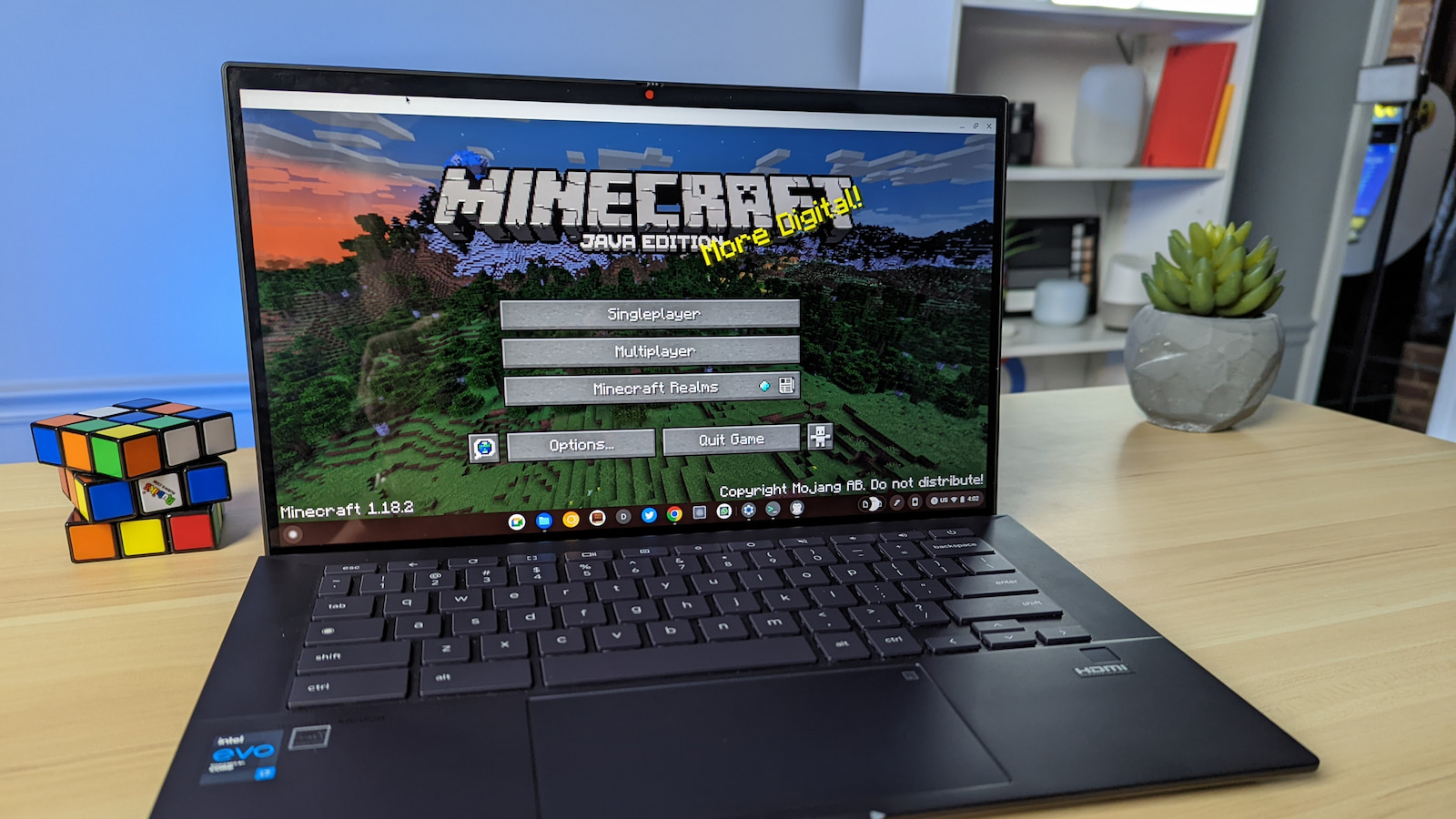
For those new to the Chromebook ecosystem, these devices primarily run on ChromeOS, a Linux-based operating system designed for web browsing and cloud-based applications. This architecture has historically made them less ideal for resource-intensive desktop applications like many PC games. However, with advancements in ChromeOS, including the integration of Android apps and Linux environments, the landscape has significantly changed, opening doors that were once firmly shut.
Understanding Your Chromebook’s Capabilities
Before we delve into the specifics of Minecraft installation, it’s crucial to understand what your Chromebook is capable of. Chromebooks come in a wide range of specifications, from budget-friendly models perfect for basic web tasks to more powerful devices that can handle more demanding applications. The key factors to consider are:
- Processor: The CPU dictates how quickly your Chromebook can process information. For gaming, a more robust processor will lead to smoother gameplay.
- RAM: Random Access Memory (RAM) is essential for multitasking and running applications smoothly. More RAM generally means better performance.
- Storage: While Chromebooks are designed for cloud storage, some local space is beneficial for installing applications and games.
- ChromeOS Version: Newer versions of ChromeOS offer better compatibility with Android apps and Linux, which are crucial for playing Minecraft.
Checking Your Chromebook’s Compatibility
Most modern Chromebooks, released within the last few years, are equipped to run Android apps from the Google Play Store. This is the most accessible and common route for many users. If your Chromebook supports Android apps, you’ll likely find the Google Play Store pre-installed or easily accessible.
To check if your Chromebook supports Android apps:
- Click on the time in the bottom-right corner of your screen.
- Click on the Settings gear icon.
- In the Settings menu, look for “Apps” or “Google Play Store.” If you see an option to enable the Play Store, your Chromebook is compatible.
For those with older or less powerful Chromebooks, or those seeking a more traditional PC experience, the Linux environment can be an option. This allows you to install Linux applications, including potentially older versions of Minecraft or other creative tools.
To enable the Linux development environment (if available on your Chromebook):
- Click on the time in the bottom-right corner.
- Click on the Settings gear icon.
- Scroll down to the “Advanced” section and click on it.
- Look for “Linux development environment” and click “Turn on.” Follow the on-screen instructions to set it up.
The Main Ways to Play Minecraft on a Chromebook
The question of “can you install Minecraft on Chromebook” is answered by the existence of several viable methods, each with its own advantages and considerations. The most popular and user-friendly approaches leverage the ChromeOS ecosystem’s evolving capabilities.
Method 1: Minecraft: Education Edition (Built for Schools, Accessible to All)
Often overlooked, Minecraft: Education Edition is a powerful and feature-rich version of Minecraft specifically designed for learning environments. The good news is that it’s available for installation on Chromebooks, and its development has prioritized compatibility with a wide range of devices, including those commonly found in schools.
Installation Process:
- Access the Google Play Store: Open the Google Play Store on your Chromebook.
- Search for Minecraft: Education Edition: Type “Minecraft: Education Edition” into the search bar.
- Install the App: Click on the “Install” button.
- Sign In: Once installed, you’ll need to sign in with a Microsoft account or a school-provided account.
What to Expect:
Minecraft: Education Edition offers a robust creative experience with many of the features found in the standard Java Edition. It includes tools for coding, collaboration, and specific lesson plans. While it’s not identical to the commercial “Java Edition” or “Bedrock Edition” in every aspect, it provides a full-fledged Minecraft experience that runs remarkably well on many Chromebooks. The performance is generally optimized for educational hardware, meaning it tends to be more forgiving on less powerful machines.
Pros:
- Optimized for Chromebooks and educational environments.
- Free for educational institutions and often accessible for personal use through trials or specific programs.
- Rich feature set for creativity and learning.
- Relatively easy installation via the Play Store.
Cons:
- May not have all the latest features or mods available for Java Edition.
- Requires a Microsoft account to sign in.
Method 2: Minecraft for Android (The Most Common Approach)
For most Chromebook users, the most straightforward way to play Minecraft is through the Android version available on the Google Play Store. This version is known as “Minecraft” (or sometimes “Minecraft: Pocket Edition” in older contexts), and it’s the same experience you’d find on Android phones and tablets.
Installation Process:
- Ensure Google Play Store is Enabled: As mentioned earlier, confirm your Chromebook supports Android apps.
- Open the Google Play Store: Navigate to the Play Store.
- Search for Minecraft: Type “Minecraft” into the search bar.
- Purchase and Install: The app will likely require a purchase. Click “Buy” and then “Install.”
- Launch the Game: Once downloaded and installed, you can find Minecraft in your app drawer and launch it.
What to Expect:
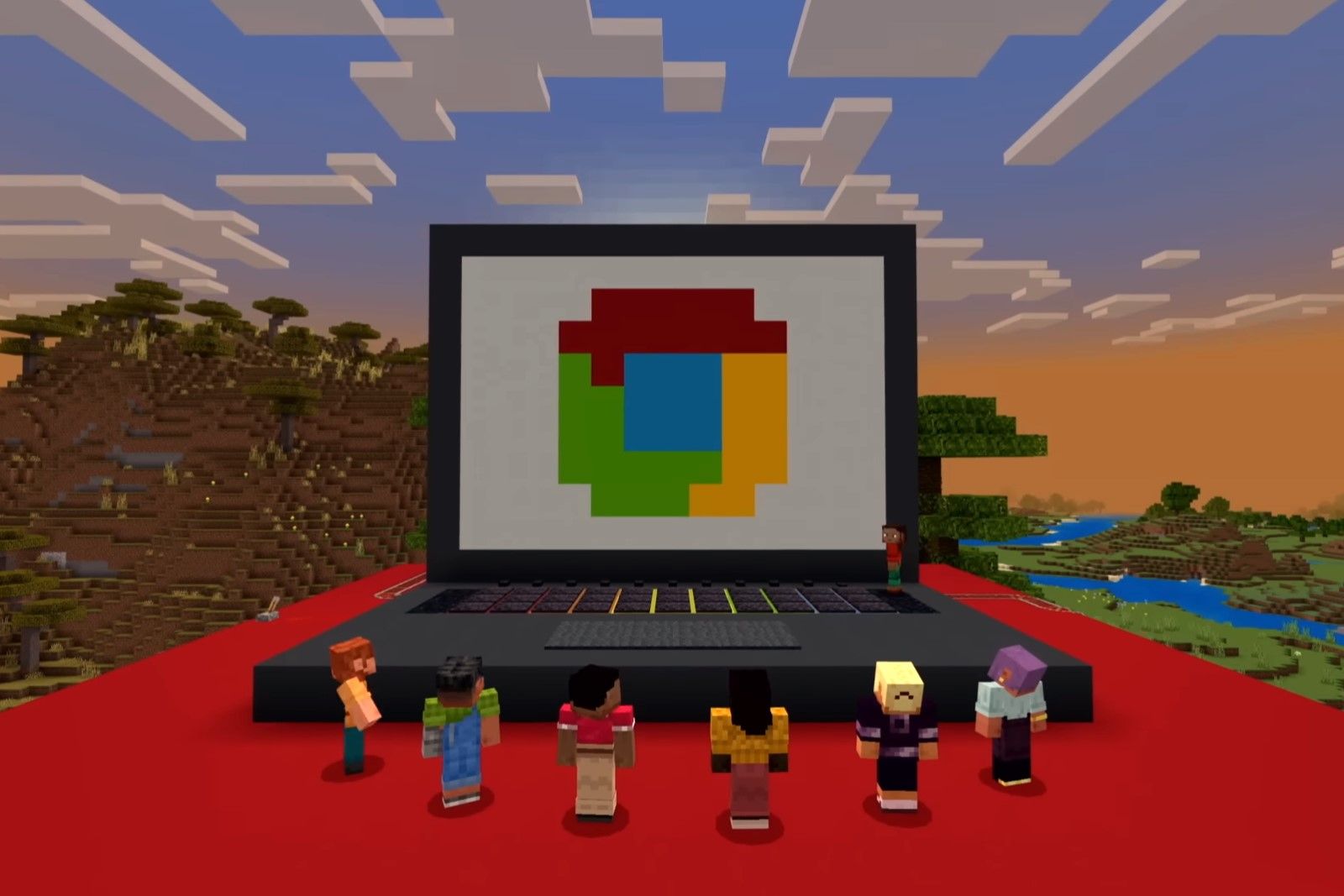
The Android version of Minecraft uses the “Bedrock Edition” engine, which is designed for cross-platform play and is generally more optimized for a wider range of hardware. On a capable Chromebook, you can expect smooth gameplay, access to the Marketplace for skins and add-ons, and the ability to play with friends on other Bedrock-compatible platforms (Windows, Xbox, PlayStation, Switch, mobile). Performance can vary significantly based on your Chromebook’s specifications. Lower-end devices might struggle with complex worlds or high graphical settings.
Tips for Better Performance:
- Close unnecessary tabs and apps: Free up RAM and processing power.
- Lower in-game graphics settings: Reduce render distance, turn off fancy graphics, and disable V-sync if possible.
- Ensure your Chromebook is updated: ChromeOS updates often include performance improvements.
- Keep your device cool: Overheating can throttle performance.
Pros:
- Widely available through the Google Play Store.
- Cross-platform compatibility (Bedrock Edition).
- Access to the Minecraft Marketplace.
- Familiar interface for mobile users.
Cons:
- Requires a purchase.
- Performance can be an issue on less powerful Chromebooks.
- Lacks some of the extensive modding capabilities of the Java Edition.
Method 3: Minecraft: Java Edition (Through the Linux Environment)
For the purists and those who crave the extensive modding community and features of the Java Edition, installing it on a Chromebook is possible, but it requires a bit more technical know-how and a Chromebook that supports the Linux development environment.
Installation Process:
- Enable Linux Development Environment: Follow the steps outlined previously to enable Linux on your Chromebook.
- Install Java: Open the Linux terminal and install the Java Development Kit (JDK). You can usually do this with commands like:
bash

sudo apt update

sudo apt install default-jdk
- Download Minecraft Launcher: Visit the official Minecraft website (minecraft.net) and download the Linux
.debfile for the Minecraft Launcher. - Install the Launcher: In the Linux terminal, navigate to where you downloaded the file (usually
Downloads) and install it using:
bash

sudo dpkg -i minecraft.launcher.deb
(Replaceminecraft.launcher.debwith the actual filename if it differs). You might need to runsudo apt --fix-broken installif there are dependency issues. - Launch Minecraft Launcher: Find the Minecraft Launcher in your app drawer (it will appear in the Linux app section) and launch it.
- Log in and Install: Log in with your Mojang/Microsoft account, and you can then download and install the Java Edition of Minecraft.
What to Expect:
Playing Minecraft: Java Edition on a Chromebook through Linux offers the full, unadulterated experience. This includes access to the vast world of mods, custom servers, and the classic gameplay mechanics. However, performance is heavily dependent on your Chromebook’s specifications. Java Edition is notoriously resource-intensive, and a Chromebook, even with Linux, may struggle to run it smoothly, especially with demanding modpacks or large worlds.
Considerations for Linux Installation:
- Performance: This is the biggest hurdle. If your Chromebook is not powerful, you might experience significant lag, low frame rates, and long loading times.
- Storage: Minecraft and its mods can take up a considerable amount of storage space. Ensure you have enough free space on your Chromebook’s internal storage.
- Technical Skill: While the steps are outlined, you’ll need to be comfortable with using the Linux terminal for commands.
- Updates: You’ll need to manage updates for Java and the Minecraft Launcher within the Linux environment.
Pros:
- Full Java Edition experience with all its features and modding capabilities.
- Access to a massive community and custom content.
Cons:
- Requires a Chromebook that supports Linux.
- Can be technically challenging to install.
- Performance is often the weakest point, especially on lower-spec devices.
- Requires a significant amount of storage.
Performance and Expectations on Chromebooks
The dream of seamless Minecraft gameplay on every Chromebook is not yet a reality, but significant progress has been made. Your experience will largely be dictated by the specific Minecraft version you’re attempting to play and the hardware specifications of your Chromebook.
Optimizing for Performance
Regardless of the method you choose, certain optimizations can improve your Minecraft experience on a Chromebook:
- Hardware Matters: A more powerful processor and more RAM will always yield better results. If you’re looking to buy a new Chromebook for gaming, prioritize these specs.
- Keep ChromeOS Updated: Google continuously improves ChromeOS, often with performance enhancements for apps and games.
- Manage Background Processes: Ensure no other resource-intensive applications or browser tabs are running in the background while you play.
- Lower In-Game Settings: For any version of Minecraft, reducing graphical fidelity (render distance, shadows, textures) can drastically improve frame rates.
- Cooling: Overheating is a common culprit for performance drops. Ensure your Chromebook has adequate ventilation.
The Future of Minecraft on Chromebooks
As ChromeOS continues to evolve, its ability to run more demanding applications is steadily increasing. The integration of Android apps and robust Linux support means that playing games like Minecraft is more feasible than ever. While dedicated gaming laptops and PCs will likely remain the ultimate platform for high-end Minecraft experiences, Chromebooks are carving out a respectable niche for themselves.
For casual players and those looking for a creative outlet, the Android version via the Play Store is an excellent and accessible option. For educators and students, Minecraft: Education Edition offers a tailored and optimized experience. And for the tinkerer and modding enthusiast, the Linux environment provides a pathway to the full Java Edition, albeit with performance caveats.
In conclusion, the answer to “can you install Minecraft on Chromebook” is a resounding yes, with multiple avenues to explore. By understanding your Chromebook’s capabilities and choosing the right version of Minecraft for your needs and device, you can embark on your own blocky adventures, no matter where you are.
aViewFromTheCave is a participant in the Amazon Services LLC Associates Program, an affiliate advertising program designed to provide a means for sites to earn advertising fees by advertising and linking to Amazon.com. Amazon, the Amazon logo, AmazonSupply, and the AmazonSupply logo are trademarks of Amazon.com, Inc. or its affiliates. As an Amazon Associate we earn affiliate commissions from qualifying purchases.