
The allure of macOS is undeniable. Its sleek design, intuitive interface, and robust ecosystem have captured the hearts of millions. However, for a growing segment of users, the open-source power and unparalleled flexibility of Linux beckon. This raises a fundamental question for Mac owners: “Can Linux be installed on a Mac?” The answer, resoundingly, is yes. While not as straightforward as installing macOS or Windows, integrating Linux onto your Apple hardware is a well-trodden path, offering a compelling blend of two powerful operating systems.
This article delves into the world of running Linux on a Mac, exploring the motivations behind this endeavor, the various methods available, and the considerations you need to make. Whether you’re a developer seeking a more customizable environment, a privacy advocate, or simply curious about the vast landscape of open-source software, installing Linux on your Mac opens up a universe of possibilities.

Why Would You Want Linux on Your Mac?
The question of “why” is as crucial as “how.” While Macs are powerful machines, their proprietary nature can sometimes feel restrictive. Linux, on the other hand, champions freedom and customization. Here are some compelling reasons why Mac users consider venturing into the Linux realm:
1. Unparalleled Customization and Flexibility
One of the most significant draws of Linux is its extreme customizability. Unlike macOS, which offers a curated user experience, Linux allows you to tailor virtually every aspect of your operating system. From the desktop environment (GNOME, KDE Plasma, XFCE, etc.) to the kernel itself, you have the power to sculpt your digital workspace to perfectly suit your needs and preferences. This level of granular control is invaluable for power users, developers, and anyone who believes their operating system should adapt to them, not the other way around.
2. Access to a Vast Open-Source Software Repository
The open-source community is a treasure trove of free and powerful software. While macOS has its App Store and a wealth of commercial applications, Linux boasts an extensive repository of open-source alternatives that often match or even surpass their proprietary counterparts in functionality and innovation. From productivity suites like LibreOffice to creative tools like GIMP and Blender, and specialized development environments, the Linux ecosystem offers a wealth of options without the hefty price tag.
3. Enhanced Development Environment
For software developers, Linux is often the preferred platform. Its command-line interface is incredibly powerful and efficient for scripting, automation, and managing complex projects. Many popular programming languages, frameworks, and tools are natively developed for or have superior support on Linux. By installing Linux on your Mac, you can create a dedicated development environment that mirrors the servers you’re likely deploying to, streamlining your workflow and reducing potential compatibility issues.
4. Learning and Experimentation
The Linux operating system is a fantastic platform for learning about computer science, operating systems, and networking. Its open-source nature means you can delve into the code, understand how things work under the hood, and experiment with different configurations without the fear of voiding warranties or encountering proprietary limitations. This makes it an ideal choice for students, hobbyists, and anyone with a curious mind.
5. Privacy and Security
While Apple has a strong reputation for security, Linux distributions, particularly those with a focus on privacy, can offer an even greater degree of control over your data. With Linux, you have more transparency into what your operating system is doing and can make informed choices about software and network configurations to enhance your privacy. Furthermore, the decentralized nature of open-source development often leads to quicker identification and patching of security vulnerabilities.
6. Revitalizing Older Hardware
While your Mac is likely a capable machine, if you’re considering installing Linux on older hardware, it can breathe new life into devices that might be struggling with newer versions of macOS. Many Linux distributions are designed to be lightweight and resource-efficient, making them excellent choices for extending the lifespan of your technology.
Methods for Installing Linux on a Mac
The prospect of installing a new operating system can seem daunting, but thankfully, there are several well-established methods for getting Linux up and running on your Mac. Each method offers a different level of integration and user experience, catering to various needs.
1. Dual Booting: The Most Common Approach
Dual booting involves partitioning your Mac’s hard drive and installing Linux alongside macOS. This allows you to choose which operating system to boot into each time you start your computer. It’s the most popular method because it provides full access to your Mac’s hardware for both operating systems without any performance compromises.
The Process of Dual Booting
The dual-booting process generally involves these steps:
- Backup Your Data: This is a critical first step. Before making any significant changes to your storage, ensure you have a complete backup of your macOS system and all your important files. Time Machine is your best friend here.
- Download a Linux Distribution: Choose a Linux distribution (distro) that suits your needs. Popular choices for beginners include Ubuntu, Linux Mint, and Elementary OS. For more advanced users, Fedora, Debian, or Arch Linux might be appealing. Download the ISO image for your chosen distro.
- Create a Bootable USB Drive: You’ll need to write the downloaded ISO image to a USB drive. Tools like Etcher (available for macOS) make this process straightforward.
- Partition Your Hard Drive: This is where you allocate space for Linux. macOS has a built-in Disk Utility that allows you to shrink your existing macOS partition and create a new one for Linux. Be cautious with this step and ensure you create partitions of adequate size for your Linux installation.
- Boot from the USB Drive: Restart your Mac and hold down the Option (Alt) key during startup to access the boot menu. Select your USB drive to boot from it.
- Install Linux: Follow the on-screen prompts of the Linux installer. You’ll typically need to select your new partition for the installation and configure basic settings like language, keyboard layout, and user accounts. The installer will also handle installing the bootloader, which allows you to choose between macOS and Linux at startup.
- Post-Installation: Once Linux is installed, you can reboot your Mac and use the bootloader to switch between macOS and Linux. You’ll likely need to install drivers for specific hardware components (like Wi-Fi or graphics cards) within Linux for optimal performance.
Considerations for Dual Booting
- Storage Space: Ensure you allocate sufficient space for both operating systems and your applications.
- Bootloader Management: While most installers handle this well, occasionally, bootloader issues can arise. Be prepared to troubleshoot if necessary.
- Firmware Updates: macOS firmware updates can sometimes interfere with dual-boot setups. It’s advisable to update macOS before or after major Linux updates.
2. Virtual Machines: Sandboxed Exploration
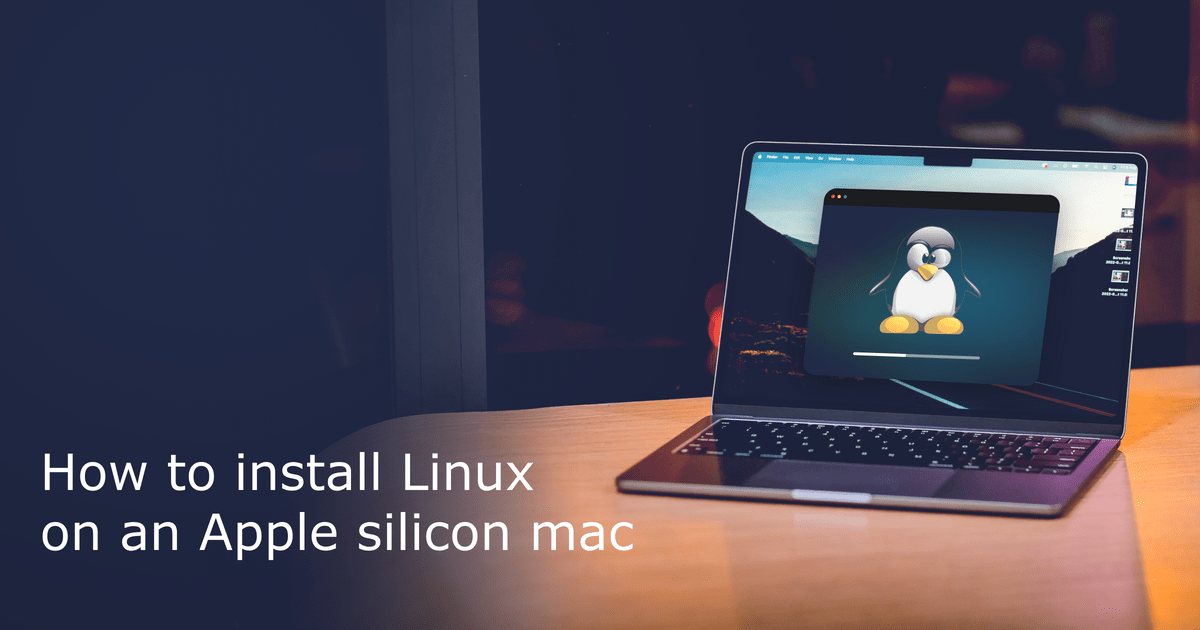
If you’re hesitant about partitioning your hard drive or only need to dabble in Linux for specific tasks, running Linux within a virtual machine (VM) is an excellent option. A VM is essentially a software-based computer that runs on top of your existing operating system. This means you can run Linux inside a window on your macOS desktop without altering your main system.
Popular Virtualization Software for Mac
- VirtualBox: A free and open-source virtualization solution that’s widely popular. It’s user-friendly and offers a good balance of features for most users.
- VMware Fusion: A commercial virtualization product known for its robust performance and integration with macOS. It often provides better graphics performance than VirtualBox.
- Parallels Desktop: Another powerful commercial virtualization solution that is highly optimized for macOS and offers excellent performance and integration.
The Virtual Machine Process
- Install Virtualization Software: Download and install your chosen virtualization software on your Mac.
- Download a Linux Distribution: Obtain the ISO image of the Linux distro you want to install, just as you would for dual booting.
- Create a New Virtual Machine: Within your virtualization software, create a new VM. You’ll be prompted to allocate resources like RAM, CPU cores, and virtual hard disk space.
- Install Linux within the VM: Start the VM and point it to the downloaded Linux ISO image. The installation process will then proceed as if you were installing Linux on a physical machine, but all within the virtual environment.
- Install Guest Additions/Tools: After the Linux installation is complete, install the “Guest Additions” (VirtualBox) or “VMware Tools” (VMware) within the Linux VM. These tools enhance the integration between your host OS (macOS) and the guest OS (Linux), enabling features like shared folders, better screen resolution, and seamless mouse integration.
Advantages of Virtual Machines
- No Disk Partitioning: Your main macOS installation remains untouched.
- Easy to Experiment: You can create, delete, and revert VMs to previous states easily, making it ideal for testing.
- Simultaneous Use: Run Linux and macOS side-by-side.
- Safety: Any issues within the VM won’t affect your host macOS system.
Disadvantages of Virtual Machines
- Performance Overhead: VMs share your Mac’s resources with macOS, so performance might not be as snappy as a native installation, especially for demanding tasks like gaming or heavy video editing.
- Hardware Access Limitations: Direct access to certain hardware components can be more challenging through a VM.
3. UEFI/BIOS Emulation (for specific Intel Macs): A More Advanced Option
For users with specific Intel-based Macs, there’s a more advanced method involving UEFI/BIOS emulation. This allows you to install Linux more natively by effectively tricking the hardware into thinking it’s running on a standard PC. This method is often referred to as “Hackintoshing” in reverse, but applied to installing Linux on Mac hardware.
This approach typically involves:
- Installing a Bootloader like rEFInd: rEFInd is a versatile boot manager that can detect and boot various operating systems, including Linux, on Mac hardware.
- Using Specific Drivers and Patches: Due to the unique hardware of Macs, you might need to find and apply specific drivers or patches to ensure all components (Wi-Fi, Bluetooth, trackpad, keyboard, etc.) function correctly in Linux.
- Following Community Guides: This method is often more technical and relies heavily on community-developed guides and forums specific to your Mac model and the Linux distribution you’re using. Websites like LinuxOnMac.com (though its current status might vary) and various GitHub repositories are valuable resources.
Considerations for UEFI/BIOS Emulation
- Hardware Compatibility: This is the biggest hurdle. Not all Mac hardware is equally compatible with Linux, and you might encounter issues with specific components.
- Technical Expertise: This method requires a higher level of technical understanding and comfort with command-line operations.
- Maintenance: Keeping drivers and configurations updated can be an ongoing task.
Choosing the Right Linux Distribution for Your Mac
With hundreds of Linux distributions available, selecting the right one can be overwhelming. Here are a few popular and Mac-friendly options to consider:
1. Ubuntu
Ubuntu is arguably the most popular Linux distribution, known for its user-friendliness and extensive community support. It’s a great starting point for beginners and offers a stable and well-rounded experience. Ubuntu also has excellent hardware compatibility, making it a strong contender for Mac installations.
2. Linux Mint
Linux Mint is another excellent choice for newcomers. It’s based on Ubuntu but offers a more traditional desktop experience, often preferred by users migrating from Windows. It prioritizes ease of use and comes with many proprietary codecs and software pre-installed, making it convenient out of the box.
3. Elementary OS
For those who appreciate the aesthetic of macOS, Elementary OS is a compelling option. It features a beautiful and minimalist desktop environment called Pantheon, which draws inspiration from macOS’s design language. It focuses on a polished user experience and comes with its own set of curated applications.
4. Fedora
Fedora is a cutting-edge distribution sponsored by Red Hat. It’s known for its commitment to free and open-source software and often features the latest software packages and kernel versions. It’s a good choice for users who want to stay on the bleeding edge of Linux technology.
5. Debian
Debian is a highly stable and reliable distribution, serving as the foundation for many other distros (including Ubuntu and Mint). It’s a more no-nonsense option, favored by users who prioritize stability and a pure open-source experience.
Final Thoughts: Embracing the Open-Source Frontier
Installing Linux on your Mac is more than just a technical feat; it’s an invitation to explore a different facet of computing. Whether you’re looking to unlock new levels of customization, delve into powerful development tools, or simply experiment with an alternative operating system, the journey is incredibly rewarding.
The question of “can Linux be installed on a Mac” has a resounding affirmative. With methods like dual-booting and virtual machines, you can seamlessly integrate Linux into your workflow without compromising your existing macOS environment. By carefully considering your needs and choosing the right distribution and installation method, you can harness the best of both worlds, transforming your Mac into an even more versatile and powerful machine. So, take the plunge, explore the vastness of the Linux ecosystem, and discover the freedom and flexibility that awaits.
aViewFromTheCave is a participant in the Amazon Services LLC Associates Program, an affiliate advertising program designed to provide a means for sites to earn advertising fees by advertising and linking to Amazon.com. Amazon, the Amazon logo, AmazonSupply, and the AmazonSupply logo are trademarks of Amazon.com, Inc. or its affiliates. As an Amazon Associate we earn affiliate commissions from qualifying purchases.