
The allure of a Chromebook is undeniable: its lightweight design, seamless cloud integration, and often attractive price point have made it a popular choice for students, casual users, and those prioritizing simplicity. However, a persistent question lingers for some: “Can I install Windows on a Chromebook?” This isn’t a simple yes or no answer, and the journey to finding out involves delving into the technical intricacies, understanding the limitations, and weighing the potential benefits against the inherent compromises.
At its core, a Chromebook runs ChromeOS, a Linux-based operating system developed by Google. This operating system is fundamentally different from Windows. While both are operating systems designed to run applications and manage hardware, their underlying architecture, software compatibility, and hardware support vary significantly. This fundamental difference is the primary hurdle in directly installing Windows on a Chromebook.

The Technical Hurdles: Why It’s Not a Straightforward Installation
The idea of installing Windows on a Chromebook often stems from a desire to leverage the familiar interface and expansive software library of Microsoft’s operating system on hardware that might otherwise be limited by ChromeOS. However, several technical barriers stand in the way:
Hardware Architecture and Drivers
Chromebooks are designed with specific hardware configurations optimized for ChromeOS. This includes specialized chipsets and firmware. Windows, on the other hand, is built to run on a wide array of hardware, but it expects certain components and interfaces to be present and to communicate through specific drivers.
- UEFI/BIOS Differences: Chromebooks utilize a unique firmware known as Coreboot, which is a lightweight, open-source firmware often used in conjunction with a Unified Extensible Firmware Interface (UEFI). This differs from the traditional BIOS or UEFI implementations found on most Windows PCs. Windows expects to interact with these standard firmware interfaces for booting and hardware initialization. Installing Windows would require the firmware to be rewritten or bypassed, a complex and often risky process.
- Driver Incompatibility: Even if you manage to boot Windows, you’ll face a significant challenge with drivers. Drivers are small pieces of software that allow the operating system to communicate with specific hardware components like the trackpad, keyboard, Wi-Fi card, audio chip, and graphics processor. Chromebook manufacturers design these components with ChromeOS drivers in mind. Finding or creating Windows-compatible drivers for the unique hardware in a Chromebook is often impossible, leading to non-functional or partially functional hardware. This means your trackpad might not work, your Wi-Fi could be erratic, or your display might not render correctly.
Software Ecosystem and Licensing
Beyond the hardware, the software ecosystem presents another layer of complexity:
- ChromeOS Restrictions: ChromeOS is designed for a cloud-centric experience. While it has gained the ability to run Android apps and Linux applications through containers, it’s not built to natively run Windows executables (.exe files).
- Windows Licensing: Even if you overcome the technical challenges, installing Windows on a device that isn’t officially supported by Microsoft for that operating system can have licensing implications. While the article focuses on the “can I,” it’s worth noting that legitimate use of Windows typically requires a valid license tied to specific hardware or a digital entitlement.
Exploring the Workarounds: Alternatives to a Direct Windows Installation
Given the significant technical hurdles, a direct, clean installation of Windows on a Chromebook in the same way you would on a traditional PC is generally not feasible for the average user. However, this doesn’t mean all hope is lost for those who need Windows capabilities. Several workarounds and alternative approaches exist, each with its own set of pros and cons.
Running Windows in a Virtual Machine
One of the most viable methods for experiencing Windows on a Chromebook is through virtualization. This involves running a virtual machine (VM) – essentially a simulated computer within your existing operating system – where you can install and run Windows.
- How it Works: Specialized software, such as Crostini (Linux on ChromeOS) combined with Linux virtualization tools like VirtualBox or VMware, can be used. You would install a Linux distribution on your Chromebook (which is often supported through Crostini), and then within that Linux environment, you would install a virtualization application. Finally, you would install your Windows operating system within that virtual machine.
- Advantages:
- Less Risky: This method doesn’t involve modifying your Chromebook’s core firmware, making it less likely to brick your device.
- Decent Compatibility: You can run many Windows applications within the VM, as the virtualization software handles the hardware abstraction.
- Isolation: The virtual machine is isolated from your ChromeOS, meaning any issues within Windows won’t affect your primary operating system.
- Disadvantages:
- Performance Limitations: Virtualization is resource-intensive. Running Windows in a VM will be slower and less responsive than a native installation, especially on less powerful Chromebook hardware. The performance will heavily depend on your Chromebook’s processor, RAM, and storage speed.
- Hardware Access: Direct access to certain hardware features might be limited or unavailable within the VM. For instance, high-performance graphics or specific peripherals might not work as expected.
- Storage Requirements: Windows and its applications can consume significant storage space, which might be a limitation on Chromebooks that often come with smaller internal storage.
- Complexity: Setting up and configuring a virtual machine requires a moderate level of technical proficiency.
Dual Booting with Linux and Then Windows (Advanced and Risky)
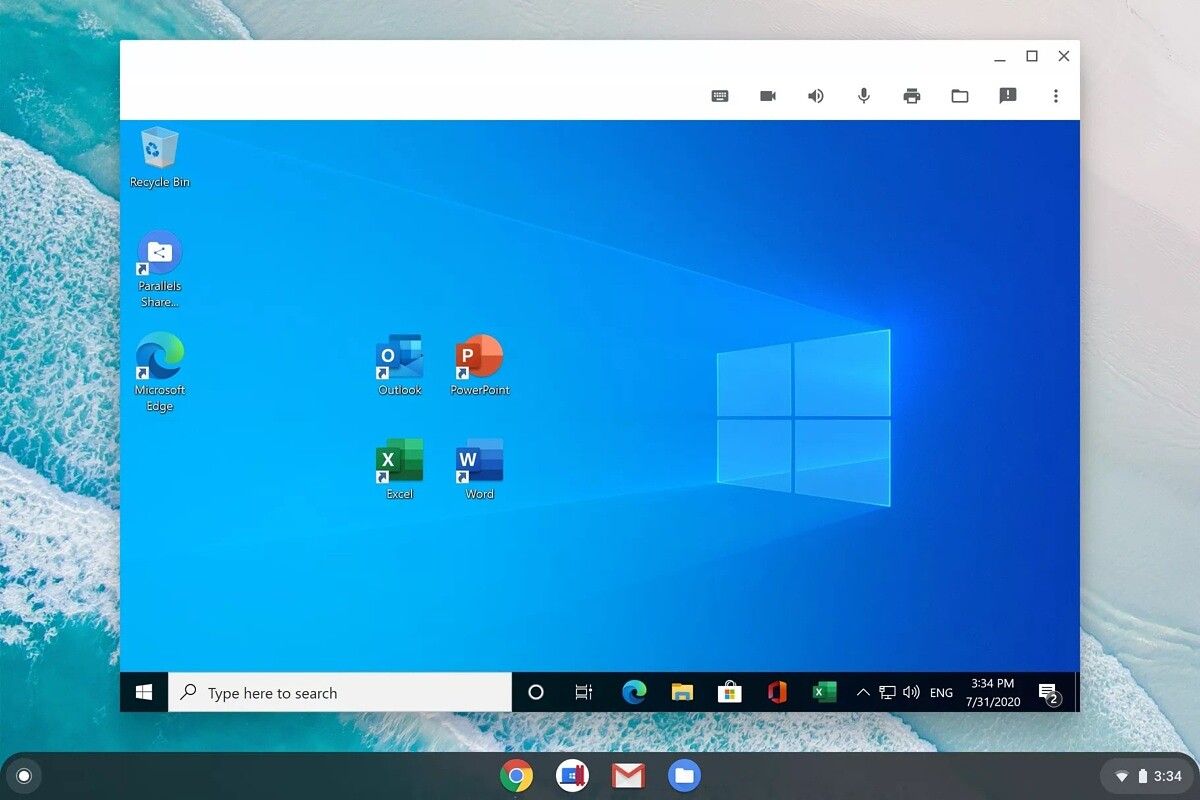
For the most technically adept users, dual-booting has been a theoretical possibility, though it is exceptionally challenging and not recommended for most. This approach involves partitioning your Chromebook’s storage and installing another operating system alongside ChromeOS, allowing you to choose which OS to boot into at startup.
- The Process (Highly Simplified and Risky):
- Enable Developer Mode: This disables some of ChromeOS’s security features and allows for greater system modification.
- Install a Linux Distribution: This is often done through custom firmware or by leveraging the existing Linux support in ChromeOS.
- Modify Firmware: This is the most critical and dangerous step. It often involves flashing custom firmware that allows for a more traditional boot process, enabling the installation of other operating systems.
- Install Windows: Once the firmware is modified and a suitable bootloader is in place, you could attempt to install Windows from a USB drive.
- Advantages:
- Potentially Native Performance: If successful, Windows would run natively, offering the best possible performance.
- Disadvantages:
- Extreme Risk of Bricking: Incorrectly flashing firmware can render your Chromebook permanently unusable (a “brick”).
- Hardware Incompatibility: Even with custom firmware, driver issues for essential hardware components (Wi-Fi, sound, trackpad) are highly probable.
- Complex and Time-Consuming: This process requires significant technical expertise, research, and troubleshooting.
- Voiding Warranty: Modifying your Chromebook’s firmware will almost certainly void its warranty.
- Limited Support: There is very little official support or documentation for this process, making it a path fraught with potential dead ends.
Using Remote Desktop or Cloud-Based Solutions
For many users who simply need access to Windows applications or a Windows environment occasionally, cloud-based solutions offer a compelling and much simpler alternative.
- Remote Desktop: Services like Chrome Remote Desktop allow you to access another computer running Windows from your Chromebook. You would need a separate Windows PC that is always on and connected to the internet. Your Chromebook then acts as a terminal to control that PC.
- Pros: Easy to set up, leverages the power of your existing Windows PC, no installation required on the Chromebook.
- Cons: Requires a separate Windows PC, performance is dependent on your internet connection, not a true installation on the Chromebook.
- Cloud PCs/Virtual Desktops: Services like Microsoft Azure Virtual Desktop, Amazon WorkSpaces, or third-party cloud PC providers offer a full Windows desktop environment hosted in the cloud. You can access this desktop from your Chromebook through a web browser or a dedicated app.
- Pros: Access to a powerful Windows environment from any device, managed by the provider, no local hardware limitations.
- Cons: Subscription costs, performance dependent on internet connection, data is stored in the cloud.
When Does it Make Sense to Consider These Options?
The question of installing Windows on a Chromebook is rarely about achieving a perfect, seamless Windows experience. Instead, it’s about addressing specific needs that ChromeOS, by itself, cannot fulfill.
For Specific Software Requirements
The primary driver for wanting to run Windows on a Chromebook is usually the need to use Windows-specific software that isn’t available on ChromeOS or through Android/Linux apps. This could include:
- Professional Software: Certain specialized engineering, design, or development tools might only have Windows versions.
- Legacy Applications: Older software that hasn’t been updated for other platforms.
- Gaming: While cloud gaming services are improving, some users may still want to run PC games that are not available on other platforms.
For Users Familiar with the Windows Ecosystem
Individuals who have spent years using Windows might find the transition to ChromeOS jarring. The familiar interface and way of working within Windows can be a strong draw, even if it requires a workaround.
When a Chromebook is the Only Available Hardware
In some scenarios, a user might have a Chromebook but need to perform a task that strictly requires Windows. In such cases, exploring these workarounds becomes a practical necessity rather than a desire for a full Windows conversion.
Final Verdict: Is it Worth the Effort?
Ultimately, the answer to “Can I install Windows on a Chromebook?” is a nuanced “Yes, but with significant caveats and compromises.” For the vast majority of users, attempting a direct installation is highly discouraged due to the risk of damaging the device and the near certainty of encountering insurmountable driver issues.
The most practical and recommended approaches involve virtualization or utilizing remote desktop/cloud PC solutions. These methods allow you to access Windows applications and environments without compromising the integrity of your Chromebook.
Before embarking on any complex modification, it’s crucial to honestly assess your needs. If you must have a full, native Windows experience, a Chromebook, even with workarounds, might not be the ideal device. However, if you need occasional access to specific Windows software, or if your Chromebook is your primary device and you’re looking to bridge a specific software gap, then exploring virtualization or cloud-based solutions could be a viable path forward. Always prioritize understanding the risks and limitations involved before proceeding with any advanced technical modifications.
aViewFromTheCave is a participant in the Amazon Services LLC Associates Program, an affiliate advertising program designed to provide a means for sites to earn advertising fees by advertising and linking to Amazon.com. Amazon, the Amazon logo, AmazonSupply, and the AmazonSupply logo are trademarks of Amazon.com, Inc. or its affiliates. As an Amazon Associate we earn affiliate commissions from qualifying purchases.