
Grand Theft Auto V remains an absolute titan in the gaming world, a decade after its initial release. Its enduring popularity has led to multiple re-releases and graphical enhancements across different console generations and PC iterations. This evolution, while fantastic for players wanting the best visual and performance experience, often creates confusion, particularly when it comes to managing game installations. Many dedicated fans upgrading to the latest “Enhanced” versions — whether on PlayStation 5, Xbox Series X|S, or via ongoing updates and high-end mods on PC — find themselves asking a crucial question: “Can I uninstall my GTA V ‘Legacy’ version after installing the ‘Enhanced’ one?”
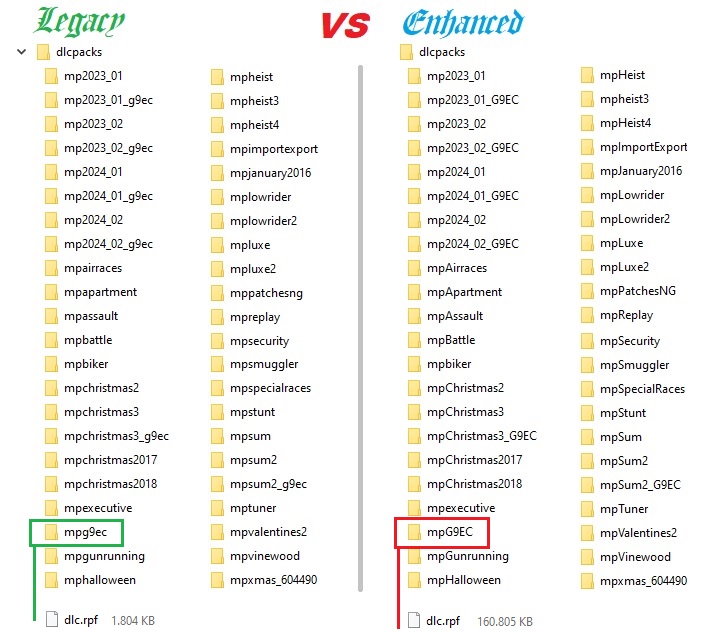
This article delves deep into this query, providing a clear and comprehensive guide for gamers. We’ll explore the distinctions between these versions, discuss the technical implications of keeping or deleting older installations, offer step-by-step uninstallation instructions, and address common scenarios. Beyond the technicalities, we’ll also touch upon the broader aspects of digital game management, including how such decisions relate to your tech setup, the brand strategy behind these releases, and the financial implications of your gaming investments.
Understanding GTA V: Legacy vs. Enhanced Editions
Before we tackle the uninstallation question, it’s vital to clarify what we mean by “Legacy” and “Enhanced” in the context of Grand Theft Auto V. The game’s journey across hardware platforms has created distinct versions that, while all fundamentally the same game, offer varying levels of fidelity and features.
Defining “Legacy” GTA V
The term “Legacy” GTA V primarily refers to the original versions released on older hardware.
- Original Console Releases (PS3/Xbox 360): These were the very first iterations of GTA V, launched in 2013. They represent the foundational experience, though with graphical limitations inherent to that generation of consoles. While few players would be directly upgrading from these to the latest “Enhanced” versions and keeping both on the same system, they set the precedent.
- Previous-Gen Console Releases (PS4/Xbox One): Launched in 2014, these versions were a significant leap over the PS3/Xbox 360 editions, offering improved graphics, higher resolutions, new first-person mode, denser traffic, and more foliage. For many players, this is often what they consider their “Legacy” version if they’ve since acquired a PS5 or Xbox Series X|S and downloaded the newer edition. These PS4/Xbox One versions can still be played on current-gen consoles via backward compatibility.
- PC Version (Original Release to Pre-Expanded & Enhanced): The PC version, released in 2015, generally combined the graphical enhancements of the PS4/Xbox One versions with even higher fidelity options, unlocked frame rates, and extensive modding capabilities. While the PC version has continuously received updates, the “Legacy” designation here might refer to an older, possibly heavily modded, installation prior to significant system-wide updates or a complete reinstallation on new hardware.
What Constitutes “Enhanced” GTA V?
“Enhanced” GTA V typically refers to the versions optimized for the latest generation of consoles and the most up-to-date PC experience.
- Grand Theft Auto V: Expanded & Enhanced (PS5/Xbox Series X|S): Released in 2022, this is the most prominent “Enhanced” version. Specifically designed for PlayStation 5 and Xbox Series X|S, it offers a suite of upgrades including 4K resolution, up to 60 FPS, ray-traced shadows, faster loading times, improved texture quality, haptic feedback on the DualSense controller, and various quality-of-life improvements. Crucially, these are separate native applications for the current-gen consoles, distinct from their PS4/Xbox One counterparts, even if bought through the same storefront.
- PC Version (Modern Updates & High-End Configurations): On PC, “Enhanced” isn’t a separate SKU in the same way it is for consoles. Instead, the PC version continually receives updates from Rockstar, integrating many of the graphical and performance improvements over time. Furthermore, PC players often achieve an “Enhanced” experience through high-end hardware, custom graphics settings, and sophisticated visual mods (like ENBs, texture packs, and reshades) that push the game far beyond its console counterparts. For PC, “Enhanced” is often about leveraging the platform’s power rather than a distinct software package.
The PC Perspective: Evolving Enhancements
For PC players, the distinction between “Legacy” and “Enhanced” is less about fundamentally different software packages and more about the state of their installation and hardware. The PC version of GTA V has always been the most visually capable, constantly evolving through patches and driver updates. An older, unoptimized, or heavily modded PC installation might be considered “Legacy” if a player intends to reinstall a clean, up-to-date version for optimal performance, perhaps with curated graphical mods rather than a chaotic mix. However, the core game engine and codebase for PC typically remains the same, evolving rather than being replaced by a distinct “Expanded & Enhanced” version like on consoles.
The Core Question: To Uninstall or Not to Uninstall?
Now that we’ve defined our terms, let’s address the central dilemma. For most console players, the answer is a resounding “yes, you can and usually should uninstall the Legacy version.” For PC players, the situation is slightly different, but the principles of optimization and space management still apply.
Primary Reasons to Uninstall Legacy
The motivation to remove an older game installation is often driven by practical considerations:
- Reclaiming Valuable Storage Space: Modern games, especially open-world titles like GTA V, consume massive amounts of disk space. The PS4/Xbox One version of GTA V can easily take up over 80-100GB, and the PS5/Xbox Series X|S “Expanded & Enhanced” version is similarly hefty. Keeping both simultaneously can easily eat up 160-200GB or more of your console’s or PC’s SSD/HDD, which is a significant chunk, especially with the ever-growing size of game libraries. Freeing up this space allows you to install new titles, update existing ones, or simply improve system performance by avoiding a near-full drive.
- Avoiding Confusion and Streamlining Your Library: Having two icons for essentially the same game in your library can be confusing. It’s easy to accidentally launch the older version, especially if you’re not paying close attention. Uninstalling the Legacy version ensures you always launch the optimal, Enhanced experience without extra clicks or second-guessing. This improves your gaming productivity by reducing friction.
- Optimal Performance and Updates: While current-gen consoles can run the PS4/Xbox One versions of GTA V via backward compatibility, they won’t fully leverage the console’s hardware. The “Expanded & Enhanced” version is specifically optimized for PS5/Xbox Series X|S, offering faster loading, better visuals, and smoother frame rates. Ensuring you only have the native, optimized version installed guarantees you’re always getting the best possible experience designed for your hardware. Updates are also streamlined when there’s only one version to manage.
Considerations Before Deleting Your Older Installation
While uninstalling is generally recommended, there are a few scenarios or factors you might want to consider before hitting that delete button:
- Playing with Friends on Older Generations: If you frequently play GTA Online with friends who are still on PS4 or Xbox One, keeping the Legacy version might be necessary if you wish to join their sessions. The “Expanded & Enhanced” version for current-gen consoles has its own distinct GTA Online instances, meaning PS5/Xbox Series X|S players cannot directly play with PS4/Xbox One players in the same lobbies. If this social aspect is crucial, you might temporarily keep both.
- Specific Save Data Concerns (Primarily Single-Player): For the single-player story mode, save data transfer mechanisms have improved significantly. When you first launch the “Expanded & Enhanced” version, it usually prompts you to transfer your existing story mode progression from the PS4/Xbox One version (or PC, if migrating saves). Once successfully transferred and confirmed, your old single-player saves are typically no longer needed for the new version. Always ensure your save data is backed up to the cloud (PlayStation Plus, Xbox Cloud Saves) or locally before uninstalling.
- Modded PC Installations: For PC users, if your “Legacy” installation is a heavily modded version that you cherish for specific experiences (e.g., role-play servers, specific graphical overhauls that might break with newer updates), and you’ve installed a separate clean “Enhanced” version (perhaps for GTA Online), you might choose to keep both. This is a niche scenario but important for the PC modding community, where digital security often involves isolating different game installations.
Impact on Save Data and GTA Online Progression
Rockstar Games has generally handled save data and GTA Online progression remarkably well across generations.
- GTA Online: Your GTA Online character, progress, assets, and purchases are tied to your Rockstar Social Club account, not a specific game installation on a single device. When you transition from PS4/Xbox One to PS5/Xbox Series X|S, or even between PC and console (though cross-platform play isn’t usually direct), your online character can be migrated or accessed, carrying over your progression. Once you’ve successfully migrated your GTA Online character to the “Expanded & Enhanced” version, the older version no longer holds any unique online progress that would be lost upon uninstallation.
- Story Mode: As mentioned, the game typically prompts for a story mode save transfer. Once that’s complete, your old local save files are largely redundant for the new version. However, for digital security, always ensure your saves are backed up to the cloud or an external drive if you have any lingering doubts.
A Step-by-Step Guide to Safely Uninstalling GTA V Legacy
The process of uninstalling a game is straightforward, but taking a few preparatory steps can prevent headaches and ensure your digital security.
Essential Preparations Before Uninstallation

- Confirm Your “Enhanced” Installation Works: Before removing the old version, ensure your new “Enhanced” GTA V is fully installed, updated, and running correctly. Launch it, play a bit of single-player, and check your GTA Online character to confirm all progress has transferred.
- Back Up Save Data (Optional but Recommended): While modern consoles and PC launchers often handle cloud saves automatically, a manual backup provides extra peace of mind.
- PlayStation: Go to Settings > Saved Data and Game/App Settings > Saved Data (PS4) > Console Storage. Select GTA V, then “Upload to Cloud Storage” or “Copy to USB Drive.”
- Xbox: Xbox automatically backs up saves to the cloud, so typically no manual action is needed.
- PC: Cloud saves are handled by Steam, Epic Games Launcher, or Rockstar Games Launcher. For specific modded saves, manually copy the save files (usually found in
DocumentsRockstar GamesGTA VProfiles) to a safe location.
- Identify the Correct Version to Uninstall: Ensure you’re targeting the “Legacy” version. On PS5/Xbox Series X|S, the “Enhanced” version will usually be clearly marked (e.g., “PS5 Version,” “Xbox Series X|S Version,” or “Expanded & Enhanced”). The Legacy version will likely be the PS4/Xbox One version.
Uninstalling on Consoles (PlayStation/Xbox)
The process is virtually identical for both PlayStation and Xbox:
- Navigate to Your Game Library/My Games & Apps: From your console’s home screen, find your collection of installed games.
- Locate Grand Theft Auto V: Find the game in your list. If you have both versions installed, you might see two separate entries or a single entry with an option to select which version you’re managing.
- Select the “Legacy” Version: Make sure you’re highlighting the PS4 version (on PS5) or Xbox One version (on Xbox Series X|S).
- Access Options/Manage Game:
- PlayStation: Press the Options button on your controller, then select “Delete” or “Delete Game.”
- Xbox: Press the Menu button (the button with three lines), then select “Uninstall game” or “Manage game and add-ons,” and then “Uninstall all.”
- Confirm Uninstallation: The system will ask for confirmation. Confirm to proceed.
The game files will then be removed from your console’s storage.
Uninstalling on PC (Steam, Epic Games, Rockstar Launcher)
The method depends on which platform you purchased GTA V from:
- Steam:
- Open the Steam client.
- Go to your “Library.”
- Right-click on “Grand Theft Auto V” in your games list.
- Select “Manage” > “Uninstall.”
- Confirm the uninstallation.
- Epic Games Launcher:
- Open the Epic Games Launcher.
- Go to “Library.”
- Find “Grand Theft Auto V” and click the three dots next to its title.
- Select “Uninstall.”
- Confirm the uninstallation.
- Rockstar Games Launcher:
- Open the Rockstar Games Launcher.
- Navigate to “Settings.”
- Under “My installed games,” find “Grand Theft Auto V.”
- Click “Uninstall.”
- Confirm the uninstallation.
Once uninstalled, the game’s core files will be removed. You might need to manually delete any leftover folders for mods or configuration files, especially if you had a heavily customized “Legacy” PC installation. These are often found in your Documents folder under Rockstar GamesGTA V or directly in the game’s installation directory.
Navigating Common Scenarios and Potential Pitfalls
Beyond the basic uninstallation, various user scenarios present unique considerations, highlighting the intersection of technology, user experience, and even financial implications.
Limited Storage and Bandwidth Management
For gamers with limited console or PC storage, or those with restricted internet data plans, managing game installations is crucial. Uninstalling the Legacy GTA V is a prime example of optimizing your tech resources. If you have a data cap, reinstalling large games like GTA V can be costly in terms of data usage and time. Therefore, making a definitive decision to remove the Legacy version and stick with Enhanced is a savvy move to prevent unnecessary re-downloads. This proactive approach to digital productivity ensures your gaming time is spent playing, not waiting for downloads.
Playing with Friends Across Generations
As noted, the primary reason to keep a “Legacy” version of GTA V on your current-gen console might be to play GTA Online with friends who are still on PS4 or Xbox One. This is a social decision that overrides technical optimization. However, it’s a temporary solution. Eventually, more friends will migrate, and the need for the older version will diminish. If you find yourself rarely playing with older-gen friends, the benefits of reclaiming storage space and streamlining your library likely outweigh this specific social utility. Rockstar’s brand strategy here caters to a forward migration, but also acknowledges the staggered upgrade path of its player base.
Modded Legacy Installations on PC
PC users often create distinct “Legacy” installations that are heavily modded for single-player experiences, role-playing servers, or specific graphical setups. If you’ve managed to install a separate, clean “Enhanced” version of GTA V specifically for GTA Online or a different modded experience, then keeping both might be justifiable. This falls under advanced tech management, where users are intentionally segmenting their gaming environments. However, this requires careful organization and sufficient storage. If you only have one installation directory, a clean reinstall is usually the best path to “enhance” your PC experience, as older mods can often conflict with newer game updates.
The Future of GTA V: What Lies Ahead?
While GTA VI is on the horizon, GTA V and its Online component will likely continue to receive support for the foreseeable future. This means continued updates, bug fixes, and potentially even minor content additions for the “Enhanced” versions. By committing to the Enhanced edition, you’re aligning yourself with the version that will receive the most attention and benefit from ongoing development, ensuring your gaming investment remains current.
The Broader Implications: Tech, Brand, and Your Gaming Investment
The decision of whether to uninstall GTA V Legacy after installing Enhanced extends beyond mere game management. It touches upon broader themes relevant to modern digital consumers and fits squarely within the website’s core topics.
Optimizing Your Digital Security and Productivity
Managing your game library effectively is a facet of digital security and productivity. By actively choosing which versions to keep, you’re taking control of your digital footprint. Regularly uninstalling old, unused software, whether games or applications, frees up system resources, reduces potential clutter, and can even mitigate minor security risks associated with outdated software. For PC users, a clean installation is often the first step in troubleshooting performance issues, enhancing overall system stability. Your gaming setup is a part of your overall tech environment; maintaining it efficiently contributes to better performance and a more enjoyable experience.
Rockstar’s Brand Strategy and Consumer Experience
Rockstar Games’ decision to release “Expanded & Enhanced” versions speaks volumes about their brand strategy. It’s a testament to the longevity of GTA V and a way to keep the cash cow relevant across new hardware cycles. From a brand perspective, it maintains consumer engagement, offers a premium experience for those willing to upgrade, and ensures GTA Online continues to thrive. Understanding this strategy helps players make informed decisions. While it might lead to initial confusion regarding multiple versions, the intent is to offer the best possible experience on current hardware, reinforcing Rockstar’s reputation for high-quality, long-lasting titles. This re-release strategy also influences how players perceive value in their gaming purchases, balancing the “newness” of an enhanced version with the established brand loyalty to the original.
Financial Sense: Maximizing Your Gaming Investment
Finally, there’s a subtle financial aspect to this decision. If you’ve invested in a new console (PS5/Xbox Series X|S) and the “Enhanced” version of GTA V, your goal is to maximize that investment. Keeping an older, less optimized version installed means you’re not fully utilizing your new hardware’s capabilities or the benefits of the newer software. The “cost” isn’t just the purchase price, but also the opportunity cost of wasted storage space and a potentially subpar experience. By consolidating to the Enhanced version, you ensure you’re getting the best return on your gaming hardware and software investment, optimizing your personal finance as it relates to entertainment. This also applies to internet bandwidth – avoiding unnecessary large downloads saves money for those with metered connections.
In conclusion, for the vast majority of players who have upgraded to a PS5 or Xbox Series X|S and installed the “Expanded & Enhanced” version of Grand Theft Auto V, the answer is a definitive yes, you can and should uninstall the “Legacy” (PS4/Xbox One) version. It saves substantial storage space, eliminates confusion, and ensures you’re always playing the most optimized and visually impressive version of the game. PC players should aim for a clean, up-to-date installation to maximize performance, only retaining older modded versions if they have specific, isolated use cases and ample storage. By following these guidelines, you’ll streamline your gaming experience, optimize your tech resources, and enjoy the definitive Grand Theft Auto V experience for years to come.
aViewFromTheCave is a participant in the Amazon Services LLC Associates Program, an affiliate advertising program designed to provide a means for sites to earn advertising fees by advertising and linking to Amazon.com. Amazon, the Amazon logo, AmazonSupply, and the AmazonSupply logo are trademarks of Amazon.com, Inc. or its affiliates. As an Amazon Associate we earn affiliate commissions from qualifying purchases.