
In the evolving landscape of digital technology, the lines between local storage, cloud services, and software functionality can often blur, leading to common misconceptions. One such query that frequently arises among Mac users, particularly those navigating the intricacies of Apple’s ecosystem, is whether it’s possible to “install software on iCloud on Mac.” This question, though seemingly straightforward, uncovers a deeper need to understand how cloud storage fundamentally differs from an operating system or a software execution environment. As we delve into this topic, we aim to clarify the capabilities and limitations of iCloud, helping you optimize your Mac experience and manage your digital assets more effectively.

Understanding iCloud’s Core Function: More Than Just Storage
To properly address the question of installing software on iCloud, it’s crucial to first grasp what iCloud truly is and, perhaps more importantly, what it is not. Apple’s iCloud is a comprehensive suite of cloud services designed to store, sync, and back up your data across all your Apple devices and even Windows PCs.
iCloud’s Primary Role: Storage, Sync, and Backup
At its heart, iCloud provides a powerful infrastructure for cloud storage and data synchronization. Think of it as a vast digital locker and a sophisticated courier service rolled into one.
- Cloud Storage: iCloud Drive acts as a central repository for your documents, photos, videos, and other files. It allows you to save files directly to the cloud, freeing up space on your local hard drive and making them accessible from anywhere with an internet connection. This is particularly useful for large media files, project documents, and any data you want to access across multiple devices without manual transfers.
- Data Synchronization: Beyond mere storage, iCloud excels at keeping your data consistent across your devices. When you enable iCloud for Photos, your entire photo library is synced, meaning a picture taken on your iPhone instantly appears on your Mac, iPad, and even iCloud.com. The same applies to Contacts, Calendars, Notes, Reminders, and Safari bookmarks, ensuring that your critical information is always up-to-date, no matter which device you’re using.
- Device Backup: For iOS and iPadOS devices, iCloud offers an automatic backup solution. This ensures that your device settings, app data, home screen layout, and purchase history are securely stored, making it effortless to restore a new device or recover from data loss. While macOS backups are typically handled by Time Machine, iCloud plays a vital role in syncing many macOS system preferences and app data.
What iCloud Isn’t: An Operating System or Execution Environment
Herein lies the crux of the misconception. While iCloud is an integral part of the Apple ecosystem and profoundly influences how you interact with your software, it is not an operating system (like macOS, Windows, iOS, or Android). An operating system is the fundamental software that manages computer hardware and software resources, providing common services for computer programs. It’s the platform on which applications run.
Similarly, iCloud is not an “execution environment” in the sense that you can launch or run applications directly from it. When you install software, whether it’s a word processor, a video editor, or a game, you install it on your Mac’s operating system (macOS). The application files, libraries, and executables reside on your Mac’s local storage. Your Mac’s processor, RAM, and graphics card are what enable that software to function. iCloud merely stores data; it does not provide the computational power or the foundational software layer necessary to execute an application.
Why Direct Software Installation on iCloud is a Myth
The idea of installing software directly onto a cloud service like iCloud stems from a logical but ultimately incorrect extension of what “the cloud” represents. Let’s break down the fundamental reasons why this isn’t feasible with iCloud.
The Fundamental Difference Between Data and Applications
The primary reason you can’t install software on iCloud is the critical distinction between an application’s executable files and the data it processes or creates.
- Applications: An application is a complex package of code, libraries, and resources designed to perform specific tasks. It needs to interact directly with the operating system and hardware resources (CPU, RAM, storage, GPU) to function. When you install an application, these files are placed in specific locations on your local hard drive (e.g., the
/Applicationsfolder on a Mac). - Data: Data, on the other hand, refers to the information that applications create, modify, or use. This includes documents, spreadsheets, photos, videos, project files, and application settings. This data can be stored locally or in the cloud.
iCloud is designed for storing and syncing data. It provides a pathway for your application’s data to reside in the cloud, allowing multiple devices to access and modify it, but it does not provide the environment for the application itself to run. The application must still be installed and executed by a local operating system.
Technical Hurdles: Performance, Latency, and OS Dependency
Even if iCloud were designed to store application executables, several technical limitations would make running software directly from it impractical, if not impossible.
- Performance and Latency: Running an application requires constant, rapid interaction between the software and the operating system, memory, and processor. If the application files were stored in the cloud, every interaction would require data to travel over your internet connection to iCloud’s servers and back. This “latency” (the delay in data transmission) would be cripplingly slow, making even simple tasks excruciatingly unresponsive. Imagine trying to load a complex image editor or a game where every click or keystroke has a noticeable delay.
- Operating System Dependency: Applications are built for specific operating systems. A macOS application requires macOS to run, a Windows application requires Windows, and an iOS app requires iOS. iCloud is OS-agnostic in terms of the data it stores; it doesn’t run an operating system itself that could host and execute applications.
- Resource Management: Applications demand significant hardware resources. An operating system manages these resources – allocating memory, processor time, and access to peripherals. iCloud, as a storage and sync service, does not have the architecture to manage these resources for arbitrary applications running on its servers for individual users.
Security and Resource Management Implications
Allowing users to install and run arbitrary software directly on a cloud storage service would introduce enormous security and resource management challenges for providers like Apple.
- Security Risks: Every application introduces potential vulnerabilities. Allowing users to run unvetted software directly on Apple’s infrastructure could compromise the integrity and security of the entire iCloud system, affecting all users. Apple maintains stringent security for its services and data, which would be undermined by such a capability.
- Resource Exploitation: Running applications consumes significant server resources (CPU, RAM, bandwidth). Allowing millions of users to run their personal applications on shared cloud infrastructure would be economically unsustainable and technically unmanageable for Apple, leading to severe performance degradation for all.
Leveraging iCloud with Your Software: Practical Approaches
While you can’t install software on iCloud, you can certainly leverage iCloud effectively with your software to enhance your productivity, ensure data availability, and streamline your workflow on your Mac. Understanding these practical applications is key to maximizing your iCloud experience.
Storing Application Data and Documents in iCloud Drive
This is arguably the most common and beneficial way iCloud interacts with your software. Many applications are designed to save their output files directly into iCloud Drive.
- Automatic Sync for Apple Apps: Apple’s own productivity suite (Pages, Numbers, Keynote) integrates seamlessly with iCloud Drive. Documents created in these applications can be saved directly to iCloud, making them instantly accessible and editable from any of your Apple devices, iCloud.com, or even collaborative sessions with others.
- Third-Party App Integration: Numerous third-party applications, especially those focused on document creation, note-taking, or creative work, also offer direct integration with iCloud Drive. This means you can save your Photoshop files, text documents from a favorite editor, or project files from a coding IDE directly into iCloud Drive folders.
- Optimizing Storage: Desktop & Documents Folders: A particularly useful iCloud feature for Mac users is the ability to sync your
DesktopandDocumentsfolders to iCloud Drive. When enabled (System Settings > Apple ID > iCloud > iCloud Drive > Options), any file you save to your Desktop or Documents folder on your Mac is automatically uploaded to iCloud. This ensures your most frequently used files are backed up and accessible from other devices, and it also contributes to Mac storage optimization by potentially storing original, larger files in the cloud while keeping smaller, optimized versions locally.
Syncing App Settings and Preferences via iCloud
Many applications, particularly those developed by Apple or well-integrated into the Apple ecosystem, use iCloud to sync user settings, preferences, and specific types of data.
- System Preferences: iCloud syncs various macOS system preferences, ensuring a consistent user experience across your Macs.
- Safari: Your Safari bookmarks, reading list, and open tabs are synced via iCloud, allowing you to pick up browsing exactly where you left off on another device.
- Notes, Reminders, Calendar, Contacts: These core applications rely heavily on iCloud to keep all your important personal information up-to-date and accessible from any device.
- Photos: While not “software,” the Photos app’s library can be fully synced with iCloud Photos, ensuring your entire collection is available and consistent across all your devices, with options to optimize local storage.
- Keychains: iCloud Keychain securely stores your passwords, credit card information, and Wi-Fi network details, syncing them across your devices for convenience and security.
Managing Software Installers and Backup Files with iCloud
While you can’t install on iCloud, you can certainly store installers and backup files in iCloud Drive.
- Software Installers (.dmg, .pkg): If you download a
.dmgor.pkgfile for an application, you can save it to iCloud Drive. This is a convenient way to keep installers for your favorite software readily available. If you get a new Mac or need to reinstall an application, you can simply download the installer from iCloud Drive without having to search for it online again. - Application-Specific Backup Files: Some applications allow you to create backup files of their internal data (e.g., game saves, specific database exports). Storing these backup files in iCloud Drive ensures they are safe and accessible if you ever need to restore them or move them to another Mac.
iCloud.com: The Web-Based Application Suite
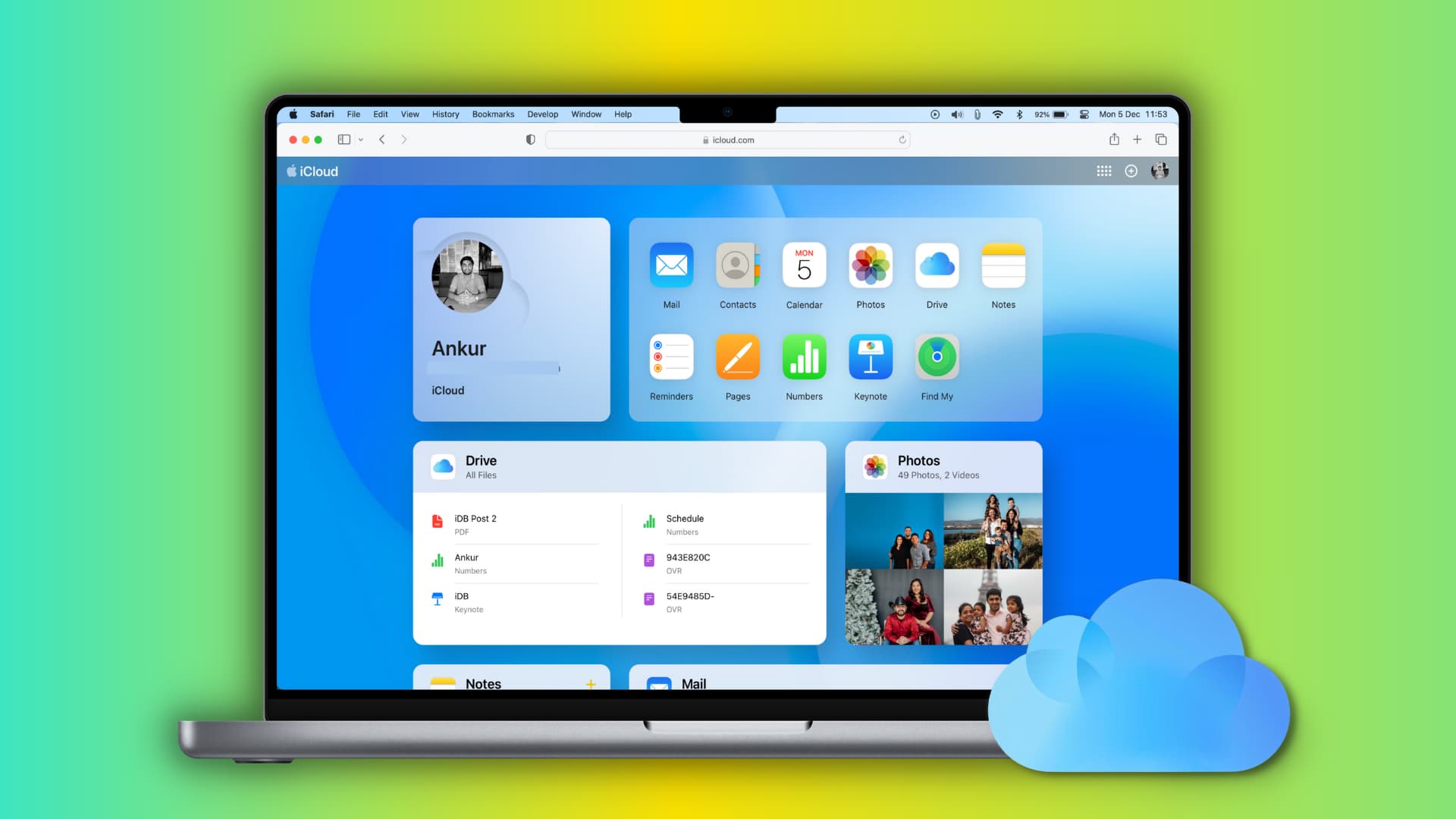
It’s worth noting iCloud.com, which offers web-based versions of several Apple applications like Pages, Numbers, Keynote, Mail, Photos, and Find My. These aren’t desktop applications running from iCloud; rather, they are web applications that run in your browser and interact with your data stored in iCloud. This provides a way to access and edit your documents and manage your data even if you’re not on your own Mac, or if you’re using a non-Apple device. They function like other Software-as-a-Service (SaaS) applications accessed via a web browser.
Beyond iCloud: Other “Cloud” Concepts and Software
The question “can I install software on iCloud on Mac” often stems from a broader confusion about different types of “cloud” services. It’s helpful to distinguish iCloud’s role from other cloud computing paradigms.
Cloud-Native Applications (SaaS) and Their Functionality
Many modern applications are “cloud-native” or delivered as Software-as-a-Service (SaaS). Examples include Google Workspace (Docs, Sheets, Gmail), Microsoft 365 online, Salesforce, or various project management tools.
- How they work: With SaaS, the application itself runs on the provider’s servers (in “the cloud”). You access it through a web browser or a lightweight client application on your local device. Your data is also stored in the cloud.
- Key difference from iCloud: Here, the application is running remotely, but it’s running on the software provider’s specialized infrastructure, not on a generic cloud storage service like iCloud. You don’t “install” the full application on your local OS in the traditional sense; you access a service. iCloud provides some SaaS-like functionality with iCloud.com apps, but its primary role isn’t hosting arbitrary third-party software.
Virtual Desktops and Remote App Streaming (Enterprise Context)
In professional and enterprise environments, you might encounter technologies that allow you to access a “virtual desktop” or stream applications from a remote server.
- How they work: Services like Amazon WorkSpaces, Microsoft Azure Virtual Desktop, or Citrix allow users to connect to a full desktop environment or specific applications that are running on powerful servers in a data center. The user’s local device acts as a “thin client,” merely displaying the output from the remote server and sending input back.
- Key difference from iCloud: These are sophisticated, enterprise-grade solutions designed for specific use cases (e.g., remote work, centralized application management). They involve complex server infrastructure and licensing models far beyond the scope of a personal cloud storage service like iCloud. They are about running software remotely, whereas iCloud is about storing and syncing data.
Distinguishing Personal Cloud Storage from Cloud Computing Platforms
It’s vital to differentiate between personal cloud storage services and full-fledged cloud computing platforms.
- Personal Cloud Storage (e.g., iCloud, Dropbox, Google Drive): These services focus on file storage, synchronization, and sharing for individual users or small teams. Their primary purpose is to make your data accessible and consistent across devices.
- Cloud Computing Platforms (e.g., AWS, Azure, Google Cloud Platform): These are vast infrastructures offering a wide array of services for developers and businesses, including virtual servers, databases, machine learning, and more. While you can deploy and run applications on these platforms, it requires significant technical expertise and is completely different from a consumer attempting to “install software on iCloud.”
Best Practices for Mac Users: Maximizing iCloud’s Potential
Armed with a clear understanding of iCloud’s capabilities, Mac users can adopt several best practices to leverage its full potential for enhanced productivity and data security.
Efficient Data Management and Storage Optimization
- Selective Sync: Not all your local folders need to be synced to iCloud Drive. Utilize the “Desktop & Documents Folders” sync judiciously. For very large files or folders that don’t need constant cloud access (e.g., archival data), consider local external storage or other specialized cloud backup services.
- Optimize Mac Storage: macOS offers an “Optimize Mac Storage” option (via Apple menu > About This Mac > Storage > Manage). When enabled, this feature can automatically store full-resolution photos and videos in iCloud Photos while keeping space-saving versions on your Mac. It can also move older email attachments and files from your Desktop and Documents folders (if synced) to iCloud when space is needed locally. This is a smart way to manage your Mac’s internal storage without sacrificing access to your files.
- Regular Cleanup: Periodically review your iCloud Drive folders and delete unnecessary files to manage your storage allocation, especially if you’re on a limited plan.
Ensuring Data Security and Privacy
- Strong Apple ID Security: Your iCloud is only as secure as your Apple ID. Always enable Two-Factor Authentication (2FA) for your Apple ID. This adds a critical layer of security, requiring a verification code sent to a trusted device in addition to your password.
- Review App Permissions: Be mindful of which third-party applications you grant access to your iCloud data. Review these permissions regularly in System Settings > Apple ID > iCloud > Apps Using iCloud.
- Understand End-to-End Encryption: Apple provides end-to-end encryption for certain data types (e.g., Keychain, Health data, Home data, Siri information if enabled) when stored in iCloud. For other data, Apple encrypts it in transit and at rest, but holds the encryption keys. If ultimate privacy is a concern for specific highly sensitive documents, consider client-side encryption before uploading to any cloud service.

Strategic Use of iCloud for App Ecosystem Integration
- Seamless Hand-off and Continuity: iCloud powers many of Apple’s Continuity features. Ensure you’re logged into the same Apple ID on all your devices to benefit from features like Handoff (starting an activity on one device and finishing it on another), Universal Clipboard (copying content on one device and pasting it on another), and unlocking your Mac with your Apple Watch.
- Utilize Native iCloud Apps: For basic document creation, spreadsheets, or presentations, lean into Pages, Numbers, and Keynote, especially with their tight iCloud integration. This ensures effortless syncing and collaboration across your devices and the web.
- Application Backups (Data, not Executables): For critical applications, understand where their user data and preferences are stored. Some apps use standard macOS folders (like Application Support) that might not be automatically synced to iCloud Drive. Ensure you have a separate backup strategy for these, such as Time Machine, to complement your iCloud usage.
In conclusion, while the idea of directly installing software on iCloud on your Mac is a fundamental misunderstanding of how cloud storage and operating systems interact, iCloud remains an incredibly powerful tool. By correctly utilizing its capabilities for data storage, synchronization, and backup, you can significantly enhance your workflow, ensure data accessibility, and maintain a robust digital environment across all your Apple devices. The key lies in understanding iCloud as a sophisticated data manager and connector, rather than a platform for running applications itself.
aViewFromTheCave is a participant in the Amazon Services LLC Associates Program, an affiliate advertising program designed to provide a means for sites to earn advertising fees by advertising and linking to Amazon.com. Amazon, the Amazon logo, AmazonSupply, and the AmazonSupply logo are trademarks of Amazon.com, Inc. or its affiliates. As an Amazon Associate we earn affiliate commissions from qualifying purchases.