
The term “Evil Maid” attack sounds like something out of a spy thriller, but in the realm of digital security, it represents a very real and potent threat. For users of Chromebooks—devices often touted for their “unbreakable” security—the question of whether such an attack can be successfully executed is of paramount importance. To understand if you can “install” an Evil Maid on a Chromebook, one must first look beyond the software and into the hardware-level defenses that Google has built into the ChromeOS ecosystem.
An Evil Maid attack occurs when an attacker gains physical access to a target’s device while it is unattended—typically in a hotel room (hence the name). The goal is to install a piece of persistent malware, such as a rootkit or a keylogger, that survives a reboot and allows the attacker to steal credentials or data later. In this guide, we will analyze the technical feasibility of this attack on Chromebooks, the security features that prevent it, and how users can safeguard their hardware.

The Anatomy of an Evil Maid Attack in the Modern Era
To understand the risk, we must first define the mechanics of the attack. Unlike remote hacking, which relies on phishing or network vulnerabilities, the Evil Maid attack is defined by physical proximity.
The Mechanism of Physical Compromise
In a traditional computing environment, such as a Windows laptop with a legacy BIOS, an attacker could insert a USB drive, boot from it, and modify the system’s bootloader. By the time the user returns and types in their password, a malicious “shim” is already running underneath the operating system, capturing every keystroke. This type of attack is particularly dangerous because it bypasses many traditional antivirus solutions that only run once the OS has already loaded.
Why the “Evil Maid” is a Persistent Threat
The primary objective of an Evil Maid attack is persistence. The attacker doesn’t just want to see your files once; they want to maintain access. On many laptops, this is achieved by tampering with the UEFI (Unified Extensible Firmware Interface) or the Master Boot Record (MBR). Once the firmware is compromised, the security of everything “above” it—the operating system, the applications, and the user data—is effectively voided.
ChromeOS Defense Mechanisms: Why Chromebooks Are Different
Chromebooks were designed from the ground up with the assumption that the hardware might be lost or accessed by unauthorized parties. Because of this, Google implemented several layers of protection that make a standard Evil Maid attack significantly more difficult than on a traditional PC.
Verified Boot: The Ultimate Gatekeeper
The centerpiece of Chromebook security is “Verified Boot.” Every time a Chromebook starts up, it performs a self-check. It uses a cryptographic signature to verify that the firmware, the kernel, and the system partition have not been altered. If a single bit of the system software has been changed by an “Evil Maid,” the TPM (Trusted Platform Module) will detect the mismatch. The device will then refuse to boot into the compromised OS and will instead present a “ChromeOS is missing or damaged” screen, or attempt a self-repair.
The Titan C and Security Chips
Modern Chromebooks often feature a custom-designed security chip, such as the Titan C or H1. This chip acts as the “Root of Trust.” It is responsible for protecting the encryption keys and ensuring that the Verified Boot process hasn’t been bypassed. Unlike a standard laptop where the CPU handles most tasks, the Titan chip provides a hardware-isolated environment that is incredibly resistant to tampering, even with physical access to the motherboard.
Read-Only Root Filesystem
On a standard Chromebook, the system partition is mounted as read-only. Even if an attacker were somehow able to gain access to the terminal, they would be unable to write permanent changes to the core OS files. This architectural choice ensures that any “installations” attempted by a malicious party would disappear or fail to execute upon a reboot.
Potential Vulnerabilities: Is an Evil Maid Attack Possible?
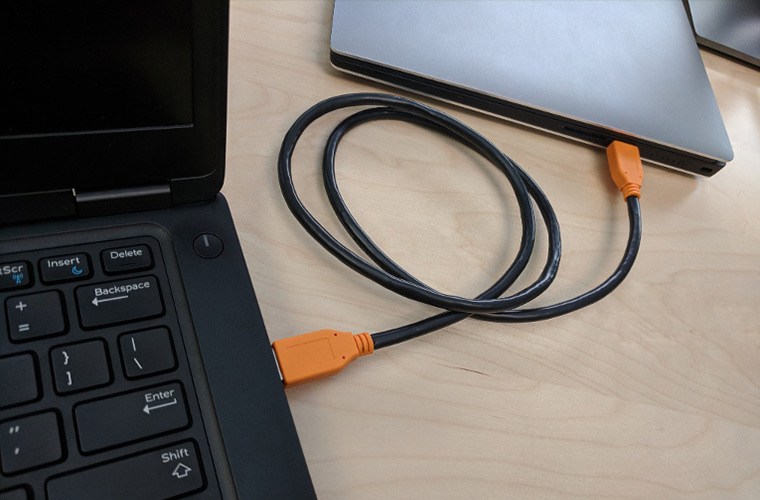
While Chromebooks are hardened, no system is 100% secure. There are specific scenarios where an Evil Maid attack—or a variation of it—could theoretically succeed.
The Risks of Developer Mode
The most common way to circumvent ChromeOS security is by enabling “Developer Mode.” When a user enables this, they explicitly tell the device to turn off Verified Boot. This allows the installation of custom kernels or even different operating systems like Linux.
If an attacker finds a Chromebook already in Developer Mode, or if they have enough time to enable it (which triggers a powerwash/wipe of user data), they could install a malicious bootloader. However, the “Scary Warning Screen” that appears every time a Chromebook boots in Developer Mode serves as a visual indicator to the user that the chain of trust has been broken. If you see that screen and didn’t enable it yourself, you know an “Evil Maid” has been at work.
Legacy BIOS and Custom Firmware
Some users choose to flash custom firmware (like those provided by the MrChromebox project) to run Windows or full Linux distributions on their Chromebook hardware. By replacing the Google-signed firmware with an open-source alternative like Coreboot or SeaBIOS, the user removes the Verified Boot protections. In this state, the Chromebook becomes just as vulnerable to Evil Maid attacks as any other laptop, as the hardware no longer checks for signatures before executing the boot code.
Firmware-Level Exploits and SMM Attacks
In rare, highly sophisticated scenarios, attackers might target the System Management Mode (SMM) or the firmware itself through specialized hardware tools (like a Bus Pirate or a CH341A programmer). By clipping a programmer directly onto the SPI flash chip on the motherboard, an attacker could attempt to write malicious code directly to the firmware. While the Titan C chip is designed to prevent this, researchers are constantly looking for low-level hardware bugs that could allow code execution before the security chip can intervene.
Strengthening Your Digital Perimeter: How to Protect Your Chromebook
Given that the “installation” of an Evil Maid attack on a Chromebook usually requires breaking the chain of trust, protection focuses on maintaining that trust and monitoring physical access.
1. Avoid Developer Mode for Sensitive Work
Unless you are a developer who specifically needs to modify the kernel, keep your Chromebook in its default, “Locked” state. This ensures that Verified Boot remains active. If you must use Linux, utilize the built-in “Crostini” (Linux Development Environment) feature, which runs Linux in a secure, sandboxed container without compromising the integrity of the host OS.
2. Utilize Hardware Security Keys
While an Evil Maid might try to install a keylogger, they cannot easily replicate a physical hardware security key (like a YubiKey). By requiring a physical touch on a USB key for logging into your Google account, you add a layer of authentication that exists outside the laptop’s software. Even if an attacker successfully captures your password, they cannot access your account without the physical key.
3. Firmware Write-Protect Screws and Software Locks
Older Chromebooks had a physical “write-protect” screw on the motherboard that prevented the firmware from being rewritten. Modern Chromebooks use a combination of battery-based write protection or specific CR50 (Titan C) commands. Ensure that your device’s firmware write protection is enabled. This prevents even an attacker with a USB-to-TTL cable from easily overwriting your firmware without disassembling the entire chassis and disconnecting the battery.
4. Physical Awareness and Visual Inspection
The simplest defense against an Evil Maid is physical security. Never leave your device unattended in insecure locations. Furthermore, get into the habit of inspecting your device. Does the case look like it was pried open? Does the “Developer Mode” warning screen appear unexpectedly? Are there any unfamiliar USB devices plugged into the ports? These are the “canaries in the coal mine” for physical tampering.

Conclusion: The State of ChromeOS Resilience
So, can you install an Evil Maid on a Chromebook? For the average user operating in the default “Verified” mode, the answer is a resounding “almost certainly not.” The combination of Verified Boot, hardware-based roots of trust, and read-only filesystems makes ChromeOS one of the most resilient platforms against physical tampering.
However, the “Tech” niche is a world of trade-offs. The moment a user prioritizes customization—by enabling Developer Mode or flashing custom firmware—they voluntarily dismantle these defenses. The “Evil Maid” thrives in the shadows of modified systems and unverified boot chains. By understanding these technical layers and maintaining the integrity of the device’s original security architecture, Chromebook users can rest easy knowing that their digital “home” is well-guarded against unwelcome guests.
aViewFromTheCave is a participant in the Amazon Services LLC Associates Program, an affiliate advertising program designed to provide a means for sites to earn advertising fees by advertising and linking to Amazon.com. Amazon, the Amazon logo, AmazonSupply, and the AmazonSupply logo are trademarks of Amazon.com, Inc. or its affiliates. As an Amazon Associate we earn affiliate commissions from qualifying purchases.