
Discovering mysterious “water drops” on your Google Chromebook screen can be an alarming sight. Is it a spill? Condensation? A manufacturing defect? Understanding the nature of these droplets and how to address them is crucial for maintaining the longevity and performance of your device. This guide delves into the common causes, immediate actions, and preventative measures concerning liquid anomalies on your Chromebook screen, ensuring you can tackle the issue effectively and professionally.
Identifying the Culprit: More Than Just Water
Before panicking, it’s essential to accurately diagnose what those “water drops” truly are. The appearance of liquid on a screen can stem from various sources, each requiring a distinct approach.

Actual Liquid Spills and Splashes
The most straightforward explanation is that liquid has indeed made contact with your screen. This could range from an accidental splash of coffee, a stray raindrop, or moisture from your fingers. Such spills are usually localized and visible on the surface. They might leave streaks or residue if not cleaned promptly, affecting screen clarity and touch responsiveness. For smaller, surface-level spills, immediate and careful cleaning is often sufficient, provided the liquid hasn’t seeped into the device’s internals.
Condensation: The Invisible Threat
Condensation occurs when warm, moist air comes into contact with a cooler surface, causing the water vapor in the air to turn into liquid droplets. This is particularly common if you move your Chromebook from a cold environment (e.g., outdoors in winter) to a warm, humid room. The screen, being a relatively thin and exposed surface, can cool rapidly and become a prime spot for condensation to form, often appearing as a fine mist or tiny, evenly distributed droplets. While seemingly benign, persistent or severe condensation can eventually lead to internal moisture build-up, potentially damaging sensitive electronic components over time. It’s a risk often overlooked but can be insidious.
Screen Protector Anomalies
Many users opt for screen protectors to safeguard their Chromebook displays. Sometimes, what appears to be water drops are actually issues related to the screen protector itself. This could include:
- Trapped Moisture: If the screen protector was applied in a humid environment or without thoroughly drying the screen, tiny pockets of moisture might get trapped underneath, resembling droplets.
- Air Bubbles: While usually appearing as distinct bubbles, very small or oddly shaped air pockets can sometimes mimic liquid.
- Delamination or Residue: Over time, the adhesive on some screen protectors can degrade, or a build-up of residue might occur at the edges, which might be mistaken for moisture. These issues are generally cosmetic and don’t pose a threat to the Chromebook’s internal components, but they do hinder visual clarity.
Internal Liquid Damage Indicators
The most concerning scenario is when liquid has penetrated the device’s chassis. Even if you only see “drops” on the screen, these could be indicators of a deeper problem. Common signs of internal liquid damage include:
- Discoloration under the screen: If the drops appear under the actual display layer, it indicates liquid has breached the sealed unit.
- Unresponsive keys or trackpad: Liquid reaching the keyboard or trackpad circuitry.
- Flickering screen or strange display artifacts: Moisture interfering with the display drivers or connections.
- Device failing to power on or unexpected shutdowns: Severe internal short circuits.
- Visible corrosion or residue around ports/vents: Direct evidence of liquid entry.
These are critical warning signs that require immediate action to prevent further damage.
Immediate Actions for Liquid Exposure
When you spot any form of liquid on or in your Chromebook, swift and correct action is paramount. The difference between a minor cleanup and a costly repair often hinges on your initial response.
Power Down and Disconnect
This is the absolute first step. Immediately hold down the power button until the Chromebook shuts off completely. Do not attempt to save files or close applications; prioritize cutting the power. Disconnect the charging cable, and remove any connected peripherals like USB drives or external mice. The goal is to stop the flow of electricity through potentially compromised circuits, which can cause short circuits and irreparable damage. Every second counts.
Gentle Cleaning for Surface Spills
For superficial spills or condensation on the screen’s exterior, gentle cleaning is effective.
- Use a Microfiber Cloth: Obtain a clean, soft, lint-free microfiber cloth. This type of cloth is designed to clean delicate surfaces without scratching.
- Dampen, Don’t Soak: Lightly dampen a corner of the cloth with distilled water. Never spray liquid directly onto the screen. For stubborn marks or greasy residue, a screen-specific cleaning solution designed for electronics can be used sparingly, applied to the cloth, not the screen.
- Wipe Gently: Wipe the screen in one direction, from top to bottom or side to side, applying minimal pressure. Avoid circular motions, which can smear instead of clean. Pay close attention to corners and edges where liquid might collect.
- Dry Thoroughly: Use a dry part of the microfiber cloth to gently buff away any remaining moisture or streaks until the screen is completely dry.
The Rice Myth vs. Professional Help
A common piece of advice for wet electronics is to bury them in rice. It’s crucial to understand that this is a myth and largely ineffective for modern electronics. While rice can absorb some moisture, it’s inefficient at drawing out liquid from complex internal components. Furthermore, rice dust can get into ports and cause more problems.
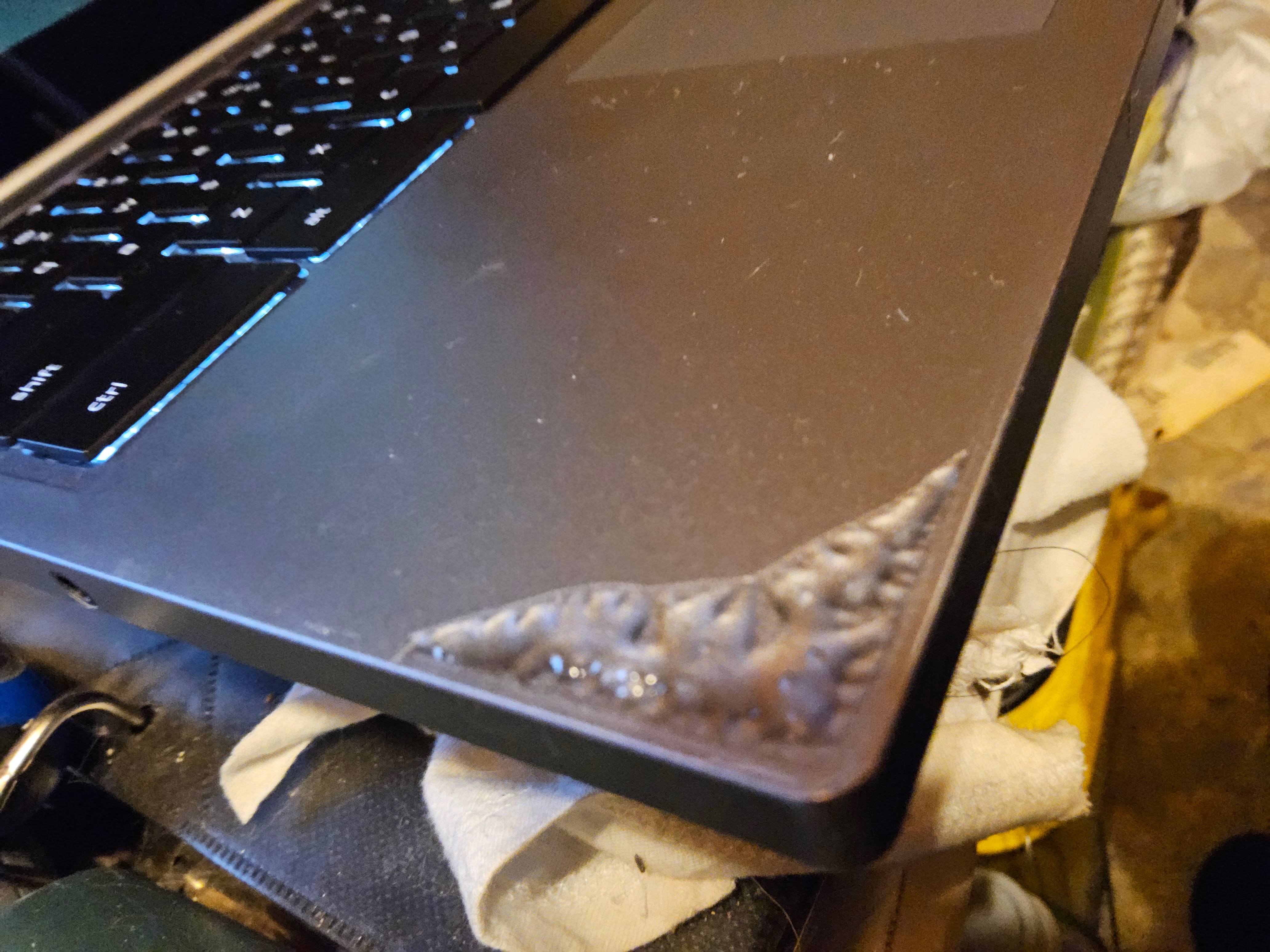
Instead, after powering down and gently wiping the exterior:
- Air Dry: Place the Chromebook in a dry, well-ventilated area for at least 24-48 hours. If possible, open it up to maximize airflow. Avoid direct sunlight or using a hairdryer, as excessive heat can cause additional damage.
- Seek Professional Help Immediately: If you suspect liquid has entered the device (flickering screen, unresponsive keys, power issues), your best course of action is to take it to a qualified repair technician as soon as possible. They have the tools and expertise to safely open the device, dry components, clean corrosion, and assess damage. Time is critical for preventing permanent corrosion.
Preventing Future Liquid Catastrophes
Prevention is always better than cure, especially when it comes to electronics and liquids. Adopting a few simple habits can significantly reduce the risk of accidental damage.
The “No Drinks Near Devices” Rule
This is perhaps the most fundamental and effective rule. Establish a strict policy of keeping all beverages (water, coffee, soda, etc.) away from your Chromebook. Use lidded containers if you must have a drink nearby, and place them on a separate, stable surface rather than directly beside or above your laptop. This simple habit eliminates a vast majority of spill risks.
Using Protective Gear
Investing in appropriate protective accessories can provide an extra layer of defense:
- Keyboard Covers: Silicone keyboard covers can prevent spills from reaching the internal components through the keyboard. While they might slightly alter typing feel, they offer excellent protection against drips and dust.
- Laptop Sleeves/Cases: A water-resistant laptop sleeve or case can protect your Chromebook from accidental splashes or light rain when transporting it. Ensure it’s made from a material that repels water rather than absorbs it.
- Desk Mats: A large, absorbent desk mat can help contain spills, preventing them from spreading directly under your device.
Environmental Awareness
Be mindful of the environments where you use your Chromebook:
- Humidity and Temperature: Avoid using your Chromebook in excessively humid environments (e.g., bathrooms, steamy kitchens) or moving it rapidly between extreme temperature changes, which can cause condensation. Allow the device to acclimate to a new temperature for a while before turning it on.
- Rain and Outdoors: If using your Chromebook outdoors, be aware of sudden weather changes. Keep it covered or bring it indoors immediately if it starts to rain.
- Clean Hands: Always ensure your hands are dry and clean before touching your screen to avoid leaving moisture or oily residue.
When Professional Intervention Is Necessary
While minor surface issues can be resolved at home, certain situations unequivocally call for expert assistance. Recognizing these scenarios can save your device from irreversible damage.
Diagnosing Persistent Issues
If, after initial drying and cleaning, your Chromebook exhibits any of the following symptoms, it’s time for professional diagnosis:
- Screen flickering, distorted colors, or dead pixels: Indicates damage to the display panel or its internal connections.
- Unresponsive touch screen or trackpad: Liquid ingress into the input devices’ circuitry.
- Keyboard malfunction: Specific keys not working, or multiple keys registering incorrectly.
- Charging issues: The device won’t charge, or the charging port feels loose/corroded.
- Speaker or microphone problems: Audio distortion or complete failure.
- Device not powering on, or frequent unexpected shutdowns: Suggests critical damage to the motherboard or power management components.
A professional technician can perform a comprehensive internal inspection, including removing the battery, checking for corrosion, and testing individual components.
Warranty Considerations and Repair Options
Most manufacturer warranties, including those for Google Chromebooks, do not cover accidental liquid damage. This is typically categorized under “user-induced damage” and voids the standard warranty. However, some retailers or Google itself might offer extended warranty plans or accidental damage protection (ADP) that do cover spills. Check your specific warranty details.
If your device isn’t covered, you’ll be looking at out-of-pocket repair costs. Repair options include:
- Authorized Service Centers: Google or its authorized partners can provide repairs using genuine parts, often with a warranty on the repair itself. This is usually the most reliable but potentially expensive option.
- Independent Repair Shops: These can sometimes offer more cost-effective solutions, but ensure they are reputable, experienced with Chromebooks, and use quality replacement parts.
Data Recovery After Catastrophic Damage
In severe cases where the Chromebook is beyond economical repair due to extensive liquid damage, the primary concern shifts to data recovery. Chromebooks typically store data in the cloud (Google Drive), but locally stored files (e.g., in the Downloads folder) can be lost. If you have critical local data, a professional data recovery specialist might be able to salvage it from the internal storage drive, provided the drive itself hasn’t been corrupted. Always prioritize cloud backups to mitigate this risk.
Maintaining Optimal Screen Clarity
Beyond addressing emergencies, consistent care plays a significant role in preventing the appearance of “water drops” or other visual nuisances. Regular, gentle cleaning with a microfiber cloth helps remove dust, fingerprints, and minor smudges that can accumulate and sometimes mimic liquid marks under certain lighting. By adhering to best practices for usage, protection, and maintenance, you can ensure your Google Chromebook screen remains pristine, extending its life and preserving your visual experience.
aViewFromTheCave is a participant in the Amazon Services LLC Associates Program, an affiliate advertising program designed to provide a means for sites to earn advertising fees by advertising and linking to Amazon.com. Amazon, the Amazon logo, AmazonSupply, and the AmazonSupply logo are trademarks of Amazon.com, Inc. or its affiliates. As an Amazon Associate we earn affiliate commissions from qualifying purchases.