
PowerShell has become an indispensable tool for system administrators, developers, and IT professionals across the globe. From automating routine tasks to managing complex cloud infrastructure, its capabilities are vast and ever-expanding. However, like any sophisticated software, PowerShell undergoes continuous development, leading to various versions and editions. Knowing which version of PowerShell you are currently running is not merely a piece of trivia; it’s a fundamental aspect of effective system management, ensuring compatibility, security, and access to the latest features.
This guide delves into the significance of understanding your PowerShell environment, provides practical methods for identifying your current version, and sheds light on the broader implications of version management in modern IT ecosystems.

The Critical Importance of Knowing Your PowerShell Version
In the dynamic world of technology, software versions play a crucial role in determining functionality, compatibility, and security. PowerShell is no exception. Overlooking the version of PowerShell you’re using can lead to a cascade of issues, from minor inconveniences to significant operational disruptions.
Compatibility and Script Execution
One of the most common challenges faced by PowerShell users is script compatibility. A script written for a newer version of PowerShell might leverage cmdlets, parameters, or language features that simply do not exist in an older version. Conversely, an older script might encounter deprecation warnings or outright failures when run on a modern PowerShell environment due to changes in cmdlet behavior or syntax.
For instance, Invoke-WebRequest in older Windows PowerShell versions had different default behaviors or parameter sets compared to its counterpart in PowerShell Core (PowerShell 7+). Attempting to run a script designed for one environment in another without checking versions can lead to unexpected errors, incomplete tasks, or even data corruption if not handled carefully. Knowing your version allows you to anticipate potential issues and adapt your scripts or environment accordingly, ensuring smooth and reliable automation.
Security Vulnerabilities and Patches
Software, regardless of its robustness, can contain vulnerabilities that attackers might exploit. Developers constantly release patches and updates to address these security gaps. Older versions of PowerShell, especially those no longer actively supported, are more susceptible to known vulnerabilities that have been fixed in subsequent releases. Running an outdated version can leave your systems exposed to potential attacks, data breaches, or unauthorized access.
Staying current with PowerShell versions, or at least understanding the security posture of your current version, is a critical component of a comprehensive cybersecurity strategy. It ensures that you benefit from the latest security enhancements, bug fixes, and mitigations against emerging threats.
Accessing New Features and Performance Enhancements
Each new major version of PowerShell introduces a wealth of new features, improved cmdlets, and performance optimizations. These enhancements can significantly boost productivity, simplify complex tasks, and open up new possibilities for automation and management. For example, PowerShell Core (versions 6 and higher) brought cross-platform capabilities, allowing scripts to run on Linux and macOS, along with significant performance improvements and new language constructs like pipeline chain operators (&& and ||).
If you’re stuck on an older version, you’re missing out on these advancements. Knowing your version helps you identify opportunities to upgrade your environment, leverage cutting-edge tools, and write more efficient, powerful, and modern scripts. It’s about empowering your work with the best tools available.
Troubleshooting and Support
When encountering an issue with a PowerShell script or an administrative task, one of the first questions asked by support forums or documentation is, “What version of PowerShell are you using?” This information is crucial for diagnosing problems accurately. Different versions might exhibit unique bugs, behave differently under specific conditions, or have distinct workarounds.
Providing your PowerShell version upfront streamlines the troubleshooting process, enabling you to receive more relevant and effective assistance. It helps differentiate between a known issue specific to a particular version and a unique problem in your environment, saving valuable time and effort.
Practical Methods to Check Your PowerShell Version
Identifying your PowerShell version is a straightforward process, but the exact method can depend on whether you are using Windows PowerShell (the traditional version bundled with Windows) or PowerShell Core (the cross-platform, open-source version, also known as PowerShell 7+).
Using the $PSVersionTable Automatic Variable
The most comprehensive and recommended method to check your PowerShell version and related environment details is by querying the $PSVersionTable automatic variable. This variable is a hash table that contains detailed information about the current PowerShell session.
To use it, open a PowerShell console (either Windows PowerShell or PowerShell Core) and type:
$PSVersionTable
The output will typically look like this:
Name                           Value
----                           -----
PSVersion                      7.3.6
PSEdition                      Core
GitCommitId                    7.3.6
OS                             Microsoft Windows 10.0.19045
Platform                       Win32NT
PSCompatibleVersions           {1.0, 2.0, 3.0, 4.0…}
PSRemotingProtocolVersion      2.3
SerializationVersion           1.1.0.1
WSManStackVersion              3.0
Key entries to look for:
PSVersion: This is the core version of PowerShell you are running. In the example above, it’s7.3.6.PSEdition: This tells you whether you’re runningDesktop(for Windows PowerShell) orCore(for PowerShell 6+).Platform: Indicates the operating system platform.OS: Provides details about the underlying operating system.
This single command gives you a wealth of information, making it the go-to method for most users.
The Get-Host Cmdlet
Another quick way to get the primary version number is by using the Get-Host cmdlet. This cmdlet retrieves information about the current host program that is running PowerShell.
Run the following command:
Get-Host
The output will show several properties, including Version:
Name             : ConsoleHost
Version          : 5.1.19041.3636
InstanceId       : a7b1c2d3-e4f5-6g7h-8i9j-0k1l2m3n4o5p
UI               : System.Management.Automation.Internal.Host.InternalHostUserInterface
CurrentCulture   : en-US
CurrentUICulture : en-US
PrivateData      : Microsoft.PowerShell.ConsoleHost+ConsoleColorProxy
Debug            : False
Error            : False
Progress         : False
Verbose          : False
Warning          : False
RawUI            : System.Management.Automation.Internal.Host.InternalHostRawUserInterface
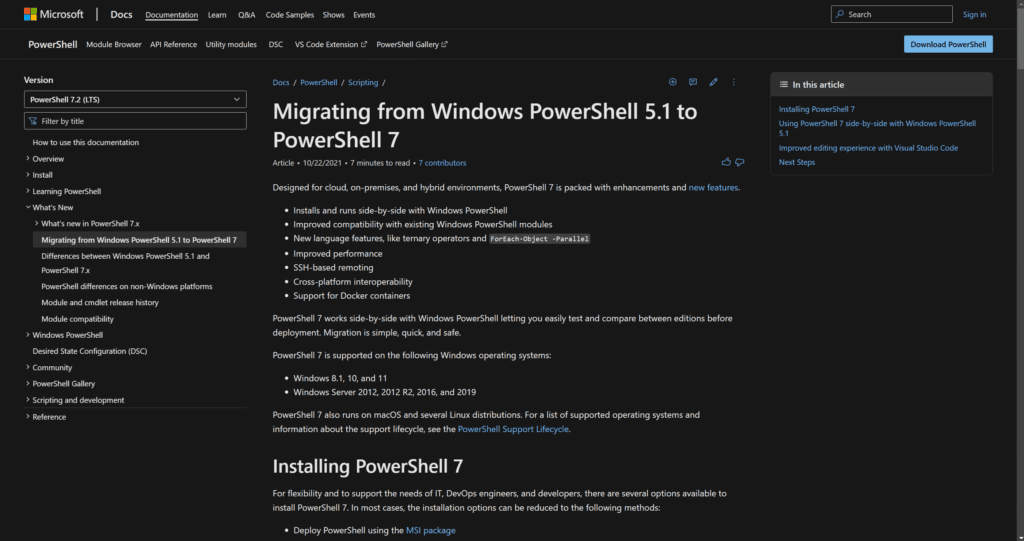
In this example, the Version property shows 5.1.19041.3636. For Windows PowerShell, the major version is typically 5.1. For PowerShell Core (PowerShell 6+), this would reflect the 7.x.x version.
If you only need the version number itself, you can directly access the Version property:
(Get-Host).Version
This will output just the version number, like 5.1.19041.3636 or 7.3.6.
Locating the Executable File
While not the primary method for most users, examining the PowerShell executable file itself can also reveal version information, especially if you’re trying to distinguish between multiple installations or understand how PowerShell was launched.
- For Windows PowerShell: The executable is typically located at
C:WindowsSystem32WindowsPowerShellv1.0powershell.exe. - For PowerShell Core (PowerShell 7+): The executable is usually found at
C:Program FilesPowerShell7pwsh.exe(the “7” might change based on the major version).
You can right-click the powershell.exe or pwsh.exe file, go to “Properties,” then the “Details” tab to see the “Product version” and “File version.” This method is more manual but can be useful in specific troubleshooting scenarios.
Understanding PowerShell Versioning Schemes
PowerShell’s evolution has led to a split in its development and versioning, which is important to comprehend for clear communication and effective management.
Windows PowerShell vs. PowerShell Core (PowerShell 7+)
Historically, PowerShell (often referred to as Windows PowerShell) was an integral part of Windows operating systems. Its versioning closely aligned with Windows releases, with version 5.1 being the last major release bundled with Windows 10 and Windows Server 2016/2019. Windows PowerShell relies on the .NET Framework and is generally limited to Windows platforms. Development for Windows PowerShell has largely ceased, with maintenance updates typically tied to Windows updates.
In 2016, Microsoft open-sourced PowerShell and began developing it as a cross-platform tool. This new iteration, initially called PowerShell Core, started with version 6.0 and is now simply referred to as PowerShell (or PowerShell 7+ to distinguish it from older Windows PowerShell). PowerShell 7+ is built on .NET (now .NET 6/7/8, formerly .NET Core) and runs on Windows, Linux, and macOS. This modern version is where all active development, new features, and performance enhancements are focused.
When checking your version, the PSEdition entry from $PSVersionTable (either Desktop for Windows PowerShell or Core for PowerShell 6+) is crucial for distinguishing between these two distinct lines of PowerShell.
Semantic Versioning (Major.Minor.Patch)
PowerShell 6.0 and later versions adhere to semantic versioning (Major.Minor.Patch).
- Major version (e.g., 7.x.x): Indicates significant changes, potentially breaking changes, and major feature additions.
- Minor version (e.g., x.3.x): Adds new features in a backward-compatible manner.
- Patch version (e.g., x.x.6): Contains backward-compatible bug fixes and minor improvements.
Understanding this scheme helps you gauge the impact of an upgrade. A change in the major version signifies a potentially larger shift in functionality or compatibility, while a patch version update is typically safe and recommended for security and stability.
Long-Term Servicing (LTS) vs. Stable Releases
PowerShell Core (PowerShell 6+) also offers different release channels:
- Long-Term Servicing (LTS): These versions receive support for a longer period, typically aligned with .NET LTS releases, making them suitable for production environments requiring stability and predictable support cycles. For example, PowerShell 7.0 and 7.2 were LTS releases.
- Stable (Non-LTS): These versions introduce new features more frequently but have shorter support lifetimes. They are suitable for users who want to leverage the latest features as soon as they are available, or for development and testing environments.
Knowing your version allows you to determine if you are on an LTS track or a regular stable release, which has implications for support and upgrade planning.
Upgrading Your PowerShell Environment
Once you know your version, you might consider upgrading to leverage new features, enhance security, or ensure compatibility with modern scripts.
Benefits of Upgrading to PowerShell 7+
Upgrading to PowerShell 7 or a later version of PowerShell Core brings numerous advantages:
- Cross-Platform Compatibility: Run your scripts on Windows, Linux, and macOS, ideal for heterogeneous environments and cloud-native development.
- Performance Improvements: Significant speed enhancements for various operations compared to Windows PowerShell.
- New Language Features: Access to modern C# features and PowerShell-specific additions like null-coalescing operators, simplified error views, and an enhanced
ForEach-Object -Parallelcmdlet. - Enhanced Remoting: Improved SSH-based remoting capabilities.
- Modern .NET Support: Built on the latest .NET versions, providing access to newer .NET APIs and better integration with modern applications.
- Active Development: All new features and most bug fixes are concentrated in PowerShell 7+.
Upgrading Windows PowerShell (System Dependent)
Windows PowerShell 5.1 is the latest version available through Windows Update for older Windows operating systems. If you are on an older Windows PowerShell version (e.g., 2.0, 3.0, 4.0), you might need to install Windows Management Framework (WMF) updates to get to 5.1. However, Microsoft’s focus has shifted away from Windows PowerShell development. The recommended path forward is to install PowerShell 7+ side-by-side with Windows PowerShell.
Upgrading PowerShell 7+ (PowerShell Core)
Upgrading PowerShell 7+ is generally straightforward:
- Direct Download: Download the latest stable or LTS release from the official GitHub releases page or the Microsoft Download Center.
- Package Managers:
- Windows: Use
winget(Windows Package Manager) orChoco(Chocolatey).
powershell

winget install --id Microsoft.PowerShell --source winget

# Or for Chocolatey

choco install powershell-core
- Linux: Follow distribution-specific instructions, often involving
aptoryumrepositories. - macOS: Use Homebrew.
bash

brew install powershell/powershell/powershell
PowerShell 7+ installations are typically side-by-side, meaning they don’t overwrite Windows PowerShell 5.1. This allows you to have both versions installed and choose which one to use.
- Windows: Use
Best Practices for Upgrading
Before upgrading, especially in production environments:
- Test Compatibility: Thoroughly test your existing scripts with the new PowerShell version in a non-production environment.
- Backup: Ensure you have proper backups of your system and any critical scripts.
- Read Release Notes: Review the release notes for the new version to understand breaking changes, new features, and known issues.
- Plan Downtime: If the upgrade impacts critical services, plan for appropriate downtime.
The Future of PowerShell
PowerShell continues to evolve as a powerful, versatile, and cross-platform automation and configuration management framework. Its open-source nature fosters a vibrant community and rapid development cycles, ensuring it remains at the forefront of IT automation.
The emphasis on cross-platform capabilities, integration with cloud services, and ongoing performance improvements solidifies PowerShell’s position as a critical skill for any IT professional. By understanding your current PowerShell version and embracing the latest iterations, you not only ensure operational efficiency and security but also empower yourself with the tools needed to navigate the complexities of modern technological landscapes. Regularly checking your version and planning for strategic upgrades will keep your automation workflows robust, secure, and ready for future challenges.
aViewFromTheCave is a participant in the Amazon Services LLC Associates Program, an affiliate advertising program designed to provide a means for sites to earn advertising fees by advertising and linking to Amazon.com. Amazon, the Amazon logo, AmazonSupply, and the AmazonSupply logo are trademarks of Amazon.com, Inc. or its affiliates. As an Amazon Associate we earn affiliate commissions from qualifying purchases.