
Managing digital subscriptions is a ubiquitous part of modern life, and for millions, YouTube TV stands as a primary portal to live television and on-demand content. Like any service dependent on recurring payments, ensuring your billing information is current and accurate is paramount to uninterrupted access. This guide delves into the technical process of updating your payment method on YouTube TV, outlining the steps, common pitfalls, and best practices within the broader context of digital subscription management and security.
Understanding YouTube TV’s Billing Ecosystem
At its core, YouTube TV’s billing is integrated directly into the broader Google payments infrastructure. This means that any payment method associated with your Google account can potentially be used for YouTube TV, and changes made in one place often propagate across other Google services. Understanding this interconnectedness is key to effective management.
Why Updating Your Payment Method is Crucial
The primary reason to update your payment method is to prevent service disruption. An expired credit card, a compromised debit card, or a bank account change can lead to immediate suspension of your YouTube TV subscription. Beyond service continuity, keeping your payment details current is a security measure. Old, inactive cards linked to your account can pose a minor risk if forgotten, while updating ensures only active, controlled payment instruments are associated with your digital presence. Furthermore, managing multiple subscriptions through a single, preferred payment method simplifies personal finance tracking and digital budgeting.
Common Scenarios for Payment Updates
Users typically find themselves needing to update their payment information due to several common scenarios. These include the expiration of a credit or debit card, receiving a new card due to fraud protection or bank replacement, changing banks, or simply wanting to switch to a different payment method for convenience or rewards optimization. Less common but equally important scenarios involve setting up a new primary card after cancelling an old one, or adding a secondary payment method as a backup to prevent service interruptions if the primary method fails. Each scenario underscores the necessity of a flexible and accessible payment management system within the application.
Payment Methods Accepted by Google
Google’s payment system, Google Pay, is designed to be highly versatile, accepting a wide array of payment methods globally. For YouTube TV, this typically includes major credit cards (Visa, MasterCard, American Express, Discover, JCB), various debit cards, and in some regions, direct carrier billing or PayPal. The specific options available can vary by country and region, reflecting local financial infrastructures and partnerships. It’s important to verify the accepted payment methods directly within your Google Pay settings if you’re considering an entirely new type of payment, ensuring compatibility before attempting to link it.
Step-by-Step Guide to Updating Your Payment Information
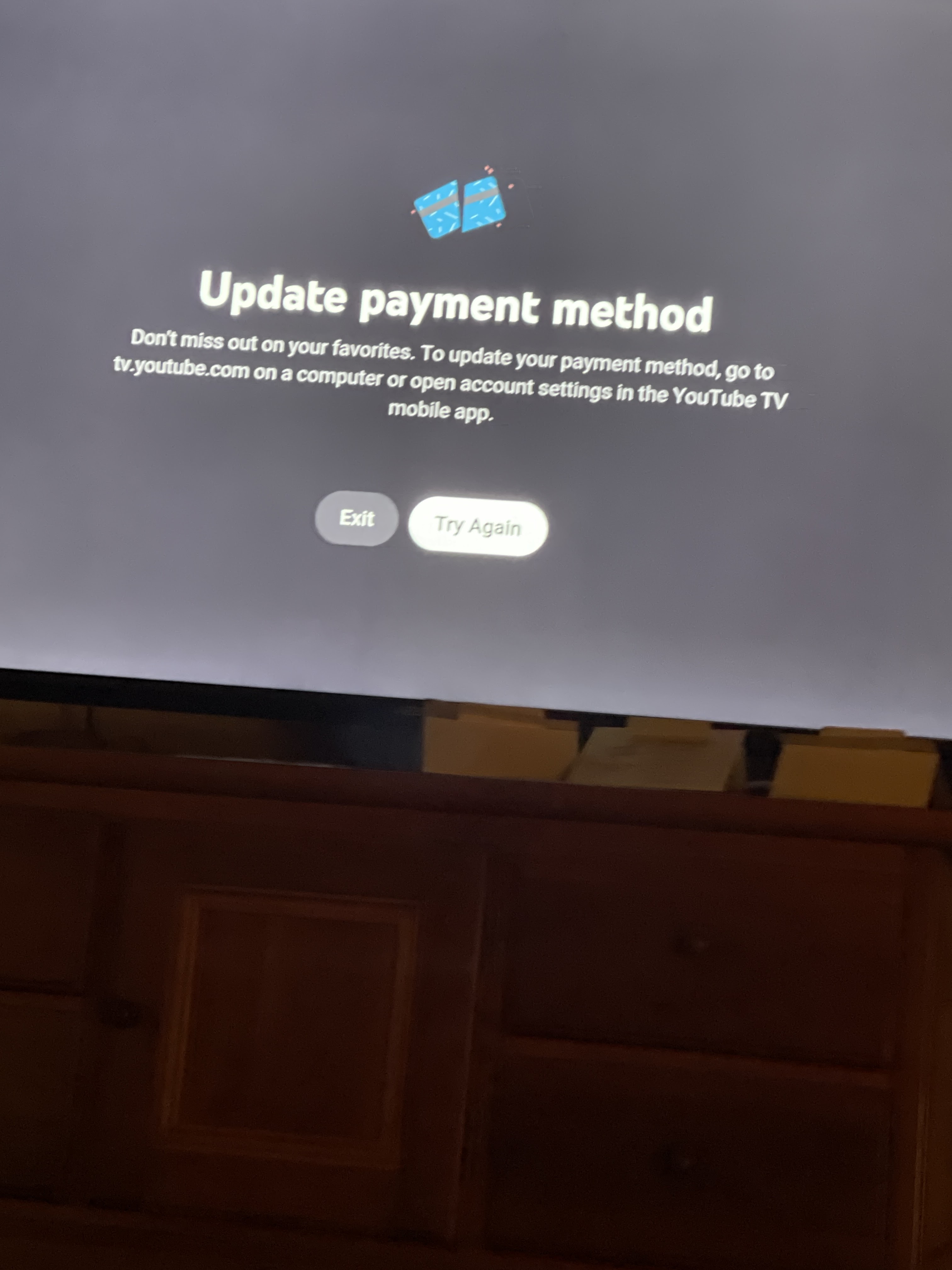
The process of updating your payment method for YouTube TV is primarily managed through your Google Account settings, rather than directly within the YouTube TV application interface. This centralized approach streamlines management for all Google services.
Accessing Your Google Account
The journey begins by logging into the Google Account associated with your YouTube TV subscription. This can be done via a web browser on a computer or mobile device.
- Open a web browser: Navigate to
myaccount.google.com. - Sign In: If you are not already signed in, enter your Google email address or phone number and then your password. Ensure you are logging into the exact Google Account that holds your YouTube TV subscription. If you manage multiple Google accounts, double-check that you’ve selected the correct one.
- Security Check (if prompted): Google may ask for a two-factor authentication code or other verification steps, especially if you’re logging in from a new device or location. Complete these steps to proceed securely.
Navigating to Subscriptions & Services
Once you are securely logged into your Google Account, you need to locate the section dedicated to payments and subscriptions.
- Find “Payments & subscriptions”: On the left-hand navigation panel (or often under a menu icon on mobile), locate and click on “Payments & subscriptions.” This section consolidates all financial activities related to your Google services.
- Select “Manage payment methods”: Within the “Payments & subscriptions” section, you’ll see options like “Manage payment methods,” “Manage purchases,” and “Manage subscriptions.” Click on “Manage payment methods.” This will take you to the Google Pay interface, which handles all saved payment instruments.
- Identify YouTube TV subscription: While in Google Pay, you can also often see a list of your active subscriptions under a separate tab or section. Look for your YouTube TV subscription to confirm it’s linked to the account you’re currently managing.
Modifying Payment Details for YouTube TV
The Google Pay interface allows you to add new cards, edit existing ones, or remove old ones.
- Add a new payment method: If you wish to use a completely new card or bank account, look for an option like “Add payment method” or “Add a card.” You will be prompted to enter the card number, expiration date, CVV, and billing address. For bank accounts, you might need routing and account numbers.
- Edit an existing payment method: If you’re updating an expired card with the same account number, or simply correcting a detail, find the existing card entry. Click on “Edit” (often represented by a pencil icon or a dropdown menu next to the card). You can then update the expiration date or billing address. For security reasons, you generally cannot change the card number itself; you would need to add a new card if the number has changed.
- Set as primary: After adding or editing a card, ensure it is designated as the primary payment method for your YouTube TV subscription. Sometimes, you might need to go back to the “Manage subscriptions” section within “Payments & subscriptions” and specifically select YouTube TV to change its associated payment method. Look for the YouTube TV entry, click “Manage,” and then select your newly updated or preferred payment method from the available options.
- Confirm and Save: Always confirm your changes and save them. Google’s system typically requires you to confirm these actions to ensure accuracy and prevent accidental modifications.
Verifying the Update
After making changes, it’s prudent to verify that the update has been successful and correctly applied.
- Check Google Pay: Revisit the “Manage payment methods” section in your Google Account to see the updated payment information clearly listed.
- Check YouTube TV settings: Although most payment management happens through Google Account, you can often see the currently active payment method for YouTube TV directly within the YouTube TV app settings (Settings > Membership > Manage). Confirm that the correct payment method is displayed there.
- Monitor next billing cycle: Keep an eye on your next billing statement or notification from YouTube TV to ensure the charge goes through successfully with the new payment method. This is the ultimate confirmation of a successful update.
Troubleshooting Common Payment Update Issues
While the process is generally straightforward, users can encounter issues. Understanding common problems and their solutions can save time and frustration.
Expired Cards and Insufficient Funds
These are the most frequent causes of payment failure. An expired card will automatically be rejected by the payment gateway. Similarly, if your bank account or credit limit does not cover the subscription cost, the transaction will fail.
- Solution: For expired cards, follow the steps above to edit the existing card with the new expiration date or add the new card. For insufficient funds, ensure your account has enough balance before the next billing attempt. Consider linking a backup payment method.
Incorrect Card Details and Billing Addresses
Even a single digit off in a card number or an incorrect zip code can cause a transaction to be declined. The billing address associated with your payment method must match the address on file with your bank or credit card company.
- Solution: Carefully re-enter all card details. Double-check the card number, expiration date, and CVV. Verify your billing address against your bank statement. Minor discrepancies, especially in apartment numbers or street suffixes, can lead to rejections.
Browser and Device-Specific Glitches
Occasionally, browser caches, old cookies, or specific browser extensions can interfere with web forms and payment processing. Device issues, such as an unstable internet connection, can also cause problems.
- Solution: Try clearing your browser’s cache and cookies. Attempt the update in an incognito/private browsing window or a different browser entirely. If on a mobile device, try using a desktop computer or vice versa. Ensure you have a stable internet connection.
When to Contact Google Support
If you’ve exhausted all troubleshooting steps and are still unable to update your payment method, it’s time to contact Google Support.
- How to contact: Visit
support.google.comand search for “YouTube TV” or “Google Pay” support. Look for options to chat with a representative, call, or email. Be prepared to provide your Google Account details and a clear description of the issue you’re experiencing. Google support can often provide specific insights into why a particular payment method might be failing or guide you through more complex account-related issues.
Enhancing Your Subscription Management Experience
Beyond the immediate task of updating a payment method, adopting broader strategies for managing your digital subscriptions can lead to a smoother, more secure experience.
Setting Up Backup Payment Methods
One of the most effective ways to prevent service interruptions is to set up a backup payment method. Google Pay allows you to add multiple payment instruments to your account. By designating a secondary card or bank account, YouTube TV can automatically attempt to charge the backup method if the primary one fails. This redundancy is invaluable for maintaining continuous service and peace of mind.
Reviewing Your Billing History
Regularly reviewing your billing history through your Google Account provides transparency and helps in identifying any unauthorized charges or discrepancies. Accessing myaccount.google.com and navigating to “Payments & subscriptions” will allow you to view all past transactions, ensuring you are only paying for services you actively use. This practice is crucial for maintaining financial health in a subscription-heavy digital landscape.
Understanding Your Next Billing Date
Knowing your next billing date is not just about financial planning; it’s also a technical awareness point. If you update your payment method close to the billing cycle, ensuring the new method is valid and set as primary before that date prevents any potential failed payment attempts. This information is typically available within your YouTube TV settings under the membership details section or within your Google Account’s subscriptions management.
Security Best Practices for Online Payments
Securing your online payments goes hand-in-hand with managing your payment methods. Always use strong, unique passwords for your Google Account and enable two-factor authentication (2FA). Be wary of phishing attempts that try to trick you into revealing your payment details. Regularly check your bank and credit card statements for suspicious activity. Using secure Wi-Fi networks when accessing financial information is also critical, as public networks can be vulnerable to data interception.
The Broader Implications of Digital Subscription Management
The ability to seamlessly update payment methods for services like YouTube TV highlights the sophisticated technological infrastructure underpinning modern digital commerce and subscription services. This isn’t just a simple form fill; it’s a testament to secure, interoperable systems.
The Ecosystem of Google Services
The integration of YouTube TV’s billing with Google Pay underscores Google’s broader strategy of creating a unified digital ecosystem. For users, this means convenience: one account, one payment hub for a multitude of services, from YouTube Premium to Google Drive storage. For Google, it means enhanced data for service personalization and a more robust payment processing system capable of handling vast volumes of transactions securely. This integrated approach, while convenient, also places a premium on the security of the single Google Account, making its protection paramount.
Data Security in Subscription Management
Every interaction with payment details online, including updates, relies on robust data encryption and secure server protocols. When you update your card information, that data is transmitted and stored using industry-standard encryption (like TLS/SSL) and often tokenization, where sensitive card numbers are replaced with unique, randomly generated identifiers. This minimizes the risk of your actual card details being compromised in the event of a data breach, reflecting significant advancements in digital security infrastructure specific to payment processing.
Future Trends in Digital Payments for Streaming Services
Looking ahead, the landscape of digital payments for streaming services like YouTube TV is likely to evolve further. Expect increasing adoption of biometric authentication for purchases, more seamless integration with digital wallets beyond traditional card details, and potentially even decentralized payment options. As technology progresses, the act of updating a payment method will likely become even more intuitive, secure, and integrated into our daily digital interactions, continually pushing the boundaries of user experience and cybersecurity. Staying informed about these trends is part of being an empowered digital consumer.
aViewFromTheCave is a participant in the Amazon Services LLC Associates Program, an affiliate advertising program designed to provide a means for sites to earn advertising fees by advertising and linking to Amazon.com. Amazon, the Amazon logo, AmazonSupply, and the AmazonSupply logo are trademarks of Amazon.com, Inc. or its affiliates. As an Amazon Associate we earn affiliate commissions from qualifying purchases.