
Microsoft Office remains an indispensable suite of productivity tools for individuals, students, and businesses worldwide. From crafting compelling presentations with PowerPoint to crunching numbers in Excel and composing professional documents in Word, Office empowers users to achieve their goals efficiently. However, the process of installing it can sometimes feel like navigating a digital maze. This comprehensive guide aims to demystify the installation process, offering clear, step-by-step instructions to get Microsoft Office up and running on your devices, regardless of your technical expertise. We’ll explore different versions, acquisition methods, and common troubleshooting tips, ensuring you can harness the full power of this essential software.

Understanding Your Microsoft Office Options
Before diving into the installation itself, it’s crucial to understand the various ways you can acquire and use Microsoft Office. Microsoft has evolved its offerings significantly over the years, providing flexibility to cater to diverse user needs and budgets. The primary distinctions lie between one-time purchase perpetual licenses and recurring subscription-based services.
Perpetual License vs. Microsoft 365 Subscription
The traditional way to own Microsoft Office was through a perpetual license. This model, often referred to as “Office Home & Business” or “Office Professional,” involved a single upfront payment for a specific version of Office (e.g., Office 2019, Office 2021). Once purchased, you owned that version indefinitely. However, this also meant you wouldn’t receive major feature updates, only security patches. While still available, Microsoft is increasingly shifting its focus towards its subscription service.
The modern and most recommended approach is Microsoft 365. This is a subscription service that provides access to the latest versions of Office applications, along with a host of additional benefits. With a Microsoft 365 subscription, you’ll always have access to the newest features, receive regular updates, and often gain access to cloud services like OneDrive storage and Skype minutes. Microsoft 365 comes in various plans, including:
- Microsoft 365 Personal: Designed for individuals, offering access for one person across multiple devices (PCs, Macs, tablets, and phones).
- Microsoft 365 Family: Allows you to share your subscription with up to five other family members, providing each with their own cloud storage and access across their devices.
- Microsoft 365 Business Basic/Standard/Premium: Tailored for organizations of all sizes, offering collaboration tools, cloud services, and enhanced security features.
Choosing between these options depends on your usage patterns, the number of devices you need to cover, and whether you prefer continuous updates and cloud integration. For most users seeking the latest features and ongoing support, Microsoft 365 is the preferred choice.
Acquiring Your Microsoft Office License
There are several legitimate avenues to obtain your Microsoft Office license:
- Microsoft Store (Online): The official Microsoft website is the most direct and secure way to purchase both perpetual licenses and Microsoft 365 subscriptions. You can browse different plans, compare features, and complete your purchase with confidence.
- Authorized Retailers: Many reputable electronics stores and online marketplaces (e.g., Best Buy, Amazon) sell Microsoft Office product keys or pre-loaded installation media. Ensure you are purchasing from an authorized seller to avoid counterfeit products.
- Educational Institutions: Students and educators often qualify for discounted or even free access to Microsoft Office through their school or university. Check with your institution’s IT department for eligibility and access instructions.
- Employer: Many businesses provide Microsoft Office as part of their employee benefits package. Your company’s IT department can guide you on how to access and install the software.
Important Note: Be wary of extremely low-priced Office licenses from unofficial sources. These are often illegitimate, may be pirated, or could lead to security risks. Always prioritize purchasing from trusted channels.
Step-by-Step Installation Guide
Once you have your Microsoft Office license or subscription, the installation process is generally straightforward. The exact steps may vary slightly depending on the version of Office and your operating system (Windows or macOS), but the core principles remain the same.
For Microsoft 365 Subscriptions
If you have a Microsoft 365 subscription, the installation is typically managed through your Microsoft account.
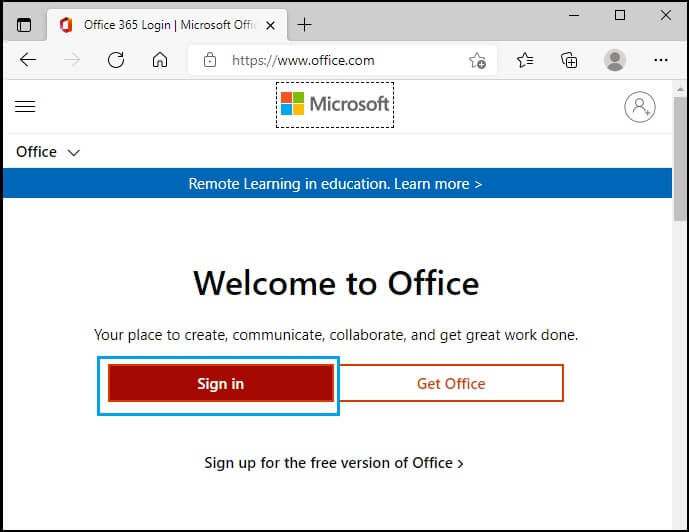
- Visit the Microsoft 365 Portal: Open a web browser and navigate to www.office.com. You will be prompted to sign in with the Microsoft account associated with your subscription. If you don’t have one, you’ll need to create one.
- Sign In: Enter your Microsoft account email address and password.
- Install Office: After signing in, you should see an option to “Install Office” or a similar prompt. Click on this.
- Select Your Version: Microsoft 365 usually offers the latest version of Office. You might be given an option to choose between 32-bit and 64-bit versions. For most modern computers, the 64-bit version is recommended for better performance.
- Download the Installer: Clicking “Install” will download a small setup file to your computer.
- Run the Installer: Locate the downloaded file (usually in your “Downloads” folder) and double-click it to start the installation process.
- Follow On-Screen Prompts: The installer will guide you through the remaining steps. You may be asked to confirm permissions or accept the license terms. Microsoft 365 installations often run in the background, downloading and installing the applications seamlessly.
- Activation: Once the installation is complete, open any Office application (e.g., Word). You will likely be prompted to sign in again with your Microsoft account to activate your subscription. This step confirms your subscription and unlocks all the features.
For Perpetual License Versions (e.g., Office 2021)
If you purchased a perpetual license, you likely received a product key. The installation process will involve using this key.
- Visit the Microsoft Office Setup Page: Open a web browser and go to setup.office.com.
- Sign In or Create a Microsoft Account: You will be asked to sign in with your Microsoft account. If you don’t have one, you can create one. This account will be linked to your Office purchase.
- Enter Your Product Key: On the setup page, you will find a field to enter your 25-character product key. This key is usually found on the packaging of your purchased Office product or in your email confirmation if purchased digitally.
- Redeem Your Product Key: After entering the key, click “Redeem.” Microsoft will verify your key and associate it with your Microsoft account.
- Download the Installer: Once redeemed, you will be presented with an option to download the Office installer specific to your purchased version.
- Run the Installer: Locate the downloaded file and double-click it.
- Follow On-Screen Prompts: The installer will guide you through the installation. Accept the license terms and choose your installation preferences if prompted.
- Activation: After installation, open any Office application. You will be prompted to sign in with the Microsoft account you used to redeem your product key. This will activate your perpetual license.

Installing Office on Different Devices
Microsoft Office is designed to be cross-platform, allowing you to install and use it on various devices to maintain your productivity wherever you are.
Installing on Windows PCs
The steps outlined above for Microsoft 365 and perpetual licenses are primarily for Windows PCs. Ensure your Windows operating system is up to date for the best compatibility.
Installing on macOS
The process for installing Office on a Mac is very similar, with a few minor differences:
- Sign In to Office.com: Go to www.office.com and sign in with your Microsoft account (for Microsoft 365) or the account used to redeem your perpetual license.
- Click “Install Office”: Select the “Install Office” option.
- Download the Mac Installer: A DMG file specific for macOS will be downloaded.
- Open the DMG File: Locate the downloaded file and double-click it to open the installer package.
- Run the Installer: Double-click the “Install Office” application within the opened window.
- Follow On-Screen Prompts: The installer will guide you through the process, including accepting license agreements.
- Activation: After installation, open an Office application. You’ll be prompted to sign in with your Microsoft account to activate.
Installing on Mobile Devices (iOS and Android)
Microsoft offers free mobile versions of Word, Excel, and PowerPoint for iOS and Android devices. While these versions have a more limited feature set compared to their desktop counterparts, they are incredibly useful for viewing and making quick edits on the go.
- Download the Apps: Open the App Store (iOS) or Google Play Store (Android) on your device.
- Search for the Apps: Search for “Microsoft Word,” “Microsoft Excel,” and “Microsoft PowerPoint.”
- Install the Apps: Download and install the desired applications.
- Sign In (Optional but Recommended): For enhanced functionality, such as syncing files across devices and accessing cloud storage, sign in with your Microsoft account. For Microsoft 365 subscribers, signing in unlocks premium features.
Troubleshooting Common Installation Issues
While the installation process is generally smooth, you might encounter a few hiccups along the way. Here are some common issues and their solutions:
Error Codes During Installation
If you encounter an error code, the first step is to search for that specific code on the Microsoft Support website. Microsoft provides extensive documentation and solutions for most error codes.
Installation Stuck or Not Responding
- Restart Your Computer: A simple restart can often resolve temporary glitches.
- Check Your Internet Connection: A stable internet connection is crucial for downloading and installing Office.
- Run the Microsoft Support and Recovery Assistant: Microsoft offers a tool that can diagnose and fix many Office installation and activation problems. You can download it from the Microsoft website.
- Uninstall Previous Versions: Sometimes, remnants of older Office installations can interfere with new ones. Use the Microsoft Support and Recovery Assistant to completely uninstall any previous Office versions before attempting to reinstall.
Activation Problems
- Verify Your Product Key/Subscription: Double-check that you’ve entered the product key correctly or that your Microsoft 365 subscription is active and in good standing.
- Sign in with the Correct Account: Ensure you are signing in with the Microsoft account that is linked to your Office purchase or subscription.
- Check Date and Time Settings: Incorrect system date and time can sometimes cause activation issues. Ensure your computer’s date, time, and time zone are set correctly.
- Contact Microsoft Support: If you’ve tried the above and are still facing activation issues, reaching out to Microsoft Support is the best course of action.
Insufficient Disk Space
Ensure you have enough free space on your hard drive for the Office installation. The required space can vary depending on the version, but it’s generally a few gigabytes.
By following these comprehensive steps and understanding the available options, you can successfully install Microsoft Office and unlock a world of productivity. Remember to always purchase from legitimate sources to ensure you receive genuine software and ongoing support. With Office installed, you’re well-equipped to tackle any task, from academic assignments to professional projects.
aViewFromTheCave is a participant in the Amazon Services LLC Associates Program, an affiliate advertising program designed to provide a means for sites to earn advertising fees by advertising and linking to Amazon.com. Amazon, the Amazon logo, AmazonSupply, and the AmazonSupply logo are trademarks of Amazon.com, Inc. or its affiliates. As an Amazon Associate we earn affiliate commissions from qualifying purchases.