
The question of installing Linux on a Mac is a familiar one for many tech-savvy individuals who appreciate the power and flexibility of the open-source world but are drawn to the polished user experience and robust hardware of Apple’s machines. The answer, unequivocally, is yes. While macOS is a proprietary Unix-like operating system, its underlying architecture shares significant commonalities with Linux distributions, making it a surprisingly compatible platform for running Linux. This opens up a world of possibilities for users who want to leverage the strengths of both ecosystems, whether for development, experimentation, or simply to explore alternative operating systems.
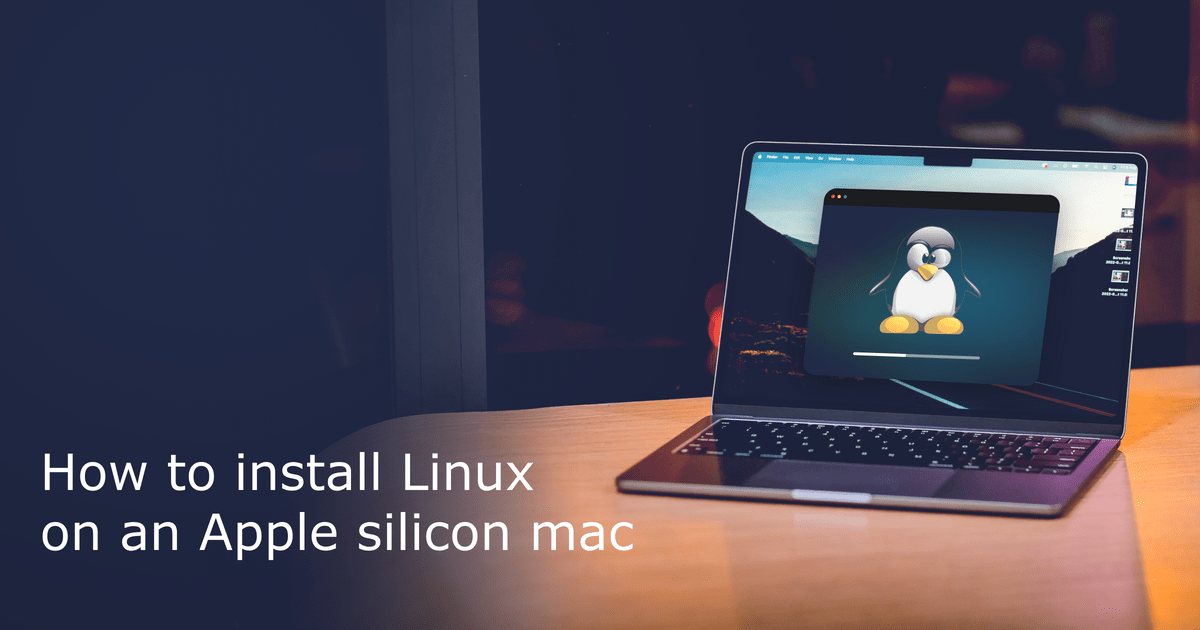
This article delves into the various methods and considerations involved in running Linux on a Mac, catering to users with different technical proficiencies and needs. We’ll explore the primary approaches, the advantages and disadvantages of each, and provide insights into how to make the most of your Linux-on-Mac setup.
Understanding Your Options: Dual Booting, Virtualization, and Containers
Before diving into the “how-to,” it’s crucial to understand the fundamental approaches to running Linux on a Mac. Each method offers a different balance of performance, integration, and ease of use.
Dual Booting: The Power of Native Performance
Dual booting, often referred to as “multi-booting,” allows you to install Linux alongside macOS on your Mac’s hard drive. This means that when you start your computer, you’ll be presented with a boot menu where you can choose to load either macOS or your chosen Linux distribution.
Advantages of Dual Booting:
- Native Performance: When you’re running Linux in a dual-boot setup, it has direct access to your Mac’s hardware. This translates to optimal performance for demanding tasks, such as compiling code, running complex simulations, or playing games. There’s no overhead from an intermediary software layer.
- Full Hardware Utilization: All your Mac’s resources – CPU, RAM, GPU, and storage – are exclusively dedicated to the operating system you’ve currently booted into. This is particularly beneficial for graphics-intensive applications or when you need every ounce of processing power.
- Seamless Hardware Integration: Generally, most hardware components of modern Macs are well-supported by Linux kernels. This means you can expect Wi-Fi, Bluetooth, trackpad gestures, and other peripherals to function without significant configuration hurdles.
Disadvantages of Dual Booting:
- Installation Complexity: Setting up a dual-boot environment requires careful partitioning of your hard drive and a bit more technical know-how than other methods. Mistakes during partitioning can lead to data loss, so a solid backup is essential.
- Rebooting to Switch: The most significant drawback is that you can only run one operating system at a time. Switching between macOS and Linux necessitates a full system reboot, which can be inconvenient if you frequently need to access both environments.
- Disk Space Management: You need to allocate a dedicated portion of your hard drive for your Linux installation. This means sacrificing some storage space from your macOS partition, which might be a concern for users with limited storage.
Popular Linux Distributions for Dual Booting on a Mac:
Several Linux distributions are known for their excellent compatibility with Mac hardware. Some of the most popular choices include:
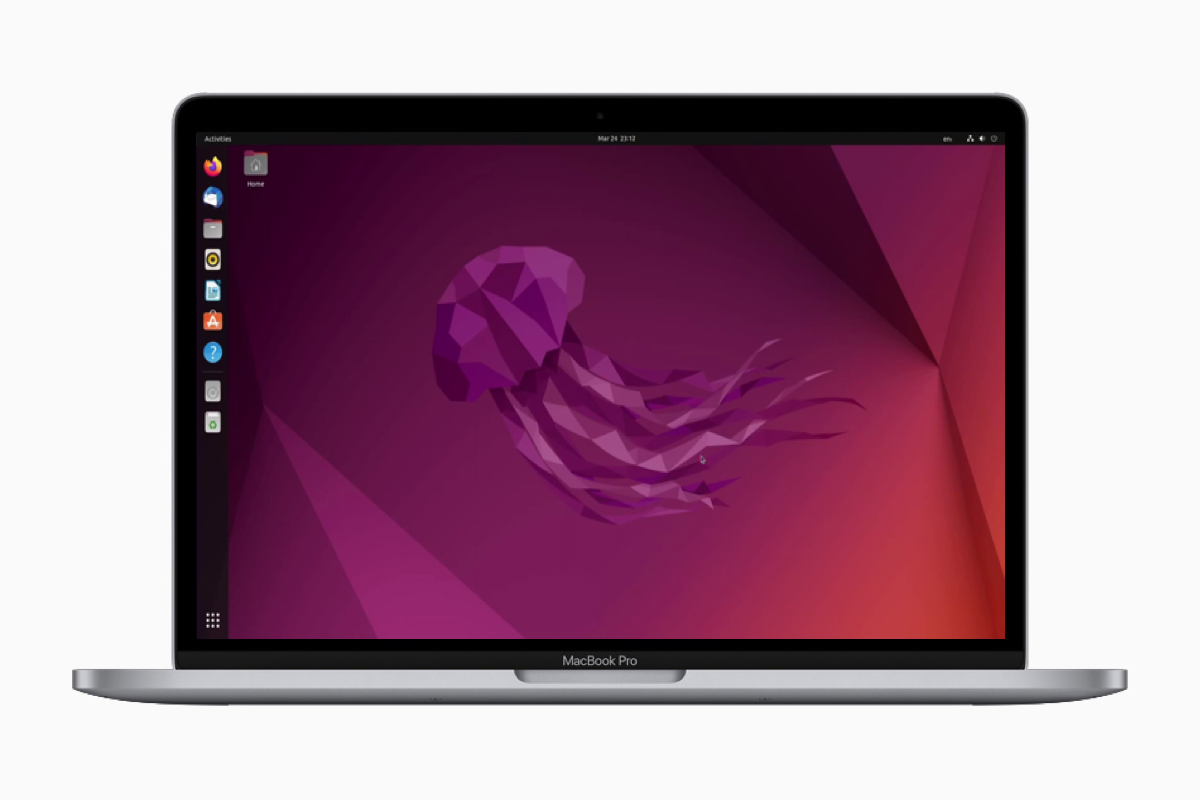
- Ubuntu: A user-friendly and widely supported distribution, Ubuntu is an excellent starting point for beginners and experienced users alike. Its vast community and extensive documentation make troubleshooting much easier.
- Linux Mint: Based on Ubuntu, Linux Mint offers a more traditional desktop experience and is often praised for its ease of use and stability.
- Fedora: Known for its cutting-edge software and commitment to open-source principles, Fedora is a great choice for developers and those who want to stay on the forefront of Linux technology.
- elementary OS: This distribution boasts a visually appealing and intuitive interface that shares some design philosophies with macOS, making the transition smoother for Mac users.
Virtualization: Running Linux Within macOS
Virtualization allows you to run an operating system (the “guest” OS) within another operating system (the “host” OS) using specialized software. On a Mac, this means you can run Linux directly from within your macOS environment.
Advantages of Virtualization:
- Convenience and Integration: The primary advantage is the ability to run Linux applications alongside your macOS applications without rebooting. You can easily copy and paste between operating systems, share files, and have multiple Linux instances running concurrently.
- Isolation and Safety: Virtual machines provide a sandboxed environment. This means that any changes or experiments you perform within the Linux VM will not affect your host macOS system. This is ideal for testing software, exploring different configurations, or even for security research.
- Ease of Setup and Removal: Setting up a virtual machine is generally much simpler than dual booting. Creating, cloning, and deleting virtual machines is straightforward, making it easy to experiment with different distributions without committing permanent disk space.
- Snapshots: Most virtualization software allows you to take “snapshots” of your virtual machine’s state. This is incredibly useful for reverting to a previous working configuration if something goes wrong during an update or a complex installation.
Disadvantages of Virtualization:
- Performance Overhead: Virtualization inherently introduces a performance penalty. The virtual machine software needs to simulate hardware for the guest OS, which consumes system resources (CPU, RAM) that would otherwise be available to macOS. For highly demanding tasks, this overhead can be noticeable.
- Graphics Limitations: While virtualization has improved significantly, integrated graphics performance within a virtual machine can sometimes be a bottleneck for graphically intensive applications.
- Hardware Passthrough Complexity: While possible in some cases, directly accessing certain hardware components like dedicated GPUs from within a VM can be complex or not fully supported by all virtualization solutions.
Popular Virtualization Software for Mac:
- VMware Fusion: A robust and feature-rich virtualization solution known for its strong performance and extensive hardware support. It’s a paid application but offers a free personal use license.
- Parallels Desktop: Another premium virtualization software that is highly regarded for its seamless integration with macOS, ease of use, and impressive performance, especially for Windows and Linux. It also offers a free trial.
- VirtualBox: A free and open-source virtualization platform that is a popular choice for many users. While it might not offer the same level of polish or integration as its paid counterparts, it’s a powerful and versatile option.
- UTM: A free and open-source virtualization and emulation tool that can run both Intel and ARM versions of Linux on Apple Silicon Macs. It leverages QEMU and is a great option for those seeking a free solution on newer Macs.
Containers: Lightweight Isolation for Development
Containerization, popularized by Docker, offers a different approach to running applications and even entire operating systems in an isolated environment. Unlike virtual machines, containers share the host operating system’s kernel.
Advantages of Containers:
- Efficiency and Speed: Containers are significantly more lightweight than virtual machines because they don’t require a full guest operating system. They start up almost instantly and consume fewer resources.
- Portability: Containers package an application and its dependencies together, ensuring that it runs consistently across different environments. This is invaluable for developers.
- Rapid Deployment: The speed and efficiency of containers make them ideal for continuous integration and continuous deployment (CI/CD) pipelines, allowing for rapid testing and deployment of applications.

Disadvantages of Containers:
- Kernel Dependency: Containers share the host OS kernel. This means you cannot run a Linux container directly on a macOS host without a Linux kernel. This is where Docker Desktop for Mac comes in, which effectively runs a lightweight Linux VM in the background to host your Linux containers.
- Not a Full OS Experience: While you can run Linux applications within containers, it’s not the same as having a full Linux desktop environment. Containers are primarily for running specific applications or services, not for general-purpose desktop use.
- Security Considerations: While containers offer isolation, they share the host kernel. In certain scenarios, a vulnerability in the host kernel could potentially impact all containers.
Docker for Mac: Bridging the Gap
Docker Desktop for Mac is the primary way most Mac users interact with containers. It installs a lightweight virtual machine that runs a Linux kernel, allowing you to run Docker containers seamlessly on your Mac. This provides the benefits of containerization with the convenience of a macOS host.
Installing Linux on Your Mac: Step-by-Step Considerations
Now that you understand the different approaches, let’s touch upon the general steps and considerations for each.
Dual Booting: A Closer Look
- Backup Your Data: This cannot be stressed enough. Before making any changes to your disk partitions, ensure you have a complete and recent backup of all your important files.
- Download Your Chosen Linux Distribution: Obtain the ISO image for the Linux distribution you want to install from its official website.
- Create a Bootable USB Drive: Use a tool like Etcher, Rufus (on Windows, but you can use a Mac equivalent like Disk Utility), or
ddcommand on macOS to write the ISO image to a USB drive. - Partition Your Hard Drive: This is the critical step. You’ll need to shrink your macOS partition to create unallocated space for Linux. This is typically done using Disk Utility within macOS or during the Linux installer.
- Boot from the USB Drive: Restart your Mac and hold down the Option (⌥) key during startup to access the boot menu. Select your USB drive to boot into the Linux installer.
- Follow the Installation Prompts: The Linux installer will guide you through the process. Choose to “Install alongside macOS” if available, or manually select the partitions you created for Linux.
- Install a Bootloader: The installer will typically prompt you to install a bootloader (like GRUB) which manages the dual-boot menu. Ensure it’s installed correctly to allow you to choose between macOS and Linux at startup.
Note for Apple Silicon Macs (M1, M2, M3 chips): Dual booting Linux on Apple Silicon Macs is significantly more complex and may not be fully supported by all distributions. Projects like Asahi Linux are actively working to bring full Linux support to these architectures, but it’s a more experimental path.
Virtualization: A Simplified Process
- Install Virtualization Software: Download and install your chosen virtualization application (VMware Fusion, Parallels Desktop, VirtualBox, or UTM).
- Download Your Chosen Linux Distribution: Obtain the ISO image for the Linux distribution.
- Create a New Virtual Machine: Within the virtualization software, create a new virtual machine. You’ll be prompted to allocate resources such as RAM, CPU cores, and disk space.
- Mount the ISO Image: Point the virtual machine to the downloaded Linux ISO image as its virtual CD/DVD drive.
- Start the Virtual Machine and Install Linux: Boot the virtual machine. It will boot from the ISO image, and you can proceed with the Linux installation as you would on a physical machine. The installation will be within the virtual disk you allocated.
- Install Guest Additions/Tools: After installing Linux, install the virtualization software’s “guest additions” or “tools.” These are drivers and utilities that enhance performance, enable better integration (like shared folders and copy-paste), and improve graphics.
Containers: Focused on Applications
- Install Docker Desktop for Mac: Download and install Docker Desktop from the official Docker website.
- Pull Linux Images: Use the
docker pullcommand to download desired Linux distribution images (e.g.,docker pull ubuntu). - Run Containers: Use the
docker runcommand to start containers based on these images. You can run specific Linux applications or even a full Linux environment within a container.
Why Install Linux on a Mac? Benefits for Different Users
The decision to install Linux on a Mac isn’t solely about technical curiosity. It’s driven by practical needs and desires across various user demographics.
For Developers and Programmers:
Linux has long been the de facto operating system for software development. Installing it on a Mac allows developers to:
- Access a Rich Ecosystem of Tools: Many programming languages, compilers, and development tools are either native to Linux or have superior support and performance on it.
- Emulate Production Environments: Most web servers and cloud infrastructure run on Linux. Developing in a Linux environment on your Mac can closely mimic your deployment targets, reducing the chances of “it works on my machine” issues.
- Utilize Powerful Command-Line Tools: Linux’s command-line interface (CLI) is incredibly powerful and flexible, offering a vast array of utilities for scripting, automation, and system management that are essential for efficient development workflows.
- Experiment with Open Source Technologies: Linux is the heart of many open-source projects. Running it allows for direct engagement with these technologies, contributing to them, or simply exploring their inner workings.
For Tech Enthusiasts and Experimenters:
For those who enjoy tinkering with technology, Linux offers an unparalleled playground:
- Explore Different Desktop Environments: Linux boasts a diverse range of desktop environments (GNOME, KDE Plasma, XFCE, etc.), each offering a unique user experience. Running Linux allows you to sample these visually and functionally.
- Learn About Operating System Internals: Understanding how an operating system works under the hood is a rewarding pursuit. Linux provides the transparency and access needed to delve into system processes, kernel modules, and file systems.
- Test New Software and Configurations: The freedom of Linux encourages experimentation. You can try out new software, custom configurations, or even kernel modifications without the risk of destabilizing your primary operating system (especially with virtualization).
For Users Seeking Enhanced Privacy and Security:
While macOS is generally considered secure, some users opt for Linux distributions for their perceived privacy and security advantages:
- Open-Source Transparency: The open-source nature of Linux means its code is auditable by anyone, fostering a sense of trust and transparency.
- Reduced Telemetry: Many Linux distributions collect minimal or no user telemetry, giving users greater control over their data.
- Granular Control: Linux offers extensive control over system settings and permissions, allowing users to fine-tune their security posture.
Conclusion
The question, “Can you install Linux on a Mac?” is not just a technical inquiry but an invitation to expand your computing horizons. Whether you choose the raw power of dual booting, the seamless convenience of virtualization, or the agile efficiency of containers, running Linux on your Mac is a viable and often highly beneficial endeavor. It allows you to harness the best of both worlds, combining Apple’s premium hardware and user-friendly macOS with the unparalleled flexibility, power, and open-source ethos of Linux. For developers, tinkerers, and privacy-conscious users alike, the ability to run Linux on a Mac unlocks a new dimension of digital possibility, transforming your familiar Apple machine into an even more versatile and potent tool.
aViewFromTheCave is a participant in the Amazon Services LLC Associates Program, an affiliate advertising program designed to provide a means for sites to earn advertising fees by advertising and linking to Amazon.com. Amazon, the Amazon logo, AmazonSupply, and the AmazonSupply logo are trademarks of Amazon.com, Inc. or its affiliates. As an Amazon Associate we earn affiliate commissions from qualifying purchases.