
Managing your digital landscape involves periodically decluttering your online presence, and YouTube subscriptions are no exception. Over time, your YouTube feed can become a noisy amalgamation of channels you no longer watch, content that’s irrelevant, or creators whose focus has shifted. Learning how to efficiently prune these subscriptions is a fundamental skill for maintaining a personalized, engaging, and less cluttered viewing experience. This guide will walk you through the technical steps of unsubscribing from channels and managing related YouTube data, ensuring your feed remains a valuable resource.
Understanding Your YouTube Subscriptions
YouTube’s subscription model is designed to connect viewers with content creators they love, making new videos from subscribed channels readily accessible in a dedicated feed. While beneficial, this accumulation can eventually lead to content overload, where crucial updates from preferred channels get lost amidst an ever-growing list.

Why Manage Your Subscriptions?
Actively managing your YouTube subscriptions offers several advantages. Firstly, it enhances your viewing experience by ensuring your homepage and subscription feed prioritize content you genuinely wish to consume. This reduces the time spent sifting through irrelevant videos, making your YouTube sessions more efficient and enjoyable. Secondly, it helps reduce digital fatigue. An overcrowded feed can be overwhelming, contributing to a sense of information overload. By unsubscribing from channels that no longer serve your interests, you reclaim control over your digital input. Lastly, it can improve the accuracy of YouTube’s recommendation algorithm. The channels you subscribe to, alongside your watch history, significantly influence what YouTube suggests. A clean subscription list helps refine these suggestions, leading to more tailored and relevant content discovery.
The Difference Between Unsubscribing and Deleting YouTube Data
It’s important to clarify the terminology often used interchangeably. When people refer to “deleting a YouTube subscription,” they almost invariably mean “unsubscribing from a YouTube channel.” This action removes that specific channel from your list of active subscriptions, stops its new videos from appearing in your subscription feed, and revokes any notifications you might have set for it.
“Deleting YouTube data,” on the other hand, refers to a broader set of actions related to your personal activity on the platform. This includes deleting your watch history, search history, liked videos, or even your entire Google account (which would encompass your YouTube channel and all associated data). While unsubscribing is a focused action on a per-channel basis, deleting data is about managing your personal digital footprint and privacy settings on the platform. This guide primarily focuses on the act of unsubscribing but will also touch upon related data management for a comprehensive understanding.
Step-by-Step Guide to Unsubscribe from Channels on Desktop
Unsubscribing from YouTube channels on a desktop computer offers several convenient methods, allowing you to clean up your feed efficiently.
From Your Subscriptions Feed
This is often the quickest way to prune multiple subscriptions at once.
- Navigate to YouTube: Open your web browser and go to youtube.com. Ensure you are logged into the Google account associated with your YouTube channel.
- Access Subscriptions: In the left-hand sidebar, click on “Subscriptions.” This will take you to a feed displaying recent videos from all the channels you are subscribed to.
- Manage Subscriptions: At the top of your Subscriptions feed, you’ll see a button labeled “MANAGE.” Click on this.
- Review and Unsubscribe: This page presents a comprehensive list of all channels you are subscribed to. Each channel will have a “SUBSCRIBED” button next to it. To unsubscribe from a channel, simply click this “SUBSCRIBED” button. It will change to “SUBSCRIBE” (or “JOIN”) and the channel will be removed from your active subscriptions. You can scroll through the list and unsubscribe from as many channels as needed.
From a Channel Page
If you’re watching a video or browsing a specific channel and decide to unsubscribe, you can do so directly from that channel’s page.
- Visit the Channel: Navigate to the specific YouTube channel you wish to unsubscribe from. You can do this by clicking on the channel’s name below a video, searching for the channel, or clicking its icon in your subscriptions list.
- Locate the Subscription Button: On the channel’s main page, typically under the banner art and channel name, you will see a prominent “SUBSCRIBED” button (often red or white with a bell icon).
- Unsubscribe: Click the “SUBSCRIBED” button. A small pop-up may appear asking for confirmation, or offering options for managing notifications. Confirm your decision to unsubscribe if prompted. The button will change to “SUBSCRIBE,” indicating you are no longer subscribed.
From Your Library
The “Library” section also provides an organized view of your subscriptions, among other data.
- Access Library: In the left-hand sidebar on youtube.com, click on “Library.”
- Scroll to Subscriptions: Scroll down the Library page. You will find a section dedicated to “Subscriptions,” often displaying a horizontal scrollable list of channel icons.
- Click Channel Icon: Click on the icon of the channel you wish to unsubscribe from. This action will take you directly to that channel’s page.
- Unsubscribe: Follow the steps outlined “From a Channel Page” above to unsubscribe. While not a direct unsubscribe from the Library view, it provides a pathway to quickly reach the channel page.

How to Unsubscribe from Channels on Mobile Devices (Android & iOS)
The YouTube mobile app provides a streamlined experience for managing subscriptions, mirroring the desktop functionality with a touch-friendly interface.
Via the YouTube App Home Screen/Subscriptions Tab
This is the most common and efficient method for mobile users.
- Open YouTube App: Launch the YouTube app on your Android or iOS device. Ensure you are logged into your account.
- Navigate to Subscriptions: At the bottom of the screen, you’ll see a navigation bar. Tap on the “Subscriptions” icon (often represented by a square or a list icon). This will display your subscription feed.
- Access “All” Channels: At the top of your subscriptions feed, you might see a “All” button or a carousel of channel avatars. Tap “All.” This will take you to a screen listing all your subscribed channels.
- Review and Unsubscribe: On the “All subscriptions” page, you’ll see a list of channels. Each channel will have a “SUBSCRIBED” button next to it (often greyed out or in a distinct color). Tap this “SUBSCRIBED” button. A confirmation dialog will appear: “Unsubscribe from [Channel Name]?” Tap “UNSUBSCRIBE” to confirm. The button will change to “SUBSCRIBE.” Repeat this process for all channels you wish to remove.
From a Channel’s Page in the App
Similar to the desktop version, you can unsubscribe directly from a channel’s dedicated page within the mobile app.
- Find the Channel: While watching a video, tap on the channel’s name or icon below the video player. Alternatively, you can search for the channel or navigate to it via your subscriptions feed.
- Locate “SUBSCRIBED” Button: On the channel’s main page, you’ll see the “SUBSCRIBED” button (usually a rectangle, often red or white, possibly with a bell icon) positioned prominently near the channel’s name and subscriber count.
- Unsubscribe: Tap the “SUBSCRIBED” button. A confirmation prompt will appear, asking if you wish to unsubscribe. Tap “UNSUBSCRIBE” to complete the action. The button will then revert to “SUBSCRIBE.”
Beyond Unsubscribing: Managing Your Digital Footprint
While unsubscribing from channels helps declutter your feed, a comprehensive approach to managing your YouTube experience often involves addressing other forms of personal data the platform collects. This falls under broader digital security and privacy management.
Deleting Watch History
Your watch history significantly influences YouTube’s recommendations. Clearing it can reset or refine the algorithm’s understanding of your interests.
- Desktop: Go to youtube.com > “History” in the left sidebar. You can then delete individual videos, pause watch history, or clear all watch history.
- Mobile: In the YouTube app, go to “Library” > “History.” Tap the three-dot menu next to a video to remove it, or access “History controls” from the main History page settings to clear all history or pause it.
Removing Liked Videos
“Liked videos” also feed into the recommendation engine. If you’ve liked videos that no longer reflect your interests, removing them can be beneficial.
- Desktop: Go to youtube.com > “Library” > “Liked videos.” Hover over a video, click the three-dot menu, and select “Remove from Liked videos.”
- Mobile: In the YouTube app, go to “Library” > “Liked videos.” Tap the three-dot menu next to a video and select “Remove from Liked videos.”
Managing Comment History
YouTube logs all your comments. While not directly influencing recommendations, reviewing and potentially deleting old comments can be part of maintaining your online persona.
- Access Google Activity: YouTube comment history is part of your broader Google Activity. Go to myactivity.google.com/youtube.
- Review Comments: Use the filters to find “YouTube comments.” You can then delete individual comments or entire batches from specific timeframes.
What Happens When You Delete Your Google Account?
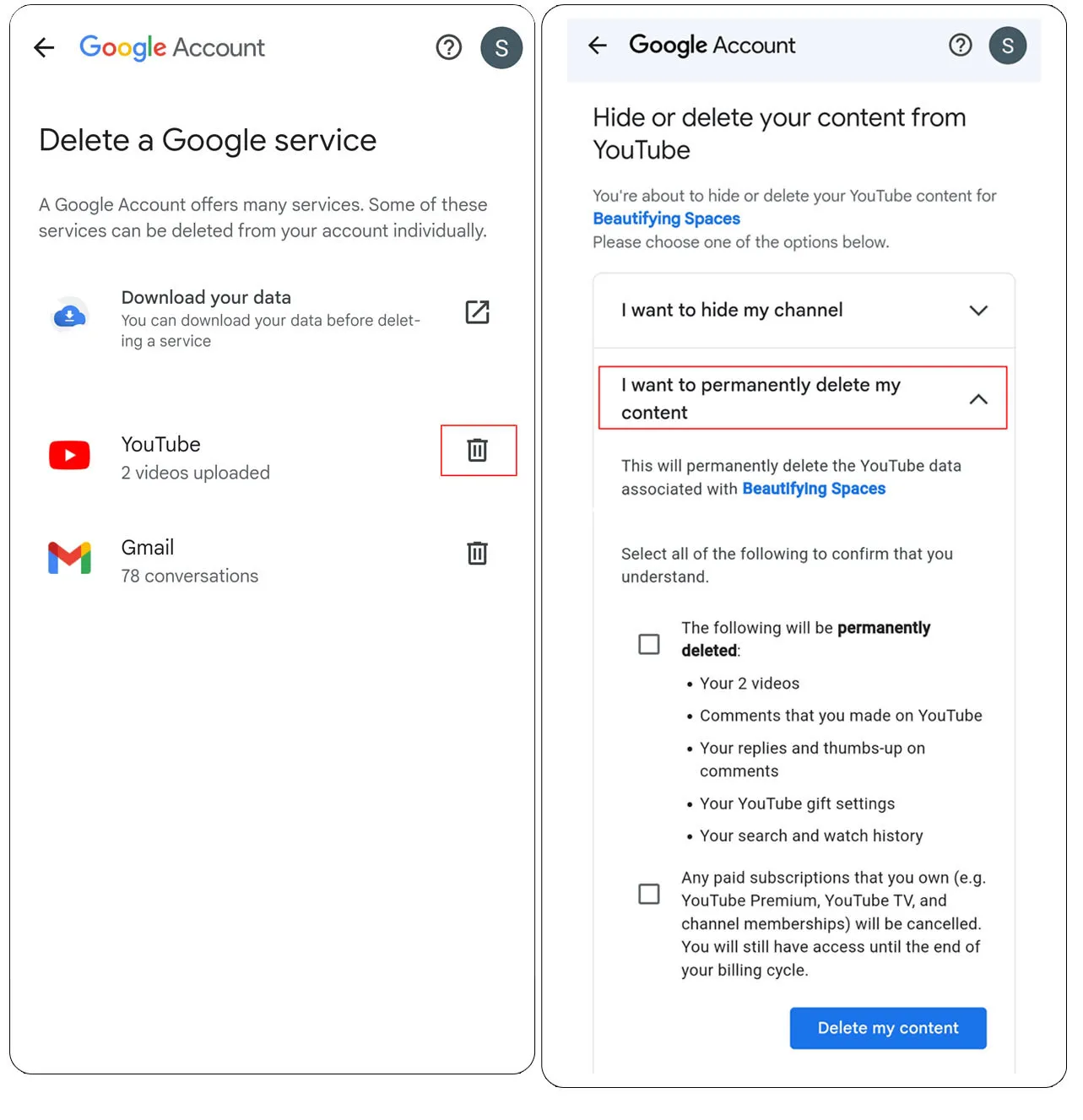
Deleting your entire Google account is a drastic measure and should not be confused with simply unsubscribing from YouTube channels. When you delete your Google account, you permanently lose access to all Google services associated with that account, including Gmail, Google Drive, Google Photos, and importantly, your YouTube channel. All videos you uploaded, comments you made, playlists you created, and your entire YouTube history will be permanently erased. This action is irreversible and should only be undertaken after careful consideration and backing up any essential data. For most users, managing individual YouTube settings and subscriptions is sufficient without resorting to full account deletion.
Optimizing Your YouTube Experience
Regularly reviewing and adjusting your YouTube subscriptions and privacy settings is a proactive step towards a more enjoyable and controlled digital life. By understanding the tools available, from simple unsubscribing to managing historical data, you can tailor YouTube to serve your evolving interests more effectively. This ensures that your time on the platform is spent engaging with valuable content rather than sifting through digital clutter.
aViewFromTheCave is a participant in the Amazon Services LLC Associates Program, an affiliate advertising program designed to provide a means for sites to earn advertising fees by advertising and linking to Amazon.com. Amazon, the Amazon logo, AmazonSupply, and the AmazonSupply logo are trademarks of Amazon.com, Inc. or its affiliates. As an Amazon Associate we earn affiliate commissions from qualifying purchases.