
In the fast-evolving landscape of business technology, keeping your critical software current is not merely a recommendation but a foundational pillar of operational efficiency, data security, and compliance. For businesses worldwide, QuickBooks stands as an indispensable tool for managing finances, tracking expenses, and streamlining accounting processes. However, like any sophisticated software, QuickBooks requires regular updates to perform optimally, protect your sensitive financial data, and provide access to the latest features. This comprehensive guide delves into the nuances of updating QuickBooks, ensuring your financial management system remains robust, secure, and future-ready.
The Critical Importance of Keeping QuickBooks Current
Ignoring software updates, particularly for a financial management system like QuickBooks, can expose your business to a multitude of risks and hinder its potential for growth. Understanding the multifaceted benefits of routine updates underscores their non-negotiable status in your IT maintenance strategy.
Bolstering Security and Data Protection
One of the paramount reasons to update QuickBooks is security. Cyber threats are constantly evolving, with malicious actors perpetually seeking vulnerabilities in software to exploit. Intuit, the developer of QuickBooks, dedicates significant resources to identifying and patching these security weaknesses. Each update often contains critical security fixes designed to safeguard your financial data from unauthorized access, malware, and other cyberattacks. Running an outdated version is akin to leaving your digital front door unlocked – an unnecessary risk that can lead to catastrophic data breaches, financial loss, and severe reputational damage. Staying current ensures your sensitive company files, customer information, and financial records are protected by the latest defense mechanisms.
Unlocking New Features and Enhanced Functionality
Beyond security, updates are the gateway to innovation. Intuit frequently introduces new features, functionalities, and user experience enhancements designed to make your accounting tasks easier, faster, and more insightful. These can range from improved reporting tools and expanded integration options with other business applications to refined invoice templates and more intuitive navigation. By updating, you gain access to these innovations, which can significantly boost your productivity, streamline workflows, and provide a clearer picture of your financial health. Missing out on these improvements means you might be spending more time on manual tasks or relying on less efficient workarounds, putting your business at a disadvantage.
Ensuring Compliance and Performance Stability
In the realm of finance, regulatory compliance is non-negotiable. Tax laws, reporting standards, and financial regulations are subject to frequent changes. QuickBooks updates often incorporate these new compliance requirements, ensuring that your reports, payroll calculations, and tax forms adhere to the latest government mandates. This prevents potential penalties, audits, and compliance headaches. Furthermore, updates are crucial for performance stability. They typically include bug fixes that resolve glitches, crashes, and performance slowdowns experienced in previous versions. These fixes lead to a more stable, reliable, and faster application, reducing downtime and frustration, and ensuring your financial operations run smoothly without interruption.
Essential Preparations Before You Update
While updating QuickBooks is a relatively straightforward process, neglecting a few critical preparatory steps can turn a simple task into a potential data nightmare. Prior planning ensures a smooth update process and safeguards your invaluable financial data.
The Golden Rule: Back Up Your Company File
This step cannot be stressed enough: Always back up your QuickBooks company file before initiating any update. An update, while usually seamless, can sometimes encounter unexpected issues – power outages, internet disconnections, or software conflicts. If something goes wrong during the update process, having a recent backup ensures that you can restore your data to its previous state, preventing irreparable data loss and the arduous task of reconstructing financial records. QuickBooks Desktop offers a built-in backup utility (File > Back Up Company > Create Local Backup), which should be utilized diligently. Ensure the backup is saved to a separate location, ideally an external hard drive or cloud storage, not on the same drive as your active company file.
Verifying System Readiness and Connectivity
Before commencing an update, take a moment to ensure your system meets the basic requirements and has a stable connection. Check Intuit’s official website for the minimum system requirements for the specific QuickBooks version you’re updating to. This includes checking your operating system version, available RAM, and hard drive space. An inadequate system can lead to installation failures or poor software performance post-update. Equally important is a stable internet connection. Many updates involve downloading large files, and an intermittent connection can corrupt the download or prolong the installation process. If you’re on a Wi-Fi network, ensure it’s robust; consider a wired connection if possible for critical updates.
Streamlining the Update Environment
To minimize potential conflicts and ensure the update process has dedicated resources, it’s advisable to close all other applications running on your computer before starting the QuickBooks update. This includes web browsers, email clients, office suites, and any other software that might be consuming system resources or interacting with QuickBooks files. Additionally, temporarily disable your antivirus software and firewall if they are known to interfere with software installations. Remember to re-enable them immediately after the update is complete to maintain your system’s security. This preparation creates a clean environment, reducing the likelihood of errors and ensuring a more efficient update.
Step-by-Step Guide to Updating QuickBooks Desktop
QuickBooks Desktop users have a few methods for obtaining and installing updates, offering flexibility based on your preference for automation or control.
Leveraging Automatic Update Features
QuickBooks Desktop comes equipped with an automatic update feature designed for convenience.
- Set Up Automatic Downloads: Open QuickBooks Desktop and go to
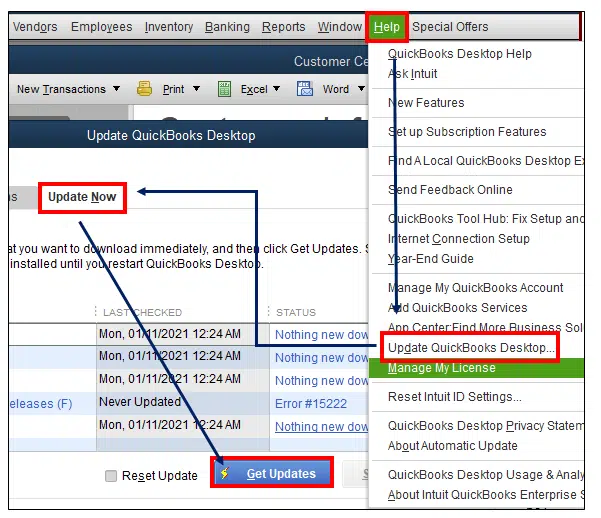
Help > Update QuickBooks Desktop. Click on theOptionstab. Here, you can select “Yes” for “Automatic Updates” to allow QuickBooks to download updates in the background whenever your computer is connected to the internet. - Schedule Updates: On the
Optionstab, you can also specify how you want to be notified about updates and when to install them. Many users choose to be prompted to install updates when they open QuickBooks, or schedule them for a time when the software isn’t actively in use. - Install Downloaded Updates: Once updates are downloaded, QuickBooks will typically prompt you to install them the next time you open the program. Simply follow the on-screen instructions, which usually involve closing QuickBooks and then relaunching it after the installation is complete.
This method is ideal for users who prefer a hands-off approach and want to ensure they always have the latest fixes and features without manual intervention.
Performing Manual Updates for Greater Control
For users who prefer more control over when and how updates are applied, or if automatic updates are not functioning correctly, manual updates are a reliable alternative.
- Update from Within QuickBooks:
- Open QuickBooks Desktop and navigate to
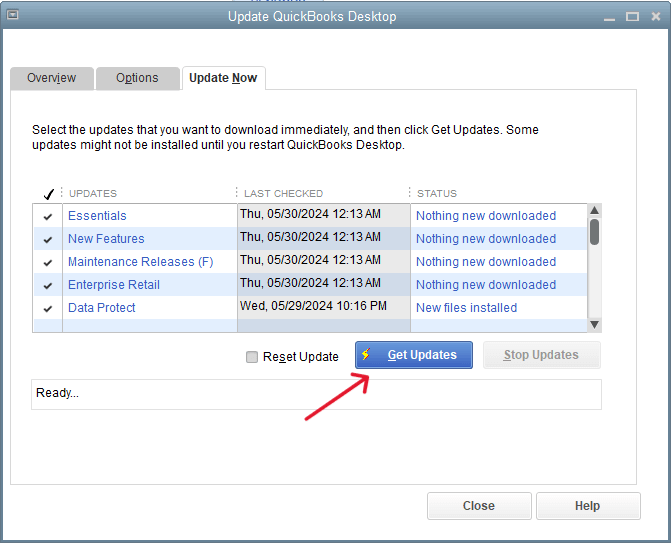
Help > Update QuickBooks Desktop. - Click on the
Update Nowtab. - Checkmark the updates you want to download and install. It’s generally recommended to select all available critical updates.
- Click
Get Updates. QuickBooks will then download the selected updates. - Once the download is complete, close and reopen QuickBooks. You will then be prompted to install the updates. Click “Yes” and follow the installation wizard.
- Open QuickBooks Desktop and navigate to
- Download from Intuit’s Website:
- If you’re experiencing issues with the in-product update mechanism, you can manually download the latest updates directly from the Intuit support website.
- Navigate to the official QuickBooks Desktop update page.
- Select your specific version of QuickBooks (e.g., Pro, Premier, Enterprise) and the year (e.g., 2023, 2024).
- Download the latest patch or full update file.
- Once downloaded, double-click the executable file and follow the on-screen instructions to install the update. Ensure QuickBooks is closed during this process.
Manual updates offer the advantage of letting you decide precisely when to apply changes, which can be useful for managing network environments or during critical business periods.
Understanding the Clean Install Option
In rare cases, especially when encountering persistent errors, update failures, or severe performance issues after an update, a “clean install” might be necessary. This advanced method involves completely uninstalling QuickBooks Desktop, including all associated files and registry entries, and then reinstalling the software from scratch.
- When to Use It: A clean install should be considered a last resort after attempting standard troubleshooting steps. It addresses corruption in the QuickBooks installation files or conflicts with other software.
- Process:
- Backup Data: Absolutely critical to back up your company files and any other custom templates or reports.
- Uninstall: Use the Windows “Add or Remove Programs” feature to uninstall QuickBooks Desktop. You might also need to use the QuickBooks Clean Install Tool provided by Intuit to remove residual files.
- Reinstall: Install QuickBooks Desktop using your original installation media or a downloaded installer.
- Restore Data: Restore your company file from the backup you created.
- Apply Updates: Once reinstalled, apply all the latest updates using either the automatic or manual methods described above.
A clean install is more involved and might require IT assistance, but it can resolve deep-seated software issues that regular updates cannot fix.
The Seamless Experience of QuickBooks Online Updates
For users of QuickBooks Online (QBO), the update process is fundamentally different and significantly more convenient. This cloud-based platform eliminates the need for manual intervention, making it a truly “set it and forget it” solution for software maintenance.
Automatic Updates: Cloud Convenience
One of the significant advantages of QuickBooks Online is that all updates, security patches, and new features are deployed automatically by Intuit on their servers. As a user, you don’t need to download files, run installers, or schedule maintenance windows. When you log into your QBO account, you are always accessing the latest version of the software. This continuous delivery model ensures that businesses benefit from the newest functionalities and security enhancements as soon as they are released, without any effort on their part. This seamless background process reduces IT overhead and allows businesses to focus purely on their financial management.
Staying Informed About QBO Enhancements
While updates are automatic, Intuit typically notifies users about significant new features or changes through various channels:
- In-product Notifications: You might see pop-up messages or banners within your QBO dashboard highlighting new tools or changes.
- Email Communications: Intuit often sends emails to QBO subscribers detailing upcoming enhancements or recently rolled-out features.
- Official Blog and Help Articles: The QuickBooks blog and support website are excellent resources for staying informed about product updates and how to utilize new features.
Users should regularly check these sources to fully leverage the evolving capabilities of QuickBooks Online, ensuring they are taking advantage of every enhancement designed to improve their financial workflow.
Troubleshooting Common QuickBooks Update Challenges
Even with careful preparation, updates can occasionally present challenges. Knowing how to troubleshoot common issues can save time and frustration.
Addressing Installation and Download Errors
- Download Failures: If an update fails to download, check your internet connection first. Temporary disable your firewall or antivirus. If using the in-product update, try downloading the update directly from the Intuit website.
- Installation Stalling/Freezing: Ensure QuickBooks and all other applications are closed. Restart your computer and try the installation again. Check for adequate disk space.
- Error Messages: Specific error codes often point to particular issues. Search the Intuit support website for the exact error code you receive; Intuit provides detailed troubleshooting steps for most common errors.
Resolving Post-Update Application Issues
- QuickBooks Not Opening: If QuickBooks fails to launch after an update, try restarting your computer. If the issue persists, run the QuickBooks Diagnostic Tool (a free utility from Intuit that can resolve common issues) or consider performing a clean install if other methods fail.
- Performance Problems: Slowdowns or crashes after an update might indicate a corrupted installation or a conflict. Ensure your system meets the updated requirements. You might need to repair your QuickBooks installation via the Windows “Apps & Features” settings.
Navigating Firewall and Antivirus Conflicts
Firewalls and antivirus software are designed to protect your system, but they can sometimes misinterpret legitimate software installations as threats, blocking them.
- Temporary Disablement: As mentioned earlier, temporarily disabling your antivirus and firewall during the update process can often resolve these conflicts.
- Adding Exceptions: If you prefer not to disable them, configure your firewall and antivirus software to allow QuickBooks and Intuit’s update processes (e.g., adding
qbw32.exe,qbupdate.exe, and Intuit’s update servers to your approved list). Consult your security software’s documentation for instructions on adding exceptions. Remember to re-enable them after the update.
Best Practices for Long-Term QuickBooks Maintenance
Beyond individual updates, adopting a holistic approach to QuickBooks maintenance ensures its long-term reliability and effectiveness.
Establishing a Robust Backup Routine
While backing up before an update is crucial, a consistent, regular backup schedule is essential for all times. Automate daily or weekly backups of your company file to a secure, offsite location (cloud storage is highly recommended). Test your backups periodically to ensure they are restorable. This routine acts as your ultimate safety net against hardware failures, accidental deletions, and other unforeseen events.
Staying Aware of Version Specifics and Support Lifecycles
Intuit maintains different versions of QuickBooks Desktop (Pro, Premier, Enterprise) and typically supports each annual release for a limited period, usually three years. Understanding the support lifecycle for your specific version is vital. Once a version is no longer supported, Intuit ceases to provide security updates, bug fixes, or technical assistance. This means you might be running an insecure or non-compliant version, necessitating an upgrade to a newer version of QuickBooks, rather than just an update. Plan these larger upgrades well in advance to avoid disruption.
When to Seek Expert Assistance
While this guide provides comprehensive steps, some technical issues can be complex and challenging to resolve independently. Don’t hesitate to seek professional help if:
- You encounter persistent errors you cannot resolve.
- You are unsure about performing a clean install.
- You experience data corruption issues.
- You manage a complex multi-user environment.
Intuit’s customer support, certified QuickBooks ProAdvisors, or your IT professional can provide specialized assistance, ensuring your QuickBooks environment remains healthy and functional.

Conclusion
Keeping QuickBooks updated is a critical, yet often overlooked, aspect of effective financial management for any business utilizing the software. It’s an investment in security, efficiency, and compliance that pays dividends by protecting your assets, enhancing your capabilities, and ensuring the smooth operation of your accounting processes. Whether you’re leveraging the seamless automation of QuickBooks Online or managing desktop installations, understanding and implementing a robust update strategy is fundamental to maintaining a resilient and future-proof financial infrastructure. By embracing these practices, you ensure your QuickBooks system is always performing at its peak, empowering your business with accurate, secure, and up-to-date financial insights.
aViewFromTheCave is a participant in the Amazon Services LLC Associates Program, an affiliate advertising program designed to provide a means for sites to earn advertising fees by advertising and linking to Amazon.com. Amazon, the Amazon logo, AmazonSupply, and the AmazonSupply logo are trademarks of Amazon.com, Inc. or its affiliates. As an Amazon Associate we earn affiliate commissions from qualifying purchases.