
In an increasingly connected world, the ability to disconnect, yet remain entertained, is a coveted luxury. Amazon Prime Video, a titan in the streaming industry, understands this inherent need, offering its subscribers a robust feature that often goes underutilized: the power to download movies and TV shows for offline playback. This functionality transforms your viewing experience, unshackling it from the constraints of an active internet connection, allowing for uninterrupted entertainment whether you’re soaring thousands of feet in the air, commuting through a subway tunnel, or simply conserving your mobile data at home.
This comprehensive guide delves into the nuances of downloading content from Amazon Prime Video, providing detailed instructions, strategic insights, and practical tips to ensure you can fully leverage this powerful feature. From understanding the benefits to navigating the download process on various devices and managing your downloaded library, we’ll equip you with all the knowledge needed to master offline viewing.
The Indispensable Benefits of Offline Viewing
The allure of downloading content extends far beyond mere convenience; it’s a strategic enhancement to your digital lifestyle. In an era where connectivity can be intermittent and data plans restrictive, offline viewing offers a reliable and efficient solution for uninterrupted entertainment.
Uninterrupted Entertainment Anywhere
Imagine being midway through a gripping series finale only for your Wi-Fi to drop, or encountering dead zones during a long commute. Downloading eliminates these frustrations entirely. Whether you’re on a transatlantic flight, deep within a subway system, camping in a remote location, or simply experiencing a home internet outage, your pre-downloaded content remains accessible and playable. This capability is paramount for travelers, commuters, and anyone who values consistent access to their favorite shows and movies without the anxiety of connectivity loss. It transforms previously unproductive time into moments of pure entertainment, making journeys more enjoyable and downtime more fulfilling.
Conserving Data and Battery Life
Streaming high-definition video consumes significant amounts of mobile data, often pushing users over their monthly limits and incurring extra charges. By downloading content over a stable Wi-Fi connection beforehand, you circumvent this issue entirely. During playback, no data is used, preserving your precious mobile allowance. Furthermore, continuous streaming taxes your device’s battery more heavily than playing downloaded files. Streaming requires constant data transfer, screen illumination, and processing power to decode live feeds. In contrast, playing local files reduces the load on your device’s antenna and network hardware, leading to noticeably extended battery life—a critical advantage, especially when power outlets are scarce.
Accessibility in Connectivity-Challenged Zones
Not all locations boast robust internet infrastructure. From remote vacation spots and rural areas to certain public places with spotty Wi-Fi, reliable streaming can be a pipe dream. Downloading content beforehand ensures that your entertainment library travels with you, unfazed by geographical limitations or network performance. This is particularly beneficial for professionals who travel frequently to diverse locations, students studying abroad, or families on road trips where Wi-Fi might be intermittent or non-existent. It democratizes access to content, making Prime Video a truly versatile entertainment platform for everyone, everywhere.
Navigating the Download Process on Mobile Devices
Mobile devices—smartphones and tablets—are arguably the most common platforms for consuming Prime Video content on the go. The Amazon Prime Video app is meticulously designed to make downloading an intuitive and straightforward process.
Step-by-Step Guide for Smartphones and Tablets
The process for downloading content is largely consistent across iOS and Android devices, ensuring a seamless user experience.
- Open the Prime Video App: Launch the Amazon Prime Video application on your smartphone or tablet. Ensure you are logged into your Amazon Prime account.
- Browse or Search for Content: Navigate through the vast library of movies and TV shows. You can browse by category, use the search bar for specific titles, or explore recommended content.
- Select Your Title: Tap on the movie or TV show you wish to download. This will take you to its detailed information page.
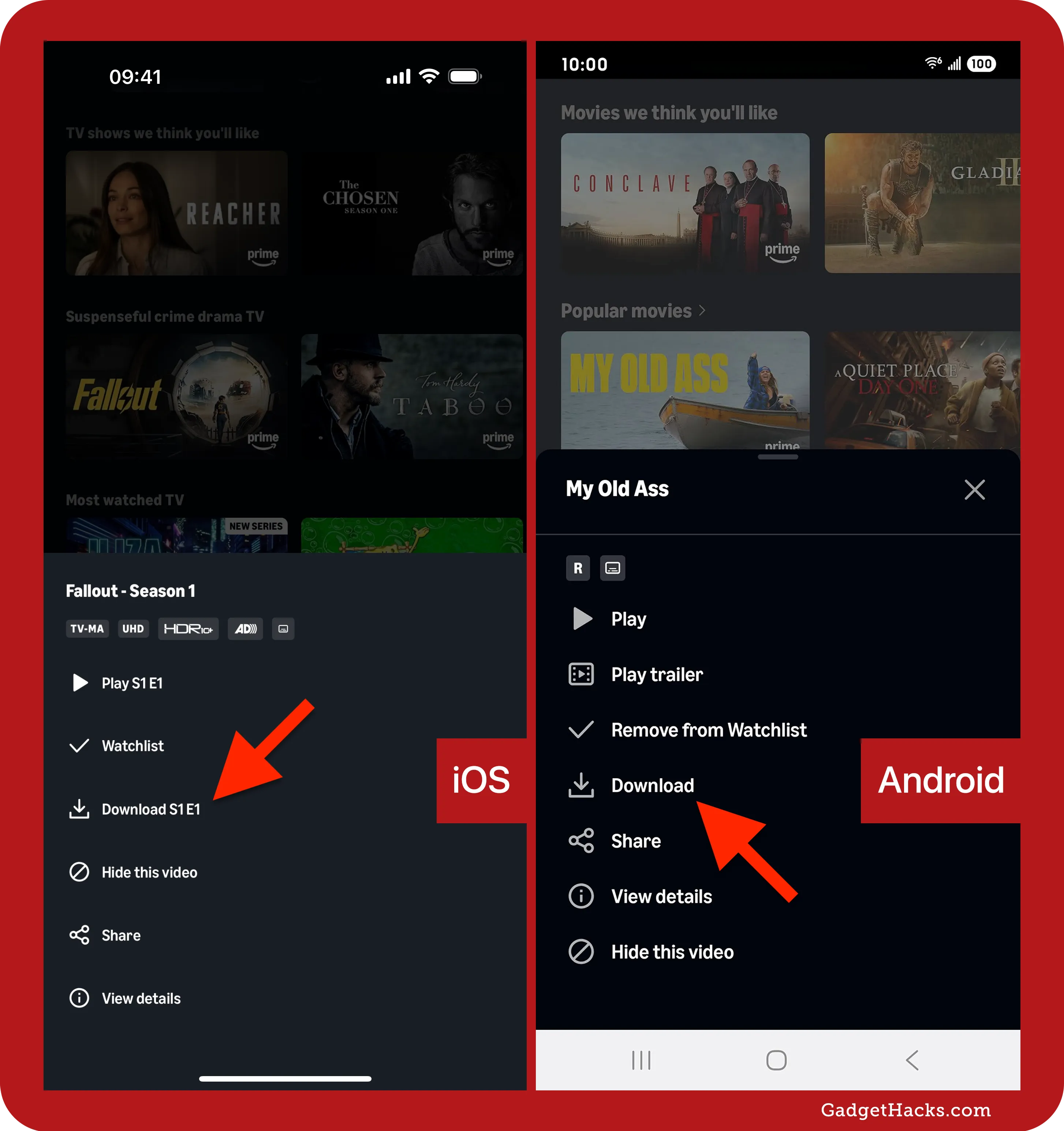
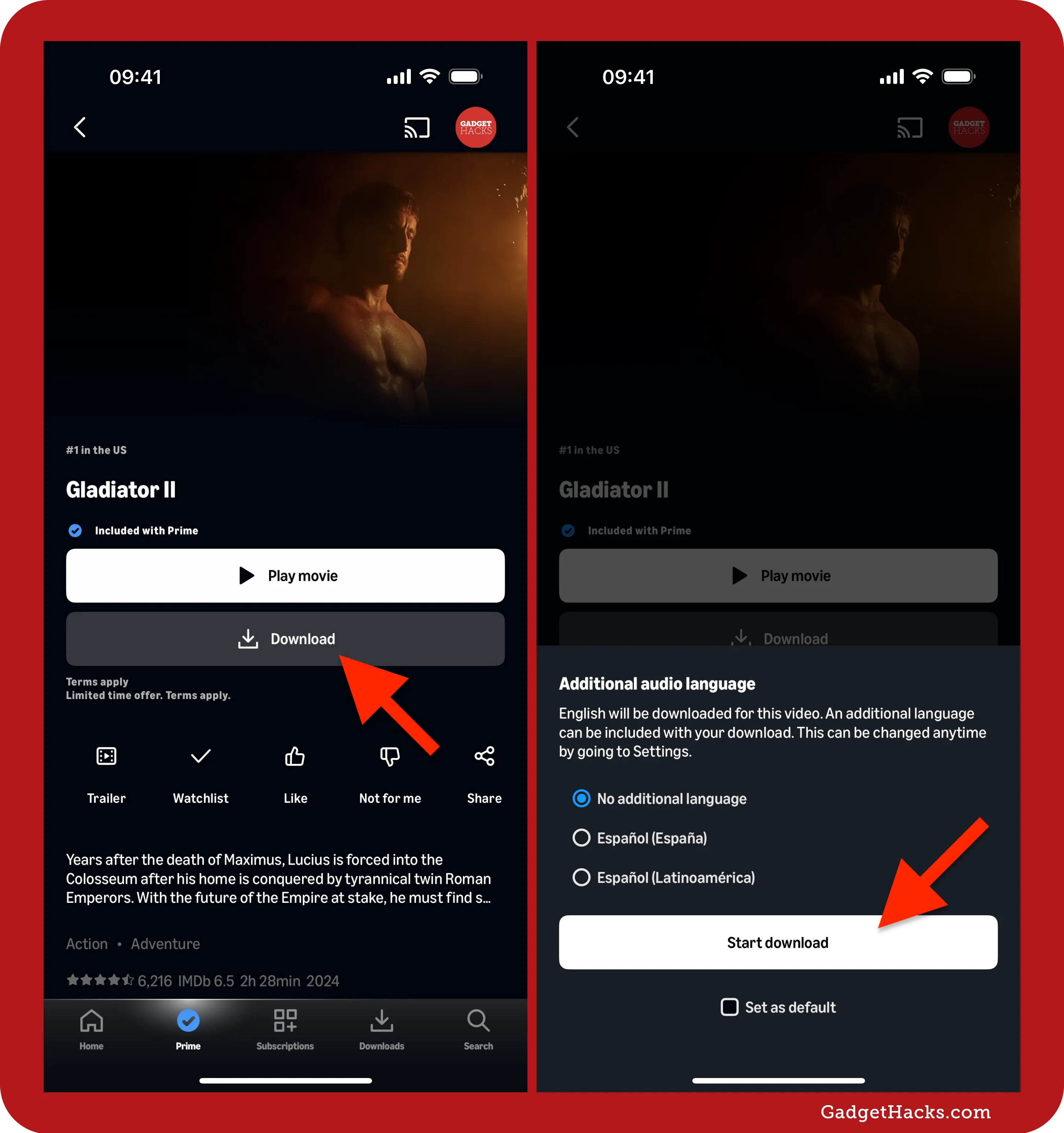
- Initiate Download:
- For Movies: Look for a prominent “Download” button, usually represented by a downward-pointing arrow icon, located near the “Watch Now” or “Resume” button.
- For TV Series: The “Download” icon will typically appear next to individual episodes. You can also sometimes find an option to “Download Season” for specific shows, though this might download all available episodes, so be mindful of your storage.
- Choose Download Quality (if prompted): Before the download begins, the app may present options for download quality (e.g., Good, Better, Best). Higher quality results in a larger file size but superior visual fidelity. Make your selection based on your storage availability and viewing preferences.
- Monitor Download Progress: The download will commence immediately. You can track its progress by navigating to the “Downloads” section of the app (usually found in the main menu or a dedicated tab at the bottom of the screen).
- Enjoy Offline: Once the download is complete, the title will appear in your “Downloads” library. Simply tap on it to play without needing an internet connection.
Managing Download Quality and Storage
Amazon Prime Video offers flexibility in download quality, directly impacting file size and storage consumption. To manage this:
- Default Download Quality: Within the Prime Video app settings, you can often set a default download quality for all future downloads. Navigate to “Settings” (usually accessible via the gear icon or hamburger menu) > “Stream & Download” > “Download Quality.” Here, you can select from various options like “Good,” “Better,” or “Best,” or even “Data Saver” on some devices.
- Storage Management: Regularly check your device’s available storage. If you’re running low, consider deleting old downloads to make space for new content. To delete, go to the “Downloads” section, tap the “Edit” or “Manage” option, select the titles you wish to remove, and confirm deletion. Alternatively, for individual titles, you can often swipe left (on iOS) or long-press (on Android) to reveal a delete option.
Locating and Playing Downloaded Videos
All your downloaded content is consolidated in a single, easily accessible location within the Prime Video app.
Tap on the “Downloads” tab or section (often found in the navigation bar at the bottom or side menu). Here, you’ll see a list of all movies and episodes you’ve downloaded. Simply tap on the title you wish to watch, and it will begin playing instantly, even if your device is in airplane mode or has no network connection.
Downloading Prime Video Content to Your Computer
While mobile devices are excellent for portability, sometimes a larger screen is preferred, or you might want to download content to your laptop for work trips or extended periods away from reliable internet. Amazon offers a dedicated desktop application for this purpose, primarily for Windows, and less directly for macOS.
Utilizing the Amazon Prime Video Desktop App
For Windows users, the process is streamlined through the official Amazon Prime Video app, available from the Microsoft Store.
- Download and Install the App: Search for “Amazon Prime Video” in the Microsoft Store and install the application on your Windows PC.
- Log In: Open the app and sign in with your Amazon Prime account credentials.
- Browse and Select Content: Navigate through the interface, which mirrors the web version and mobile app, to find the movie or TV show you want to download.
- Initiate Download: On the content detail page, you will find a “Download” button, similar to the mobile app. For TV series, you can download individual episodes.
- Choose Download Quality: The app will prompt you to select your preferred download quality (e.g., Good, Better, Best). Select according to your storage and viewing needs.
- Access Downloads: All downloaded content will be stored in the “Downloads” section within the desktop app, ready for offline playback.
Important Note for macOS Users: As of the latest updates, Amazon does not offer an official Prime Video desktop app for macOS that supports direct downloading of content to the Mac. macOS users typically rely on streaming via the web browser. If offline viewing on a Mac is critical, the primary workaround involves downloading content to an iOS device and then using AirPlay or a wired connection to display it on a larger screen, though this isn’t a true “download to Mac” solution. Alternatively, using a Windows emulator or virtual machine might allow the Windows app to run, but this is a complex workaround not officially supported.
Addressing Common Download Limitations on PC
While the Windows app simplifies downloading, it’s essential to be aware of certain limitations:

- Operating System Requirement: Downloads are exclusively supported via the official Prime Video app for Windows 10/11. Browser-based streaming does not offer a download option.
- Storage: Ensure your PC has sufficient free storage space. Downloaded files, especially in “Best” quality, can be quite large.
- Device Limits: Amazon imposes limits on the number of devices you can download content to simultaneously. If you encounter issues, check if you’ve hit this limit across your various devices.
- DRM (Digital Rights Management): Downloaded content is encrypted and tied to your Prime Video account within the app. You cannot transfer these files to other devices or play them with external media players.
Best Practices for PC Downloads
To optimize your PC downloading experience:
- Dedicated Storage: If possible, consider storing downloads on a secondary drive with ample space, especially if your primary drive is nearly full.
- Scheduled Downloads: Utilize off-peak internet hours (if your provider has data caps) to download large files to minimize impact on your general internet usage.
- Regular Cleanup: Periodically review and delete downloaded content you’ve already watched to free up valuable disk space.
Understanding Download Limits and Expiry
While Amazon Prime Video’s download feature is incredibly useful, it operates under certain restrictions designed to comply with content licensing agreements and prevent misuse. Being aware of these limits is crucial for an uninterrupted experience.
Device and Content Restrictions
Amazon Prime Video typically allows users to download the same title on a limited number of devices at any given time, often two to three. If you attempt to download a title on a fourth device, you might be prompted to remove it from one of the existing devices.
Furthermore, not all content available on Prime Video is eligible for download. Due to licensing agreements with studios and distributors, certain titles may be streaming-only. You’ll know if a title is downloadable by the presence of the download icon on its detail page. If the icon is missing, the content is not available for offline viewing. This also applies to rented or purchased content, which usually has a more generous download policy but might still have device limits.
The Lifespan of Your Downloads
Downloaded content on Prime Video does not remain on your device indefinitely. There are typically two main expiration parameters:
- Playback Window: Once you start playing a downloaded title, you usually have a limited time (e.g., 48 hours) to finish watching it before it expires. After this period, the file will become unavailable, and you’ll need an internet connection to either re-download or renew the license.
- General Expiry: Even if you don’t start watching a downloaded title, it usually has an overall expiry period (e.g., 30 days from the download date). After this time, the content will expire and become unplayable. You will need to reconnect to the internet to refresh the license or re-download the content. This is a common DRM practice to ensure content rights are respected.
It’s important to periodically connect your device to the internet, even if you primarily watch offline. This allows the Prime Video app to refresh licenses for your downloaded content, preventing premature expiry and ensuring continued access to your library.
Troubleshooting Download Issues
Encountering problems during download can be frustrating. Here are common issues and their solutions:
- “Download Failed” or Error Message:
- Check Internet Connection: Ensure you have a stable Wi-Fi connection, especially for large files.
- Insufficient Storage: Verify your device has enough free space for the download quality selected.
- App Updates: Make sure your Prime Video app is updated to the latest version.
- Restart App/Device: Sometimes a simple restart of the app or your device can resolve temporary glitches.
- “Maximum Devices Reached”: If you see this message, go to your Prime Video account settings (via a web browser or the app on another device) and manage your registered devices, removing older or unused ones.
- Content Not Downloadable: If a specific title lacks the download icon, it means it’s not available for offline viewing due to licensing restrictions. There’s no workaround for this.
- Expired Downloads: If a downloaded title is no longer playable, connect your device to the internet. The app will attempt to refresh the license. If that doesn’t work, delete and re-download the content.
Maximizing Your Prime Video Download Experience
Beyond the basic mechanics, a few strategic approaches can significantly enhance your offline viewing pleasure, ensuring your digital library is always ready when you are.
Optimizing Settings for Storage and Quality
The balance between download quality and device storage is crucial.
- Prioritize Storage on Smaller Devices: For smartphones with limited internal storage (e.g., 64GB or 128GB), opting for “Good” or “Better” download quality is often the most practical choice. The difference in visual fidelity on a smaller screen is often negligible, while the storage savings are substantial, allowing you to download more titles.
- Utilize “Best” Quality on Tablets/PCs: If you’re downloading to a tablet with ample storage or a PC, and you prioritize the highest visual experience, selecting “Best” quality makes sense, especially for movies or visually rich series.
- MicroSD Card Support: If your Android device or tablet supports an external microSD card, you can often configure the Prime Video app (in its settings) to save downloads directly to the external storage, effectively bypassing internal storage limitations. This is a game-changer for expanding your offline library.
Strategic Planning for Content Curation
Don’t just randomly download. A thoughtful approach to your offline library can prevent clutter and ensure you always have something compelling to watch.
- Anticipate Needs: Before a long flight, a weekend trip to a cabin, or any period with expected limited internet access, take the time to plan and download content. Create a watchlist of shows or movies you’d like to watch offline.
- Mix and Match: Download a variety of genres—a suspenseful thriller, a lighthearted comedy, an insightful documentary—to cater to different moods or viewing companions.
- Seasonal/Thematic Downloads: For special occasions or holidays, curate a themed collection (e.g., holiday movies in December, horror films in October).
- Watchlist Integration: Use the Prime Video watchlist feature to save titles you intend to download later, making the curation process easier.
Ensuring a Smooth Playback Experience
Once downloaded, you want the playback to be flawless.
- Fully Charge Devices: Before embarking on an offline viewing session, ensure your device is fully charged. While playing downloaded content uses less battery than streaming, it still consumes power.
- Close Background Apps: For older or less powerful devices, closing other background applications can free up RAM and CPU resources, ensuring smoother playback of your downloaded videos.
- Headphones for Immersion: For the best audio experience, especially in noisy environments like airplanes or public transport, use good quality headphones. Downloaded content offers the same high-fidelity audio as streamed content.
- Screen Brightness: Adjust screen brightness to a comfortable level. While a brighter screen looks good, it drains battery faster. Finding the right balance will extend your viewing time.
The ability to download content from Amazon Prime Video is a powerful tool that significantly enhances the value proposition of your Prime subscription. By understanding the processes, benefits, and practical considerations outlined in this guide, you can transform your entertainment experience, ensuring that your favorite shows and movies are always within reach, regardless of your internet connection. Embrace the freedom of offline viewing and unlock a world of uninterrupted entertainment, wherever life takes you.
aViewFromTheCave is a participant in the Amazon Services LLC Associates Program, an affiliate advertising program designed to provide a means for sites to earn advertising fees by advertising and linking to Amazon.com. Amazon, the Amazon logo, AmazonSupply, and the AmazonSupply logo are trademarks of Amazon.com, Inc. or its affiliates. As an Amazon Associate we earn affiliate commissions from qualifying purchases.