
In an era defined by digital transformation, managing business finances efficiently is no longer just about balancing ledgers; it’s about leveraging powerful software solutions. QuickBooks stands as a titan in this domain, offering a robust suite of tools designed to streamline accounting processes for businesses of all sizes. For many entrepreneurs and small business owners, the initial step into QuickBooks can seem daunting. This guide demystifies the platform, providing a technical walkthrough on how to harness its capabilities, integrate it into your digital ecosystem, and optimize its features for unparalleled financial clarity and control. We’ll delve into the setup, core functionalities, advanced technological integrations, and best practices, all through the lens of maximizing your technological investment.
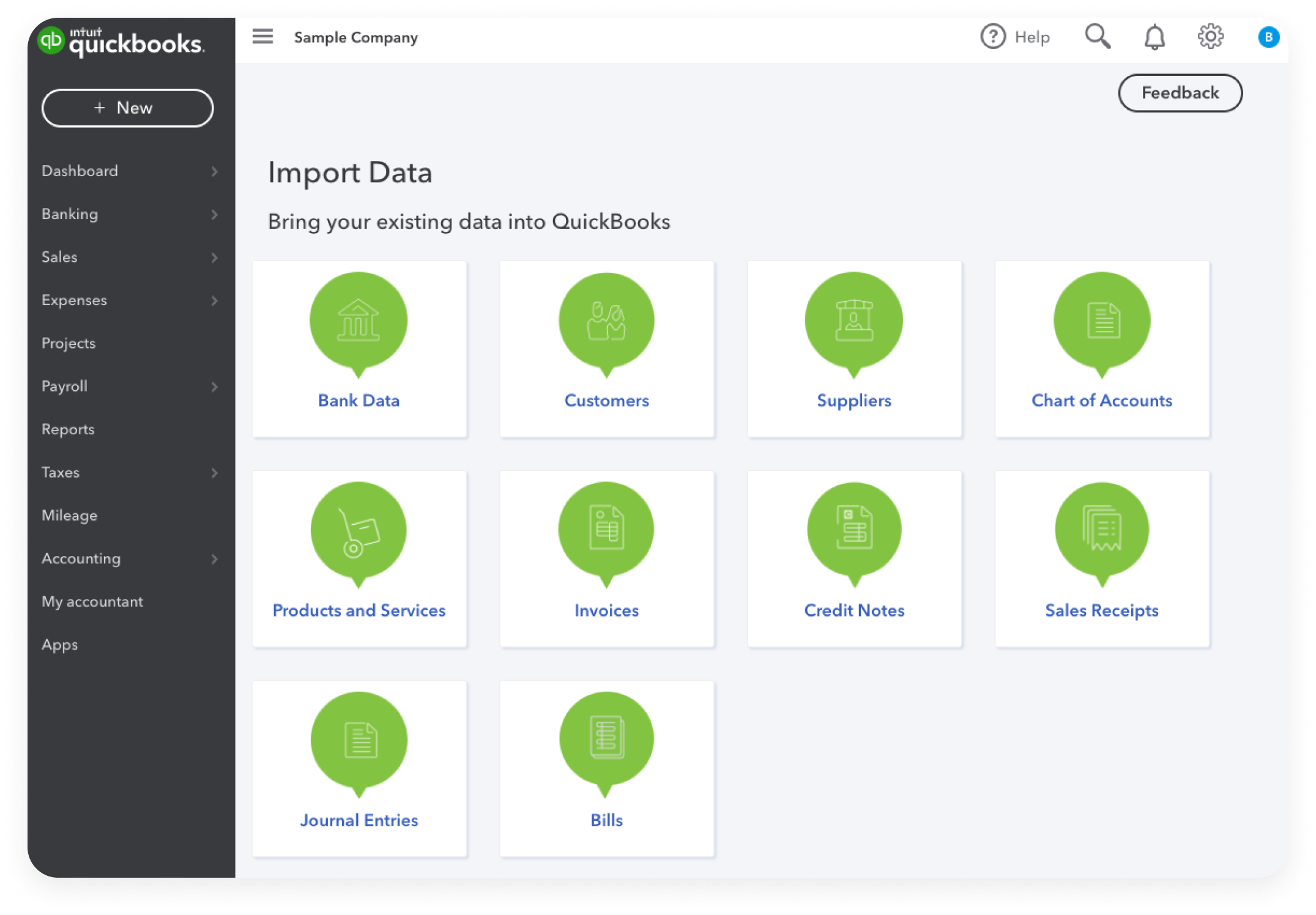
1. Getting Started with QuickBooks: Initial Setup and Navigation
Embarking on your QuickBooks journey begins with foundational choices and understanding the software’s architecture. Selecting the appropriate version and meticulously setting up your company file are crucial first steps that lay the groundwork for accurate and efficient financial management.
Choosing the Right QuickBooks Version: Online vs. Desktop
The first critical decision involves selecting between QuickBooks Online (QBO) and QuickBooks Desktop (QBD), a choice that profoundly impacts your operational workflow and accessibility. QuickBooks Online, a cloud-based solution, offers unparalleled flexibility, allowing users to access financial data from anywhere, on any device, with an internet connection. Its subscription model includes automatic updates and cloud backup, minimizing IT overhead. QBO is ideal for businesses requiring remote access, multiple users, and seamless integration with a wide array of third-party SaaS applications.
QuickBooks Desktop, conversely, is a locally installed software. It offers more robust industry-specific features (e.g., Enterprise editions for manufacturing or retail) and greater customization options for reporting and user permissions. While it demands manual updates and often requires network infrastructure for multi-user access, QBD can be more appealing for businesses with complex inventory management, highly specific reporting needs, or those operating in environments with unreliable internet access. Understanding your business’s operational needs, growth trajectory, and technological infrastructure is paramount in making this informed choice.
Setting Up Your Company File and Chart of Accounts
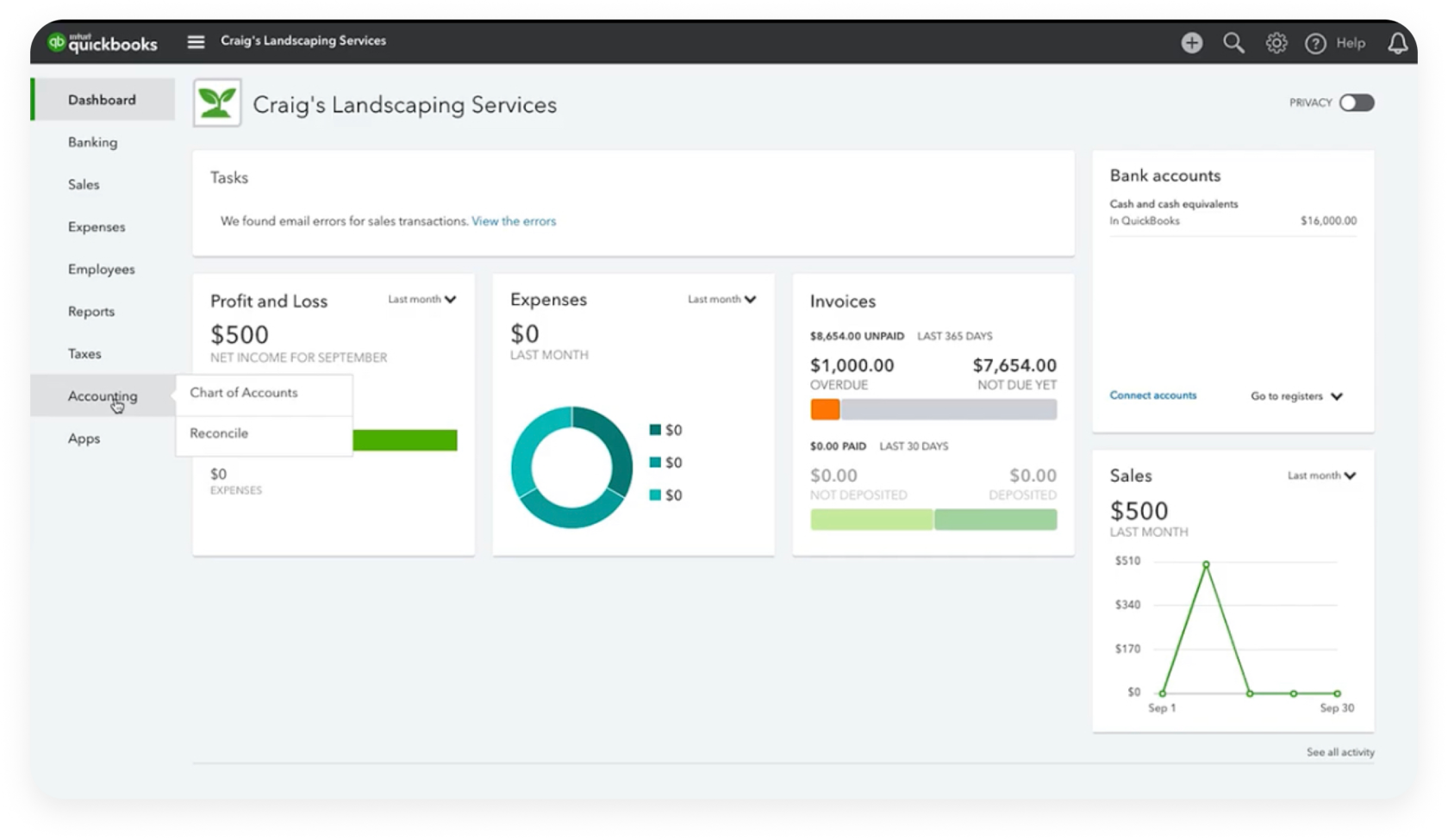
Once the version is chosen, the next step is establishing your company file. This involves inputting essential business information: company name, industry type, address, and the date you want to start tracking finances in QuickBooks. The software then often suggests a default Chart of Accounts (COA) based on your industry. The COA is the backbone of your financial system, categorizing every transaction into assets, liabilities, equity, income, and expenses. It’s crucial to customize this default COA to reflect your specific business operations accurately. Delete unused accounts, rename generic ones for clarity, and add new accounts as needed. A well-structured COA ensures proper financial reporting and simplifies tax preparation. This digital ledger accuracy is fundamental to the integrity of all subsequent financial data.
Understanding the User Interface: Dashboard, Navigation Bar, and Key Modules
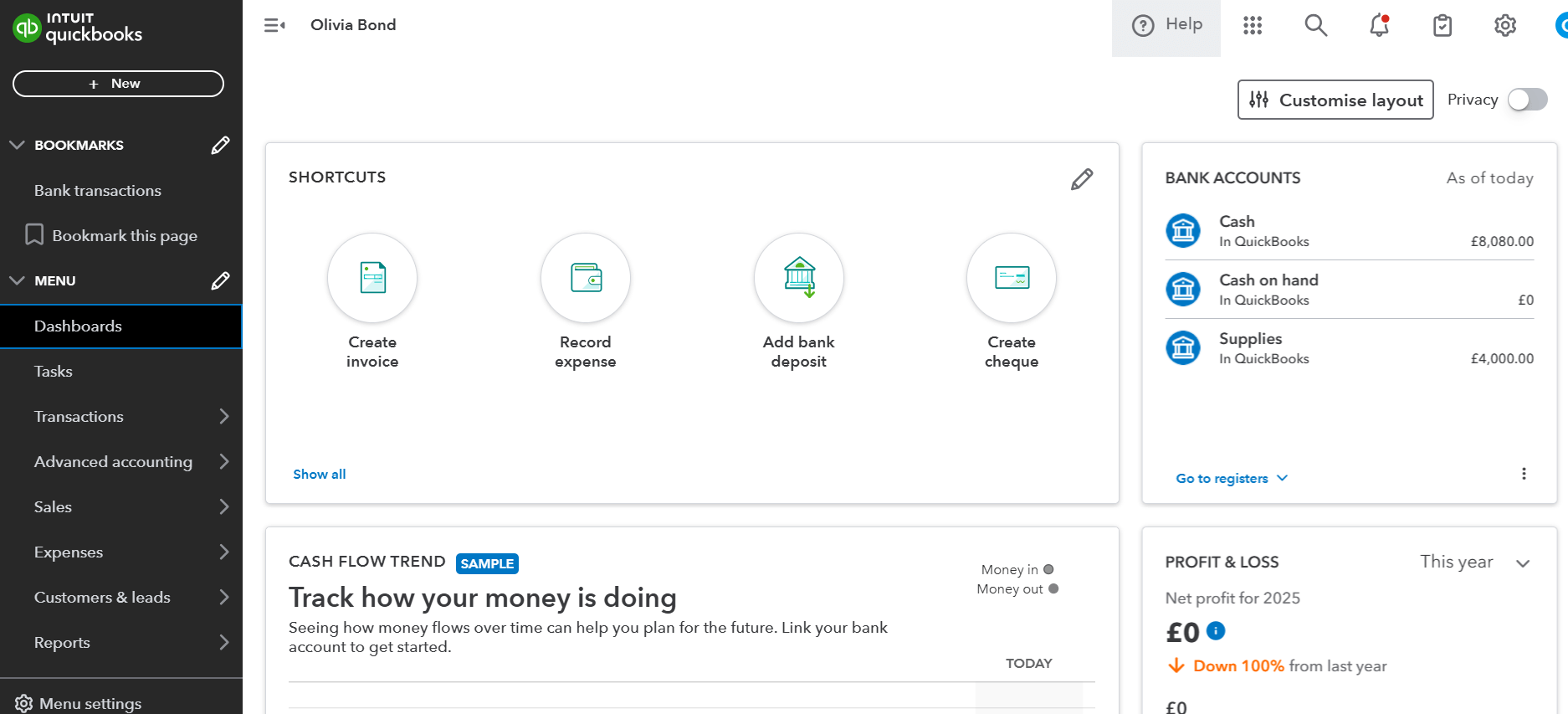
Navigating QuickBooks effectively requires a clear understanding of its user interface (UI). Both QBO and QBD feature an intuitive dashboard designed to provide a quick overview of your financial health, displaying key metrics like profit and loss, sales, expenses, and bank balances. The primary navigation bar (typically on the left in QBO and at the top/left in QBD) grants access to core modules:
- Customers/Sales: For managing clients, creating invoices, and recording payments.
- Vendors/Expenses: For tracking bills, making payments, and managing suppliers.
- Banking: For connecting bank accounts, categorizing transactions, and reconciling statements.
- Employees/Payroll: For managing payroll (if subscribed).
- Reports: For generating financial statements and analytical insights.
- Accountant/Chart of Accounts: For managing your ledger and working with your accounting professional.
Familiarity with these modules and the overall UI is critical for efficient data entry, transaction processing, and accessing the vast array of features QuickBooks offers, transforming complex accounting tasks into manageable digital workflows.
2. Core Financial Operations: Managing Ins and Outs Digitally
With the setup complete, the focus shifts to the day-to-day operations that drive your business’s financial data within QuickBooks. This involves leveraging the software to efficiently manage the flow of money in and out of your business, ensuring every transaction is recorded accurately and systematically.
Streamlining Income Management: Invoicing, Payments, and Sales Receipts
QuickBooks provides powerful tools to manage your revenue streams, making it easier to bill customers, track receivables, and process payments. Creating professional invoices is intuitive, allowing for customization with your company’s branding, adding detailed product/service descriptions, and setting payment terms. For businesses selling goods or services at the point of sale, sales receipts offer a quick way to record immediate income.
The true technological advantage lies in QuickBooks’ ability to integrate payment processing. Through services like QuickBooks Payments, you can accept credit card payments, bank transfers (ACH), and e-checks directly within invoices or through a dedicated payment link. This digital integration significantly accelerates payment collection, reduces administrative overhead, and provides real-time updates on your cash flow. Automated reminders for overdue invoices can also be configured, further enhancing efficiency and ensuring timely revenue collection, all managed digitally within the platform.
Efficient Expense Tracking: Bills, Payments, and Banking Integration
Managing expenses is equally crucial for financial health. QuickBooks allows you to meticulously track every penny spent, whether it’s through vendor bills, credit card transactions, or direct bank withdrawals. Entering bills as they are received creates a clear record of your payables, helping you manage cash flow and avoid late fees. When it’s time to pay, QuickBooks can facilitate digital payments directly through integrated banking services or record manual payments against outstanding bills.
The banking integration feature is a cornerstone of modern QuickBooks usage. By securely connecting your business bank accounts and credit cards, QuickBooks automatically downloads and categorizes transactions. This automation drastically reduces manual data entry, minimizes errors, and provides a real-time view of your expenditures. Users can set up rules to auto-categorize recurring transactions, further streamlining the process. This digital connection ensures that your QuickBooks data accurately reflects your bank statements, laying the groundwork for seamless reconciliation.
Mastering Bank Reconciliation: Ensuring Digital Accuracy
Bank reconciliation is a critical accounting procedure that ensures the transactions recorded in your QuickBooks match the transactions listed on your bank statements. In a digital environment, this process becomes highly efficient. QuickBooks’ reconciliation tool automatically matches downloaded bank transactions to those you’ve entered. For any discrepancies, the software highlights them, allowing you to investigate and resolve issues such as missing transactions, duplicate entries, or bank errors.
Mastering this feature is vital for several reasons: it helps detect fraud, identify bank errors, track outstanding checks or deposits, and most importantly, confirms the accuracy of your cash balance in QuickBooks. Performing regular (ideally monthly) bank reconciliations ensures the integrity of your financial data, providing a reliable foundation for all other financial reports and analyses. It’s a key technological safeguard to maintain the precision of your digital financial records.
3. Advanced Features and Tech-Driven Efficiencies
Beyond core accounting, QuickBooks offers an array of advanced features that harness technology to optimize operations, provide deeper insights, and facilitate integration within a broader digital ecosystem.
Leveraging Automation: Recurring Transactions and Rules
Automation is a significant advantage of modern accounting software, and QuickBooks excels in this area. Businesses often have recurring invoices (e.g., subscriptions, retainers), recurring bills (e.g., rent, utilities), or frequently processed expenses. QuickBooks allows you to set up these as “recurring transactions.” You can schedule them to generate automatically at specified intervals, approve them with a single click, or have them created as reminders. This feature dramatically reduces manual data entry, saves time, and minimizes the risk of human error, ensuring consistent and timely financial record-keeping for repetitive tasks. Similarly, banking rules allow for automatic categorization of downloaded transactions, further enhancing the speed and accuracy of expense tracking.
Integrating with Other Apps: Expanding QuickBooks’ Ecosystem
One of QuickBooks’ most powerful tech features is its extensive integration capabilities. Both QBO and QBD (via third-party connectors) can link with hundreds of other business applications across various categories, including CRM (Customer Relationship Management), e-commerce platforms (Shopify, Amazon), payroll services, time tracking apps, payment processors, and specialized industry software. This integration creates a cohesive digital ecosystem where data flows seamlessly between applications. For instance, sales from your e-commerce store can automatically sync with QuickBooks, inventory updates from your POS system can reflect in your books, and expenses recorded via a receipt scanning app can be imported directly. This interconnectedness eliminates data silos, reduces duplicate entry, and provides a holistic view of your business operations, making QuickBooks the central hub for your financial data.
Harnessing Reporting Tools for Data-Driven Decisions
QuickBooks’ reporting suite is a goldmine for data-driven decision-making. Far more than just basic profit and loss statements, the software offers a vast array of customizable reports, including balance sheets, cash flow statements, sales by customer/item, expense reports, accounts receivable/payable aging, and budget vs. actuals. These reports are dynamically generated from your real-time financial data. The ability to customize reports by date range, customer, vendor, or project, and to drill down into individual transactions, empowers users to gain deep insights into their business performance. Tech-savvy users can export these reports to Excel for further analysis or utilize built-in dashboards for quick visual summaries. Understanding and regularly reviewing these reports is crucial for identifying trends, making informed strategic decisions, and planning for future growth.
Payroll Management and Tax Compliance (as a Tech Feature)
For businesses with employees, QuickBooks Payroll offers an integrated solution that automates the complexities of compensation and compliance. As a tech feature, it streamlines everything from calculating wages, taxes, and deductions to direct depositing paychecks and filing payroll tax forms. QuickBooks Payroll stays updated with the latest tax laws, ensuring compliance and reducing the burden on businesses. This integration means that payroll expenses are automatically categorized and recorded in your general ledger, providing a complete financial picture without manual transfers. It transforms a historically labor-intensive and error-prone process into a smooth, automated, and compliant digital workflow.
4. Best Practices for Optimal QuickBooks Performance and Security
Maintaining the health, accuracy, and security of your QuickBooks environment is just as crucial as understanding its features. Adhering to best practices ensures optimal performance and safeguards your valuable financial data in the digital realm.
Data Backup and Cloud Sync Strategies
For QuickBooks Desktop users, regular data backup is non-negotiable. While the software offers built-in backup tools, external hard drives or reliable cloud backup services (like Dropbox, Google Drive, or specialized accounting data backup solutions) should be utilized to protect against hardware failure, data corruption, or accidental deletion. Scheduling automated backups ensures consistency. For QuickBooks Online users, data is automatically backed up to Intuit’s secure cloud servers, offering peace of mind. However, users can still export their data periodically as an additional layer of personal backup or for detailed offline analysis. Understanding your chosen version’s backup mechanisms and supplementing them with robust strategies is a core tech responsibility for data integrity.
User Permissions and Access Control
In multi-user environments, implementing granular user permissions is critical for both security and operational efficiency. QuickBooks allows administrators to define specific roles and assign varying levels of access to different modules and functions. For instance, a bookkeeper might have full access to transactions but limited access to payroll, while a sales manager might only be able to create invoices. This feature prevents unauthorized data modification, reduces the risk of internal fraud, and ensures that each user interacts only with the necessary parts of the system. Regularly reviewing and updating user permissions, especially when employees join or leave, is a crucial security protocol.
Regular Maintenance and Updates for System Health
Like any sophisticated software, QuickBooks benefits from regular maintenance and updates. For QuickBooks Desktop, this means installing software updates released by Intuit to patch security vulnerabilities, improve performance, and add new features. Cleaning up old, unused accounts, merging duplicate entries, and compacting your company file periodically can also help maintain optimal performance. For QuickBooks Online, these updates and maintenance tasks are handled automatically by Intuit, ensuring users always have the latest version. Regardless of the version, regularly reviewing your data for inconsistencies, reconciling accounts promptly, and categorizing transactions diligently are essential “digital hygiene” practices that contribute to the overall health and accuracy of your financial system.
Mastering QuickBooks is an ongoing process of learning and adaptation, but it’s an investment that pays dividends in streamlined operations, improved financial visibility, and greater peace of mind. By embracing its technological capabilities, businesses can move beyond mere bookkeeping to leverage their financial data as a strategic asset, driving growth and ensuring long-term success in the digital age.
aViewFromTheCave is a participant in the Amazon Services LLC Associates Program, an affiliate advertising program designed to provide a means for sites to earn advertising fees by advertising and linking to Amazon.com. Amazon, the Amazon logo, AmazonSupply, and the AmazonSupply logo are trademarks of Amazon.com, Inc. or its affiliates. As an Amazon Associate we earn affiliate commissions from qualifying purchases.