
In an increasingly mobile and interconnected world, the ability to access entertainment on demand has become a cornerstone of digital lifestyle. Amazon Prime Video, a titan in the streaming industry, offers a vast library of films and TV shows, much of which can be downloaded for offline viewing. This crucial feature liberates users from the shackles of unreliable internet connections, data caps, and geographical limitations, transforming commutes, flights, and remote getaways into personal cinemas. Understanding how to effectively utilize this functionality is key to maximizing your Prime Video subscription. This guide will meticulously walk you through the process, providing insights, tips, and troubleshooting advice to ensure a seamless offline viewing experience across your devices.
The Imperative of Offline Entertainment: Why Download?
The convenience of streaming is undeniable, but it’s fundamentally reliant on a stable and fast internet connection. Life, however, doesn’t always unfold in Wi-Fi-rich environments. This is where the power of downloading content truly shines, offering a robust solution to common digital entertainment dilemmas.
Uninterrupted Viewing, Anytime, Anywhere
Imagine being midway through a gripping thriller only for your internet connection to stutter or drop out entirely. Such interruptions are frustrating at best and can completely derail your viewing pleasure. Downloading films from Amazon Prime Video guarantees an uninterrupted experience. Once a title is downloaded, it resides locally on your device, meaning playback is entirely independent of network availability. This is invaluable for long flights, train journeys through areas with spotty signal, or simply relaxing in a cabin far from the nearest router. Your entertainment is literally in your hands, ready to play on your terms, without buffering or quality degradation due to fluctuating bandwidth.
Conquering Connectivity Challenges
Public Wi-Fi networks can be notoriously unreliable, slow, or even pose security risks. Mobile data, while convenient, can be expensive and is often subject to monthly limits. Downloading your favorite films beforehand allows you to bypass these challenges entirely. You can leverage your home Wi-Fi connection to download content when you have ample bandwidth and then enjoy it without consuming precious mobile data or relying on potentially insecure public networks. This foresight not only enhances your viewing experience but also contributes to your digital security and data management strategies.
Data Savings and Cost Efficiency
For users on limited mobile data plans, streaming high-definition video can quickly deplete their allowance, leading to additional charges or throttled speeds. By downloading films over a home or workplace Wi-Fi network, you eliminate the need to stream content using mobile data. This simple practice can lead to significant cost savings on your monthly phone bill and ensures you retain your data allowance for other essential online activities. Furthermore, avoiding reliance on paid public Wi-Fi hotspots for streaming translates into direct financial benefits, making your Amazon Prime subscription an even more economical entertainment solution.
Navigating the Download Process: A Step-by-Step Walkthrough
Amazon Prime Video offers a user-friendly interface for downloading content, though the exact steps can vary slightly depending on whether you’re using a mobile device or a desktop computer. Understanding these nuances is key to a smooth process.
Downloading on Mobile Devices (Smartphones & Tablets)
The Prime Video app for iOS and Android is designed with mobile users in mind, making downloads intuitive and efficient.
Opening the Prime Video App
First, ensure you have the Amazon Prime Video app installed on your smartphone or tablet. If not, download it from your device’s respective app store (App Store for iOS, Google Play Store for Android). Open the app and sign in with your Amazon account credentials that have an active Prime Video subscription.
Locating Your Desired Content
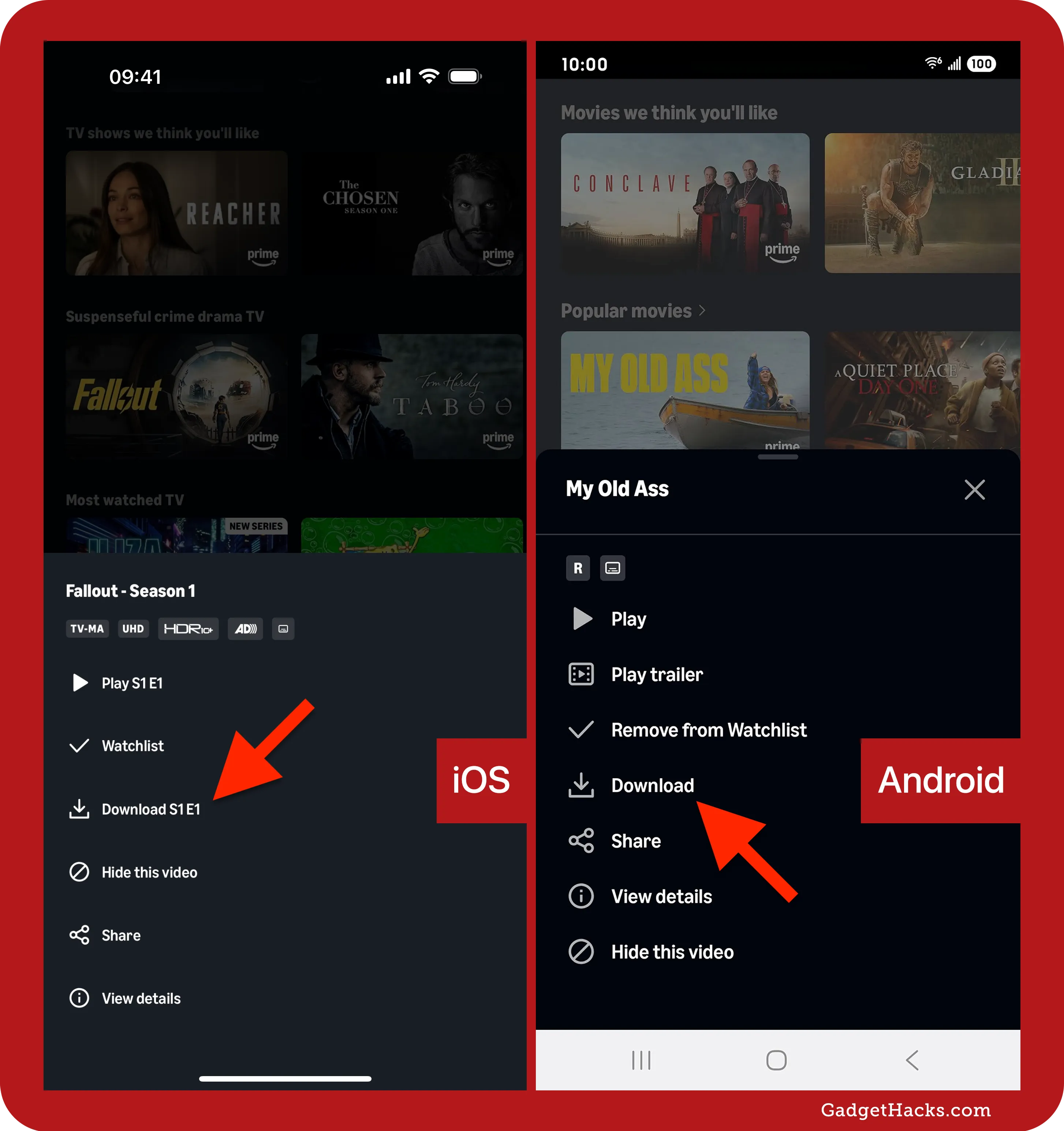
Browse the vast library of films and TV shows. You can use the search bar, explore curated categories, or check your watchlist. Once you find a film you wish to download, tap on its title to open its detail page. Here, you’ll find information about the movie, cast, synopsis, and most importantly, the download option.
Initiating the Download
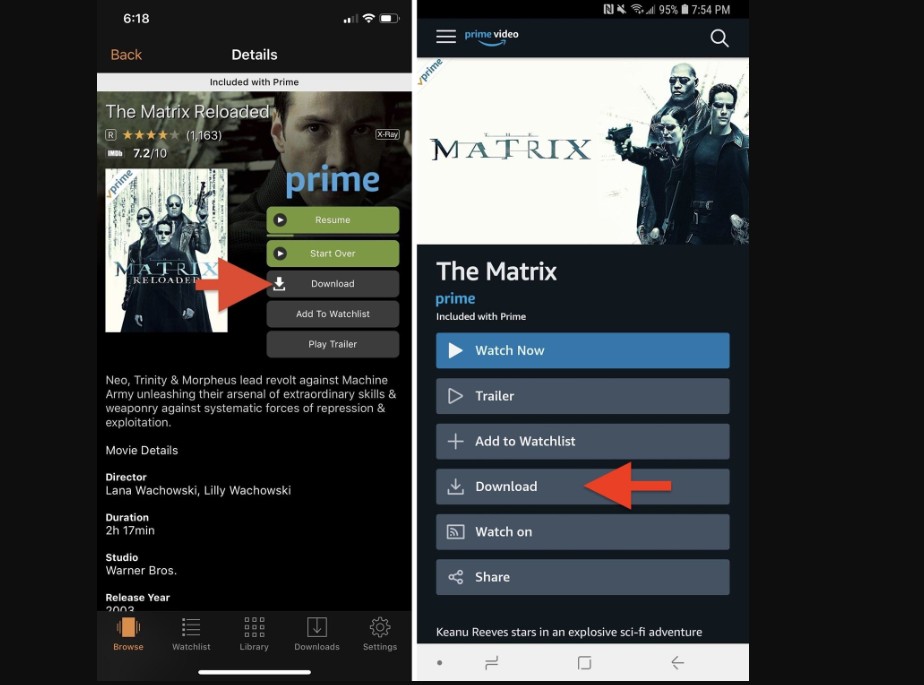
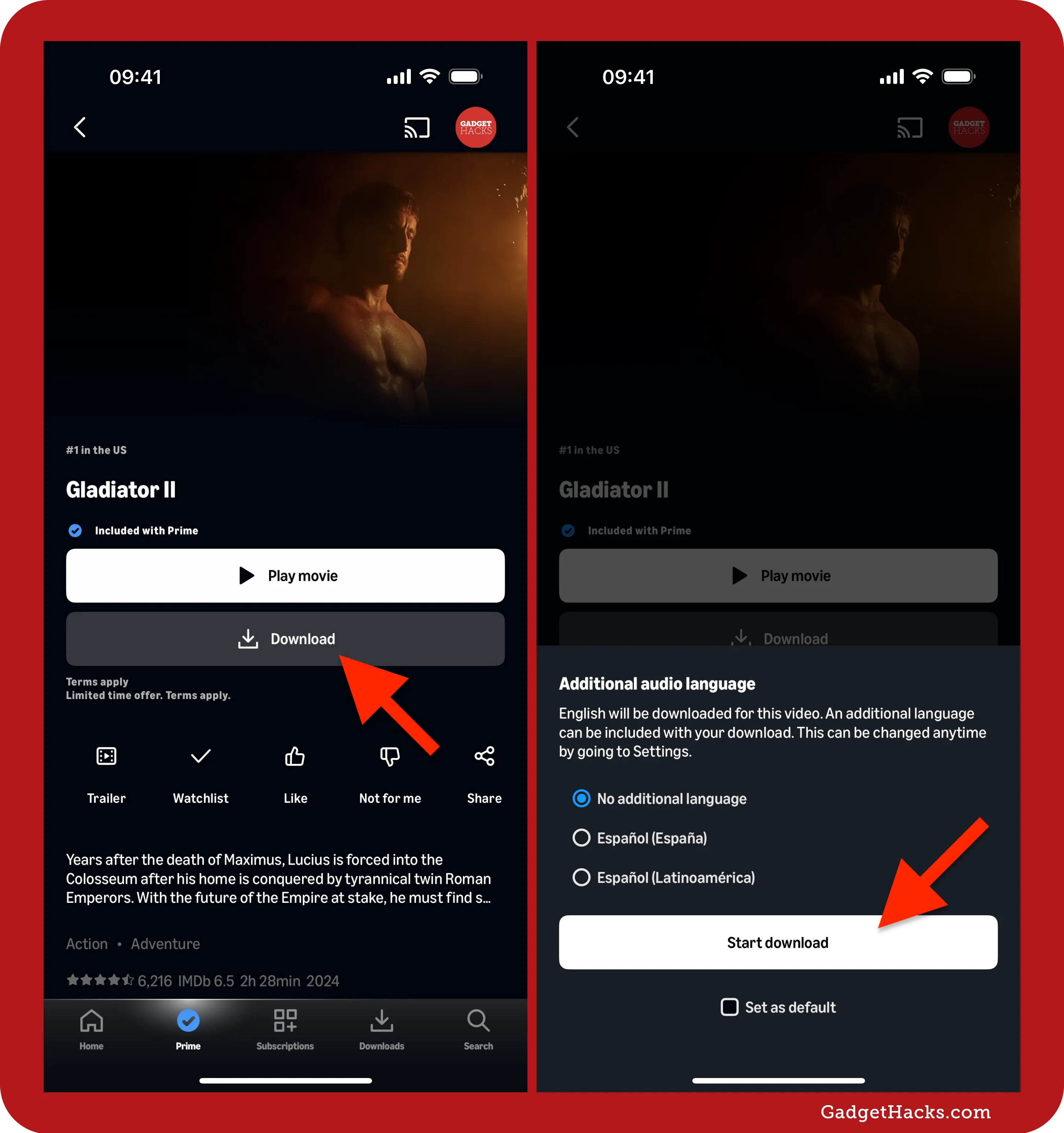
On the film’s detail page, look for a “Download” button or an icon typically represented by a downward-pointing arrow. For TV series, you’ll often see the option to download individual episodes or an entire season (if available). Tapping the download button will usually prompt you to select the video quality for your download (e.g., Good, Better, Best). Higher quality will consume more storage space but offer a superior viewing experience. Make your selection, and the download will begin.
Monitoring Download Progress
You can monitor the progress of your downloads by navigating to the “Downloads” tab within the Prime Video app (usually found at the bottom navigation bar). Here, you’ll see a list of all your currently downloading and downloaded titles, along with their progress indicators. You can pause or cancel downloads from this section if needed.
Accessing Downloads on Desktop (Windows & Mac)
While the mobile app is the primary method, Amazon also provides a dedicated Prime Video app for Windows and Mac computers, extending the offline viewing capability to larger screens.
Installing the Prime Video Desktop App
Unlike web browser streaming, downloading requires a dedicated application. For Windows users, download the “Amazon Prime Video for Windows” app from the Microsoft Store. Mac users can find the “Amazon Prime Video” app in the Mac App Store. Install the application on your computer.
Signing In and Browsing
Launch the newly installed Prime Video desktop app. You will be prompted to sign in using your Amazon account details. Once logged in, the interface is similar to the mobile app or web version, allowing you to browse or search for films.
Downloading Specific Titles
Navigate to the film’s detail page within the desktop app. Similar to the mobile experience, you will find a “Download” button or a download icon. Click on it, and you’ll typically be asked to choose your preferred video quality. Once selected, the download process will commence.
Managing Your Download Library
Downloaded content on the desktop app is also stored in a dedicated “Downloads” section, usually accessible via a sidebar menu or a prominent tab. From here, you can play your downloaded films, check their expiry dates, or delete them to free up storage space.
Understanding Download Limitations and Best Practices
While the download feature is incredibly useful, it comes with certain limitations and specific conditions designed to protect content rights and manage resources. Being aware of these ensures a smooth experience.
Device and Storage Considerations
The most immediate limitation is your device’s available storage space. High-definition films, especially longer ones, can consume several gigabytes of storage.
Internal Storage vs. External Storage
Most mobile devices rely solely on internal storage. Before downloading, check your device’s available space. If your device supports expandable storage (like an SD card for some Android phones), you might be able to configure the Prime Video app to save downloads there, alleviating pressure on internal memory. Desktop users generally have more storage, but it’s still wise to monitor disk space.
Managing Download Quality Settings
Amazon Prime Video typically offers a choice of download qualities (e.g., Good, Better, Best, or specific resolutions like SD, HD). Opting for lower quality settings will drastically reduce the file size, allowing you to store more content on your device, albeit with a slight compromise in visual fidelity. This is a practical trade-off, especially on smaller screens or when storage is at a premium.
Content Rights and Availability
Not all content on Amazon Prime Video is available for download, and downloaded content isn’t permanent in all cases.
Rental vs. Purchase Downloads
Films and TV shows you rent or purchase from Amazon are usually available for download and often have more flexible retention periods than content included with your Prime subscription. Purchased content typically remains available in your digital library indefinitely, allowing for repeated downloads. Rented content usually has a time limit for viewing once playback begins (e.g., 48 hours within a 30-day window after rental).
Subscription Content Expiry
Content included with your Prime subscription that is downloaded often has an expiry period. Typically, you have 30 days to start watching a downloaded title once it’s on your device, and once you start watching, you have 48 hours to finish it. After these periods, the download will expire, and you’ll need an internet connection to re-download or refresh its license. If a title leaves the Prime Video catalog, its downloaded version may also become unavailable.
Regional Restrictions
Content availability, including download options, can vary significantly based on your geographical location due to licensing agreements. A film available for download in one country might only be streamable or not available at all in another. Using a VPN to try and bypass these restrictions is generally against Amazon’s terms of service and may not work with the app’s download functionality.
Number of Devices and Simultaneous Downloads
Amazon imposes limits on the number of devices you can download content to simultaneously and the total number of unique titles you can download across all devices. Typically, you can download a single title on up to two devices at a time, and there’s a limit to the total number of unique titles (e.g., 15 or 25, depending on region and content type) you can have downloaded across all your registered devices. These limits are in place to prevent unauthorized sharing and manage server load.
Troubleshooting Common Download Issues
Even with a clear understanding of the process, users can occasionally encounter issues. Knowing how to diagnose and resolve these can save considerable frustration.
Addressing Connectivity Problems
The most common reason for failed or stalled downloads is an unstable or weak internet connection.
- Check Wi-Fi/Mobile Data: Ensure your device is connected to a stable Wi-Fi network or has sufficient mobile data signal.
- Restart Router: If on Wi-Fi, try restarting your router.
- Airplane Mode Toggle: For mobile issues, try toggling airplane mode on and off to reset network connections.
- Firewall/Antivirus: On desktops, ensure your firewall or antivirus software isn’t blocking the Prime Video app’s internet access.
Insufficient Storage Space Alerts
If you receive a “storage full” error, you’ll need to free up space.
- Delete Unwanted Content: Go to your device’s storage settings and delete old photos, videos, or unused apps.
- Remove Old Downloads: Within the Prime Video app’s “Downloads” section, delete films you’ve already watched or no longer need.
- Lower Download Quality: As discussed, downloading at a lower quality setting can significantly reduce file size.
App Glitches and Updates
Software can sometimes behave unexpectedly.
- Restart App: Close the Prime Video app completely and reopen it.
- Restart Device: A full device restart can resolve many temporary software glitches.
- Update App: Ensure you have the latest version of the Prime Video app installed. Developers frequently release updates that fix bugs and improve performance. Check your device’s app store for available updates.
- Clear Cache/Data: As a last resort, for persistent issues (especially on Android), you can try clearing the app’s cache or data through your device’s settings. Be aware that clearing data will sign you out and you’ll need to re-download any existing content.
DRM and Playback Errors
Digital Rights Management (DRM) is in place to protect copyrighted content. If you encounter playback issues with a downloaded film:
- Re-download: The downloaded file might be corrupted. Try deleting it and downloading it again.
- Check Expiry: Ensure the download hasn’t expired, especially for Prime subscription content. You might need an internet connection to refresh its license or re-download it.
- Device Compatibility: Ensure your device meets the minimum system requirements for the Prime Video app and its DRM protocols. Outdated operating systems can sometimes cause issues.
Maximizing Your Offline Prime Video Experience
Beyond simply downloading, there are additional steps you can take to fully leverage the offline capabilities of Amazon Prime Video.
Optimizing Playback Settings
Once a film is downloaded, you still have control over certain playback aspects.
- Subtitles and Audio Tracks: Most downloaded films retain the option to switch between available audio languages and subtitle tracks during playback. Ensure you’ve selected your preferences before starting.
- Picture-in-Picture (PiP): On compatible mobile devices, you can often utilize PiP mode, allowing your downloaded film to play in a small window while you use other apps.
Organizing Your Downloaded Library
For users who download extensively, managing their library becomes crucial.
- Regular Purging: Make it a habit to delete films you’ve finished watching. This keeps your storage clear and makes it easier to find new content.
- Prioritize: If you have limited space, prioritize what you download. Focus on content for immediate viewing or items that might soon leave the Prime catalog.
Parental Controls for Offline Content
Amazon Prime Video offers robust parental control features, which extend to downloaded content.
- PIN Protection: You can set up a Prime Video PIN to restrict access to content above certain age ratings, even for offline viewing. This ensures children can’t access inappropriate material without authorization.
- Kid’s Profile: Using a dedicated Kid’s Profile ensures that only age-appropriate content is displayed and downloadable, providing peace of mind.
Conclusion: Empowering Your Prime Video Journey
The ability to download films from Amazon Prime Video is more than just a convenience; it’s a transformative feature that fundamentally alters how and where you consume your entertainment. By understanding the straightforward downloading process across various devices, acknowledging the practical limitations, and equipping yourself with troubleshooting knowledge, you empower yourself to bypass connectivity constraints and enjoy your favorite content on your own terms. This comprehensive guide has aimed to illuminate every facet of this crucial functionality, ensuring that your journey with Amazon Prime Video is always one of seamless, uninterrupted, and insightful entertainment, wherever life may take you. Embrace the freedom of offline viewing and unlock the full potential of your Prime Video subscription.
aViewFromTheCave is a participant in the Amazon Services LLC Associates Program, an affiliate advertising program designed to provide a means for sites to earn advertising fees by advertising and linking to Amazon.com. Amazon, the Amazon logo, AmazonSupply, and the AmazonSupply logo are trademarks of Amazon.com, Inc. or its affiliates. As an Amazon Associate we earn affiliate commissions from qualifying purchases.