
In an increasingly digital world, the way we consume entertainment has been revolutionized. Gone are the days when traditional cable subscriptions were the only gateway to a vast array of content. Today, streaming devices have empowered users with unprecedented control over their viewing experience, offering on-demand access to movies, TV shows, music, games, and much more. Among these innovative gadgets, the Amazon Fire TV Stick stands out as a particularly popular and versatile option, transforming any ordinary television into a smart entertainment hub. For tech enthusiasts and casual users alike, understanding how to properly set up this powerful device is the first step towards unlocking a world of digital entertainment.
The Fire TV Stick embodies the core values of modern Tech – it’s a compact, user-friendly device that brings advanced functionality to your fingertips. It integrates seamlessly with Amazon’s ecosystem, provides access to a myriad of apps, and offers intuitive navigation. Furthermore, from a Money perspective, it presents a highly cost-effective alternative to expensive cable packages, allowing users to curate their content subscriptions and often access a wealth of free content, making smart entertainment accessible to a broader audience. This guide will walk you through every step of the installation process, ensuring a smooth and successful setup from start to finish.
Preparing for Installation: What You’ll Need
Before diving into the physical and software setup of your Amazon Fire TV Stick, a brief preparation phase will ensure a seamless experience. This involves unboxing your new gadget and confirming you have all the necessary components and environmental prerequisites ready.
Unboxing Your Firestick: A Quick Inventory
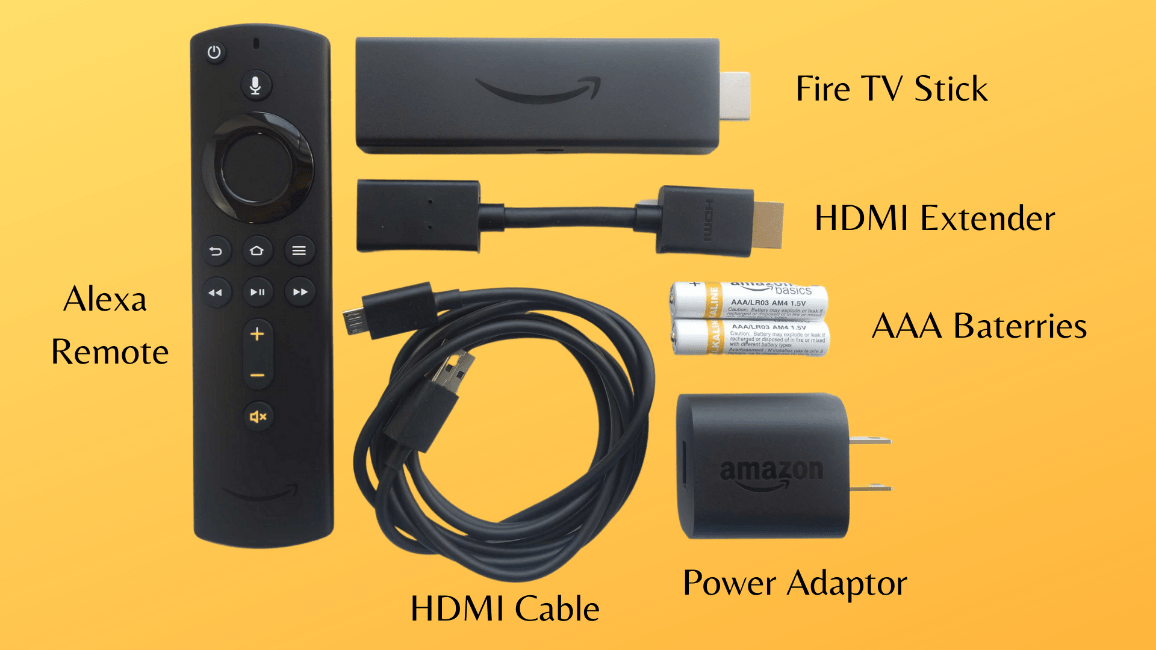
Upon opening your Amazon Fire TV Stick package, you should find several key components. Familiarizing yourself with these items will make the subsequent steps straightforward. Typically, your box will contain:
- The Amazon Fire TV Stick: This is the main device, a small dongle resembling a USB flash drive, designed to plug directly into your TV’s HDMI port.
- Alexa Voice Remote: A sleek, compact remote control that allows for easy navigation and voice commands, often powered by two AAA batteries.
- USB Cable: This cable connects the Fire Stick to its power adapter.
- Power Adapter (Wall Charger): Essential for providing consistent power to your Fire Stick. While some TVs have USB ports that can power the device, using the dedicated wall adapter is highly recommended for optimal performance and stability.
- HDMI Extender: A short, flexible HDMI cable that can be useful if your TV’s HDMI ports are too close together or if the Fire Stick’s size prevents it from fitting snugly without obstructing other ports.
- User Manual/Quick Start Guide: While this comprehensive guide aims to cover everything, a quick glance at the manufacturer’s provided instructions can always offer additional insights specific to your model.
Ensure all these items are present and accounted for. If anything is missing or appears damaged, it’s best to contact Amazon customer support before proceeding.
Essential Prerequisites: Devices and Connections
Beyond the Fire Stick itself, a few other elements are crucial for a successful installation. These prerequisites ensure that your environment is ready to host your new streaming device.
- A Television with an HDMI Port: This is non-negotiable. Your TV must have at at least one available HDMI input. Most modern televisions manufactured in the last 10-15 years will have multiple HDMI ports. Note the specific HDMI port number you plan to use (e.g., HDMI 1, HDMI 2) as you’ll need to select this input later.
- A Reliable Wi-Fi Internet Connection: The Fire TV Stick is an internet-dependent streaming device. A stable and reasonably fast Wi-Fi connection is paramount for smooth streaming of high-definition content, app downloads, and system updates. You’ll need your Wi-Fi network name (SSID) and password handy during the setup process. For the best experience, a minimum speed of 3-5 Mbps for standard definition, 5-8 Mbps for HD, and 15-25 Mbps for 4K streaming is generally recommended.
- An Amazon Account: To register your Fire TV Stick and access Amazon’s vast ecosystem of content and services, an active Amazon account is required. If you don’t already have one, you can easily create a free account on Amazon’s website before starting the installation. This account will be linked to your device, personalizing your experience and granting access to Prime Video, Amazon Music, and any purchases you make.
- A Power Outlet: Your Fire Stick requires a constant power supply. Ensure you have an accessible power outlet near your TV for the power adapter.
Having these prerequisites in order simplifies the installation process significantly, allowing you to move through each step without interruption.
The Physical Setup: Connecting Your Firestick
With your components identified and prerequisites confirmed, the next stage involves physically connecting your Fire TV Stick to your television and preparing it for initial power-up. This is typically the easiest part of the installation process.
Powering Up Your Firestick: The Right Way
While it might seem intuitive to simply plug the Fire Stick into your TV’s USB port for power, Amazon strongly recommends using the included power adapter and USB cable. This dedicated power source ensures the Fire Stick receives sufficient and stable power, which is critical for its optimal performance, preventing potential issues like sluggishness, freezing, or intermittent connectivity.
- Connect the USB Cable: Take the smaller end of the included USB cable and plug it into the micro-USB port on the Fire TV Stick itself.
- Connect to Power Adapter: Plug the larger USB-A end of the cable into the power adapter.
- Plug into Wall Outlet: Finally, plug the power adapter into a nearby electrical wall outlet.
This setup ensures your Fire Stick is ready to receive a consistent power supply as soon as it’s connected to your TV.
Connecting to Your Television: HDMI Port Selection
The Fire TV Stick connects directly to one of your television’s HDMI ports, which are responsible for carrying both video and audio signals.
- Locate an Available HDMI Port: On the back or side of your television, locate an unused HDMI port. They are usually labeled “HDMI 1,” “HDMI 2,” etc.
- Insert the Fire Stick: Gently but firmly plug the Fire TV Stick directly into the chosen HDMI port.
- Use HDMI Extender (If Needed): If the Fire Stick is too bulky or blocks other ports, use the included HDMI extender cable. Plug one end of the extender into your TV’s HDMI port, and then plug the Fire Stick into the other end of the extender. This provides more flexibility and can improve Wi-Fi signal reception in some setups by positioning the Fire Stick away from the TV’s metal casing.
- Turn On Your TV and Select Input: Power on your television and, using your TV’s remote control, navigate to the input or source menu. Select the HDMI input corresponding to the port where you plugged in your Fire TV Stick (e.g., if you used HDMI 2, select HDMI 2). You should soon see the Amazon Fire TV Stick logo or a setup screen appear on your television.
Remote Control Readiness: Batteries and Pairing
Your Fire Stick’s Alexa Voice Remote is your primary tool for navigating the interface. Before you can use it, it needs to be powered up and, if not automatically paired, manually connected to your Fire Stick.
- Insert Batteries: Open the battery compartment on the back of the Alexa Voice Remote. Insert the two AAA batteries (usually included in the package), paying close attention to the positive (+) and negative (-) terminals. Close the compartment.
- Automatic Pairing: In most cases, once the Fire Stick powers on and the remote has batteries, they will automatically pair. You’ll typically see a message on your TV screen indicating that the remote is connecting.
- Manual Pairing (If Needed): If the remote doesn’t pair automatically, or if you ever need to re-pair it, press and hold the “Home” button (the one with the house icon) on the remote for approximately 10 seconds. The remote’s LED indicator might flash, and a message on the TV screen will confirm successful pairing.
With the physical connections made and the remote ready, your Fire Stick is now poised for its initial software configuration.
Initial Software Configuration: Bringing Your Firestick to Life
Once your Fire Stick is physically connected and powered, the next crucial phase involves configuring its software settings, connecting it to your internet, and linking it to your Amazon account. This process is guided by an intuitive on-screen wizard.
Navigating the Setup Wizard: Language and Network Connection
As soon as your Fire Stick boots up for the first time, you’ll be greeted by a series of setup screens designed to get your device up and running.
- Select Your Language: The first prompt will ask you to choose your preferred language. Use the navigation buttons on your remote to highlight your language and press the “Select” (center) button.
- Connect to Your Wi-Fi Network: This is a critical step. The Fire Stick will scan for available Wi-Fi networks in your vicinity.
- Locate your home Wi-Fi network’s name (SSID) from the list.
- Select your network and press the “Select” button.
- Using the on-screen keyboard, carefully enter your Wi-Fi password. Passwords are case-sensitive, so double-check your input. If you have trouble, ensure you’re entering the correct password for your home network.
- Once entered, select “Connect.” The Fire Stick will attempt to establish a connection. Upon success, you’ll see a confirmation message. If it fails, double-check your password and try again, or troubleshoot your Wi-Fi router.
- Check for Updates: After connecting to Wi-Fi, the Fire Stick will automatically check for and download any available software updates. This is a vital step to ensure your device has the latest features, security patches, and performance enhancements. This process can take several minutes, and the device may restart one or more times. Do not disconnect power during an update. This reflects the commitment to ongoing Tech improvements, ensuring your gadget remains current and secure.
Logging In with Your Amazon Account: The Gateway to Content
Your Amazon account is the key that unlocks the Fire Stick’s full potential, linking your device to your purchased content, subscriptions, and personalized recommendations.

- Register Your Device: After updates, the Fire Stick will prompt you to register it to an Amazon account.
- If you already have an Amazon account, choose the option to “I already have an Amazon account.”
- You will then be prompted to enter your Amazon account email address and password using the on-screen keyboard.
- If you bought the Fire Stick directly from Amazon and it was shipped to your Amazon account address, it might come “pre-registered” to your account. In this case, you’ll simply need to confirm that it’s the correct account, or choose to switch accounts if necessary.
- Profile Selection (if applicable): If your Amazon account has multiple user profiles (e.g., for different family members), you might be asked to select the primary profile for this device.
- Parental Controls (Optional): Amazon will often present the option to set up parental controls at this stage. This is a crucial Digital Security feature, allowing you to restrict content based on ratings, require a PIN for purchases, or block access to specific apps. If you have children, consider setting these up immediately. You can always adjust them later in the settings menu.
Software Updates and Essential Customizations
Beyond the initial registration, there are a few more steps to finalize your setup and personalize your Fire Stick.
- Confirm Time Zone: Your Fire Stick will usually detect your time zone automatically based on your Wi-Fi network’s location. Confirm that the displayed time zone is correct. If not, you can manually select it.
- Opt-in/Opt-out of Data Collection: You may be asked about data collection preferences to improve Amazon’s services. Review these options and choose according to your privacy comfort level.
- Learn Your Remote/Watch a Tutorial: Amazon often provides a short video tutorial or an interactive guide on how to use your remote control and navigate the Fire TV interface. Taking a few minutes to watch this can significantly improve your initial user experience and productivity in finding content.
- Install Recommended Apps (Optional): The Fire Stick may suggest a few popular apps like Netflix, Disney+, or YouTube to install immediately. You can select your favorites or skip this step to install apps later.
Congratulations! Your Amazon Fire TV Stick is now fully installed and configured for basic operation. You’re ready to explore its vast capabilities.
Beyond the Basics: Optimizing Your Firestick Experience
With the initial setup complete, your Fire TV Stick is ready for prime time. However, to truly master your entertainment hub and leverage its full potential, a few extra steps can enhance your streaming experience, making it more personalized, secure, and enjoyable. These aspects directly tie into maximizing your Tech investment and ensuring Digital Security.
Discovering and Installing Your Favorite Apps
The true power of the Fire Stick lies in its extensive app ecosystem. While some popular apps might have been pre-installed or offered during initial setup, a universe of content awaits in the Appstore.
- Navigating the Appstore: From the Fire TV home screen, you can usually find an “Apps” or “Appstore” section in the main navigation bar. Selecting this will take you to a marketplace similar to a smartphone app store.
- Searching for Apps: Use the search function (often represented by a magnifying glass icon) to find specific streaming services (e.g., Hulu, HBO Max, Peacock), utility apps (e.g., VPNs, web browsers), or games. You can type using the on-screen keyboard or, for a faster experience, use the Alexa Voice Remote to speak your search query.
- Installing Apps: Once you find an app, select it to view its details page. Choose “Get” or “Download” to install it. Free apps will begin downloading immediately, while paid apps will require purchase confirmation via your Amazon account.
- Managing Apps: To keep your Fire Stick running smoothly, periodically check your installed apps. You can move frequently used apps to your home screen’s “Your Apps & Channels” row for quick access. For apps you no longer use, go to Settings > Applications > Manage Installed Applications to uninstall them, freeing up valuable storage space and improving performance.
Personalizing Your Home Screen and Settings
A personalized interface not only looks better but also significantly boosts your productivity by making your favorite content more accessible.
- Rearranging Apps: On the home screen, navigate to the “Your Apps & Channels” row. Highlight an app you wish to move, press the “Options” button (three horizontal lines) on your remote, and select “Move.” You can then use the navigation buttons to place the app in your desired position.
- Customizing Screensavers and Display: Dive into the Settings menu (often a gear icon on the home screen).
- Display & Audio: Adjust screen resolution (if your TV supports 4K, ensure your Fire Stick is also set to 4K for optimal quality), calibrate display settings, and configure audio output.
- Screensaver: Choose from Amazon’s collection of beautiful photos or select your own photos from Amazon Photos as a screensaver.
- Notifications: Manage notifications from various apps to keep your experience clutter-free.
- Account & Profile Settings: Access settings related to your Amazon account, parental controls, and profile management. This is where you can refine permissions and ensure your family’s viewing preferences are respected.
Enhancing Security and Privacy
While primarily an entertainment device, a Fire Stick connects to the internet, making Digital Security considerations relevant.
- VPNs for Privacy and Access: Consider installing a Virtual Private Network (VPN) app on your Fire Stick. A VPN encrypts your internet traffic, enhancing your online privacy by masking your IP address. It can also allow you to access geo-restricted content by making it appear as if you are browsing from a different location. This is a popular Tech solution for users concerned about data privacy and content liberation. Many reputable VPN providers offer dedicated Fire TV Stick apps.
- Strong Passwords: Ensure your Amazon account has a strong, unique password. If you enabled parental controls, choose a PIN that is not easily guessable.
- Software Updates: Always allow your Fire Stick to download and install software updates. These updates often include critical security patches that protect your device from vulnerabilities.
By taking these steps, you not only make your Fire Stick more efficient and enjoyable but also fortify its security posture in the broader digital landscape.
Troubleshooting Common Installation and Setup Issues
Even with a detailed guide, technical glitches can sometimes arise. Knowing how to address common problems can save you time and frustration, allowing you to quickly get back to enjoying your entertainment. This troubleshooting section draws on common Tech support scenarios.
Power and Connectivity Problems
Many setup issues stem from power or HDMI connection problems.
-
No Power/Black Screen:
- Check Power Adapter: Ensure the USB cable is securely plugged into both the Fire Stick and the power adapter, and the adapter is firmly in a working wall outlet. Avoid powering the Fire Stick directly from your TV’s USB port, as this can be inconsistent.
- HDMI Connection: Verify the Fire Stick is fully inserted into the HDMI port on your TV. If using the HDMI extender, ensure both connections are secure. Try plugging the Fire Stick directly into the TV without the extender if you suspect the extender is faulty.
- TV Input: Double-check that your TV is set to the correct HDMI input channel that the Fire Stick is connected to (e.g., HDMI 1, HDMI 2). Use your TV remote’s “Source” or “Input” button.
- Try Different Ports: If possible, try plugging the Fire Stick into a different HDMI port on your TV, and also a different wall outlet.
-
Intermittent Connection/Buffering:
- Wi-Fi Signal Strength: Check your Wi-Fi signal strength in the Fire Stick’s settings (Settings > Network). If it’s weak, try moving your Wi-Fi router closer to the Fire Stick, or use a Wi-Fi extender.
- Router Reboot: Unplug your Wi-Fi router from its power source, wait 30 seconds, and plug it back in. Wait a few minutes for it to fully restart, then try connecting your Fire Stick again.
- Interference: Other electronic devices, thick walls, or even neighboring Wi-Fi networks can interfere with your signal. Try to minimize these factors.
- Internet Speed: Ensure your internet plan provides adequate speed for streaming. You can run a speed test on another device connected to your Wi-Fi to confirm.
Remote Control Malfunctions
A non-responsive remote can halt your setup process.
- Batteries: The most common culprit. Replace the AAA batteries in your Alexa Voice Remote with fresh ones, ensuring they are inserted with correct polarity.
- Re-pair Remote: If the remote isn’t responding, try to manually re-pair it. Press and hold the “Home” button on the remote for about 10 seconds. The remote LED should flash, and you’ll see a confirmation on screen if successful.
- Obstructions: Ensure there are no physical obstructions between the remote and the Fire Stick (though the Alexa remote uses Bluetooth, direct line of sight isn’t always strictly required, it helps).
- Fire Stick Restart: Sometimes a simple restart of the Fire Stick can resolve remote issues. Unplug the Fire Stick’s power adapter from the wall outlet for a few seconds, then plug it back in.
Network and Amazon Account Hurdles
Problems with Wi-Fi passwords or account registration are also common.
- Incorrect Wi-Fi Password: Carefully re-enter your Wi-Fi password. Remember, it’s case-sensitive. If you’ve forgotten it, you may need to access your router’s settings or reset your router (which will revert it to factory default password).
- Cannot Connect to Wi-Fi: If your network doesn’t appear in the list, try rebooting your Wi-Fi router. Ensure your Fire Stick is within range. If your network uses an uncommon security protocol, check your router settings.
- Amazon Account Login Issues:
- Incorrect Credentials: Double-check your Amazon email and password. If you’ve forgotten your password, use the “Forgot Password” link on the Amazon website or app to reset it.
- Two-Factor Authentication (2FA): If you have 2FA enabled on your Amazon account, ensure you have your secondary device (phone/authenticator app) ready to receive the verification code when prompted.
- Account Region: Ensure your Amazon account is set to the same country/region where you are trying to register the Fire Stick.
By systematically working through these troubleshooting steps, most common installation and setup problems can be quickly resolved, allowing you to enjoy uninterrupted streaming.
Conclusion: Unlocking a World of Digital Entertainment
The Amazon Fire TV Stick is more than just a streaming device; it’s a gateway to an expansive and personalized entertainment ecosystem, exemplifying modern Tech at its finest. From its compact design to its powerful streaming capabilities and intuitive Alexa Voice Remote, it empowers users to take control of their viewing experience, moving beyond traditional broadcast schedules to a world of on-demand content.
By following this comprehensive guide, you’ve not only mastered the physical and software installation of your Fire TV Stick but also gained insights into optimizing its performance, managing your apps, and enhancing your digital security. This investment in a smart streaming device represents a significant leap in how we engage with media, offering tremendous value from a Money perspective by providing access to countless hours of entertainment, often at a fraction of the cost of legacy systems.
As technology continues to evolve, devices like the Fire TV Stick will remain at the forefront, adapting to new trends in streaming, artificial intelligence, and user interaction. Your newly installed Fire Stick is ready to open up a world of movies, TV shows, music, and apps, transforming your television into a dynamic, intelligent hub for all your digital entertainment needs. Dive in, explore, and enjoy the freedom of truly personalized streaming.
aViewFromTheCave is a participant in the Amazon Services LLC Associates Program, an affiliate advertising program designed to provide a means for sites to earn advertising fees by advertising and linking to Amazon.com. Amazon, the Amazon logo, AmazonSupply, and the AmazonSupply logo are trademarks of Amazon.com, Inc. or its affiliates. As an Amazon Associate we earn affiliate commissions from qualifying purchases.