
The iPhone has fundamentally redefined the way we interact with technology, transforming from a simple communication device into a sophisticated pocket computer. At the heart of this transformation is the App Store—a curated ecosystem that provides access to millions of tools designed to enhance productivity, entertainment, health, and connectivity. For both new users and seasoned tech enthusiasts, understanding the intricacies of installing and managing apps is essential to unlocking the full potential of Apple’s hardware. This guide provides a deep dive into the technical workflow of the iOS application ecosystem, ensuring a seamless and secure digital experience.
The Foundation: Getting Started with the Apple App Store
Before you can download your first application, you must understand the infrastructure that supports the iOS environment. The App Store is not merely a digital storefront; it is a secure gateway that requires specific configurations to function correctly.
Setting Up and Securing Your Apple ID
The Apple ID serves as your digital passport across all Apple services. To install apps, an active Apple ID must be signed into the device. During the setup process, users are encouraged to enable Two-Factor Authentication (2FA). From a technical security standpoint, 2FA is non-negotiable in the modern era, adding an extra layer of protection to your App Store purchases and personal data. Whether you are downloading a free utility or a premium professional tool, the App Store links every license to this unique identifier.
Navigating the App Store Interface
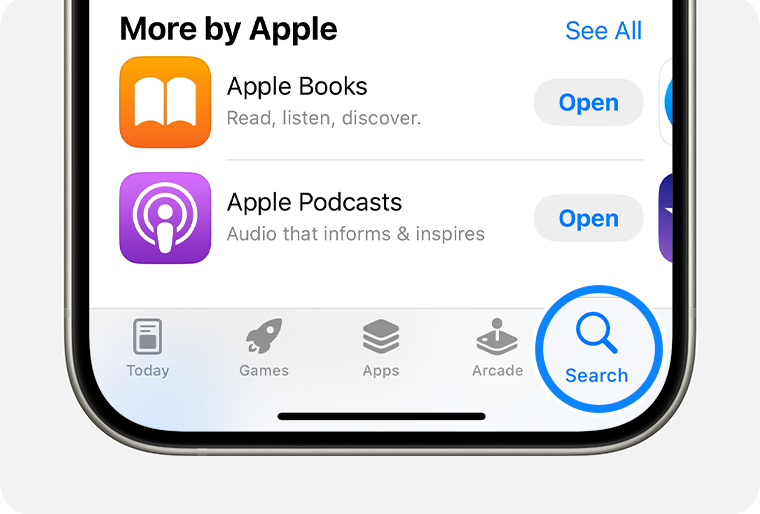
Apple’s design philosophy emphasizes discovery. Upon launching the App Store, you are greeted by several key tabs:
- Today: A curated feed of featured apps, daily stories, and developer interviews.
- Games & Apps: Categorized sections that help users browse by genre or utility.
- Arcade: A subscription-based service for premium gaming without ads or in-app purchases.
- Search: The primary tool for finding specific software by name, developer, or functionality.
Understanding App Permissions and Privacy
In recent years, Apple has prioritized user privacy through “Privacy Nutrition Labels.” Before hitting the download button, users can scroll down to the “App Privacy” section to see what data the app collects—such as location, contact info, or browsing history—and whether that data is used to track them across other apps and websites. Understanding these disclosures is a vital skill for maintaining digital hygiene in a tech-centric world.
The Installation Process: From Search to Launch
Installing an app on an iPhone is designed to be intuitive, yet there are several technical nuances involved in the transition from the store to your Home Screen.
Searching for and Discovering New Apps
When you search for an app, the iOS algorithm considers relevance, ratings, and keywords. Once you identify the desired software, the interface presents either a “Get” button (for free apps) or a specific price. It is important to note that many “free” apps operate on a “Freemium” model, where the initial download is free, but advanced features require in-app purchases or subscriptions.
Authenticating the Download
To prevent unauthorized downloads and ensure the security of your device, iOS requires authentication for every installation. Depending on your iPhone model and settings, this is handled through:
- Face ID: A double-click of the side button followed by a facial scan.
- Touch ID: Placing a registered fingerprint on the Home button.
- Passcode: Manually entering your device’s numeric or alphanumeric code.
This authentication step is a critical barrier against accidental purchases, especially in households where devices are shared with children.
Managing In-Progress Downloads
Once authenticated, the app icon appears on your Home Screen with a progress overlay. For larger files, such as high-end mobile games or video editing suites, it is highly recommended to use a stable Wi-Fi connection. iOS allows you to prioritize certain downloads; if you are installing multiple apps simultaneously, long-pressing an icon allows you to select “Prioritize Download,” ensuring that your most needed tool is ready first.
Beyond the Basics: Advanced App Management Techniques
Installation is only the beginning. Maintaining a high-performance device requires active management of the software you have installed. As the number of apps grows, so does the demand on your device’s storage and processor.
Organizing Your Home Screen and App Library
With the introduction of the App Library in iOS 14, Apple provided a way to keep the Home Screen decluttered. All installed apps are automatically categorized in the App Library, accessible by swiping left past your last Home Screen page.
- Creating Folders: To group similar apps (e.g., “Finance” or “Social Media”), drag one app icon on top of another.
- Hiding Pages: You can hide entire pages of apps without deleting them, allowing for a more focused interface during work hours.
Managing Automatic Updates and Downloads
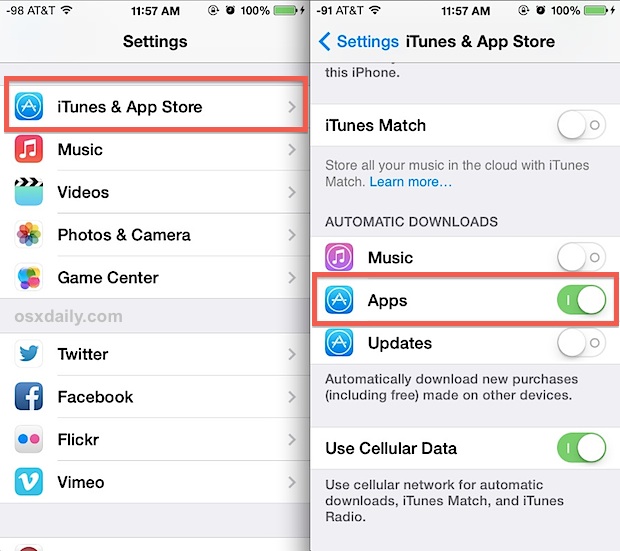
Outdated software can lead to security vulnerabilities and performance bottlenecks. By navigating to Settings > App Store, users can toggle “App Updates” on. This allows the iPhone to download and install the latest versions of your apps in the background. However, if you are frequently on a limited data plan, you may wish to disable “Automatic Downloads” over cellular data to avoid unexpected charges.
Offloading vs. Deleting Apps to Save Storage
One of the most innovative features in the iOS ecosystem is “Offloading.” When storage runs low, you can choose to offload an app. This removes the application itself but keeps all of its documents and data. If you reinstall the app later, your data is seamlessly restored. Conversely, “Deleting” an app removes both the software and its associated data permanently. This distinction is crucial for managing devices with limited internal storage (e.g., 64GB or 128GB models).
Security and Troubleshooting in the iOS Ecosystem
Despite the polished nature of the iOS environment, technical hurdles can occasionally arise during the app installation process. Being equipped to troubleshoot these issues is a key component of technical literacy.
Verifying App Authenticity and Ratings
The App Store is generally safer than sideloading on other platforms, but users should still exercise due diligence. Before installing, check the “Ratings & Reviews” section. High-quality apps usually have a high volume of reviews and a history of regular updates from the developer. If an app has few reviews and asks for excessive permissions (like access to your full contact list for a simple calculator), it is a red flag.
Troubleshooting Common Installation Errors
If an app fails to download, the issue is usually tied to one of three things:
- Connectivity: Switch from Cellular to Wi-Fi, or toggle Airplane Mode on and off to reset the network stack.
- Payment Method: Even for free apps, Apple requires a valid payment method on file in many regions. Ensure your credit card or Apple ID balance is current.
- Storage Space: If your iPhone is full, the download will pause indefinitely. You will need to remove large videos or unused apps to make room.
Restoring Purchased Apps on a New Device
One of the greatest benefits of the Tech niche’s focus on cloud integration is the ability to restore your digital library. When upgrading to a new iPhone, you do not need to “repurchase” software. By navigating to your profile icon in the App Store and selecting “Purchased,” you can see a complete history of every app you have ever downloaded. Clicking the cloud icon allows for a rapid re-installation of your entire digital toolkit.
The Role of Beta Testing with TestFlight
For those who want to stay on the cutting edge of technology, Apple offers an app called TestFlight. This allows developers to invite users to test “Beta” versions of their apps before they are officially released on the App Store. While this is an excellent way to see new features early, it comes with the risk of software bugs. Engaging with TestFlight is a common practice among tech enthusiasts who want to contribute to the software development lifecycle.

Conclusion
The ability to install and manage apps effectively is the cornerstone of the modern iPhone experience. By mastering the App Store’s interface, understanding the nuances of privacy and permissions, and utilizing advanced storage management features like offloading, users can ensure their device remains a powerful, efficient, and secure tool. As the iOS ecosystem continues to evolve with AI integrations and more complex software, staying informed on these fundamental tech processes will remain essential for any user looking to maximize their digital lifestyle.
aViewFromTheCave is a participant in the Amazon Services LLC Associates Program, an affiliate advertising program designed to provide a means for sites to earn advertising fees by advertising and linking to Amazon.com. Amazon, the Amazon logo, AmazonSupply, and the AmazonSupply logo are trademarks of Amazon.com, Inc. or its affiliates. As an Amazon Associate we earn affiliate commissions from qualifying purchases.