
The Apple Watch, a marvel of miniaturized technology and a powerful extension of your iPhone, has evolved far beyond a simple timepiece. At its core, the Apple Watch is a platform, and like any robust platform, its true potential is unlocked through the vast ecosystem of applications available for it. From tracking your fitness goals with unparalleled precision to managing your daily schedule at a glance, or even diving into immersive games right from your wrist, there’s an app for almost every need and desire. However, for many, the process of getting these applications onto their Apple Watch can seem a little less intuitive than the seamless experience of installing apps on their iPhone. This guide aims to demystify the process, providing clear, step-by-step instructions on how to install Apple Watch apps, ensuring you can fully leverage the capabilities of your wearable device.
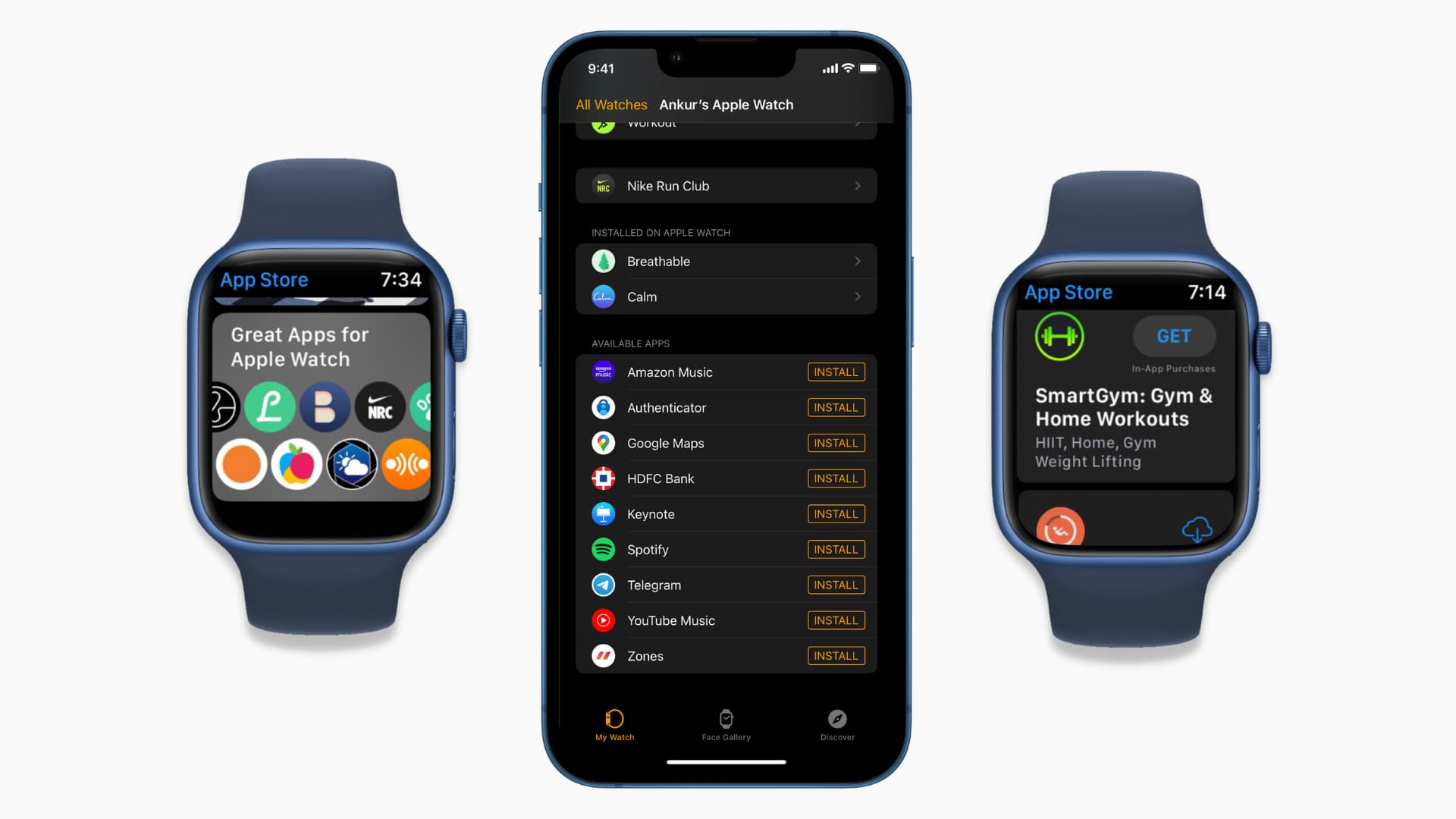
The installation process itself is remarkably straightforward once you understand the underlying mechanics. Unlike installing an app directly onto your iPhone, where you might open the App Store on the device itself, Apple Watch apps are primarily managed and installed through your paired iPhone. This centralizes control and simplifies the user experience, leveraging the familiar interface of the iPhone to manage the smaller, more focused interface of the Watch. We’ll explore the different methods available, from automatic installations triggered by your iPhone apps to manual browsing and downloading directly from the Watch itself, covering every scenario to ensure you’re equipped to personalize your Apple Watch experience.
Understanding the Apple Watch App Ecosystem
Before diving into the “how-to,” it’s beneficial to grasp the fundamental relationship between your iPhone and your Apple Watch concerning apps. The Apple Watch runs watchOS, a distinct operating system optimized for its smaller screen and unique interaction methods. However, it doesn’t operate in isolation. Most Apple Watch apps are companion apps, meaning they either have a corresponding iPhone app that manages their settings and data, or they are standalone applications that can be downloaded and used independently, though often still initiated and managed from the iPhone.
The App Store on your iPhone serves as the central hub for discovering and acquiring both iPhone and Apple Watch applications. When you browse the App Store, you’ll often see a dedicated section for Apple Watch apps or indicators on app listings that confirm their availability for your Watch. This integration is key to the Apple ecosystem, allowing for a cohesive user experience across devices.
How Apple Watch Apps are Developed and Distributed
Apple Watch apps are developed using Swift or Objective-C, leveraging Apple’s Software Development Kit (SDK) for watchOS. Developers can choose to create:
- Companion Apps: These are the most common. They require an iPhone app to function fully. The iPhone app handles data synchronization, complex processing, and provides a richer interface for configuration and management. The Watch app then acts as a streamlined interface to this functionality.
- Standalone Apps: Introduced with watchOS 2, these apps can run entirely on the Apple Watch without needing to be tethered to an iPhone for basic operations. They can access the Watch’s hardware directly, such as the heart rate sensor or accelerometer, for more immediate and responsive experiences. However, even for standalone apps, the initial download and often ongoing management are still handled via the iPhone.
Distribution is exclusively through the Apple App Store. This controlled environment ensures a level of security, quality, and user privacy that is a hallmark of Apple’s ecosystem. Each app is reviewed by Apple before being made available, helping to maintain standards.
The iPhone as the Central Management Hub
Your iPhone is the primary tool for managing your Apple Watch apps. This is where you’ll find the Watch app itself, which acts as a comprehensive control panel for your wearable. Within the Watch app, you can:
- Browse and Install New Apps: Discover new applications in dedicated sections.
- Manage Existing Apps: Control which apps are installed on your Watch, their notification settings, and their display on the Watch face.
- Update Apps: Ensure all your applications are running the latest versions with new features and security patches.
- Uninstall Apps: Remove applications you no longer need to free up storage space and declutter your Watch interface.
This centralized approach makes it convenient to manage your Watch’s software without needing to navigate complex menus on the smaller Watch screen for every task.
Methods for Installing Apple Watch Apps
There are several primary ways to get apps onto your Apple Watch, catering to different user preferences and scenarios. Understanding these methods will empower you to install apps efficiently and ensure you’re taking advantage of the full spectrum of available software.
1. Automatic Installation (When Installing iPhone Apps)
One of the most seamless ways Apple Watch apps get installed is through an automatic process. When you download or update an iPhone app that has a corresponding Apple Watch companion app, the system often prompts you to install the Watch version as well.
Steps:
- Open the App Store on your iPhone: Navigate to the App Store and find an app you wish to install.
- Download the iPhone App: Tap “Get” or the price, then “Install.” You might be prompted for your Apple ID password or Face ID/Touch ID authentication.
- Look for the “Add to Apple Watch” prompt: Immediately after the iPhone app begins downloading or upon its completion, you may see a notification or an option within the app’s listing in the App Store to “Add to Apple Watch” or a similar prompt.
- Tap “Add to Apple Watch”: This will initiate the installation of the Watch app onto your Apple Watch. You can usually see the download progress on your iPhone or directly on your Watch as a progress circle.
- Alternatively, check the Watch App: If you miss the prompt, you can always go to the Watch app on your iPhone. Scroll down to the “Installed on Apple Watch” section. Apps that have a corresponding Watch component but haven’t been automatically installed will often show an “Install” button next to them. Tap this button.
This automatic installation is designed for convenience, assuming you want the Watch functionality when you install the iPhone counterpart. It’s a powerful feature that keeps your devices in sync with minimal effort.
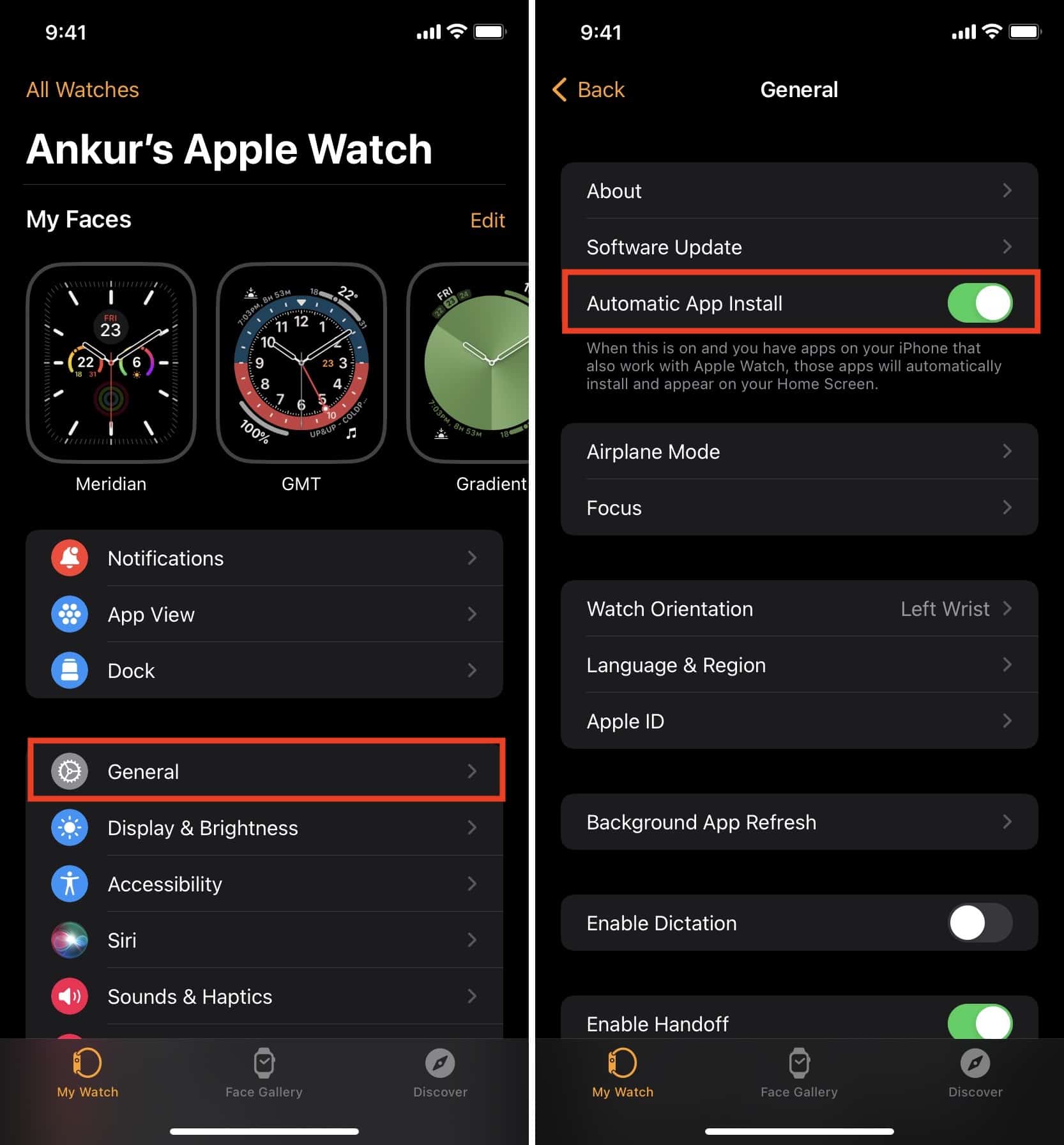
2. Manual Installation via the Watch App on iPhone
This is the most common and recommended method for actively searching for and installing specific Apple Watch apps that you want. The Watch app on your iPhone provides a dedicated interface for exploring and managing your wearable’s applications.
Steps:
- Open the “Watch” app on your iPhone: This app is pre-installed on your iPhone and usually resides on your home screen.
- Tap on the “App Store” tab: This is typically located at the bottom of the screen, alongside other options like “My Watch,” “Face Gallery,” and “Discover.”
- Browse or Search for Apps:
- Browse: You can explore curated collections, featured apps, categories (like Fitness, Productivity, Games), and trending apps.
- Search: Use the search bar at the top to look for specific app names or keywords.
- Select an App: Tap on an app that interests you. This will take you to its dedicated app page, which includes descriptions, screenshots, user reviews, and version information.
- Tap the “Get” or Price Button: Similar to the iPhone App Store, you’ll see a button indicating the app is free (“Get”) or its purchase price. Tap this button.
- Authenticate: You may be prompted to confirm your Apple ID password, use Face ID, or Touch ID to authorize the download.
- Installation: The app will begin downloading and installing directly onto your Apple Watch. You can monitor the progress on your iPhone. Once installed, it will appear on your Watch’s app screen.
This method gives you granular control over what you install and allows you to discover new applications that you might not have encountered otherwise.
3. Direct Installation on the Apple Watch (Newer watchOS Versions)
In more recent versions of watchOS, Apple has enabled a more direct way to install apps directly from the Apple Watch itself, similar to how you might install apps on an iPhone. This is particularly useful if your iPhone isn’t readily available or if you’re out and about and decide you want an app.
Steps:
- Open the “App Store” app on your Apple Watch: Look for the familiar blue App Store icon on your Watch’s app screen.
- Browse or Search:
- Browse: Scroll through featured apps, categories, and curated lists. You can swipe up or down to navigate.
- Search: Tap the search icon (magnifying glass) and use Scribble, Dictation, or a connected keyboard (if applicable) to type in the app name or keywords.
- Select an App: Tap on the app you want to install. You’ll see its app page with details.
- Tap the “Get” or Price Button: Just like on the iPhone, tap the button to download or purchase the app.
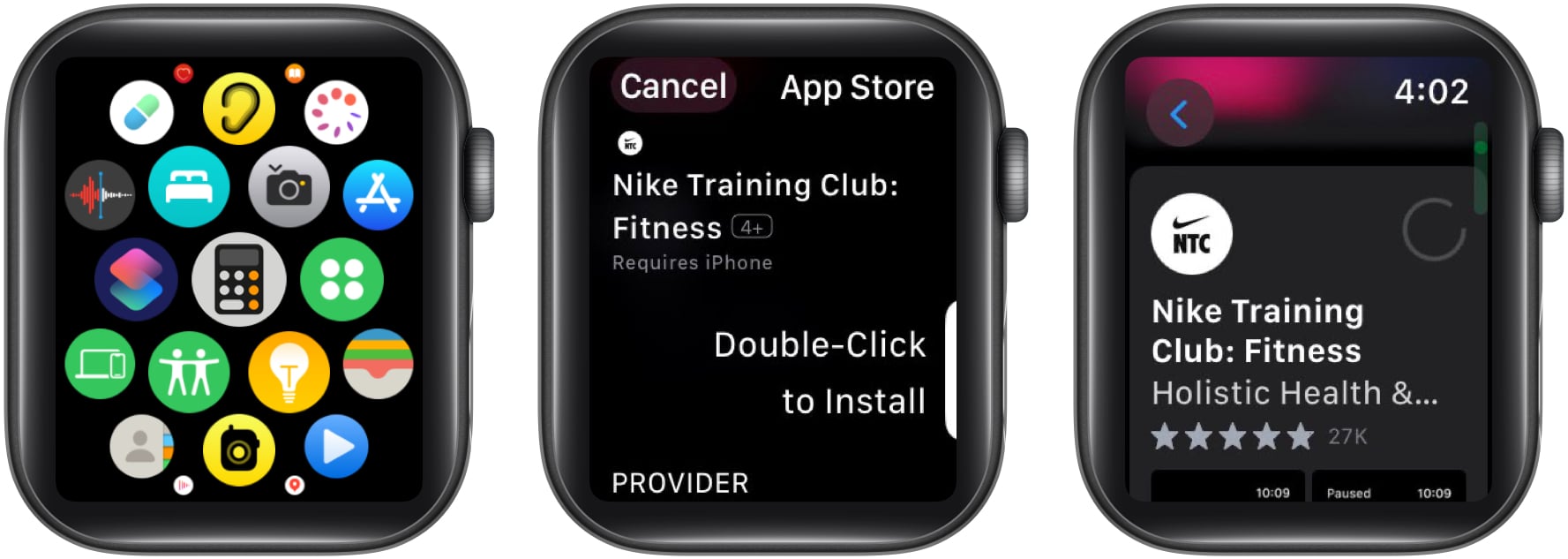
- Authenticate: You will be prompted to double-click the side button on your Apple Watch to authenticate the purchase or download. This uses your Apple Watch passcode.
- Download and Installation: The app will download and install directly onto your Apple Watch. You can see the progress by pressing the Digital Crown to go back to the app screen, where you’ll see a progress indicator.
This direct installation method offers ultimate convenience, making your Apple Watch a more independent device for managing its own applications.
Managing and Uninstalling Apps
Once you’ve installed your desired apps, knowing how to manage them is crucial for keeping your Apple Watch organized and running efficiently. This includes organizing app layouts, customizing settings, and removing apps you no longer use.
Organizing Apps on Your Apple Watch
Your Apple Watch can display apps in two main ways: a List View or a Grid View. You can switch between these and arrange the order of your apps to suit your preference.
Steps to Change View and Arrange Apps (via iPhone Watch App):
- Open the “Watch” app on your iPhone.
- Tap on “App View”: This option is usually found under the “My Watch” tab, often near the top.
- Choose between “List View” and “Grid View”: Select your preferred display.
- Rearrange Apps:
- Grid View: In the Watch app on your iPhone, tap and hold an app icon and drag it to a new position.
- List View: In the Watch app on your iPhone, tap “Edit” (usually at the top) and then drag the reorder icon (three horizontal lines) next to each app name to change its position.
Steps to Change View and Arrange Apps (Directly on Apple Watch):
- Press the Digital Crown: This brings you to your app screen.
- Force Touch (press and hold firmly) on the app screen.
- Tap “App View”: Choose “List View” or “Grid View.”
- To rearrange in Grid View: Press the Digital Crown to go to the grid, then press and hold an app icon. You can then drag it to a new spot.
- To rearrange in List View: Press the Digital Crown to go to the list, press and hold the screen, and then drag apps up or down.
Uninstalling Apps from Your Apple Watch
Freeing up storage space and decluttering your Watch is as simple as removing unwanted applications.
Steps to Uninstall Apps (via iPhone Watch App):
- Open the “Watch” app on your iPhone.
- Scroll down to “Installed on Apple Watch”: This section lists all apps currently on your Watch.
- Tap “Edit”: This button is usually at the top right of the “Installed on Apple Watch” section.
- Tap the red minus icon next to the app you want to remove.
- Tap “Delete”: Confirm your choice. The app will be uninstalled from your Apple Watch. Note that if the app has an iPhone component, the iPhone app will remain installed.
Steps to Uninstall Apps (Directly on Apple Watch):
- Press the Digital Crown: This brings you to your app screen.
- Navigate to the app you want to delete: If in Grid View, find it. If in List View, scroll to it.
- For Grid View: Press and hold the app icon until it starts to jiggle, then tap the “X” that appears on the icon.
- For List View: Press and hold the screen to enter rearrange mode. Then tap the red minus icon next to the app you want to remove, followed by “Delete.”
- Confirm: You may be asked to confirm the deletion.
By mastering these installation and management techniques, you can transform your Apple Watch into a truly personalized and powerful extension of your digital life, tailored precisely to your needs and preferences. The world of Apple Watch apps is vast and constantly expanding, offering endless possibilities to enhance your productivity, health, entertainment, and much more, all from the convenience of your wrist.
aViewFromTheCave is a participant in the Amazon Services LLC Associates Program, an affiliate advertising program designed to provide a means for sites to earn advertising fees by advertising and linking to Amazon.com. Amazon, the Amazon logo, AmazonSupply, and the AmazonSupply logo are trademarks of Amazon.com, Inc. or its affiliates. As an Amazon Associate we earn affiliate commissions from qualifying purchases.