
In the ever-evolving landscape of technology, Python has emerged as a cornerstone language, powering everything from cutting-edge AI research and web development to data analysis and automation scripts. Whether you’re a budding programmer, a data scientist, a digital marketer looking to leverage automation, or simply curious about the tools shaping our digital world, understanding your Python installation status is a fundamental first step. This guide will walk you through the simple yet crucial process of verifying if Python is present on your system and, if not, how to proceed. We’ll cover the nuances for different operating systems and even touch upon the implications for your tech journey.
The Ubiquity of Python: Why You Might Need to Know
Python’s versatility is its greatest strength. Its clean syntax, extensive libraries, and vibrant community make it an accessible entry point for newcomers and a powerful tool for seasoned professionals.
For the Tech Enthusiast: If you’re diving into machine learning, exploring data visualization, building your first web application with frameworks like Django or Flask, or experimenting with AI tools, Python is likely to be your primary language. Many of these advanced technologies rely heavily on Python’s robust ecosystem of libraries such as TensorFlow, PyTorch, Pandas, and NumPy.
For the Digital Marketer and Business Professional: Python’s scripting capabilities can revolutionize your workflow. Automating repetitive tasks, analyzing marketing campaign data, scraping websites for competitor information, or even building custom reporting dashboards are all within reach. This can lead to significant time savings and data-driven insights, directly impacting your brand’s effectiveness and financial performance.
For the Everyday User: Even if you’re not a developer, you might find yourself interacting with Python-based applications or needing to install tools that have Python as a dependency. Understanding its presence ensures smooth operation of various software and productivity tools.
Checking Your Python Installation: A Step-by-Step Approach
The method for checking if Python is installed varies slightly depending on your operating system. The most common and reliable way is through your system’s command-line interface (CLI).
Checking Python on Windows
Windows users have a couple of straightforward methods to determine their Python installation status.
Using the Command Prompt
-
Open the Command Prompt: The quickest way to do this is by pressing the Windows key, typing
cmd, and then pressing Enter. -
Enter the Command: In the Command Prompt window, type the following command and press Enter:
python --versionor
python -V(Note: The uppercase
-Vis often used for version checking in command-line tools.) -
Interpreting the Results:
- If Python is installed: You will see the installed Python version number displayed, for example,
Python 3.10.4orPython 2.7.18. This indicates that Python is recognized by your system’s PATH environment variable. - If Python is NOT installed (or not in PATH): You will likely see an error message such as:
'python' is not recognized as an internal or external command, operable program or batch file.- A prompt suggesting you search the Microsoft Store for Python.
This error means that either Python is not installed, or its installation directory has not been added to your system’s PATH environment variable. The PATH variable is crucial because it tells your operating system where to find executable programs when you type their names.
- If Python is installed: You will see the installed Python version number displayed, for example,
Checking via the Microsoft Store (Modern Windows)
For newer versions of Windows (Windows 10 and 11), you can also check for Python installations through the Microsoft Store.
-
Open the Microsoft Store: Search for “Microsoft Store” in the Windows search bar and open it.
-
Search for Python: In the Store’s search bar, type “Python” and press Enter.
-
Review the Results: Look for official Python releases (e.g., “Python 3.10,” “Python 3.11,” etc.). If you see them listed with an “Open” button or an “Install” button, it means they are available. If you already have a version installed from the Store, it will likely show an “Open” button next to it.
While the Microsoft Store is a convenient way to install Python, directly using the Command Prompt with python --version is generally the most reliable method for checking if a system-wide Python installation is accessible for programming tasks.
Checking Python on macOS
macOS, being a Unix-like operating system, has its own set of commands for checking installations.
Using the Terminal
-
Open the Terminal: You can find the Terminal application in
Applications > Utilities, or by using Spotlight search (Command + Space) and typing “Terminal”. -
Enter the Command: In the Terminal window, type the following command and press Enter:
python3 --versionor
python --version -
Interpreting the Results:
- If Python is installed: You will see the version number, such as
Python 3.9.6orPython 2.7.18. - macOS Note: Historically, macOS came with Python 2 pre-installed. However, with the deprecation of Python 2, newer macOS versions might not have
pythonreadily available, or they might point to Python 2 if it exists. It’s generally recommended to usepython3to explicitly check for and use Python 3 installations, which is the modern standard. - If Python 3 is NOT installed (or not in PATH): You might see an error like:
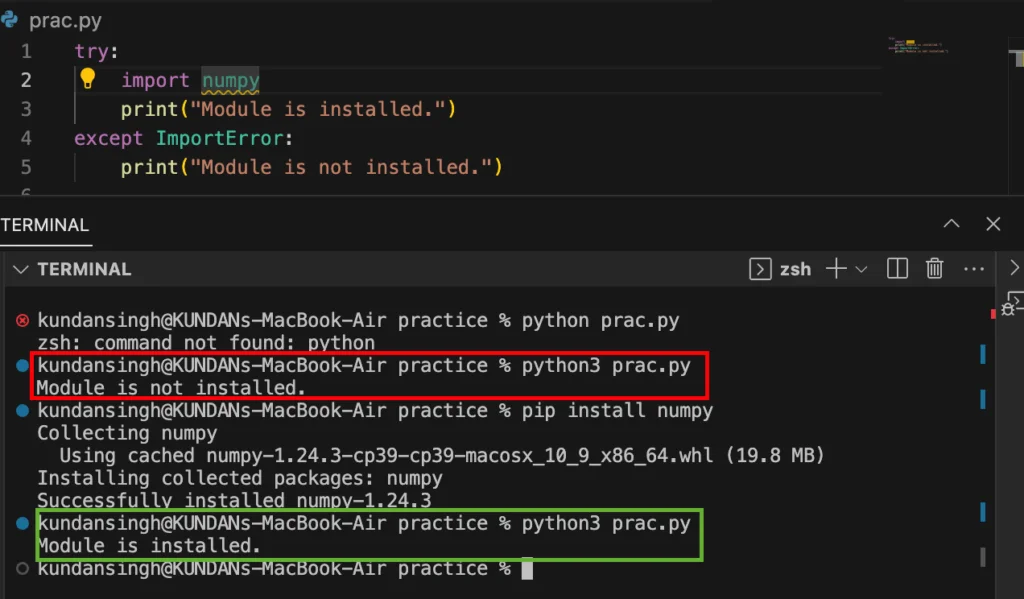
zsh: command not found: python3- Or it might prompt you to install developer tools, which often include Python.
- If Python is installed: You will see the version number, such as
Verifying Python 2 vs. Python 3
On macOS, it’s common to have both Python 2 and Python 3 installed. To check for both specifically:
- To check for Python 3:
bash

python3 --version
- To check for Python 2 (if it exists):
bash

python --version
If python3 is not found, you’ll need to install Python 3.

Checking Python on Linux
Linux distributions are built on Unix principles, making the Terminal the primary tool for checking Python.
Using the Terminal
-
Open the Terminal: You can typically find the Terminal in your applications menu, or by using a keyboard shortcut (often Ctrl+Alt+T).
-
Enter the Command: In the Terminal window, type the following command and press Enter:
python3 --versionor
python --version -
Interpreting the Results:
- If Python is installed: You will see the version number, for example,
Python 3.8.10. - Linux Note: Similar to macOS, most modern Linux distributions come with Python 3 pre-installed. The
pythoncommand might point to Python 2 (if installed) or might not exist. It’s best practice to usepython3to ensure you are checking for and using Python 3. - If Python 3 is NOT installed (or not in PATH): You will likely see an error message such as:
command not found: python3
If you get this error, you’ll need to install Python 3 using your distribution’s package manager (e.g.,
aptfor Debian/Ubuntu,yumordnffor Fedora/CentOS/RHEL). - If Python is installed: You will see the version number, for example,
Verifying Python 2 vs. Python 3 on Linux
To be explicit about which Python version you’re checking:
- For Python 3:
bash

python3 --version
- For Python 2 (if it exists):
bash

python --version
What if Python Isn’t Installed?
If your checks reveal that Python is not installed on your system, don’t worry! Installing it is a straightforward process, and this opens up a world of possibilities.
Installation on Windows
The easiest way to install Python on Windows is by downloading the official installer from the Python website:
- Visit the Official Python Website: Go to python.org/downloads/.
- Download the Installer: Click the button to download the latest stable release of Python for Windows.
- Run the Installer: Open the downloaded
.exefile.- Crucial Step: During installation, make sure to check the box that says “Add Python X.Y to PATH” (where X.Y is the version number). This will ensure that you can run Python commands from any directory in the Command Prompt.
- Choose “Install Now” for the recommended settings, or “Customize installation” if you have specific needs.
- Verify Installation: After installation, open a new Command Prompt window and run
python --versionto confirm it’s working.
Installation on macOS
For macOS, you have a few options:
- Official Installer: Download the macOS installer from python.org/downloads/. Run the
.pkgfile and follow the on-screen instructions. - Homebrew: If you use the Homebrew package manager (a popular choice for macOS developers), you can install Python with a simple command:
bash

brew install python
Homebrew typically handles setting up the PATH correctly. - Xcode Command Line Tools: Sometimes, installing the Xcode Command Line Tools (which you can do by running
xcode-select --installin the Terminal) can prompt you to install Python as part of the developer tools.
Installation on Linux
On most Linux distributions, you can install Python using the system’s package manager:
- Debian/Ubuntu:
bash

sudo apt update

sudo apt install python3
- Fedora/CentOS/RHEL:
bash

sudo dnf update # or sudo yum update for older versions

sudo dnf install python3 # or sudo yum install python3
After installation, you can verify it by running python3 --version in the Terminal.
Beyond the Check: Next Steps in Your Python Journey
Successfully verifying your Python installation, or installing it, is the gateway to a vast ecosystem of learning and application.
The Power of Environments: Virtual Environments
Once Python is installed, especially for development projects, it’s highly recommended to use virtual environments. These create isolated Python installations for specific projects, preventing dependency conflicts. Common tools include venv (built into Python 3.3+) and conda. Learning to manage virtual environments is a crucial skill for any Python developer.
Python for Brand and Business Growth
For professionals in marketing and business, understanding Python can unlock new avenues for efficiency and insight.
- Data Analysis: Libraries like Pandas and Matplotlib allow for deep dives into sales figures, customer behavior, and campaign performance, leading to more informed strategic decisions.
- Automation: Automating tasks like email responses, social media posting, or data entry can free up valuable time for strategic thinking and creative work, boosting productivity and reducing operational costs.
- Web Scraping: Gather competitor pricing, product information, or industry trends to inform your brand strategy and marketing efforts.

The Tech Advantage: Staying Ahead of the Curve
For tech enthusiasts, a Python installation is just the beginning. Explore popular Python frameworks for web development (Django, Flask), data science (NumPy, Pandas, Scikit-learn), and AI (TensorFlow, PyTorch). The ability to build, analyze, and automate with Python gives you a significant edge in a rapidly advancing technological world.
In conclusion, knowing how to check if Python is installed is a fundamental skill for anyone engaging with modern technology. Whether your interests lie in the intricate world of AI, the strategic nuances of branding, or the practicalities of personal finance and business, Python offers tools and capabilities that can enhance your understanding, efficiency, and ultimate success. So, take a moment, run those commands, and embark on your Python-powered journey.
aViewFromTheCave is a participant in the Amazon Services LLC Associates Program, an affiliate advertising program designed to provide a means for sites to earn advertising fees by advertising and linking to Amazon.com. Amazon, the Amazon logo, AmazonSupply, and the AmazonSupply logo are trademarks of Amazon.com, Inc. or its affiliates. As an Amazon Associate we earn affiliate commissions from qualifying purchases.