
Chromebooks have revolutionized personal computing with their speed, simplicity, and cloud-centric approach. For many, they represent an affordable and efficient gateway to the digital world, ideal for browsing, email, document creation, and media consumption. However, the Chrome OS ecosystem, while robust for its intended purpose, can feel restrictive for users who desire more flexibility, access to a wider range of software, or a deeper dive into the world of computing. This is where the magic of Linux installation comes into play, transforming your Chromebook from a locked-down appliance into a powerful, versatile machine capable of tackling tasks far beyond its initial design.
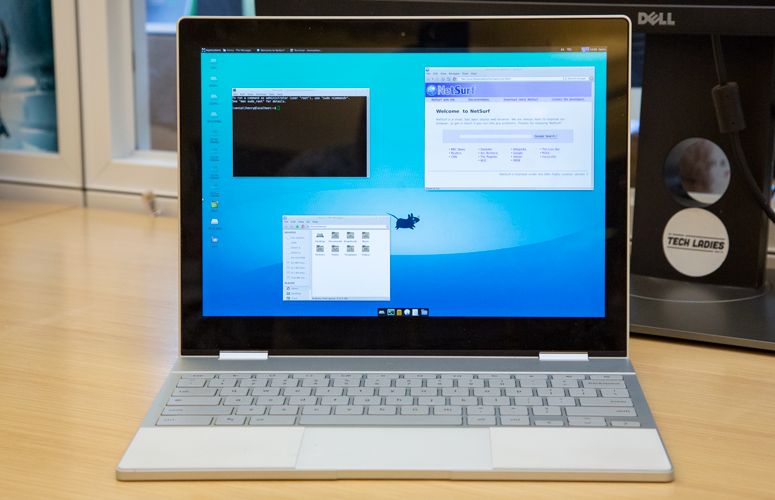
The prospect of installing Linux on a Chromebook might sound daunting, conjuring images of complex command-line interfaces and intricate system configurations. Yet, thanks to advancements in Chrome OS itself and the dedication of the developer community, the process has become remarkably accessible. This guide will demystify the steps involved, empowering you to leverage the full potential of your Chromebook by integrating the robust and adaptable Linux operating system. Whether you’re a student looking for advanced coding tools, a creative professional seeking powerful editing software, or simply a tech enthusiast eager to explore, installing Linux on your Chromebook opens a universe of possibilities that can significantly enhance your productivity and digital experiences.
Why Install Linux on Your Chromebook?
The allure of Linux on a Chromebook stems from its ability to bridge the gap between the simplicity of Chrome OS and the extensive capabilities of a full-fledged desktop operating system. While Chrome OS excels at web-based tasks and running Android apps, its selection of traditional desktop applications is limited. Linux, on the other hand, boasts an enormous repository of open-source software, from powerful development environments and creative suites to specialized scientific tools and system utilities.
Expanding Software Horizons
One of the most compelling reasons to install Linux is the unparalleled access to software. Imagine running industry-standard development tools like VS Code or PyCharm, professional graphic design software like GIMP or Inkscape, or even sophisticated video editors. Many of these applications are either unavailable on Chrome OS or come with significant limitations. With Linux, you gain entry to a vast ecosystem of free and open-source software that can rival, and often surpass, their proprietary counterparts. This is particularly valuable for developers, designers, and anyone involved in creative or technical fields.
Enhanced Productivity and Customization
Beyond specific applications, Linux offers a level of customization that is simply unmatched by Chrome OS. You can tailor your desktop environment to your exact preferences, tweak system settings to optimize performance, and install any package you can imagine. This granular control allows you to build a computing experience that perfectly suits your workflow. For instance, if you’re a researcher needing specific data analysis tools or a writer seeking a distraction-free writing environment, Linux provides the flexibility to create it.
Learning and Exploration
For aspiring developers, IT professionals, or anyone curious about how computers work under the hood, installing Linux on a Chromebook is an invaluable learning opportunity. You’ll gain hands-on experience with a widely used operating system, learn command-line navigation, understand package management, and explore the intricate workings of an operating system. This is a fantastic way to build practical tech skills that are highly transferable and sought after in the modern job market.
Revitalizing Older Chromebooks
Not all Chromebooks are created equal, and some older or less powerful models might struggle with the demands of newer Chrome OS features or intensive web applications. Installing a lightweight Linux distribution can breathe new life into these machines, making them more responsive and capable of handling tasks that were previously beyond their reach.
Preparing Your Chromebook for Linux Installation
Before embarking on the installation journey, a few preparatory steps are crucial to ensure a smooth and successful process. These steps focus on understanding your Chromebook’s capabilities and making the necessary adjustments.
Checking for Linux Support
The most significant development that has made installing Linux on Chromebooks accessible is the built-in “Linux development environment” (often referred to as Crostini). This feature allows you to run Linux applications within a containerized environment directly on your Chrome OS. However, not all Chromebooks are created equal, and older models might not support this feature.
- Identify your Chromebook model: The first and most critical step is to determine if your Chromebook supports the Linux development environment. This is typically available on Chromebooks released from 2018 onwards, but it’s always best to verify. You can usually find this information by searching for your specific Chromebook model online and looking for specifications or reviews that mention Linux or Crostini support.
- Check Chrome OS version: Ensure your Chromebook is running a recent version of Chrome OS. Google regularly updates Chrome OS, and newer versions often include improvements and bug fixes related to the Linux environment. You can check for updates by going to Settings > About Chrome OS > Check for updates.
Enabling the Linux Development Environment
Once you’ve confirmed your Chromebook’s compatibility, the next step is to enable the Linux development environment through your Chrome OS settings. This process is remarkably straightforward.
- Navigate to Settings: Click on the time in the bottom-right corner of your screen, then click on the gear icon to open Settings.
- Find the “Developers” section: In the Settings menu, scroll down and look for a section labeled “Developers” or “Advanced” and then “Developers.”
- Turn on “Linux development environment”: You will see an option for “Linux development environment.” Click the “Turn on” button.
- Follow the on-screen prompts: A setup wizard will appear. It will guide you through the installation process, which involves downloading and setting up a Debian-based Linux distribution. You’ll be prompted to choose a username and allocate disk space for your Linux environment. The default allocation is usually sufficient for most users, but you can adjust it if you plan to install many large applications.
- Installation: The system will then download and install the necessary components. This can take several minutes, depending on your internet speed and Chromebook’s performance. Once completed, a Linux terminal window will automatically open, signifying that your Linux environment is ready to use.
Backing Up Your Data (Optional but Recommended)
While installing Linux via the built-in feature is a non-destructive process that runs within a container, it’s always a good practice to back up your important data before making any significant changes to your system. This includes any files stored locally on your Chromebook. You can use Google Drive, an external hard drive, or a USB flash drive to back up your essential documents, photos, and other files.
Installing Linux Distributions and Applications
With the Linux development environment set up, you’re now ready to explore the vast world of Linux applications. The initial setup provides you with a Debian-based terminal, which is a powerful starting point.
Understanding the Debian Environment
The Linux development environment on Chromebooks typically uses a minimal Debian installation. Debian is a highly stable and popular Linux distribution known for its vast software repositories. The terminal is your primary interface for interacting with Linux. You’ll use command-line tools to install, manage, and run applications.
Installing Linux Applications via the Terminal
The cornerstone of Linux software management is the package manager. For Debian-based systems, this is apt (Advanced Package Tool). You’ll use apt commands in the terminal to download and install software.
Here are some essential apt commands to get you started:
-
Updating the package list: It’s crucial to keep your package list up-to-date to ensure you’re aware of the latest software versions and security patches.
sudo apt updateThe
sudocommand grants you administrative privileges to perform system-level operations. -
Upgrading installed packages: Once you’ve updated the package list, you can upgrade all installed packages to their latest available versions.
sudo apt upgrade -
Installing a specific application: To install a new application, you’ll need to know its package name. For example, to install the text editor
nano:sudo apt install nanoTo install a graphical application like
gimp(GNU Image Manipulation Program):sudo apt install gimp -
Searching for applications: If you’re unsure of the exact package name, you can search the repositories:
apt search [application_name]For example, to find packages related to Python development:
apt search python -
Uninstalling applications: To remove an application:
bash

sudo apt remove [application_name]
Running Graphical Linux Applications
One of the most convenient aspects of the Chromebook’s Linux integration is that graphical Linux applications will appear in your Chromebook’s app launcher alongside your Chrome OS and Android apps. Once installed, you can simply click on their icon to launch them. This seamless integration makes using Linux applications feel almost native.
Exploring Alternative Linux Distributions (Advanced)
While the built-in Debian environment is excellent for most users, power users and tinkerers might want to explore installing entirely different Linux distributions. This is a more advanced process and typically involves using tools like Crouton or GalliumOS, which allow for a more direct installation onto the Chromebook’s hardware, sometimes even enabling dual-booting.
- Crouton: Crouton (Chromium OS Universal Chroot Environment) allows you to run Ubuntu or Debian alongside Chrome OS, but it requires putting your Chromebook into developer mode, which disables some security features and wipes your local data.
- GalliumOS: GalliumOS is a Linux distribution specifically designed and optimized for Chromebook hardware. It offers excellent hardware support and a familiar desktop experience. Installing GalliumOS usually requires replacing Chrome OS entirely or setting up a dual-boot system, which is a significantly more involved process than using the built-in Linux environment.
For beginners and most users, sticking with the integrated Linux development environment is highly recommended due to its ease of use, security, and the fact that it doesn’t require developer mode.
Making the Most of Your Linux-Powered Chromebook
Once you’ve successfully installed and are comfortable with running Linux applications, your Chromebook transforms into a much more versatile tool. Here are some ways to leverage this newfound power.
Development and Coding
This is perhaps the most popular use case for Linux on a Chromebook. With access to powerful IDEs, compilers, interpreters, and version control systems, your Chromebook becomes a capable coding machine.
- Web Development: Install Node.js, Python with Django or Flask, Ruby on Rails, and your preferred text editors or IDEs like VS Code.
- Software Development: Compile C++, Java, or other languages. Use debugging tools and build complex applications.
- Data Science: Install Python libraries like NumPy, Pandas, and Scikit-learn, and explore tools like Jupyter Notebooks.
Creative Pursuits
Beyond coding, Linux offers a rich ecosystem for creative professionals.
- Graphic Design: Use GIMP for photo editing, Inkscape for vector graphics, and Krita for digital painting.
- Video Editing: While demanding, you can explore options like Kdenlive or Shotcut for video editing tasks.
- Audio Production: Experiment with digital audio workstations (DAWs) like Ardour or Audacity for audio recording and editing.
Productivity and Customization
Linux excels at providing a highly customizable and efficient workflow.
- Advanced Text Editors: Beyond the default nano, install Vim or Emacs for powerful command-line text editing.
- File Management: Explore alternative file managers or use command-line tools like
rsyncfor advanced file operations. - System Administration Tools: For those interested in IT, you can install and experiment with various system administration tools.
- Gaming: While not the primary focus of Chromebooks, some Linux games are compatible and can be run through your Linux environment.
Troubleshooting and Maintenance
Just like any operating system, Linux requires occasional maintenance. Regularly updating your system using sudo apt update and sudo apt upgrade is essential for security and performance. If you encounter issues with specific applications, searching online forums and communities for solutions related to Debian or your specific distribution is a valuable resource. The vast and active Linux community is a treasure trove of knowledge and support.
By embracing the Linux development environment on your Chromebook, you unlock a level of flexibility, power, and customization that can significantly enhance your productivity, creativity, and learning. It’s a journey that transforms your device into a truly personal and capable computing companion.
aViewFromTheCave is a participant in the Amazon Services LLC Associates Program, an affiliate advertising program designed to provide a means for sites to earn advertising fees by advertising and linking to Amazon.com. Amazon, the Amazon logo, AmazonSupply, and the AmazonSupply logo are trademarks of Amazon.com, Inc. or its affiliates. As an Amazon Associate we earn affiliate commissions from qualifying purchases.