
In today’s digital landscape, the ability to create, edit, and manage Portable Document Format (PDF) files is not just a convenience, it’s a necessity. Whether you’re a freelancer crafting proposals, a student submitting assignments, or a business professional finalizing critical documents, a robust PDF editor is indispensable. Adobe Acrobat Pro stands as the industry standard, offering unparalleled features for document creation, collaboration, security, and management. This guide will walk you through the process of installing Adobe Acrobat Pro, ensuring you harness its full potential for enhanced productivity, a stronger brand image, and sound financial management of your digital tools.

Understanding Your Adobe Acrobat Pro Installation Needs
Before diving into the installation process, it’s crucial to understand what version of Adobe Acrobat Pro best suits your requirements. Adobe offers various subscription plans and licensing options, and choosing the right one impacts both your budget and the features you’ll have access to.
Choosing the Right Adobe Acrobat Pro Subscription
Adobe’s software, including Acrobat Pro, is primarily offered through a subscription model. This approach ensures you always have access to the latest features, security updates, and support. Understanding the differences between plans is key to making a financially sound decision that aligns with your technological needs.
- Adobe Acrobat Standard vs. Pro: While both allow for PDF creation and editing, Acrobat Pro offers a significantly broader range of advanced features. These include more sophisticated editing tools, advanced security options like redaction, comparison of documents, form creation and automation, and integration with other Adobe Creative Cloud applications. For professionals and businesses aiming for a polished and secure brand presentation, or for those who frequently work with complex documents, the Pro version is often the more advantageous choice.
- Acrobat Pro DC (Document Cloud): This is the current iteration, emphasizing cloud-based services. This means your documents can be stored, accessed, and collaborated on from anywhere, across multiple devices. This feature is particularly beneficial for remote teams and individuals who prioritize flexibility and seamless workflow, contributing to both personal and corporate productivity.
- Subscription Tiers: Adobe often has different tiers for individuals, teams, and enterprises. Team and enterprise licenses typically come with centralized management tools, enhanced security features, and dedicated support, which can be crucial for maintaining a consistent brand voice and secure data practices within an organization.
System Requirements and Compatibility
Ensuring your system is ready for Adobe Acrobat Pro is a foundational step, preventing installation hiccups and ensuring optimal performance. Neglecting this can lead to frustrating delays and a suboptimal user experience, impacting your overall tech efficiency.
- Operating System: Adobe Acrobat Pro is compatible with both Windows and macOS. Always check the specific operating system versions supported by the latest Acrobat Pro release to avoid compatibility issues.
- Hardware: Sufficient RAM, processor speed, and hard drive space are essential. A modern computer with at least 8GB of RAM (16GB recommended for intensive use) and a multi-core processor will provide a smoother experience, especially when working with large files or multiple applications.
- Internet Connection: An active internet connection is required for downloading the installer, activating your subscription, and utilizing cloud features. For business purposes, a stable and reasonably fast internet connection is a prerequisite for leveraging the collaborative aspects of Acrobat Pro DC.
The Installation Process: Step-by-Step
Installing Adobe Acrobat Pro is a straightforward process, but it’s important to follow each step carefully to ensure a successful setup. This section breaks down the installation into manageable steps, ensuring you can quickly get started with your new software.
Downloading the Adobe Acrobat Pro Installer
The first step is to obtain the official installer for Adobe Acrobat Pro. Relying on official sources is paramount for digital security and to ensure you’re getting legitimate software.
- Visit the Official Adobe Website: Navigate to the Adobe Acrobat Pro product page on the official Adobe website. Avoid third-party download sites, which can be sources of malware.
- Select Your Plan and Sign In: Choose the subscription plan that best fits your needs and proceed to either start a free trial or sign in to your existing Adobe account. If you don’t have an account, you’ll be prompted to create one.
- Initiate the Download: Once you’ve selected your plan and logged in, you’ll be directed to download the Creative Cloud desktop app, which manages all your Adobe software installations, or a direct installer for Acrobat Pro depending on your purchase. Follow the on-screen prompts to download the installer file.
Installing Adobe Acrobat Pro
With the installer downloaded, the actual installation begins. This is where your careful planning pays off, as a well-prepared system makes for a smooth installation.
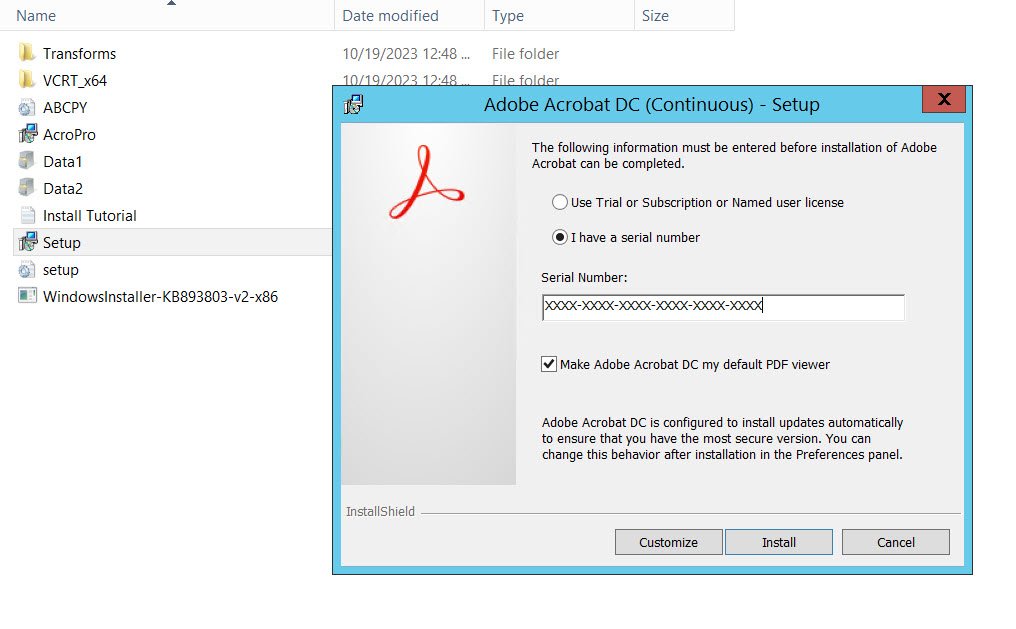
- Run the Installer: Locate the downloaded installer file (usually in your Downloads folder) and double-click it to launch the installation wizard.
- Follow On-Screen Instructions: The installer will guide you through the process. You may be asked to agree to the license terms and choose an installation location. For most users, the default installation path is perfectly adequate.
- Sign In to Activate: During or immediately after the installation, you will be prompted to sign in with your Adobe ID. This is how Adobe verifies your subscription and activates your copy of Acrobat Pro. Ensure you have your login credentials readily available.
- Complete the Installation: The installer will copy the necessary files to your computer. This process can take several minutes, depending on your system’s speed. Once complete, you’ll typically see a confirmation message.
Leveraging Adobe Acrobat Pro for Your Business and Personal Growth
Once installed, Adobe Acrobat Pro becomes a powerful tool that can significantly impact your productivity, the professionalism of your brand, and even your financial efficiency. It’s more than just a PDF viewer; it’s a comprehensive document management solution.
Enhancing Productivity and Workflow (Tech)
In the fast-paced world of technology, efficiency is paramount. Adobe Acrobat Pro provides a suite of tools designed to streamline your document-related tasks, freeing up valuable time for more strategic work.
- Powerful Editing Capabilities: Move beyond basic text changes. Acrobat Pro allows for extensive editing of text, images, and links within PDFs. This means you can make last-minute corrections without having to revert to the original source document, saving time and reducing errors.
- Form Creation and Automation: Designing interactive forms can be a tedious task with other software. Acrobat Pro simplifies this, allowing you to create sophisticated forms with various field types, set up calculation fields, and even script custom behaviors. This is invaluable for collecting information efficiently, whether for customer feedback, internal surveys, or application processes, directly impacting business operations and data collection.
- Collaboration Tools: Features like commenting, markup, and the ability to track changes make collaboration on documents seamless. Teams can review and provide feedback directly within the PDF, eliminating the need for multiple versions and confusing email threads. This fosters a more cohesive and efficient workflow.
- Document Comparison: This feature allows you to quickly identify differences between two versions of a PDF. This is critical for legal reviews, contract amendments, or any situation where precise tracking of changes is essential, ensuring accuracy and preventing oversights.
Fortifying Your Brand Identity and Professionalism (Brand)
Your documents are often the first physical or digital impression potential clients, partners, or employers have of you or your organization. Adobe Acrobat Pro equips you with the tools to ensure this impression is consistently professional and polished, strengthening your brand.
- Creating High-Quality PDFs: From visually appealing brochures and reports to legally binding contracts, Acrobat Pro ensures your PDFs look precisely as intended, regardless of who is viewing them or on what device. This consistency is key to brand recognition and trust.
- Applying Digital Signatures and Security: The ability to add secure, legally binding digital signatures not only speeds up processes but also adds a layer of professional assurance. Furthermore, password protection, encryption, and redaction tools allow you to control access to sensitive information, safeguarding your brand’s reputation and complying with data privacy regulations.
- Watermarking and Branding: Apply custom watermarks or company logos to your documents to reinforce your brand identity and deter unauthorized use. This subtle yet effective branding can be applied across all your outgoing documents.
- Accessibility Compliance: Acrobat Pro offers tools to make your PDFs accessible to people with disabilities. Ensuring your documents are WCAG compliant demonstrates corporate responsibility and broadens your audience, a crucial aspect of modern branding and inclusivity.
Smart Financial Management of Your Digital Tools (Money)
Investing in professional software like Adobe Acrobat Pro is a financial decision. Understanding its value proposition and managing its costs effectively can contribute to your personal and business financial health.
- Cost-Benefit Analysis of Subscriptions: While a subscription incurs recurring costs, evaluate the return on investment. The time saved, the reduction in errors, the enhanced security, and the improved professional image can far outweigh the subscription fees, especially for businesses. Consider the cost of alternative solutions or the potential cost of errors or security breaches.
- Maximizing Feature Utilization: To get the most financial value, ensure you and your team are utilizing the full spectrum of features. Are you creating interactive forms? Using collaboration tools effectively? Leveraging advanced editing? The more features you use, the higher the return on your investment.
- Integration with Financial Tools: While Acrobat Pro itself isn’t a financial management tool, its efficiency can indirectly impact your finances. Faster document processing, reduced printing costs through digital workflows, and streamlined invoicing through form creation all contribute to operational savings. For businesses, this operational efficiency translates directly to improved financial performance.
- Choosing the Right Plan for Your Budget: As mentioned earlier, carefully assess your needs against Adobe’s subscription tiers. Opting for a plan that perfectly matches your usage avoids overspending, ensuring your digital tool investment is prudent and aligned with your financial capabilities. Consider annual plans, which often offer savings compared to monthly subscriptions.
Troubleshooting Common Installation Issues
Even with the best preparation, technical issues can sometimes arise. Knowing how to address common problems will save you time and frustration.
Installation Fails to Complete
- Insufficient Disk Space: Ensure you have enough free space on your hard drive as per the system requirements.
- Corrupted Download: Try downloading the installer again. A stable internet connection is crucial during this process.
- Conflicting Software: Temporarily disable antivirus or firewall software, as they can sometimes interfere with installations. Remember to re-enable them afterward.
- Administrator Privileges: Ensure you are running the installer with administrator rights by right-clicking the installer file and selecting “Run as administrator.”
Activation Problems
- Incorrect Adobe ID/Password: Double-check your login credentials.
- Network Issues: Ensure your internet connection is stable.
- Server Issues: Occasionally, Adobe’s activation servers might be temporarily down. Try activating again later.
- Subscription Status: Verify that your subscription is active and in good standing by logging into your Adobe account on their website.
By following these steps and understanding the troubleshooting tips, you can ensure a smooth installation of Adobe Acrobat Pro, unlocking its full potential to boost your tech efficiency, strengthen your brand, and manage your digital tools wisely.
aViewFromTheCave is a participant in the Amazon Services LLC Associates Program, an affiliate advertising program designed to provide a means for sites to earn advertising fees by advertising and linking to Amazon.com. Amazon, the Amazon logo, AmazonSupply, and the AmazonSupply logo are trademarks of Amazon.com, Inc. or its affiliates. As an Amazon Associate we earn affiliate commissions from qualifying purchases.