
In the ever-evolving digital landscape, encountering different file types is a common occurrence, especially for those actively engaged with technology. While many users are familiar with common formats like .exe, .zip, or .pdf, the .cab file format can sometimes present a slight puzzle. This article aims to demystify the process of installing .cab files, providing clear, actionable steps and context for users navigating the world of software and digital security. Whether you’re a seasoned tech enthusiast or a newcomer looking to understand your system better, this guide will equip you with the knowledge to handle .cab files effectively.
Understanding .CAB Files: The Building Blocks of Software Installation
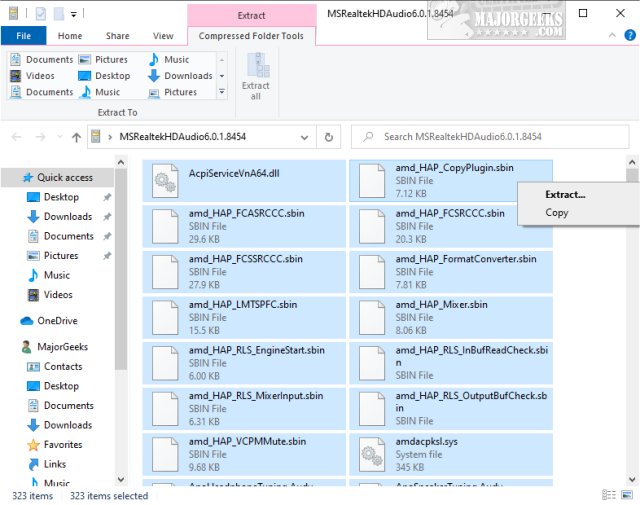
At its core, a .cab file, short for Cabinet file, is a compressed archive file developed by Microsoft. Think of it as a self-contained package designed to store and distribute multiple files that are often related to software components, drivers, or updates. These files are similar in concept to .zip files but are specifically optimized for Microsoft Windows operating systems. Their primary purpose is to reduce the size of files for efficient storage and faster transmission over networks or download.
What’s Inside a .CAB File?
The contents of a .cab file can vary significantly depending on its purpose. Typically, you’ll find:
- Executable files (.exe): These are programs that you can run.
- Dynamic Link Libraries (.dll): These are shared libraries of code that programs can use.
- Driver files (.sys, .inf): These are essential for your hardware to communicate with your operating system.
- Configuration files (.ini, .cfg): These files store settings and parameters for software.
- Other resource files: This could include icons, bitmaps, text files, and more.
Why are .CAB Files Used?
Microsoft leverages .cab files for several key reasons:
- Efficient Distribution: By compressing multiple files into a single archive, .cab files streamline the distribution of software, updates, and drivers. This reduces download times and the space required for storage.
- Integrity and Validation: .cab files often contain digital signatures, which help ensure the integrity and authenticity of the contained files. This is crucial for preventing the installation of corrupted or malicious software.
- Component Management: They are instrumental in managing system components. For instance, when you update a specific piece of hardware, Windows might download a .cab file containing the necessary driver files.
- Windows Update: A significant portion of Windows Update packages are distributed in .cab format. When you install updates, your system is effectively unpacking and integrating these .cab files.
.CAB Files vs. Other Archive Formats
While .cab files share similarities with .zip and .rar archives, they are not interchangeable. .zip and .rar are general-purpose compression formats used for a wide array of files. .cab files, on the other hand, are specifically tailored for the Windows environment and are often used by the operating system and its applications for installation and updates. You cannot simply rename a .cab file to .zip and expect it to work in a standard archive utility, though some advanced archive managers can extract contents from .cab files.
How to Install a .CAB File: Step-by-Step Instructions
Installing a .cab file isn’t as straightforward as double-clicking an .exe file for direct execution. Instead, the process usually involves using specific Windows tools or commands to extract and install the components within the archive. The method you choose will depend on the context of the .cab file you have.
Method 1: Using Device Manager (For Driver Installation)
One of the most common scenarios where you’ll need to install a .cab file is when updating or installing a device driver. Often, hardware manufacturers will provide drivers in .cab format on their support websites.
- Locate the .CAB File: Download the .cab file from the manufacturer’s website or wherever you’ve obtained it.
- Extract the Contents: You will need to extract the files from the .cab archive. While some advanced archive managers (like 7-Zip) can open .cab files directly, you can also use the built-in Windows functionality.
- Using Command Prompt (Recommended for Clarity):
- Open the Command Prompt as an administrator. You can do this by searching for “cmd” in the Start menu, right-clicking on “Command Prompt,” and selecting “Run as administrator.”
- Navigate to the directory where you saved the .cab file using the
cdcommand. For example, if the file is inC:DownloadsDrivers, typecd C:DownloadsDriversand press Enter. - Use the
expandcommand to extract the files. The syntax is generallyexpand <cab_file_name> -F:* <destination_folder>. For example, if your .cab file is namedmy_driver.caband you want to extract its contents to a folder namedExtracted_Driverin the same directory, you would type:
bash

expand my_driver.cab -F:* Extracted_Driver
This command extracts all files (-F:*) frommy_driver.cabinto theExtracted_Driverfolder.
- Using Command Prompt (Recommended for Clarity):
- Install the Driver via Device Manager:
- Press
Windows Key + Xand select “Device Manager.” - Locate the device for which you are installing the driver. If it’s an unknown device, it might be listed under “Other devices” with a yellow exclamation mark.
- Right-click on the device and select “Update driver.”
- Choose “Browse my computer for drivers.”
- Click “Browse” and navigate to the folder where you extracted the .cab file’s contents. Ensure “Include subfolders” is checked.
- Click “Next.” Windows will search for and install the appropriate driver from the extracted files.
- Press
Method 2: Using DISM (Deployment Image Servicing and Management)
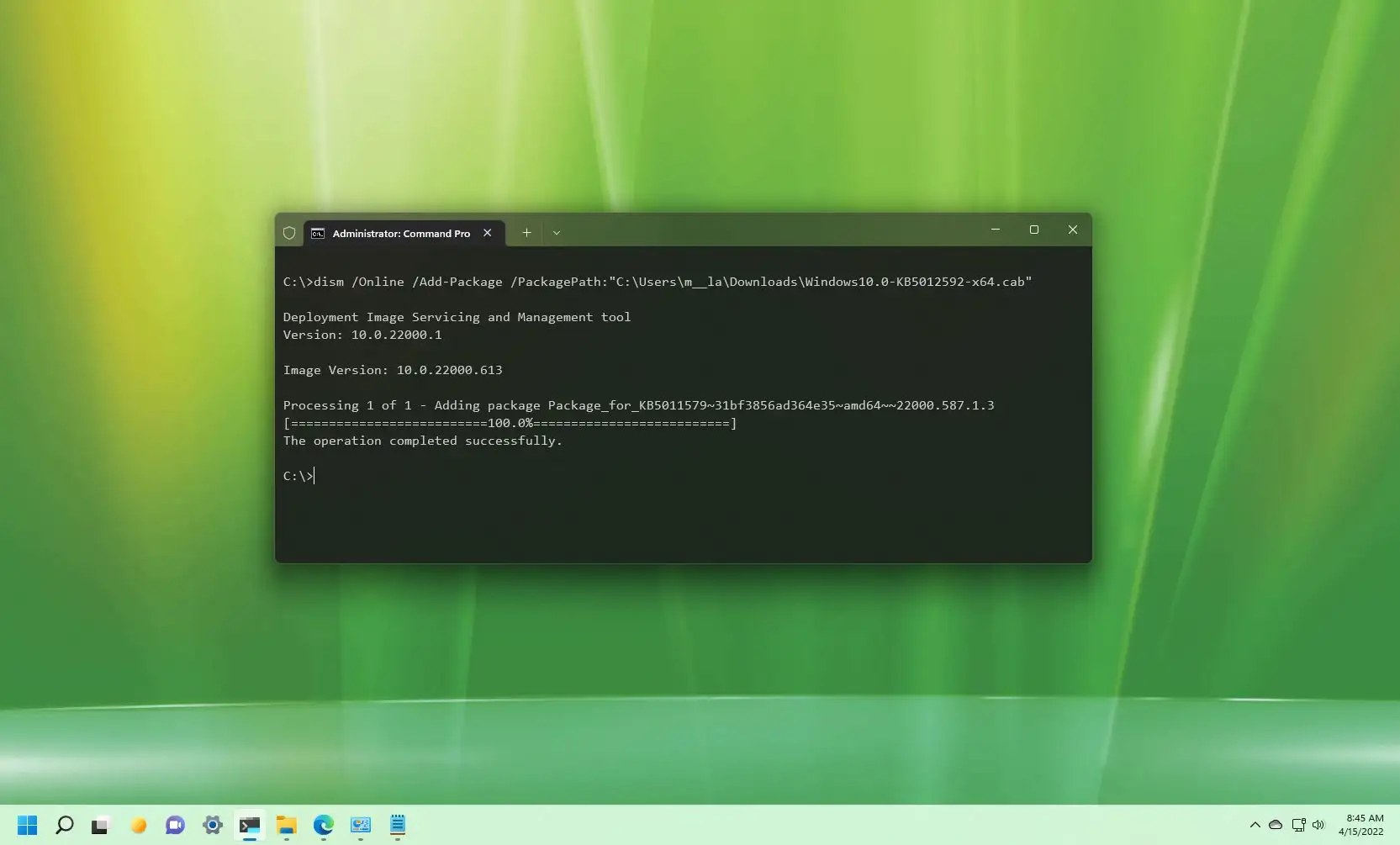
The DISM tool is a powerful command-line utility used for servicing and preparing Windows images. It can be used to install updates and drivers from .cab files directly, especially in scenarios involving Windows images or updates that are not automatically installed.
- Open Command Prompt as Administrator: As described in Method 1, open the Command Prompt with administrative privileges.
- Identify the Correct DISM Command: The specific DISM command will depend on what you are installing.
- For Installing an Update: If the .cab file contains a Windows update package, you can use the
/Add-Packageoption.
bash

DISM /Online /Add-Package /PackagePath:"C:PathToYourUpdate.cab"
Replace"C:PathToYourUpdate.cab"with the actual path to your .cab file. The/Onlineflag indicates that you are applying the package to the currently running operating system. - For Installing a Driver (Offline Image): If you are working with an offline Windows image (e.g., on a WIM file), the command would be different and require mounting the image first. For installing drivers to a running system, Device Manager is usually the more direct approach.
- For Installing an Update: If the .cab file contains a Windows update package, you can use the
- Execute the Command: Press Enter after typing the command. DISM will process the .cab file and install its contents. This may take some time, and you will receive a success or failure message upon completion.
- Restart (if necessary): Some updates or driver installations may require a system restart to take full effect.
Method 3: Using Microsoft PowerToys (Run Command)
Microsoft PowerToys is a set of utilities for power users to tune and streamline their Windows experience. One of its features, “Run,” can sometimes be used to initiate installations, although this is less common for .cab files compared to other methods. However, for completeness, if you are trying to run an executable that is inside a .cab file, you would first need to extract it using one of the methods above, and then you could potentially use PowerToys Run to launch that extracted executable.
Important Note: PowerToys Run is not designed to directly install the contents of a .cab file. It’s primarily for launching applications and performing system tasks. Therefore, this method is only applicable if the .cab file contains a specific program you intend to run after extraction.
Troubleshooting Common .CAB File Installation Issues

While installing .cab files is generally straightforward, you might encounter a few common hurdles.
Issue 1: “Access Denied” or Permission Errors
- Cause: This is usually due to not running the Command Prompt or File Explorer with administrative privileges.
- Solution: Always ensure you are running your command-line tools or installers as an administrator. Right-click on the application (like Command Prompt) and select “Run as administrator.”
Issue 2: Files Not Extracting Correctly
- Cause: The .cab file might be corrupted, incomplete, or incompatible with the extraction tool you are using.
- Solution:
- Redownload: If you downloaded the file, try downloading it again from a reliable source.
- Use a Different Extractor: If you’re using a third-party tool, try the built-in
expandcommand in Command Prompt as described in Method 1. Conversely, if you’re usingexpand, try a reputable archive manager like 7-Zip. - Verify File Integrity: If a digital signature is available, check its validity.
Issue 3: Driver Not Found After Extraction
- Cause: The extracted files might not contain the correct driver files for your specific hardware, or the driver installation process was not followed correctly.
- Solution:
- Double-Check Compatibility: Ensure the .cab file you downloaded is specifically for your hardware model and Windows version.
- Review Extraction Folder: Make sure you pointed Device Manager to the correct folder containing all extracted files, including .inf files, which are crucial for driver installation.
- Manual Driver Selection: In Device Manager’s “Update driver” wizard, instead of letting Windows search automatically, select “Let me pick from a list of available drivers on my computer” and then browse to the extracted folder. You might need to click “Have Disk…” and then navigate to the extracted folder to select the correct .inf file.
Issue 4: DISM Errors During Update Installation
- Cause: Issues with the Windows Update service, corrupted system files, or an invalid .cab file can lead to DISM errors.
- Solution:
- Run SFC and DISM: Before attempting to install the .cab again, run the System File Checker (
sfc /scannow) and the DISM health restore commands (DISM /Online /Cleanup-Image /RestoreHealth) in an administrator Command Prompt to fix any potential corruption in your Windows system files. - Check Windows Update Troubleshooter: Sometimes, built-in troubleshooters can resolve underlying issues with the Windows Update service.
- Verify .CAB File Source: Ensure the .cab file is from a legitimate Microsoft source.
- Run SFC and DISM: Before attempting to install the .cab again, run the System File Checker (
Beyond Installation: Understanding .CAB Files in Context
While the technical steps for installing a .cab file are important, understanding its role within the broader tech ecosystem can be beneficial.
Digital Security and .CAB Files
The integrity of .cab files is paramount for digital security. Microsoft digitally signs many official .cab files, including those used in Windows updates and driver packages. This digital signature acts as a seal, verifying that the file has not been tampered with since it was signed by the publisher.
- Verifying Signatures: While not always straightforward for the average user, security-conscious individuals can use tools like
sigverif.exe(Windows File Signature Verification) to check the digital signatures of files, including those within extracted .cab archives. - Beware of Untrusted Sources: Always download .cab files from official manufacturer websites or trusted Microsoft sources. Malicious actors can disguise malware within seemingly legitimate .cab files, making it crucial to be vigilant about where you obtain your software components.
.CAB Files and System Performance
The efficiency of .cab files in compressing and packaging data directly impacts system performance, especially during software installations and updates.
- Faster Installations: Well-structured .cab files lead to quicker installation times, minimizing downtime when setting up new software or applying critical updates.
- Efficient Updates: Windows Update relies heavily on .cab files to deliver patches and feature updates. Their compressed nature ensures that these updates are downloaded and installed efficiently, maintaining system security and functionality.
The Role of .CAB Files in Brand and Marketing
While primarily a technical format, the underlying principles of .cab files—efficient delivery, integrity, and streamlined processes—can be seen as analogous to effective brand strategies.
- Brand Consistency: Just as a .cab file ensures all necessary components are packaged together for a consistent software experience, a strong brand identity ensures all marketing materials and customer interactions convey a unified message.
- Reputation Management: The reliance on digital signatures and the integrity of .cab files reflects the importance of trust and authenticity in building a strong corporate reputation. A corrupted or untrusted file can damage user confidence, much like a brand misstep can harm a company’s image.
- Streamlined User Experience: From a user’s perspective, a smooth installation process, facilitated by well-packaged .cab files, contributes to a positive overall experience with the software or operating system. This mirrors how streamlined user interfaces and efficient service delivery contribute to positive brand perception.
Financial Implications of Efficient File Management
The efficiency of formats like .cab files has subtle financial implications for both users and businesses.
- Reduced Bandwidth Costs: For large organizations and individuals with metered internet connections, the smaller file sizes of .cab archives translate directly into lower bandwidth consumption and thus, reduced costs.
- Time Savings: Faster download and installation times mean less time spent waiting, contributing to user productivity and potentially, reduced labor costs for IT departments managing multiple machines.
- Software Development Costs: Microsoft’s use of .cab files simplifies the distribution pipeline for developers, potentially reducing development and deployment overhead.
Conclusion: Mastering the .CAB File
Understanding how to install a .cab file is a valuable skill for anyone working with Windows, particularly when dealing with hardware drivers or system updates. By leveraging tools like Device Manager and DISM, you can effectively manage these compressed archives and ensure your system components are up-to-date and functioning correctly. Remember to always prioritize obtaining .cab files from trusted sources to safeguard your digital security. As you navigate the complexities of technology, a firm grasp of these fundamental file types empowers you to maintain your system, troubleshoot issues, and ultimately, make the most of your digital experience.
aViewFromTheCave is a participant in the Amazon Services LLC Associates Program, an affiliate advertising program designed to provide a means for sites to earn advertising fees by advertising and linking to Amazon.com. Amazon, the Amazon logo, AmazonSupply, and the AmazonSupply logo are trademarks of Amazon.com, Inc. or its affiliates. As an Amazon Associate we earn affiliate commissions from qualifying purchases.