
Python has emerged as a cornerstone of modern technology, driving advancements across diverse fields from artificial intelligence and machine learning to web development, data science, and automation. Its simplicity, versatility, and vast ecosystem of libraries make it an indispensable tool for developers, data analysts, and tech enthusiasts alike. For anyone looking to harness Python’s true potential, understanding how to effectively install and manage its rich collection of libraries is not just a technicality; it’s a fundamental skill that unlocks a world of possibilities, directly impacting productivity, innovation, and even financial opportunities in the digital age.
This comprehensive guide will demystify the process of Python library installation and management. Whether you’re a budding developer aiming to build your first AI model, a data professional seeking to analyze complex datasets for business insights, or a tech enthusiast keen on automating repetitive tasks, mastering these techniques is your gateway to greater efficiency and more powerful applications. We’ll cover everything from the basic commands to advanced best practices like virtual environments, ensuring you have the knowledge to navigate Python’s ecosystem with confidence.
The Foundation: Understanding Python, Libraries, and PIP
Before diving into the mechanics of installation, it’s crucial to grasp the core components that make up the Python development environment. Understanding these foundational elements will not only simplify the installation process but also equip you with the knowledge to troubleshoot common issues and manage your projects more effectively.
What is Python and Why is it So Powerful?
Python is a high-level, interpreted programming language renowned for its readability and extensive range of applications. Created by Guido van Rossum and first released in 1991, Python’s design philosophy emphasizes code readability with its notable use of significant indentation. This focus on clarity contributes to faster development cycles and easier maintenance, making it a favorite among both beginners and seasoned professionals.
Its power stems from its versatility. In the realm of Tech, Python is the backbone of cutting-edge AI tools and machine learning frameworks like TensorFlow and PyTorch, facilitating the development of intelligent systems that power everything from recommendation engines to autonomous vehicles. For Brand development, Python plays a critical role in data analytics, enabling businesses to understand consumer behavior, optimize marketing campaigns, and personalize customer experiences through powerful libraries like Pandas and Scikit-learn. From a Money perspective, Python is extensively used in quantitative finance for algorithmic trading, risk management, and financial modeling, providing tools for sophisticated analysis and automated investment strategies. Its role in automation also significantly boosts productivity, directly translating into cost savings and increased efficiency for businesses.
The Ecosystem of Libraries: Enhancing Python’s Capabilities
While Python’s core language is powerful, its true strength lies in its vast and vibrant ecosystem of “libraries” or “packages.” A Python library is essentially a collection of pre-written code (modules) that you can import and use in your own programs. These libraries extend Python’s functionality, allowing developers to perform complex tasks without having to write code from scratch.
Imagine you want to perform complex mathematical operations, build a web application, process images, or connect to a database. Instead of writing all the necessary code yourself, you can simply leverage a pre-built library designed specifically for that purpose. This modularity not only saves an immense amount of time and effort but also ensures higher quality and more robust solutions, as these libraries are often developed, tested, and maintained by large communities of expert programmers. Examples include:
- NumPy: For numerical computing, essential for scientific and data analysis applications.
- Pandas: For data manipulation and analysis, widely used in business intelligence and financial analysis.
- Requests: For making HTTP requests, fundamental for web scraping and API interactions.
- Django/Flask: Frameworks for building web applications quickly and efficiently.
- Scikit-learn: For machine learning algorithms, crucial for AI development and predictive analytics.
Meet PIP: Python’s Package Installer
At the heart of managing Python libraries is PIP, which stands for “Pip Installs Packages” (or recursively, “Pip Installs Python”). PIP is Python’s standard package-management system used to install and manage software packages found in the Python Package Index (PyPI). PyPI is a vast repository of over 400,000 Python packages, making it the primary source for most Python libraries.
PIP simplifies the process of getting external libraries into your Python environment. Instead of manually downloading package files, figuring out dependencies, and placing them in the correct directories, PIP automates this entire workflow with simple command-line instructions. It handles downloading the package, installing it, and even managing its dependencies (other packages that a library might require to function correctly).
Prerequisites for a Smooth Installation
Before you can begin installing libraries, there are a couple of essential prerequisites to ensure a smooth process:
- Python Installed: This might seem obvious, but you need to have Python itself installed on your system. You can download the latest stable version from the official Python website (python.org). During installation, especially on Windows, make sure to check the box that says “Add Python to PATH” or “Add Python executable to PATH.” This step is crucial for being able to run Python commands directly from your terminal or command prompt.
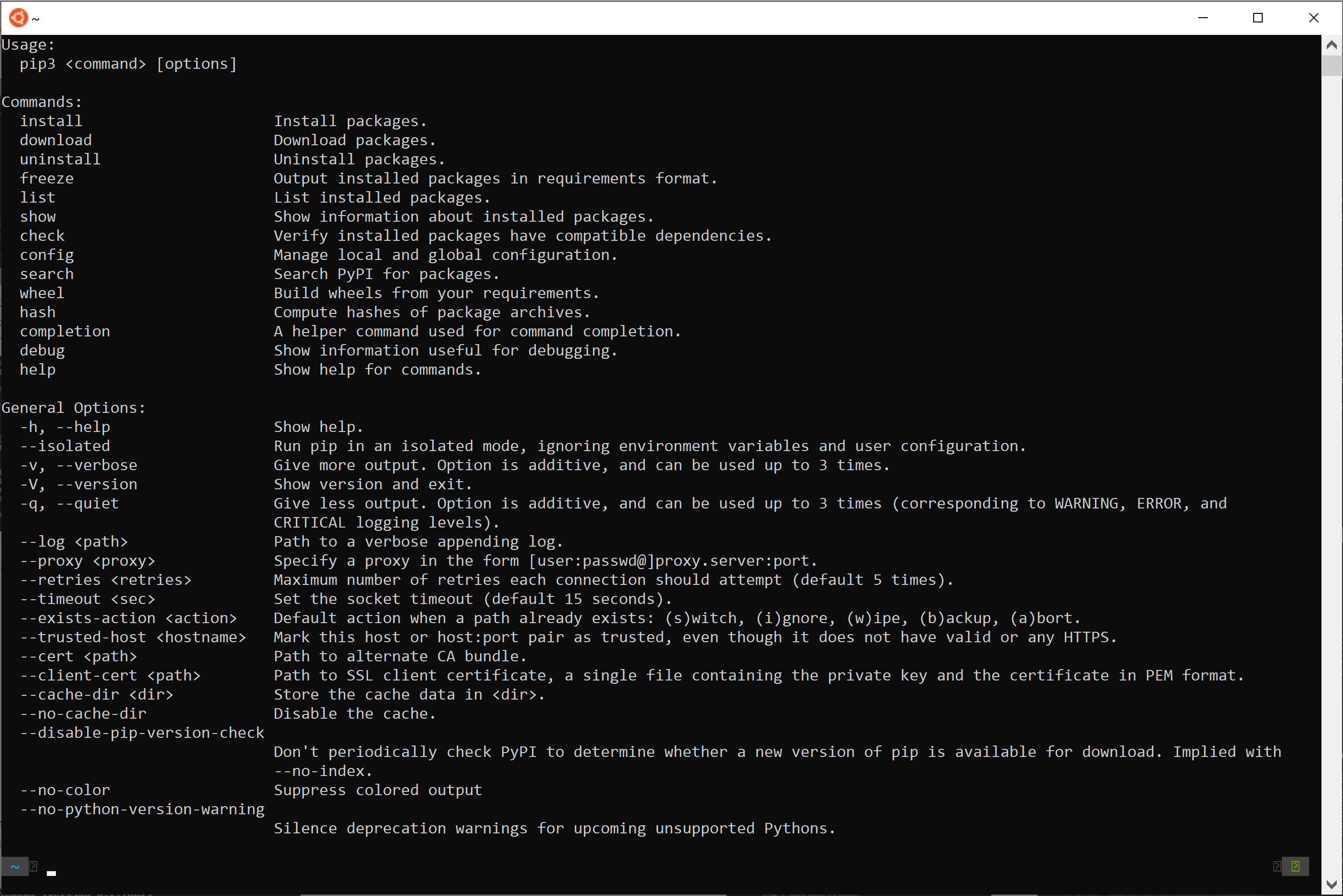
- PIP Verification: Most modern Python installations (Python 3.4 and later, Python 2.7.9 and later) come with PIP pre-installed. You can verify if PIP is installed and check its version by opening your terminal or command prompt and running:
bash

pip --version
If PIP is not found or is an older version, you might need to update it or install it separately. To upgrade PIP to the latest version, which is highly recommended for security and feature updates, use the following command:
bash

python -m pip install --upgrade pip
This command uses Python itself to run the PIP module and upgrade it, ensuring you’re using the correct Python interpreter.
Step-by-Step: Installing Python Libraries with PIP
With Python and PIP ready, you can now effortlessly install virtually any Python library. The process is straightforward, primarily relying on simple command-line instructions.
Basic Installation Command
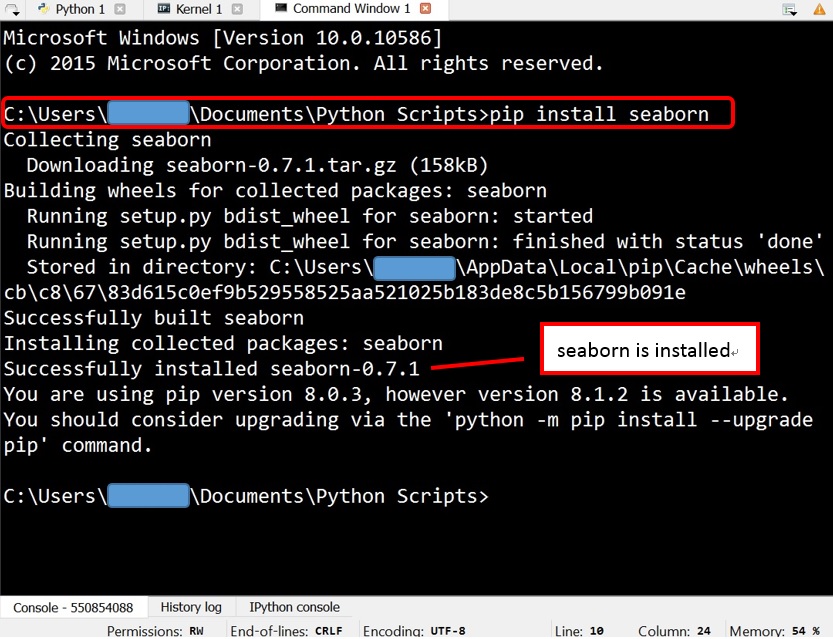
The most fundamental command for installing a Python library is pip install followed by the package name.
For example, to install the requests library, which is incredibly useful for making HTTP requests (e.g., fetching data from websites or interacting with APIs), you would type:
pip install requests
When you execute this command, PIP will:
- Search for the
requestspackage on PyPI. - Download the package and any of its dependencies.
- Install them into your Python environment.
You’ll see output in your terminal indicating the progress, successful installation, or any errors encountered.
Installing Specific Versions
Sometimes, you might need to install a specific version of a library. This is common when you’re working on a project that requires a particular version for compatibility or to avoid breaking changes introduced in newer versions.
To install a specific version, use the == operator:
pip install requests==2.25.1
This command will install version 2.25.1 of the requests library. If that version is already installed, PIP will simply confirm it. If a different version is installed, it will uninstall the existing one and install the specified version.
Upgrading and Uninstalling Libraries
Maintaining your libraries is as important as installing them. PIP provides simple commands for upgrading and uninstalling packages.
- Upgrading a Library: To update an already installed library to its latest version, use the
--upgradeflag:
bash

pip install --upgrade requests
This ensures you have the latest features, bug fixes, and security patches. - Uninstalling a Library: If you no longer need a library, or if you’re experiencing conflicts, you can remove it using the
uninstallcommand:
bash

pip uninstall requests
PIP will ask for confirmation before proceeding, allowing you to review the packages that will be removed.
Practical Examples: Essential Libraries for Every Developer
Let’s look at a couple of widely used libraries that demonstrate Python’s practical applications in Tech and Money:
-
Pandas (for Data Analysis): Pandas is an open-source data analysis and manipulation tool, built on top of NumPy. It excels at handling tabular data (like spreadsheets or SQL tables) through its powerful DataFrame object. For anyone in Brand marketing or Money management, Pandas is indispensable for cleaning, transforming, and analyzing large datasets to extract meaningful insights.
pip install pandasOnce installed, you can use it to read CSV files, filter data, perform aggregations, and much more.
import pandas as pd data = {'Name': ['Alice', 'Bob', 'Charlie'], 'Age': [25, 30, 35], 'City': ['New York', 'London', 'Paris']} df = pd.DataFrame(data) print(df) -
NumPy (for Numerical Computing): NumPy (Numerical Python) is the fundamental package for scientific computing in Python. It provides support for large, multi-dimensional arrays and matrices, along with a collection of high-level mathematical functions to operate on these arrays. It’s a cornerstone for most data science, machine learning, and scientific computing tasks, crucial for developing advanced AI Tools and complex financial models in Money.
bash

pip install numpy
After installation, you can perform vectorized operations incredibly efficiently.
python

import numpy as np

arr = np.array([1, 2, 3, 4, 5])

print(arr * 2)
Advanced Library Management: Virtual Environments
As you delve deeper into Python development, especially when working on multiple projects, you’ll inevitably encounter a common challenge: dependency conflicts. Different projects might require different versions of the same library. Installing all libraries globally can lead to a messy environment where updating one project’s dependency might break another. This is where virtual environments become indispensable.
Why Virtual Environments Are Indispensable
A virtual environment is an isolated Python environment that allows you to manage dependencies for a specific project independently. Think of it as creating a separate, self-contained workspace for each Python project. When you install libraries within a virtual environment, they are only installed in that environment and do not affect the global Python installation or any other virtual environments.
The benefits are numerous:
- Project Isolation: Each project has its own set of dependencies, preventing conflicts between different projects that might rely on incompatible library versions.
- Cleanliness: Your global Python installation remains clean, reserved only for system-wide tools, if any.
- Reproducibility: You can easily share your project’s
requirements.txtfile (which lists all dependencies) with others, allowing them to recreate an identical environment. This is critical for team collaboration and deployment. - Portability: Virtual environments make it easier to move projects between different machines or deploy them to servers, ensuring consistent behavior.
Creating and Activating a Virtual Environment
Python 3 comes with the venv module built-in, making virtual environment creation straightforward.
-
Navigate to your Project Directory: Open your terminal or command prompt and change your directory to where your project files are or where you intend to create your project.
bash

cd my_python_project
-
Create a Virtual Environment: Use the
python -m venvcommand followed by the name you want to give your environment (a common convention isvenvor.venv).python -m venv venvThis command creates a new directory named
venv(or whatever you called it) inside your project directory. This directory will contain a copy of the Python interpreter, thepipexecutable, and a place for installing packages specific to this environment. -
Activate the Virtual Environment: Before installing any packages, you must activate the virtual environment. The activation command varies slightly depending on your operating system and shell:
- On Windows (Command Prompt):
bash

venvScriptsactivate
- On Windows (PowerShell):
bash

venvScriptsActivate.ps1
- On macOS/Linux:
bash

source venv/bin/activate
Once activated, your terminal prompt will typically change to include the name of your virtual environment (e.g.,(venv) your_username@your_machine:~/my_python_project$). This indicates that anypip installcommands you run will now install packages into this specific environment.
- On Windows (Command Prompt):
Installing Libraries within a Virtual Environment
With your virtual environment activated, you can now install libraries exactly as you would normally, but they will be isolated to this project.
(venv) pip install pandas matplotlib scikit-learn
These libraries will be installed within the venv directory and will only be accessible when this specific virtual environment is active.
Deactivating and Deleting Virtual Environments
-
Deactivating: When you are done working on a project or want to switch to another project, you can deactivate the current virtual environment using the
deactivatecommand:deactivateYour terminal prompt will return to its normal state, indicating that you’re back to your global Python environment.
-
Deleting: To remove a virtual environment entirely, simply delete its directory. For example, if your environment is named
venv:
bash

# Make sure you are outside the venv directory and it's deactivated

rm -rf venv # On macOS/Linux

rmdir /s /q venv # On Windows (Command Prompt)

Remove-Item -Recurse -Force venv # On Windows (PowerShell)
This removes all the isolated packages and the environment itself.
Managing Project Dependencies with requirements.txt
For reproducible builds and easy collaboration, it’s crucial to document your project’s dependencies. PIP allows you to “freeze” the current environment’s installed packages and their exact versions into a requirements.txt file.
-
Generate
requirements.txt: While your virtual environment is active, run:(venv) pip freeze > requirements.txtThis command creates a file named
requirements.txtin your project directory, listing all installed packages and their versions (e.g.,pandas==1.5.3). -
Install Dependencies from
requirements.txt: When someone else (or you on a new machine) wants to set up the project, they can create a new virtual environment and then install all the necessary dependencies in one go:
bash

(venv) pip install -r requirements.txt
This ensures that everyone working on the project uses the exact same library versions, preventing “works on my machine” issues and crucial for consistent AI Tool development or Financial Analytics results.
Troubleshooting Common Installation Issues
Even with the best practices, you might occasionally encounter issues during library installation. Knowing how to diagnose and resolve these common problems can save you a lot of time and frustration.
“pip is not recognized”
This error usually means that Python’s Scripts directory (which contains pip.exe on Windows) is not in your system’s PATH environment variable.
Solution:
- Windows: During Python installation, ensure you check “Add Python to PATH.” If not, you’ll need to manually add
C:PythonXXScripts(replace XX with your Python version) to your system’s PATH. Alternatively, you can explicitly callpipusing the Python interpreter:python -m pip install package_name. - macOS/Linux: Ensure Python is correctly installed and its executable is in your PATH. Often, reinstalling Python or ensuring your
.bashrc/.zshrcfile is correctly configured for your Python installation can help. Usingpython3 -m pipcan also help ensure you’re targeting the correct Python version if you have multiple.
Permission Errors
You might see errors like “Permission denied” when PIP tries to write files to system directories.
Solution:
- Use
pip install --user: This flag installs packages into your user directory instead of system-wide locations, which typically doesn’t require administrator privileges.
bash

pip install --user package_name
However, the best practice is to always use a virtual environment. Within an activated virtual environment, you typically won’t encounter permission issues because you’re installing into a user-controlled directory. - Use
sudo(macOS/Linux, generally discouraged): If you absolutely need to install globally and understand the risks, you can prefix your command withsudo(e.g.,sudo pip install package_name). This grants administrator rights but should be used sparingly, as it can lead to system-wide dependency conflicts.
Dependency Conflicts
This occurs when two different packages require incompatible versions of a third common dependency.
Solution:
- Virtual Environments: This is the primary solution. By isolating projects, you prevent global conflicts.
- Review
requirements.txt: If you’re using arequirements.txtfile, ensure that the specified versions don’t clash. You might need to adjust versions or find alternative packages. pip check: After installing, runpip checkto identify inconsistent dependencies in your current environment.- Dependency Resolver: Newer versions of pip have a better dependency resolver. Make sure your pip is up to date (
python -m pip install --upgrade pip).
Network Issues
Problems connecting to PyPI can cause installation failures, especially in corporate environments with strict firewalls or proxies.
Solution:
- Check Internet Connection: Ensure your internet connection is stable.
- Proxy Configuration: If you’re behind a proxy, you might need to configure PIP to use it. You can set environment variables (
HTTP_PROXY,HTTPS_PROXY) or use PIP’s--proxyflag:
bash

pip install --proxy http://your_proxy_server:port package_name
- Firewall Settings: Ensure your firewall isn’t blocking Python’s access to the internet.
C/C++ Compiler Errors (for binary extensions)
Some Python libraries, especially those dealing with intensive computations like NumPy or SciPy, contain C or C++ extensions for performance. Installing these might fail if you don’t have a suitable C/C++ compiler installed on your system.
Solution:
- Windows: Install “Build Tools for Visual Studio” (specifically the “Desktop development with C++” workload) from Microsoft.
- macOS: Install Xcode Command Line Tools:
xcode-select --install. - Linux: Install essential build tools:
sudo apt-get install build-essential(Debian/Ubuntu) orsudo yum install gcc-c++(RHEL/CentOS).
Best Practices for Python Library Management
Efficient library management goes beyond just installing packages; it involves adopting practices that ensure stability, security, and reproducibility across your development lifecycle.
Always Use Virtual Environments
This cannot be stressed enough. For every new project, create a dedicated virtual environment. It’s a simple step that saves immense headaches down the line, especially when projects require specific library versions or when you’re contributing to different open-source projects. For Brand and Money related projects, where consistency and accurate results are paramount, virtual environments ensure that data analyses or financial models are run with the exact same dependencies across different environments and collaborators.
Keep PIP Updated
Regularly update your PIP installation (python -m pip install --upgrade pip). Newer versions of PIP often come with improved dependency resolution, performance enhancements, and crucial security updates. An outdated PIP can lead to installation failures or vulnerabilities.
Understand Your Project’s Dependencies
Be mindful of the libraries you’re installing. Only include necessary packages to keep your environment lean and reduce potential security risks. Over-reliance on too many third-party libraries can introduce unnecessary complexity and increase the attack surface of your applications, especially for Digital Security considerations.
Regular Maintenance and Updates
Periodically review and update the libraries in your active projects. While freezing versions with requirements.txt is good for reproducibility, it’s also important to update to newer, stable versions when appropriate. Updates often contain performance improvements, bug fixes, and security patches. Use pip list --outdated to see which packages have newer versions available.
Secure Coding Practices
When using third-party libraries, be aware of potential security vulnerabilities. Regularly check for known vulnerabilities in your dependencies (tools like pip-audit or Snyk can help). Always source libraries from trusted repositories (primarily PyPI) and verify the authenticity of packages if downloading from alternative sources. This is vital for protecting sensitive data in Financial Tools or ensuring the integrity of AI Tools.
By internalizing these best practices, you’ll not only streamline your Python development workflow but also build more robust, secure, and maintainable applications.

Conclusion
The ability to effectively install and manage Python libraries is more than just a technical skill; it’s a gateway to unlocking Python’s immense power across Tech, Brand, and Money. From developing sophisticated AI Tools and automating complex workflows to conducting in-depth data analysis for business strategies and building robust Digital Security applications, Python’s vast ecosystem of libraries empowers developers to achieve remarkable feats.
We’ve explored the fundamental concepts of Python and its libraries, demystified the pip package installer, and walked through the essential steps for basic installation, upgrading, and uninstalling packages. Crucially, we’ve highlighted the absolute necessity of virtual environments for project isolation and reproducibility – a cornerstone of professional Python development. Furthermore, we’ve equipped you with strategies to troubleshoot common issues and outlined best practices for maintaining a healthy and secure development environment.
As technology continues to evolve at a rapid pace, mastering these foundational skills will ensure you remain at the forefront of innovation, capable of leveraging Python to solve new challenges and seize emerging opportunities. The journey of programming is continuous learning, and with a solid understanding of library management, you are well-prepared to explore the endless possibilities that Python offers. Now, go forth and build something incredible!
aViewFromTheCave is a participant in the Amazon Services LLC Associates Program, an affiliate advertising program designed to provide a means for sites to earn advertising fees by advertising and linking to Amazon.com. Amazon, the Amazon logo, AmazonSupply, and the AmazonSupply logo are trademarks of Amazon.com, Inc. or its affiliates. As an Amazon Associate we earn affiliate commissions from qualifying purchases.