
In the modern digital landscape, the Graphics Processing Unit (GPU) has evolved from a simple component used to render basic 2D shapes into the powerhouse of the modern workstation and gaming rig. Whether you are a competitive gamer seeking the highest frame rates, a creative professional rendering 4K video, or a tech enthusiast exploring the frontiers of AI-driven software, your graphics driver is the essential bridge between your hardware and your operating system.
An outdated driver is more than just a minor inconvenience; it is a bottleneck that can lead to system instability, software crashes, and significant performance loss. This guide provides an in-depth exploration of how to upgrade your graphics driver, ensuring your system remains at the cutting edge of technological efficiency.
1. Why Keeping Your Graphics Drivers Updated is Critical
Before diving into the “how,” it is vital to understand the “why.” Drivers are essentially instruction manuals that tell your operating system (Windows, macOS, or Linux) how to communicate with your hardware. Because software and games are constantly evolving, hardware manufacturers like NVIDIA, AMD, and Intel must frequently release updates to ensure their chips can handle new code.
Boosting Gaming Performance and Frame Rates
For gamers, driver updates are often synonymous with “Game Ready” optimizations. When a major title is released, manufacturers launch specific driver versions tailored to that game’s engine. These updates often include “day-zero” patches that can increase frame rates by 10% to 20% or more. Without these updates, you may experience “stuttering,” screen tearing, or lower graphical fidelity than your hardware is actually capable of producing.
Ensuring System Stability and Eliminating Crashes
If you have ever experienced the “Blue Screen of Death” (BSOD) or had an application suddenly close to the desktop, an outdated or corrupted graphics driver is a likely culprit. New updates fix “bugs”—errors in the driver code that cause the GPU to misinterpret instructions. By maintaining the latest version, you ensure that the complex handshakes between your CPU and GPU happen without error.
Unlocking Support for New Software and AI Features
Modern drivers do more than just fix bugs; they unlock entirely new features. Technologies such as NVIDIA’s DLSS (Deep Learning Super Sampling) or AMD’s FSR (FidelityFX Super Resolution) rely heavily on driver-side software to function. Furthermore, creative suites like Adobe Premiere Pro and DaVinci Resolve require updated drivers to utilize hardware acceleration, which significantly reduces video rendering times.
2. Identifying Your Hardware: NVIDIA, AMD, or Intel?
To upgrade your driver, you must first know exactly what hardware is sitting inside your machine. While some users know their specs by heart, many use pre-built systems or laptops where the GPU model might not be immediately obvious.
Using Windows Device Manager
The most direct way to identify your GPU is through the Windows operating system itself.
- Right-click the Start button and select Device Manager.
- Locate the section labeled Display adapters and click the arrow to expand it.
- Here, you will see the name of your graphics card (e.g., NVIDIA GeForce RTX 3060, AMD Radeon RX 6700 XT, or Intel Iris Xe).
Utilizing Third-Party Diagnostic Tools
If you require more granular information—such as the specific BIOS version of your card or the type of video memory (VRAM) it uses—third-party tools like GPU-Z are invaluable. These lightweight applications provide a comprehensive readout of your hardware specifications, which can be helpful if you are troubleshooting a specific compatibility issue that requires a very specific driver branch.
Understanding Integrated vs. Discrete Graphics
It is important to distinguish between “Integrated” graphics (built into your CPU) and “Discrete” graphics (a separate card). Many laptops have both. In these cases, you will likely need to update two sets of drivers: one for the Intel or AMD integrated chip (used for power-saving tasks) and one for the high-performance NVIDIA or AMD GPU (used for gaming and heavy workloads).
3. Step-by-Step Guide to Manual Driver Updates
Once you have identified your hardware, the next step is the actual upgrade process. While Windows Update can install basic drivers, it often lags months behind the official releases from manufacturers. For peak performance, manual updates are the professional standard.

The NVIDIA Ecosystem: GeForce Experience vs. Manual Downloads
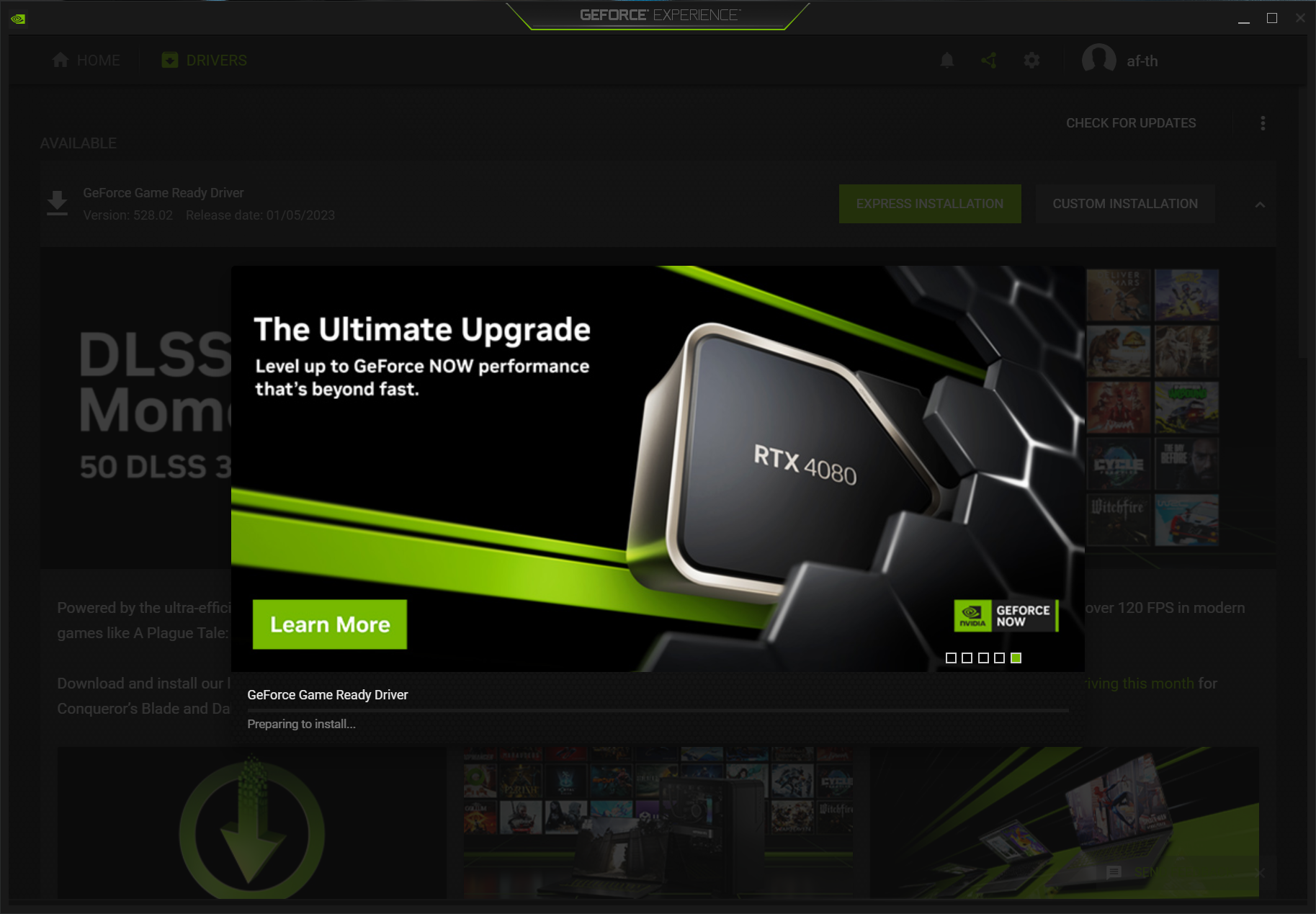
NVIDIA users have two primary paths. The easiest is the GeForce Experience software. Once installed, it automatically notifies you when a new driver is available and allows for a “One-Click” installation.
However, for those who prefer a leaner system without extra background processes, the manual route is preferred:
- Visit the NVIDIA Driver Downloads page.
- Select your Product Type, Series, and Operating System.
- Choose between the Game Ready Driver (optimized for gaming) or the Studio Driver (optimized for stability in creative apps like Maya or Photoshop).
- Download and run the .exe file, following the on-screen prompts.
AMD Radeon Software: Adrenalin Edition Features
AMD’s software suite, known as Radeon Adrenalin, is highly regarded for its integrated overclocking and monitoring tools.
- Go to the AMD Support page.
- You can use their “Auto-Detect and Install” tool, which scans your system and fetches the correct file.
- Alternatively, manually select your GPU model from the list.
- During installation, AMD offers a “Factory Reset” option, which is highly recommended if you are experiencing performance issues, as it wipes old settings before applying the new ones.
Intel Graphics: Moving Beyond Integrated Basic Drivers
With the launch of the Intel Arc series of discrete GPUs, Intel has stepped up its driver game significantly.
- Visit the Intel Download Center.
- Search for “Graphics” or use the “Intel Driver & Support Assistant” (DSA).
- The DSA is particularly useful for laptop users, as it manages not just the GPU, but also Wi-Fi and Bluetooth drivers in one centralized hub.
4. Best Practices for a “Clean” Installation
Sometimes, simply clicking “update” isn’t enough. Over time, fragments of old driver code can accumulate, leading to “driver rot.” This manifests as degraded performance or settings that refuse to save.
Using Display Driver Uninstaller (DDU) for Troubleshooting
If you are switching from an AMD card to an NVIDIA card, or if your current drivers are severely corrupted, professionals use a tool called DDU (Display Driver Uninstaller).
- DDU should be run in Windows Safe Mode.
- It completely nukes every trace of the previous driver from the Windows Registry.
- Once the system reboots, it will look like a fresh Windows install with no graphics drivers, allowing you to install the new version on a truly “clean slate.”
Setting a System Restore Point
Before any major driver change, it is a tech-savvy habit to create a System Restore Point.
- Type “Create a restore point” in the Windows search bar.
- Click Create and label it “Before Driver Update.”
This ensures that if the new driver is incompatible or causes a “black screen” error, you can easily revert your system to its previous functional state without losing data.
Choosing “Custom” vs. “Express” Installation
During the installation process, you will often be asked to choose between “Express” and “Custom” (or “Advanced”) installation. Always choose Custom. This allows you to select “Perform a clean installation,” which deletes previous profiles and ensures that the new driver is installed without conflicting with old configurations.
5. Future Trends: AI-Driven Drivers and Automatic Optimization
The future of graphics drivers is moving away from static files toward dynamic, AI-optimized environments. We are entering an era where the driver is no longer just a translator but an active participant in performance.
The Rise of AI Upscaling (DLSS and FSR)
As we move toward 4K and 8K resolutions, even the most powerful GPUs struggle to render native pixels at high speeds. Drivers now include AI models that “upscale” images in real-time. Upgrading your driver is now equivalent to upgrading your “AI Brain,” as newer driver versions often contain refined neural network weights that produce sharper images with fewer visual artifacts.
Cloud-Based Driver Management and the End of Manual Updates
We are seeing a shift toward cloud-integrated driver management. In the near future, drivers may update modularly in the background without requiring a full system reboot. Both NVIDIA and AMD are experimenting with cloud profiles that automatically adjust your driver settings based on the collective data of millions of other users playing the same game on similar hardware.
Environmental and Power Efficiency Optimizations
In an era of rising energy costs, tech companies are utilizing driver updates to improve “performance per watt.” Newer drivers include better power management profiles that allow the GPU to down-clock more aggressively when idle or during low-intensity tasks like web browsing. This not only saves electricity but also extends the lifespan of the hardware by reducing heat output.
Conclusion
Upgrading your graphics driver is one of the simplest yet most impactful maintenance tasks you can perform for your computer. By moving beyond the basic updates provided by Windows and taking a proactive, manual approach, you unlock the full potential of your hardware. Whether you are seeking the edge in a competitive shooter, stability in a professional render, or simply a smoother daily computing experience, the 15 minutes spent updating your drivers is an investment that pays immediate dividends in performance, security, and technological longevity. Keep your drivers current, and your hardware will continue to serve you at its peak for years to come.
aViewFromTheCave is a participant in the Amazon Services LLC Associates Program, an affiliate advertising program designed to provide a means for sites to earn advertising fees by advertising and linking to Amazon.com. Amazon, the Amazon logo, AmazonSupply, and the AmazonSupply logo are trademarks of Amazon.com, Inc. or its affiliates. As an Amazon Associate we earn affiliate commissions from qualifying purchases.